


 視頻轉換大師
 屏幕錄影大師
 影片修復
影片修復
 安全下載
安全下載如何在Mac和PC上使用QuickTime在音頻上錄製屏幕
There is much pre-installed software on your Mac, and QuickTime Player is one of them. If you only regard QuickTime Player as a media player for Mac computer, then you are wrong. There are some hidden features in it, and screen recording is one of them.

無論您是要捕獲屏幕上正在播放的內容,還是要通過相機記錄屏幕,QuickTime Player都可以輕鬆實現。
除了視頻屏幕錄製,它還允許您在Mac上錄製音頻。
也就是說:您可以在Mac上錄製帶有音頻的視頻屏幕。
This detailed tutorial shows you how to start a screen recording with audio on Mac.
第1部分。在Mac上使用音頻進行QuickTime屏幕錄製
在Mac上開始屏幕錄製很容易。當您想用音頻錄製Mac屏幕時,事情變得棘手。
不用擔心,這裡我們將向您展示如何用音頻錄製Mac視頻。
步驟1.開始QuickTime錄製
該過程從在Mac上打開QuickTime Player開始。
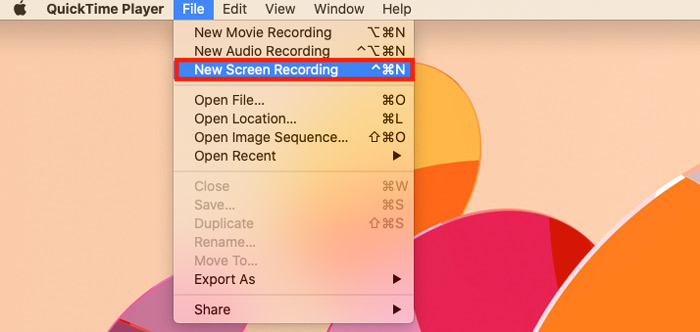
1. Go to File, and select New Screen Recording or New Movie Recording from the menu bar.
New Screen Recording: It will record anything that is happening on your Mac desktop with audio from the microphone or not.
New Movie Recording: It will record screen from camera with audio from microphone and speaker on Mac.
Here, we choose New Screen Recording.
2.屏幕錄製提示將出現。在這裡,您應該通過單擊選項菜單進行錄製設置:
Microphone: Choose Microphone or none to record screen with or without audio. If popped up, just allow QuickTime to access microphone.
Options: Choose Show Mouse Clicks or not.
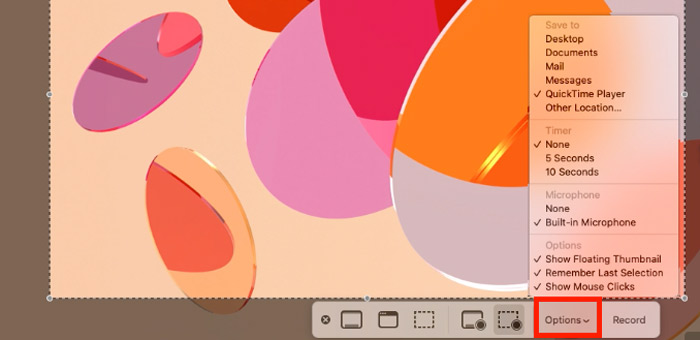
Recording area: Click Record Entire Screen to record the whole screen, or click Record Selected Portion to drag to record the select the area of the screen you want to record.

第2步。用音頻錄製Mac屏幕
When everything is done, just click the Record button to start recording your Mac screen. In the recording area, any screen that is playing will be captured with QuickTime.

步驟3.暫停並停止QuickTime錄製
New Screen Recording does not support a pause recording, and to finish the screen recording, you can find the Stop button in the menu bar, which will be to the left of the Wi-Fi button.

步驟4.導出QuickTime屏幕錄像
在停止QuickTime屏幕錄像時,它將引導您進入預覽窗口,您可以在其中單擊“播放”按鈕來播放屏幕錄像。
To export the screen recording, you should click File in the menu bar, click Save, then name your video recording, and find a location to store it on Mac as MOV (Learn it here to convert QuickTime as MP4.).
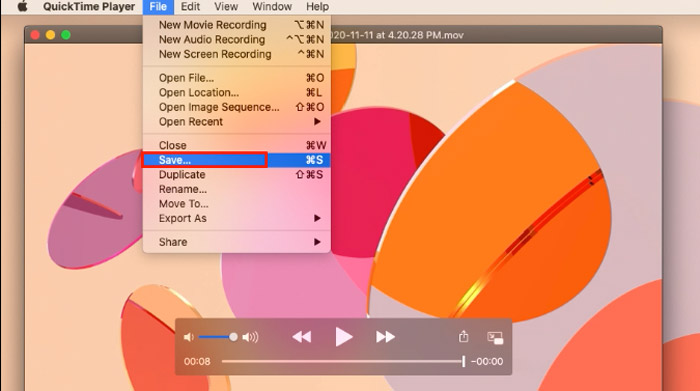
To save the QuickTime Screen Recording in high-quality, you should click File, and select Export As to choose 720p.
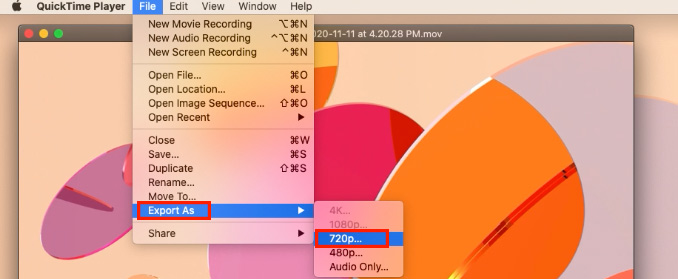
這就是在Mac上用音頻快速錄製Mac屏幕所需的全部內容。
第2部分。QuickTime屏幕錄像故障排除
How do I change the FPS in QuickTime screen recording?
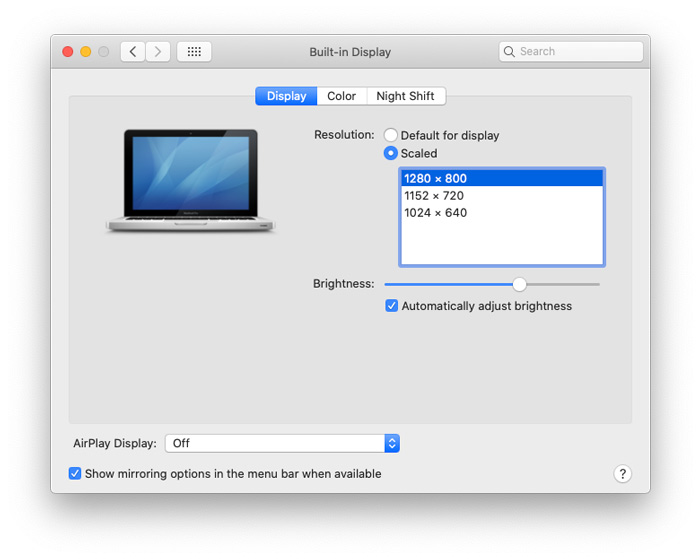
一般來說,沒有用於更改QuickTime屏幕錄製幀頻的官方設置。通常的記錄幀速率為30 FPS,但可以通過更改顯示比例將其提高到60 FPS。
Click on the Apple menu, select System Preferences, click Displays, select the Display tab, tick the Scaled option, select Larger Text, and finally, click OK to save the changes.
No sound on QuickTime screen recording, and how to fix it?
要修復QuickTime上沒有聲音的屏幕錄製,可以執行以下操作:
- 1.確保已啟用音量調高。
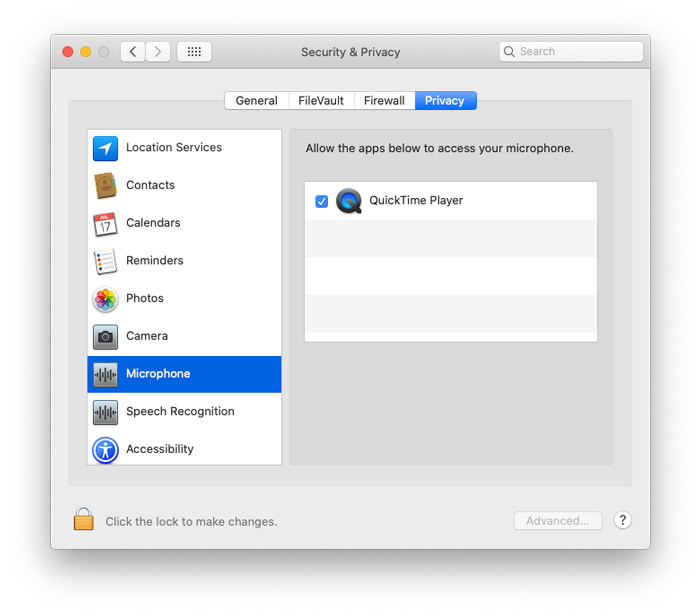
- 2.通過以下操作確認您已選擇“麥克風錄製” 第1步 在這篇文章的第1部分中。
- 3.允許QuickTime訪問麥克風。 (點擊 蘋果 菜單,打開 系統偏好設定,點擊 安全與隱私,瀏覽 隱私 標籤,向下滾動並選擇 麥克風 在左側窗格中,然後勾選 QuickTime播放器.)
How do I crop a screen recording in QuickTime?
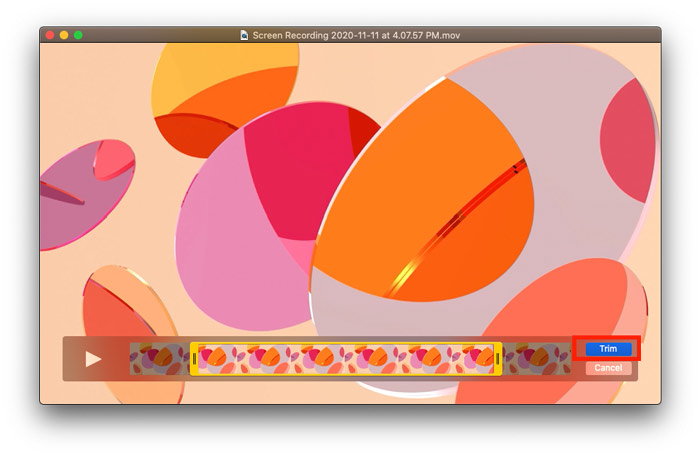
要在QuickTime中剪切屏幕錄像,
- 1.您只需要先打開視頻記錄,然後單擊 編輯 從頂部菜單欄。
- 2.選擇 修剪 從下拉菜單中。
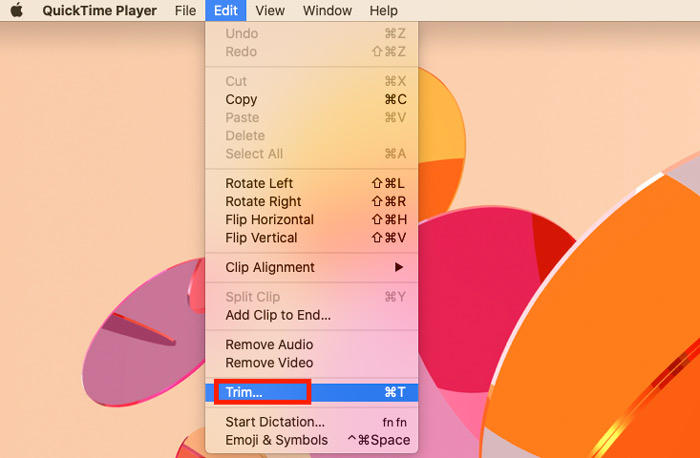
- 3.然後拖動手柄以設置起點和終點。黃色條內的所有內容都會保留。
- 4.點擊 修剪 通過選擇播放圖標在右側的預覽視頻。
- 5.跟隨 步驟4 在第1部分中,將裁剪後的屏幕記錄保存在QuickTime中。
第3部分。在PC上的QuickTime屏幕記錄
使用QuickTime在Mac上錄製屏幕很容易。但是,一旦QuickTime屏幕錄製不起作用,或者您想在Windows計算機上錄製屏幕,QuickTime便不是解決方案。
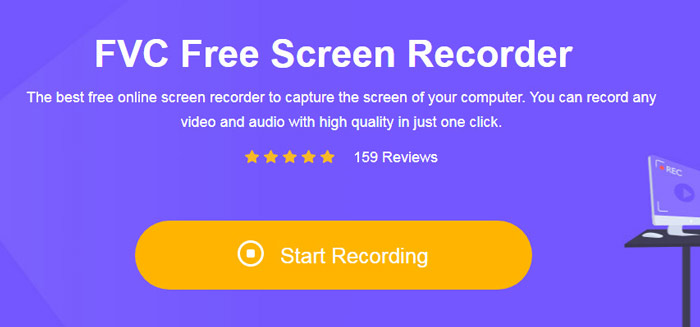
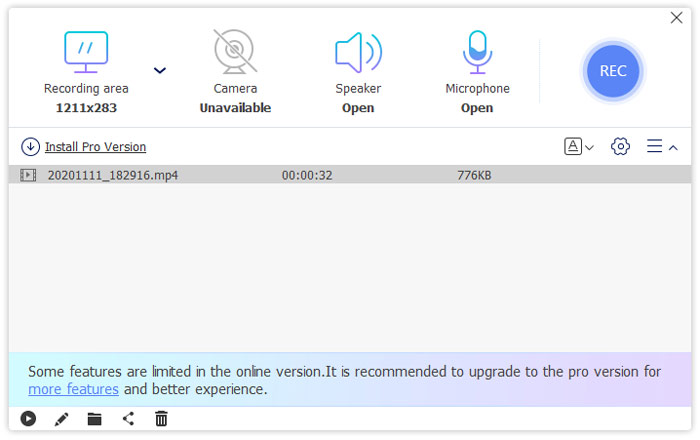
Here, Free Online Screen Recorder can solve all the problems, and provides you an easier way.
Free Online Screen Recorder是一個Web捕獲軟件,可以記錄帶有音頻的PC和Mac上正在播放的任何屏幕。無論您是要保存來自YouTube,Facebook等的在線視頻,還是要掌握SoundCloud,Pandora中的音樂,甚至是錄製遊戲要上傳到Twitch上,此魔術工具都是關鍵。
- • 在 Windows 10/8/7 和 macOS 上錄製視頻、屏幕和音頻。
- •從相機錄製以創建畫中畫錄製。
- •從計算機錄製麥克風和揚聲器的聲音。
- •記錄您的PC存儲設備無限制運行的時間。
- •錄製屏幕時進行實時編輯。
請按照下面提到的簡單步驟在此處了解如何在Windows上開始屏幕錄像。
Step 1. Launch the free online screen recording software on the web through your browser.
請按照屏幕上的說明下載並安裝啟動器,該啟動器可以直接記錄和保存您的記錄,而無需執行其他步驟。
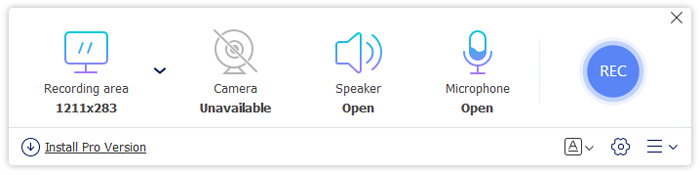
Step 2. Drag your mouse to select the recording portion. Besides, toggle on Speaker, Microphone, or Camera optionally to record the sound and camera you need.
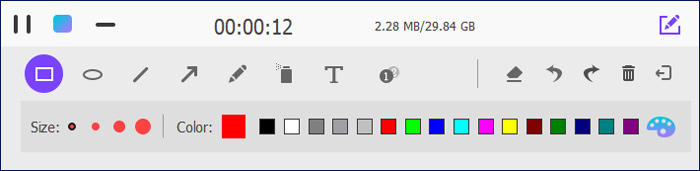
Step 3. Click REC to start a screen recording. While recording, click the edit button in the floating bar to draw a shape, add text, and apply other effects into this program.
Step 4. To end the recording, just click the stop button, and it will export and download the screen recording to your computer automatically.
第4部分。常見問題解答QuickTime屏幕錄像
您可以在Windows上使用QuickTime屏幕記錄嗎?
不能。Apple不再支持Windows的QuickTime。要在Windows屏幕上記錄屏幕,您需要Windows的專業屏幕記錄器。
QuickTime屏幕錄製是否錄製音頻?
是。 QuickTime屏幕錄製可錄製來自麥克風的音頻,但不會錄製來自Mac計算機的內部音頻。除非您在Mac上從相機錄製時播放音頻,否則QuickTime Movie Recording可以錄製內部音頻和麥克風聲音。此外,您可以下載第三方軟件Soundflower(可內置於QuickTime中)並從Mac開始內部錄音。
如何縮小QuickTime屏幕錄像?
導出QuickTime屏幕錄像文件時,可以通過將較低的分辨率選擇為480p,720p(而不是1080p)來減小文件的大小。
結論
QuickTime是Mac上的免費媒體播放器和屏幕錄製程序。有了它,您可以用麥克風的音頻錄製Mac屏幕。但是,QuickTime Player不適用於Windows用戶。要錄製Windows屏幕,可以使用Free Online Screen Recorder,它是一個網絡記錄器,用於捕獲來自揚聲器和麥克風的音頻的屏幕。
現在,輪到您了。
您認為QuickTime是一種簡單的屏幕錄製工具嗎?
您使用什麼軟件記錄PC屏幕?
使用QuickTime錄製Mac屏幕時,您還有其他問題嗎?
留下您的評論,讓我知道。
-
 教程–將iPhone上的視頻合併到新的4種免費方法
 閱讀並獲取4種在iPhone上合併視頻的簡單方法。支持所有iPhone型號和iOS版本。您可以將iPhone上的2個或更多視頻快速合併為一個新視頻。
-
 在Mac和PC上將ARF轉換為MP4的2種免費方法(正在運行100%)
 獲取ARF文件,但不知道如何打開它?這篇文章可以幫助您。以下是2種在Mac和PC上將ARF轉換為MP4的免費方法的詳細信息。
-
 如何免費壓縮視頻/嘗試使用這7種在線視頻壓縮器
 閱讀並獲得7種在計算機或電話上免費壓縮視頻的方法。您可以輕鬆地將大型視頻縮小為較小的文件大小,以用於電子郵件,Twitter,Instagram,YouTube,WhatsApp等。
