


 視頻轉換大師
 屏幕錄影大師
 影片修復
影片修復如何使用iMovie通過內置/外接攝像機錄製視頻
iMovie是面向macOS,iOS和iPadOS用戶的免費屏幕錄像機和視頻編輯器。您可以在Apple Mac和iOS設備上免費使用iMovie錄製和編輯屏幕視頻。此外,您可以將錄製的視頻和音頻直接嵌入到現有的iMovie文件中。如果要獲取iMovie屏幕錄像教程,可以繼續閱讀並在此處獲取更多詳細信息。

第1部分:如何在iMovie中錄製視頻
您不僅可以使用 iMovie 錄製屏幕視頻,還可以錄製音頻和網絡攝像頭疊加。因此,您可以在 Mac 上錄製所有視頻和音頻文件。此外,您還可以錄製具有內部和外部聲音的在線會議。這是在 Mac 上的 iMovie 中錄製視頻的詳細教程。
步驟 1: 在你的 Mac 電腦上打開 iMovie 應用程式。點擊工具列上的 匯入 按鈕。你可以先點擊頂端工具列上的 媒體 按鈕來找到匯入按鈕。
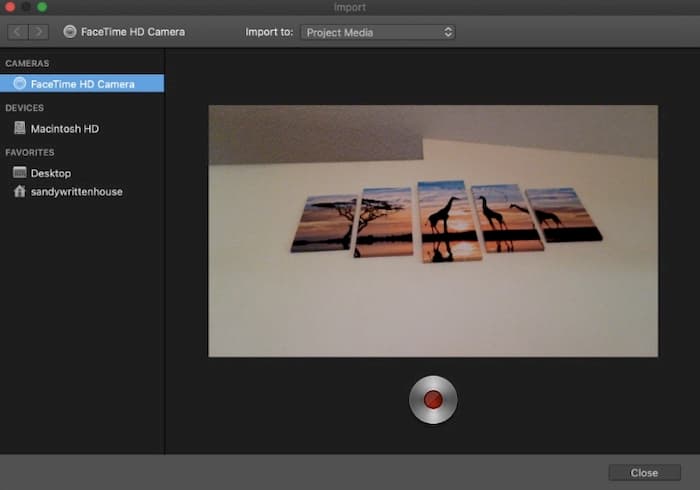
步驟 2: 如果你想在 iMovie 中錄製自己,可以在「相機」區域中選擇內建相機。即時影像會顯示在 匯入 視窗中。
步驟 3: 從 匯入到 清單中,你可以依需求選擇現有事件、建立新事件,並選擇目前開啟的專案。
步驟 4: 在即時影像下方找到並點擊 錄製 按鈕。你可以使用 iMovie 錄製所選範圍的影片。
步驟 5:點擊同一位置的 停止 圖示,以結束 iMovie 錄影。
步驟 6: 返回 iMovie 主介面,繼續進行後續的剪輯作業。
第2部分:iMovie無法正常工作?使用FVC Free屏幕錄像機
目前沒有適用於 Windows 的 iMovie 版本。此外,iMovie 需要最新的 Mac 作業系統。如果你不想升級 Mac OS,或你是 Windows 使用者,FVC Free Screen Recorder 可以是最佳的 iMovie 替代方案。你可以在 Windows 和 Mac 上免費錄製任何影片與音訊,沒有浮水印,也沒有時間長度上限。因此,你可以零成本錄製數小時的影片。
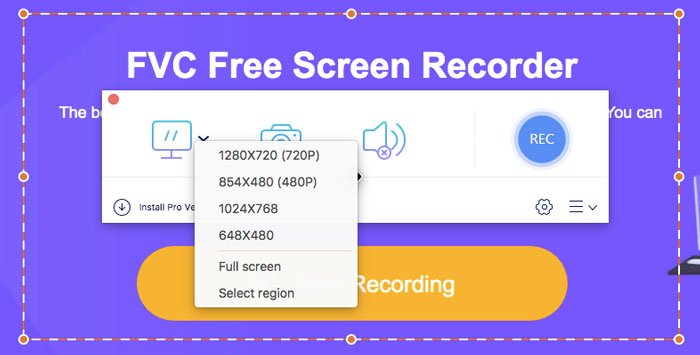
- 1.以全屏,1280×720、854×480、1024×768和自定義區域錄製視頻。
- 2.屏幕截圖以及計算機音頻和旁白。
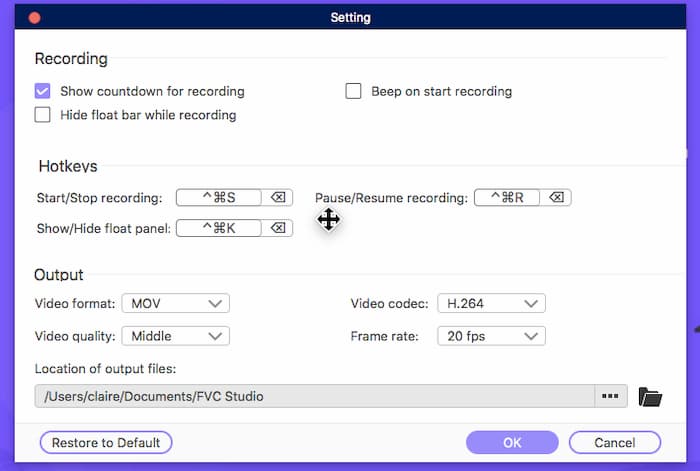
- 3.在錄製之前,請調整視頻格式,分辨率,編解碼器,質量,幀頻和其他設置。
- 4.不會將水印添加到您的視頻錄製文件中。
- 5.沒有最大時間限制。您可以無限制地錄製帶有音頻的屏幕視頻。
- 6.與Windows 10/8/7 / Vista / XP和macOS 1-.7或更高版本兼容。
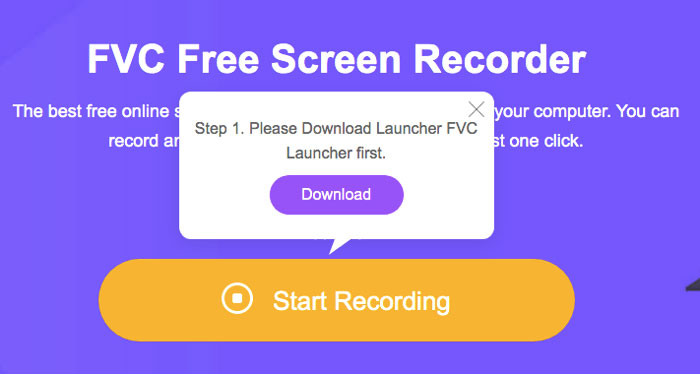
步驟 1: 在瀏覽器中開啟 FVC Free Screen Recorder 網站。於主介面上點擊 開始錄製。第一次使用這個 iMovie for Windows 替代工具錄製時,你需要點擊 下載 並安裝 FVC 啟動器。
步驟 2: 展開 螢幕 圖示。在這裡你可以從預設好的區域範本中選擇,或用滑鼠左鍵拖曳來自訂螢幕大小。點擊 音訊 以同時啟用音訊錄製。
步驟 3: 點擊右下角的 設定 圖示。在這裡你可以變更螢幕錄製設定,包括熱鍵、倒數計時、隱藏浮動工具列、影片格式等。點擊 確定 以儲存變更。
步驟 4: 完成自訂後,點擊 REC 開始螢幕錄影。你可以不限次數地暫停與繼續錄製。
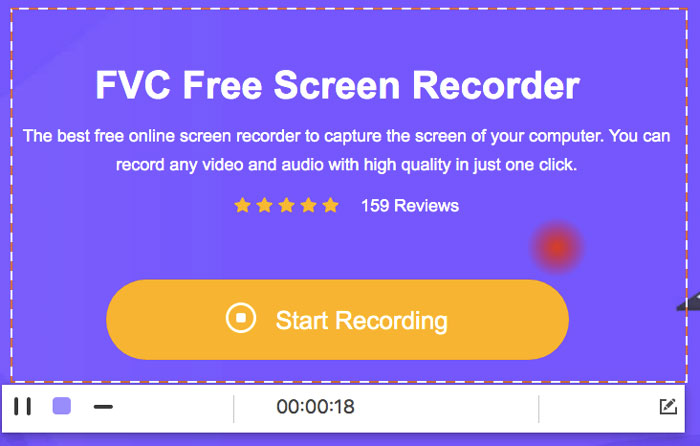
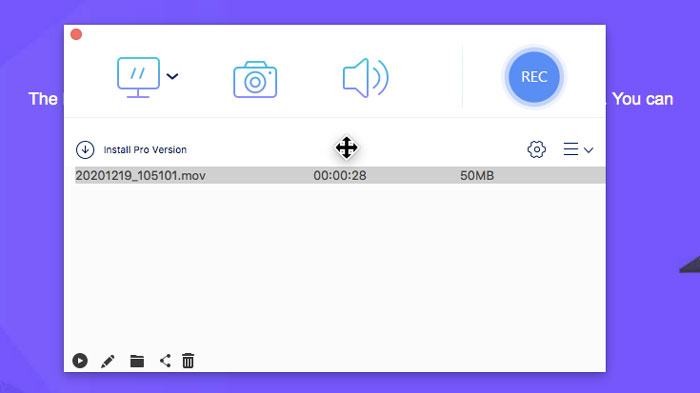
步驟 5: 點擊 停止 結束螢幕錄製。你可以直接從錄製歷史的下拉清單中找到已錄好的影片。之後,你可以重新命名、預覽、整理、分享與刪除該檔案。
第3部分:在iMovie上錄製的常見問題解答
如何使用iMovie錄製iPhone屏幕?
在 iMovie 應用程式中,選擇你想插入錄製片段的位置。點擊左側的 + 圖示。依序選擇 相機,再選 影片 或 照片。現在你就可以在 iPhone 上使用 iMovie 製作螢幕錄影或螢幕截圖。此外,你也可以使用 QuickTime Player 或 iOS 11 的螢幕錄製功能建立螢幕錄影。只要使用 USB 連接線將 iPhone 連接到 Mac 電腦即可。
如何在iMovie上將帶有視頻的屏幕錄像放到屏幕上?
在 iMovie 的 檔案 下拉選單中選擇 新電影。選擇 無主題,並設定檔案名稱。接著選取 匯入媒體 選項,瀏覽並將影片匯入 iMovie。
您可以在iMovie上篩選記錄多長時間?
iMovie錄製沒有特定的時間限制。一般來說,您最多可以錄製60分鐘左右的iMovie視頻。
總而言之,您可以使用iMovie在Mac和iOS設備上免費錄製視頻和音頻。如果要錄製超過1小時的屏幕視頻,可以查看FVC Free Screen Recorder。它是Windows和Mac用戶的iMovie的免費屏幕記錄器替代品。您可以繞過iMovie錄製長度限制和操作系統限制。
此外,FVC Free Screen Recorder完全免費,安全且易於使用。與iMovie不同,您將不會對不堪重負的過濾器和選項感到困惑。您可以從其輕量級界面快速找到所有屏幕錄製工具。無需下載大型軟件包。您可以安裝小於1MB的FVC啟動器來進行全屏視頻和音頻錄製。
-
 ShareX屏幕錄像機評論以及如何使用ShareX記錄屏幕
 ShareX屏幕錄像機有什麼作用?如何在ShareX上記錄我的屏幕?這篇文章對ShareX進行了回顧,並展示瞭如何使用ShareX記錄屏幕。
-
 Movavi屏幕錄像機評論–優點/缺點/價格/教程/替代
 這是Movavi屏幕錄像機的完整評測。您可以知道Movavi屏幕錄像機在屏幕錄像方面是否做得很好。此外,您可以免費獲得沒有水印的屏幕捕獲方法。
-
 Snagit 2021評論–優點,缺點和最佳選擇
 什麼是Snagit的最佳替代品?有像Snagit這樣的屏幕捕獲工具嗎?這篇文章將評論Snagit並分享Snagit捕獲屏幕的最佳選擇。
