


 視頻轉換大師
 屏幕錄影大師
 影片修復
影片修復
 安全下載
安全下載VLC快照功能–這是在VLC Media Player中拍攝屏幕快照的指南
在VLC播放器中播放視頻教程或電影時,如何在VLC Media Player中截屏?無論您需要將快照捕獲為縮略圖還是將註釋添加到特定幀,都可以簡單地使用VLC的隱藏快照功能。
如何使用VLC Media Player拍攝快照?拍攝了所需的幀後,屏幕快照將保存在哪裡?是否可以將快照保存為所需格式?當您想了解有關該過程的更多詳細信息以及最佳選擇時,可以從本文中找到一些有用的信息。

第1部分:如何在VLC中拍攝快照和查找位置
1.如何在VLC Media Player中截屏
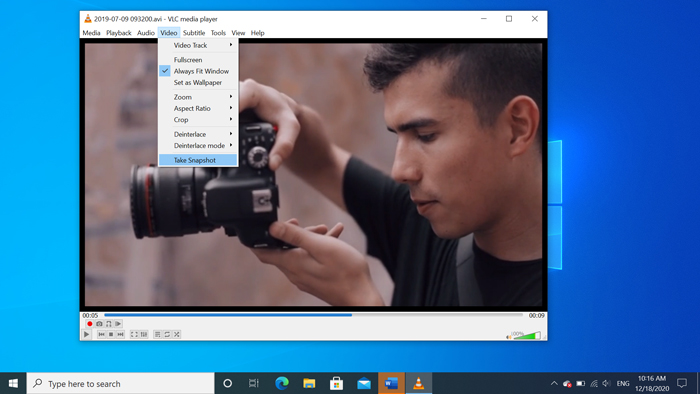
如果您使用的是最新的VLC Media Player,則用戶界面底部會顯示一個攝像機圖標。只需單擊攝像機即可在VLC Media Player中截屏。對於其他版本,您可以使用熱鍵或按鈕來捕獲屏幕截圖,如下所示。
步驟一: 安裝好 VLC Media Player 之後,就可以在電腦上啟動該程式。接著,將想要播放的電影匯入到媒體播放器中。
步驟二: 當影片播放到你想要截圖的畫面時,點擊「視訊」選單,然後選擇「拍攝快照」選項,即可儲存所需的截圖。
您也可以使用快捷方式在VLC中進行屏幕截圖。這是默認值供您參考。對於Windows,為SHIFT + S,對於Mac,則為Command + ALT + S,對於Linux,則為CTRL + ALT +S。
步驟三: 之後,你會在 VLC Media Player 的上方看到一個快照縮圖的彈出提示,同時顯示已儲存檔案的位置與檔名。不過這個提示會在數秒後自動消失。
2. VLC的屏幕快照保存在哪裡
如果您無法從彈出的縮略圖中獲取信息,則這是VLC屏幕截圖的默認目標。當然,您可以拍攝多個快照以了解有關快照目標文件夾的更多信息。
Windows 7/8/10:C:Users用戶名“我的圖片”
Windows XP:C:我的文檔我的圖片
Mac OS X:快照保存在桌面/
Linux:快照保存在$(HOME)/。vlc /中
3.如何在VLC中為快照設置首選項
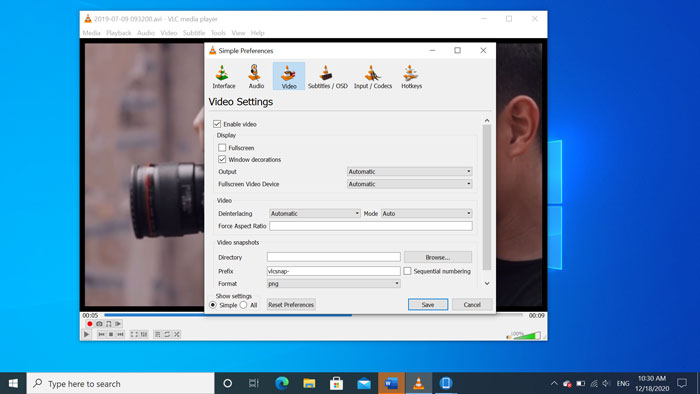
能不能為快照設定偏好選項呢?當你想要更改成其他格式或目的資料夾時,可以前往「工具」選單,選擇「偏好設定」來調整相關設定。
影片目錄:點擊「瀏覽」按鈕後,你可以將 VLC 截圖的儲存位置設定為桌面,或其他經常使用的目的地。
前綴:它將為VLC Media Player中捕獲的屏幕截圖添加一些前綴和後綴。如果要使用數字而不是當前日期/時間,請選中順序編號框。
格式:您可以選擇JPG,PNG和TIFF作為輸出照片格式。
第2部分:VLC的在線替代方案以截圖
VLC Media Player 是擷取影片截圖的簡單方法。但如果你需要加入註解、微調要擷取的畫面,或是在 Windows 和 Mac 上隨時截圖,FVC 免費螢幕錄影工具 是一款線上版的 VLC 替代方案,可用來擷取螢幕畫面。它能夠一鍵高品質錄製任何影片與音訊。此外,你也可以在這款線上錄影工具中管理你的截圖。
- 1.在計算機上捕獲電影,桌面和更多其他活動。
- 2.調整熱鍵,目標文件夾,視頻/音頻質量,以及更多其他功能。
- 3.實時編輯屏幕截圖,例如線條,文本,突出顯示,線條等。
- 4.提供免費的屏幕錄製,沒有水印和其他限制。
- 5.錄製高質量的視頻。
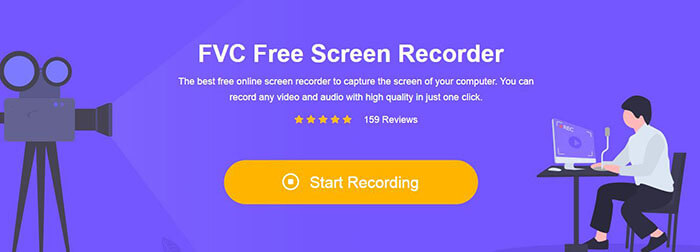
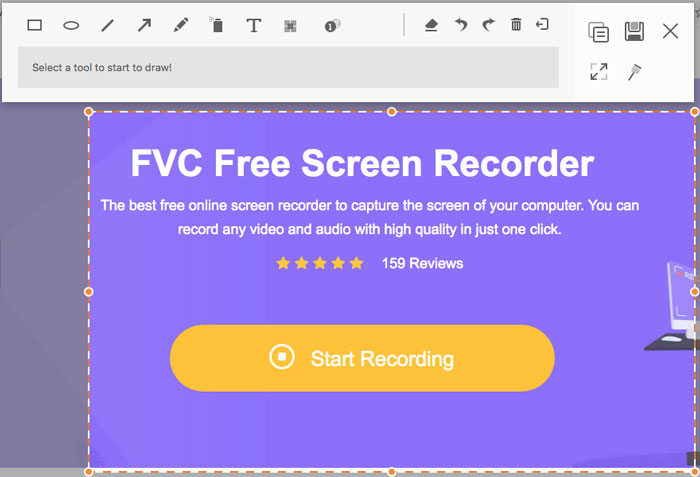
步驟一: 進入線上螢幕錄影工具後,點擊「開始錄製」圖示以下載並安裝安裝程式。完成後即可啟動線上螢幕錄影工具,用來擷取電腦上的任何操作。
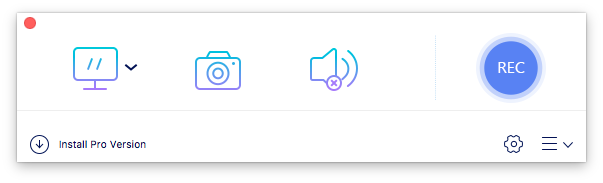
步驟二: 啟動線上螢幕錄影工具後,點擊相機圖示,就能像使用 VLC 替代方案一樣在線上截圖。用滑鼠調整擷取範圍,以取得所需的截圖。
步驟三: 之後,你可以在截圖上加入註解,例如浮水印、標註框、箭頭、文字,以及其他元素。此外,你也可以直接在程式中管理這些截圖。
第3部分。VLCMedia Player的常見問題解答屏幕快照
1.如何調整在VLC中獲取屏幕截圖的熱鍵?
若快捷鍵有衝突,尤其是在你同時進行其他作業時,可以前往「工具」選單並選擇「偏好設定」選項。接著選擇「熱鍵」按鈕,在搜尋欄中輸入「snapshot(快照)」。點擊「拍攝影片快照」(Take video snapshot),然後按下你要設定為 VLC 截圖的新按鍵或按鍵組合。
2.如何以最佳質量在VLC中捕獲快照?
當您需要在VLC中以原始質量拍攝視頻截圖時,可以選擇全屏模式,然後將文件格式選擇為PNG。為避免圖像模糊,可以在要預先捕獲的特定幀處暫停。
3.是否可以在VLC中捕獲YouTube電影的屏幕截圖?
可以。若要在 VLC 中擷取 YouTube 影片的截圖,你可以直接在媒體播放器中串流並播放 YouTube 影片。點擊「媒體」選項並選擇「開啟網路串流」。接著輸入該影片的 YouTube 直接連結網址。之後播放影片,就能照需要擷取快照。你也可以使用 FVC 免費螢幕錄影工具,或其他錄影工具,例如 DU Screen Recorder 來擷取畫面。
結論
在VLC Media Player中拍攝視頻快照是一項簡單的任務。但是,當您要查找目標文件夾,調整快照的設置,甚至選擇在線替代方法時,FVC Free Screen Recorder始終是幫助您的最佳選擇。
-
 Snagit 2021評論–優點,缺點和最佳選擇
 什麼是Snagit的最佳替代品?有像Snagit這樣的屏幕捕獲工具嗎?這篇文章將評論Snagit並分享Snagit捕獲屏幕的最佳選擇。
-
 QuickTime屏幕錄製–在Mac和PC上錄製帶有音頻的視頻
 在Mac上帶有音頻的錄製屏幕會派上用場。內置播放器QuickTime Player可以做到。閱讀他的文章,並了解如何在Mac和PC上用聲音捕獲屏幕。
-
 真實球員的公正評價和最佳選擇
 如果您選擇Real Player來播放媒體播放器,則應閱讀我們的簡介和公正的評論,並從本文中了解有關最佳選擇的更多信息。
