


 視頻轉換大師
 屏幕錄影大師
 影片修復
影片修復
 安全下載
安全下載VLC 螢幕錄製:在 VLC 上輕鬆錄製螢幕的 4 種方法
你肯定聽說過 VLC,而且我說得沒錯,你現在想到的,應該是我們平常用來播放和串流影片的媒體播放器。不過,VLC 可不只是個簡單的媒體播放器,它還有許多實用的功能供使用者享受。透過這個播放器,使用者其實可以用 4 種不同方式直接進行螢幕錄製,而且最棒的是:它完全免費,還支援多種平台,對想要一款簡單又實用螢幕錄影工具的使用者來說相當方便。所以,如果你想知道要如何使用 VLC 螢幕錄製 功能,就繼續看下去吧!

第 1 部分。 VLC 可以錄製螢幕嗎?
是的。 VLC 支援螢幕錄製。事實上,它內建了這項功能。這項 VLC 螢幕錄製功能對於那些想在 VLC 上觀看或播放影片時錄製螢幕的用戶來說非常有用。然而,與其他專用視訊錄製工具相比,它只提供基本的螢幕錄製功能。儘管如此,VLC 仍然是滿足簡單螢幕錄製需求的好選擇,尤其是對於已經安裝 VLC 的用戶。
第 2 部分。如何在錄製前啟用 VLC 錄製功能?
雖然 VLC 內建了螢幕錄製功能,但許多用戶找不到它,或者不知道如何啟用它。下面,了解如何啟用 VLC 錄製功能:
步驟 1.在電腦上啟動 VLC 媒體播放器。
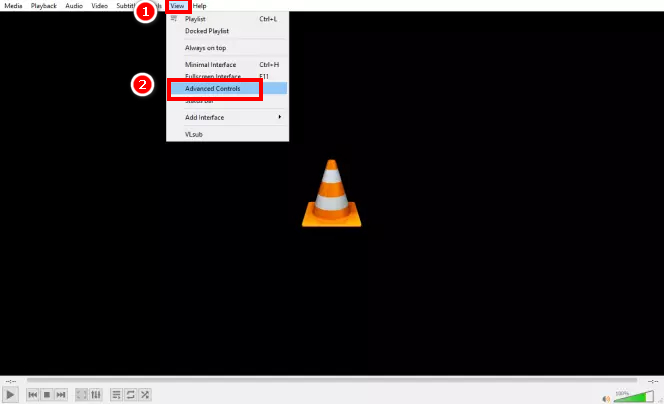
步驟 2.接著前往 檢視 分頁,並在選單中選擇 進階控制。
注意: 螢幕錄製按鈕會出現在下方播放鍵旁邊。
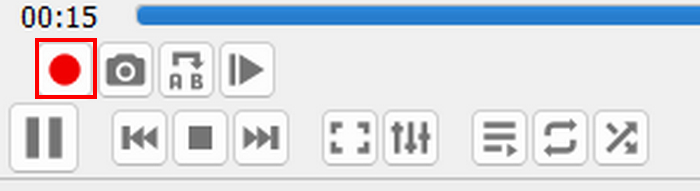
第 3 部分。如何在 VLC 中執行螢幕錄製?
根據您要錄製的內容,VLC 提供多種螢幕錄製方法。由於 VLC 可以播放各種媒體文件,因此錄製方法略有不同。
如何使用 VLC 播放器錄製螢幕?
如果您只是在 VLC 上觀看電影或簡單的視頻,您可以按照以下步驟輕鬆地在 VLC 中錄製螢幕。但在開始之前,您必須先啟用 VLC 的螢幕錄製功能。如果功能已準備就緒,請按照以下步驟在 VLC 中錄製螢幕。
步驟 1.在 VLC 中,前往 媒體 分頁。
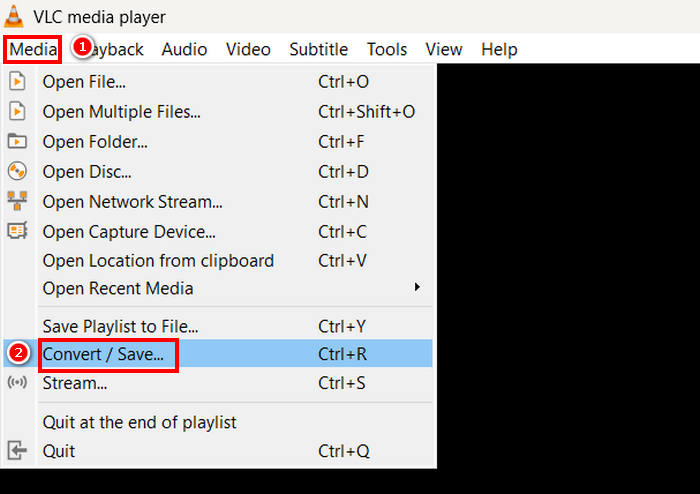
步驟 2.往下捲動並選擇 轉換/儲存。
步驟 3.之後,選擇 擷取裝置 分頁,點擊擷取模式,然後選擇 桌面。
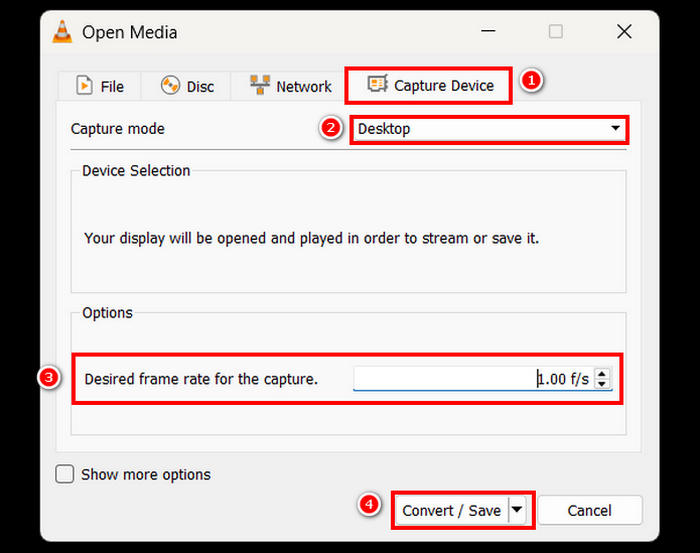
步驟 4.選擇你想要的影格率,然後點擊 轉換/儲存 按鈕。
步驟 5.最後,為檔案命名,選擇你要儲存的資料夾,並點擊 儲存 按鈕。
透過這些簡單的步驟,您就可以直接使用 VLC 錄製桌面活動。雖然此方法非常適合基本的螢幕錄製,但請記住,VLC 螢幕錄製缺少即時註釋和編輯工具等高級功能。如果您需要更多自訂功能,請考慮使用專用的螢幕錄製軟體。
如何使用 VLC 從光碟錄製影片?
如果您正在 VLC 上播放光盤,並且想要錄製視頻,也可以輕鬆實現。 VLC 允許用戶在軟體播放光碟時從光碟中擷取影片。
以下是在觀看光碟影片時,使用 VLC 錄製畫面的方式:
步驟 1.首先,你需要在 VLC 媒體播放器中播放光碟。
注意: 在進行下一步之前,請先確定你已啟用 VLC 的螢幕錄製功能。
步驟 2.在光碟播放時,點擊畫面下方左側的 錄製 按鈕。
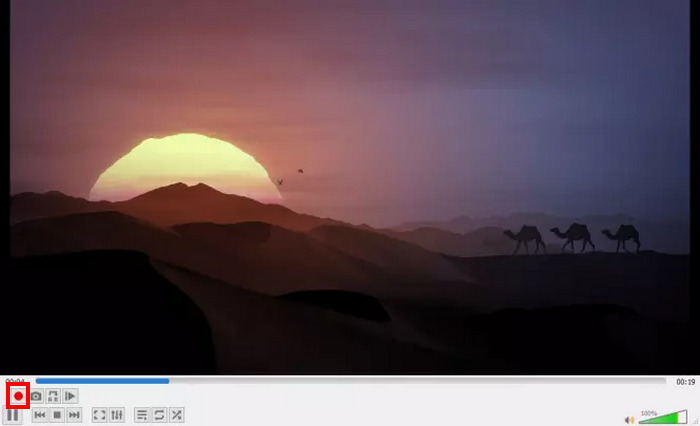
步驟 3.錄製完成後,再次點擊 錄製 按鈕即可停止。
使用 VLC 從光碟錄製影片是一種方便保存影片片段以供日後觀看的方法。但是,VLC 不提供調整錄製品質或編輯已錄製素材的選項。
如何使用 VLC 錄製線上串流影片?
如果您是主播,並且想錄製在 VLC 上播放的視頻,您也可以這樣做。 VLC 支援串流視頻,有了它,進行直播的用戶實際上可以擁有他們生活的備份,以便在線上分享、保存或發布。請依照以下步驟操作:
步驟 1.在 VLC 中,前往 媒體 分頁,並選擇 開啟網路串流。
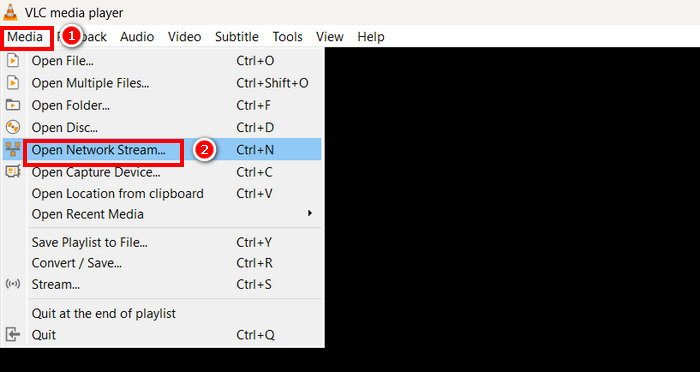
步驟 2.接著,開啟你偏好的瀏覽器,複製該串流的網址。
步驟 3.將你的串流網址貼到 VLC 中的 請輸入網路 URL 欄位。
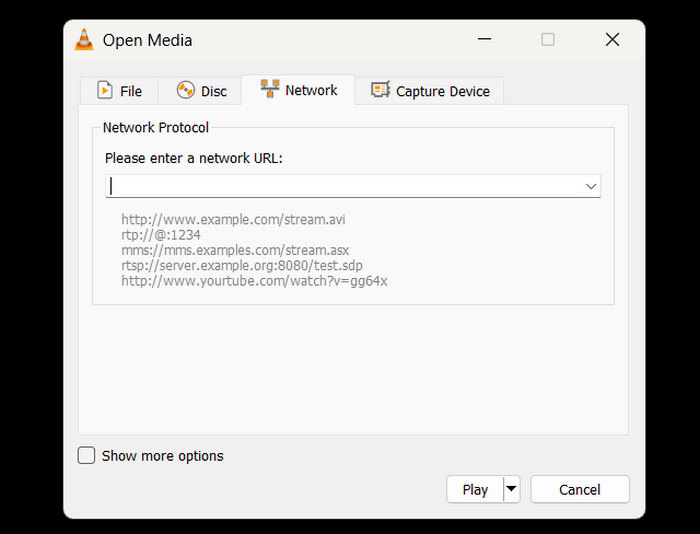
步驟 4.現在,點擊 錄製 按鈕開始錄製串流影片,再次點擊同一按鈕即可停止。
步驟 5.完成後,串流影片會自動儲存在你的裝置中。
注意: 請記住,VLC 只會在串流實際播放時進行錄製,因此如果期間有中斷或緩衝,可能會影響最終影片。
如何使用 VLC 擷取設備?
如果您想從網路攝影機或其他連接來源等外部裝置錄製視頻,您也可以直接在 VLC 中進行操作。請依照以下步驟操作:
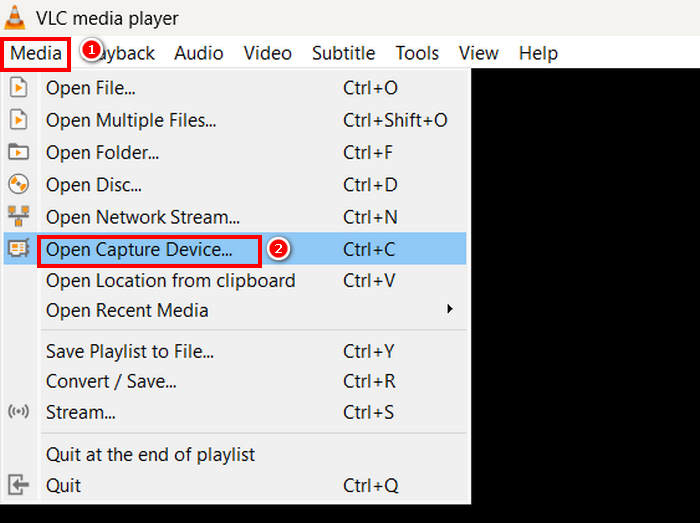
步驟 1.在 VLC 中,前往 媒體 分頁,並選擇 開啟擷取裝置。
步驟 2.接著前往 擷取裝置 分頁,在擷取模式中選擇 DirectShow。
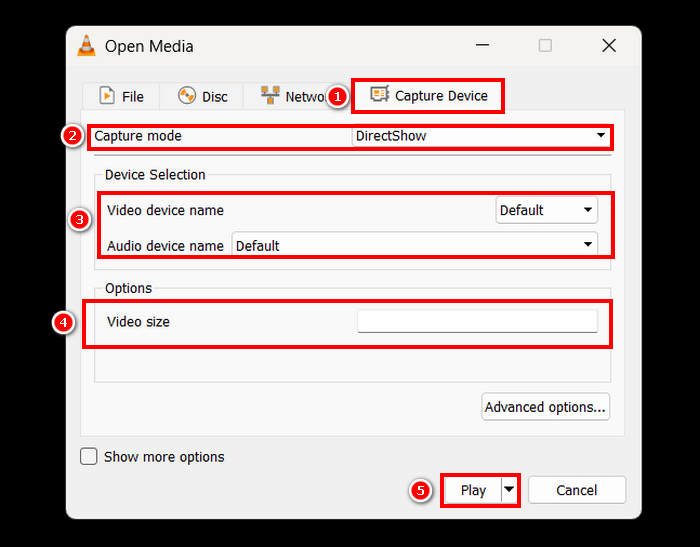
步驟 3.然後選擇 視訊 與 音訊裝置名稱。你也可以調整 視訊大小。完成設定後,點擊 播放 按鈕。
步驟 4.最後,要開始錄製時,只要點擊下方的 錄製 按鈕即可。
雖然 VLC 允許您從外部設備捕獲視頻,但其錄製選項相當有限。如果您需要更高品質的錄製體驗、更強大的設定控製或即時調整等附加功能,請考慮使用專用的擷取軟體。
如果有興趣,點擊這裡閱讀更多關於 VLC 螢幕截圖 的內容。
第四部分:VLC 的最佳螢幕錄影機替代品
如果你覺得 VLC 的螢幕錄製功能操作起來有點繁瑣,也有其他替代方案。 是一款專業且專注於螢幕錄製的工具,讓使用者能輕鬆擷取並錄製螢幕。利用這款工具,使用者可以錄製全螢幕、螢幕的指定區域,或固定區域/作用中視窗,能依照需求彈性選擇錄製範圍。此外,這款螢幕錄影工具也支援聲音錄製與螢幕截圖。最後,它還提供多種輸出格式,可在螢幕錄製完成並準備儲存時選擇。
若要使用 FVC Screen Recorder 錄製螢幕,請依照以下步驟操作:
步驟1:在電腦上下載並安裝 FVC 螢幕錄影程式。它支援 Windows 和 macOS 系統。
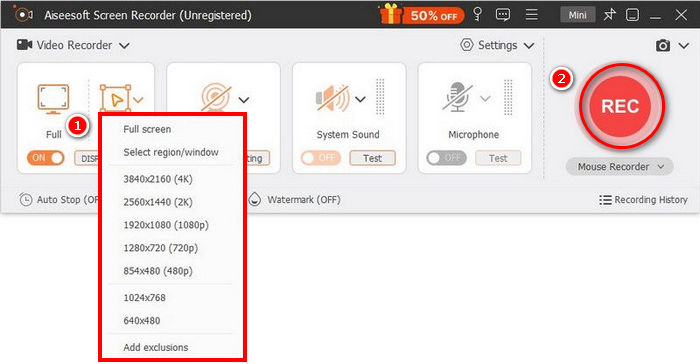
步驟 2。接著,啟動程式並按一下 REC 按鈕開始錄製螢幕。你可以自行選擇錄製範圍或錄製方式。完成後,只要按下停止按鈕即可。
步驟3:現在,您可以選擇編輯影片。當您滿意結果後,點擊匯入按鈕來儲存錄製好的影片。
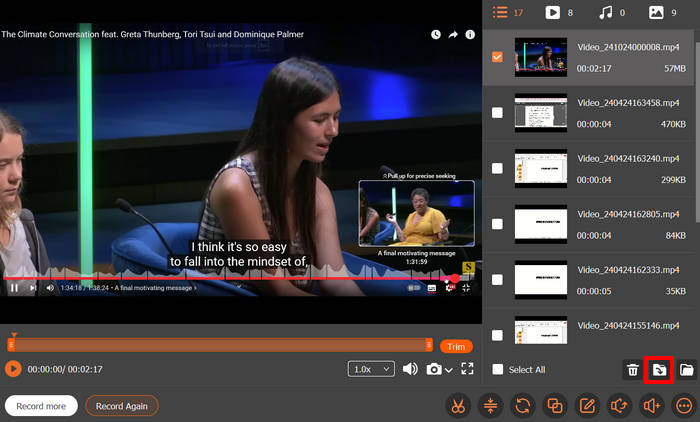
FVC 螢幕錄影機介面簡潔直觀,即使是新手也能輕鬆上手。其一系列高級功能讓用戶可以錄製高品質且可自訂的影片。
第五部分:關於 VLC 螢幕錄影機的常見問題解答
VLC 可以錄製有音訊的螢幕嗎?
是的,VLC 的螢幕錄製功能可以讓你錄製畫面,但預設不會擷取系統音訊。若要同時錄製螢幕與音訊,你可能需要設定額外的進階選項,或搭配其他外部軟體。
VLC 螢幕錄影保存在哪裡?
預設情況下,VLC 將螢幕錄影保存在 Windows 上的「視訊」資料夾或 macOS 上的「影片」資料夾中。但是,使用者也可以自訂儲存資料夾,並在儲存影片錄製檔案時選擇自己喜歡的資料夾。
為什麼我的 VLC 螢幕錄製延遲?
VLC 螢幕錄製卡頓的原因有很多。但通常情況下,主要原因是 VLC CPU 佔用率高、幀率低或系統資源不足。調整幀率設定或關閉不必要的應用程式可能有助於提升效能。
我可以在 VLC 中錄製特定視窗而不是整個螢幕嗎?
很遺憾,不行。 VLC 不像其他專用螢幕錄影機那樣內建了錄製特定視窗的選項。它只允許全螢幕錄製。如果要錄製特定窗口,請考慮使用專用的螢幕錄製軟體。
如何停止 VLC 螢幕錄製?
若要在 VLC 中停止錄製,只需再次按一下「錄製」按鈕或關閉 VLC 即可。錄製的檔案將自動儲存在指定資料夾或您選擇的資料夾中。
結論
VLC 影片螢幕錄製 是 VLC 媒體播放器的一項出色功能,因為除了能播放與串流各種影片外,它也能擷取與錄製螢幕畫面。這個功能方便又容易上手,不過它缺少了一些專業螢幕錄影工具(例如 FVC Screen Recorder)所具備的進階功能。儘管如此,如果你只需要基本的螢幕錄製,VLC 仍然是一款很棒的工具。
-
 VLC 媒體播放器中的螢幕截圖逐步指南
 了解輕鬆截取 VLC 螢幕截圖的簡單步驟。按照我們的指南,透過快捷鍵和選單設定快速輕鬆地擷取快照。
-
 如何使用 VLC Media Player 錄製音訊:完整指南
 在本文中,您將學習如何使用 VLC 媒體播放器錄製音訊。本文有詳細的步驟,並將推薦 VLC 的最佳替代品之一。
-
 2025 年 9 款最佳 4K 超高清螢幕錄影機
 正在尋找一款能夠錄製真正 4K 畫質的螢幕錄影機?探索 9 款最佳 4K 螢幕錄影工具,確保影片輸出不會損失畫質。
