


 視頻轉換大師
 屏幕錄影大師
 影片修復
影片修復
 安全下載
安全下載Firefox 滾動螢幕截圖以實現無縫網頁捕獲
Mozilla Firefox 是許多用戶使用的著名且受歡迎的網頁瀏覽器。與任何其他瀏覽器一樣,它有一個用於截取螢幕截圖的內建工具,幾乎適用於所有頁面,但有些需要權限,這有時會妨礙您的任務;因此,出於各種原因,例如歸檔資訊、共享內容或保存記錄,捕獲整個網頁已成為必要。然而,傳統的螢幕截圖方法在捕獲較長的網頁時存在局限性,這可能會讓用戶感到沮喪,尤其是在使用 Firefox 等網頁瀏覽器時。
在本文中,我們將深入探討 Firefox 的捲動截圖 功能,帶你了解其內建工具、可使用的網頁擴充套件,以及其他替代軟體,幫助你輕鬆擷取完整的網頁內容。請繼續向下閱讀本文,了解 Firefox 的捲動截圖功能如何徹底改變網頁擷取方式,讓使用者在沒有任何限制的情況下,保留線上內容的每一個細節。

第 1 部分:如何使用內建工具在 Firefox 中擷取滾動螢幕截圖
使用 Firefox 的內建工具,擷取可捲動網頁的螢幕截圖就像取得常規螢幕截圖一樣輕鬆。這項方便的功能使用戶可以輕鬆捕獲整個頁面滾動,而無需安裝額外的軟體。
步驟一: 在電腦上開啟你的 Mozilla Firefox 瀏覽器,在主介面中於網址列旁的區域按一下滑鼠右鍵,然後選取「自訂工具列」。
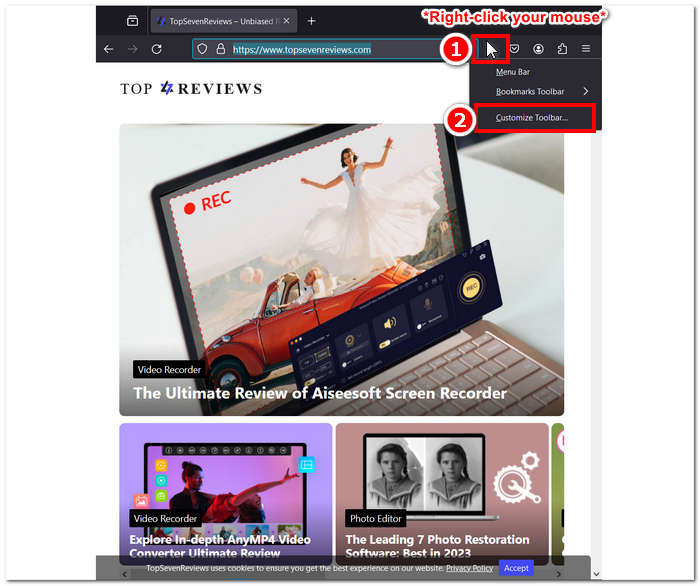
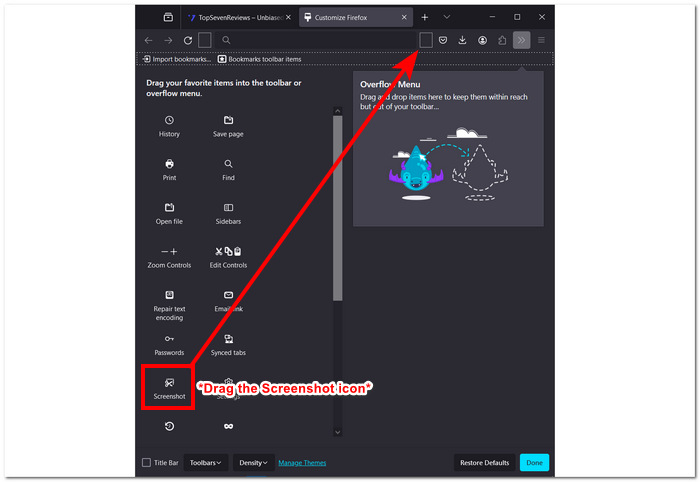
步驟二: 將工具列中的 Screenshot(截圖) 按鈕拖曳出來,接著前往你想要進行捲動截圖的網頁。
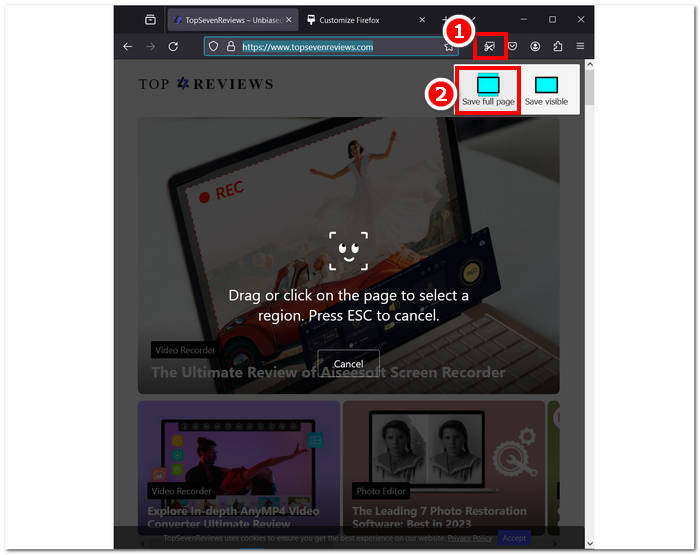
步驟三: 工具列區域會出現 Screenshot 圖示,只要點擊它,然後選擇 Save full page(儲存完整頁面),即可對頁面進行捲動截圖。
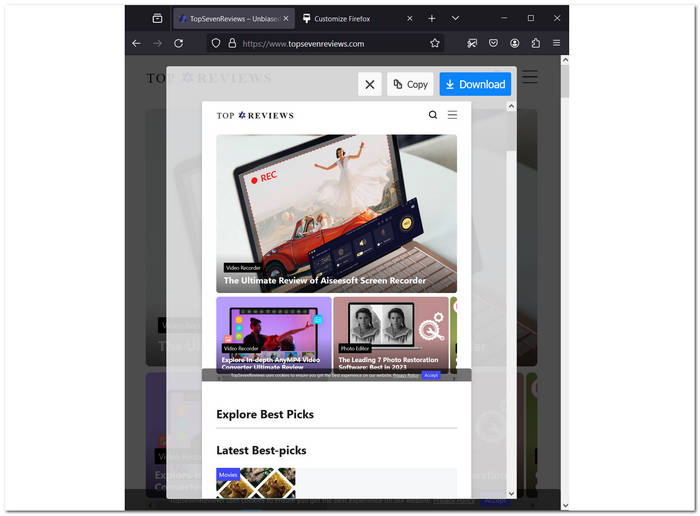
步驟四: 系統會開啟一個新分頁,顯示你的捲動截圖預覽畫面,之後再進行下載。
當您有基礎知識或熟悉瀏覽器介面和設定(例如在 Chrome 上截圖)時,Firefox 整個頁面滾動的螢幕截圖很容易。按照上述步驟,您可以刷新如何執行內建滾動螢幕截圖的知識。請記住,設定可能會因更新而隨時間而改變。如果發生這種情況,您應該參閱官方網站以獲取有關更改的更多資訊。
第 2 部分:使用滾動螢幕截圖 Firefox 擴充功能擷取整個頁面
還有另一種方法可以在網頁上滾動截圖的同時實現火狐截圖全頁滾動效果。這可以透過使用網路擴展來完成。透過使用網頁擴展,您可以透過為瀏覽器添加額外的功能(例如在 Firefox 中滾動螢幕截圖)來提升 Firefox 瀏覽體驗。
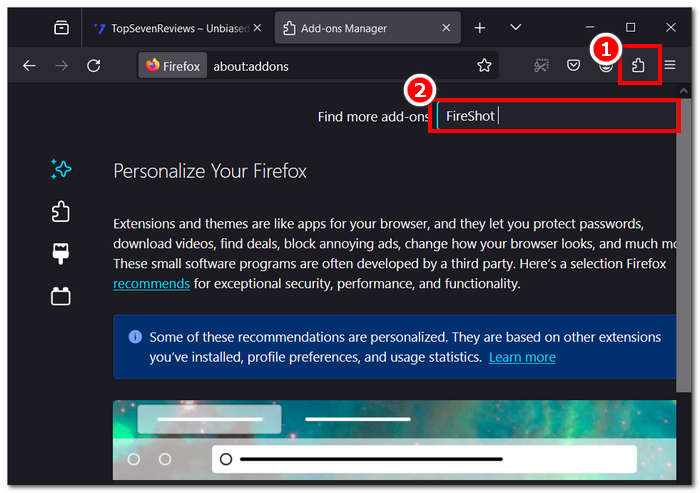
步驟一: 點擊網址列右側的 拼圖(Puzzle) 按鈕,並在指定欄位中搜尋 FireShot 擴充套件。
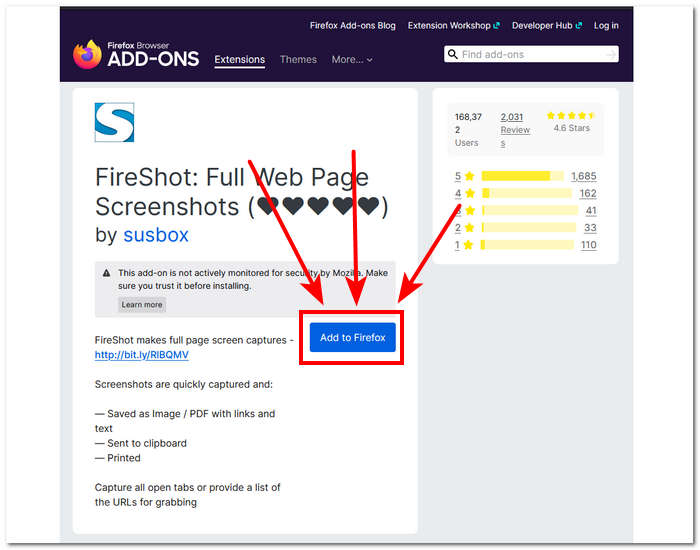
步驟二: 在 Firefox 附加元件商店中,點擊 Add to Firefox(新增到 Firefox) 按鈕安裝該擴充套件。
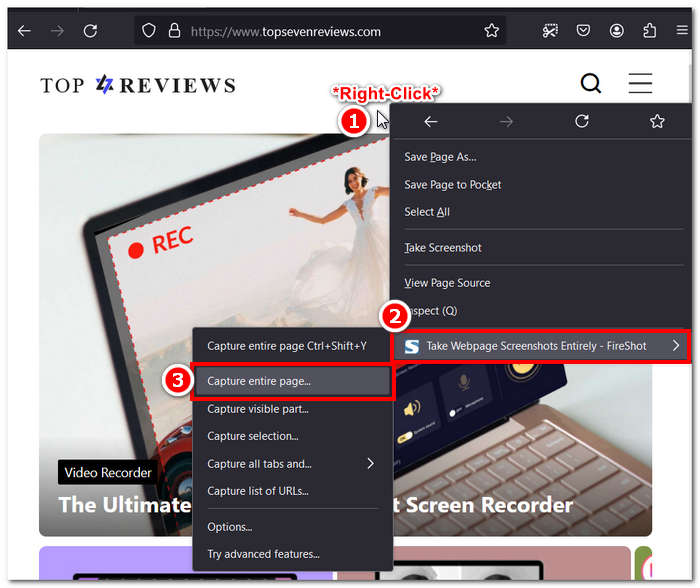
步驟三: 前往你想要進行捲動截圖的網頁,在頁面上按一下滑鼠右鍵,然後選擇 Capture entire image(擷取整張影像)。
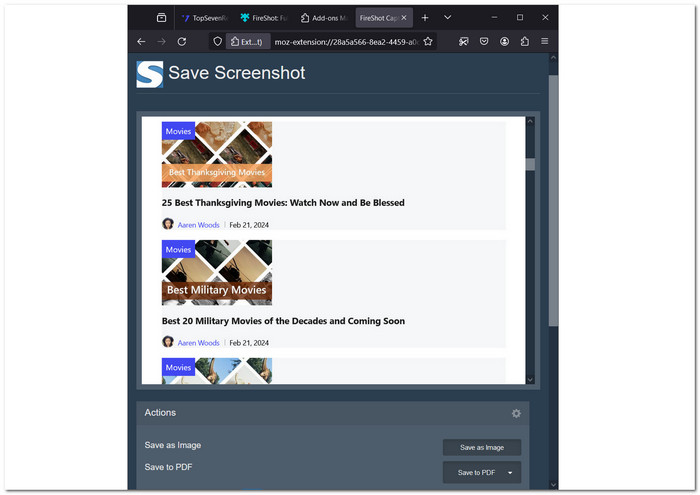
步驟四: 擴充套件會自動開始進行捲動截圖,完成後會開啟一個新視窗,你即可預覽與儲存截圖,將其另存為圖片或 PDF。
這樣,您就可以輕鬆地在 Windows 和 Mac 上進行捲動截圖。
Firefox 附帶了一個方便的內建功能,可讓您拍攝滾動螢幕截圖,這可能會消除對上述附加擴充功能的需求。此功能允許用戶透過向下捲動或跨越頁面來螢幕擷取整個網頁,甚至是螢幕上不可見的部分。因此,您可以輕鬆拍攝網頁的完整快照,而無需拍攝多個螢幕截圖或手動將它們拼接在一起。
第 3 部分:當 Firefox 螢幕截圖不起作用時更穩定的替代方案
如果你在使用 Firefox 內建或擴充套件的捲動截圖功能時遇到問題,可以考慮使用穩定的第三方軟體,例如 FVC 精選的 Screen Recorder。此軟體非常適合在 Firefox 中進行捲動截圖,並具備多種實用功能,可用於擷取螢幕截圖、錄製影片、音訊與遊戲。它提供穩定且多元的選項,讓你的工作更輕鬆。該軟體提供三種截圖模式,其中包括「捲動視窗(Scrolling Window)」功能,免去了多次截圖的麻煩。此功能可在你向下捲動畫面時,一次擷取螢幕上的所有文字與資訊。
步驟一: 若要在電腦上安裝這款螢幕錄製軟體,請前往其官方網站下載。
步驟二: 開啟軟體後,點擊圖示右側的 Snapshot(截圖) 按鈕。
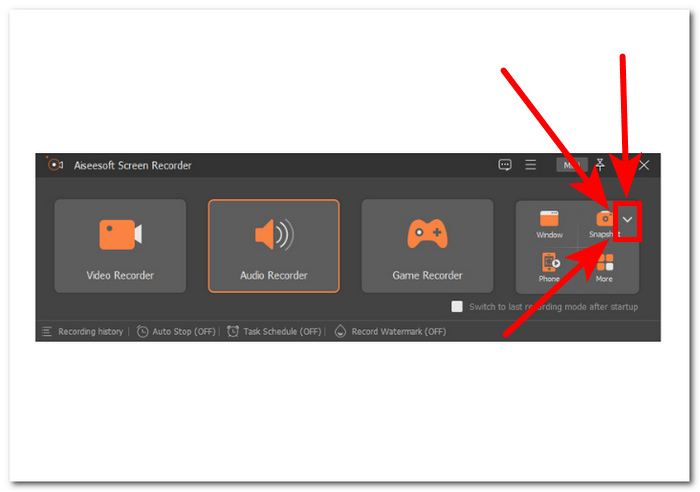
步驟三: 在下拉選單中選擇 Scrolling Window(捲動視窗),或是使用鍵盤快速鍵 Alt+L。
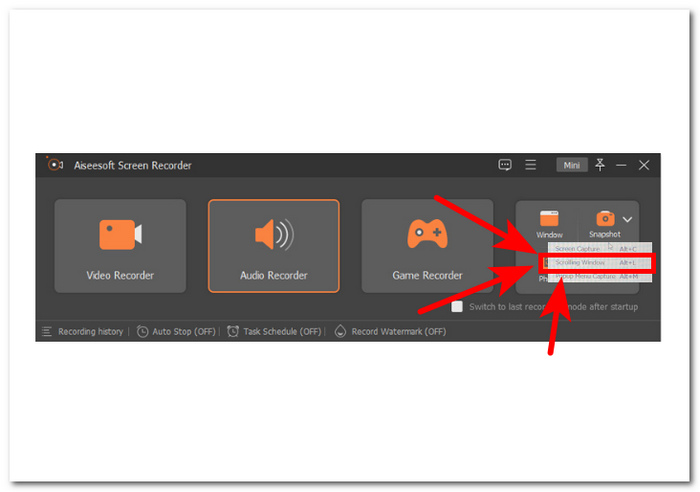
步驟四: 選擇「捲動視窗」選項後,軟體會自動開始截圖,你只需要向下捲動頁面,即可擷取所有所需資訊。
這款適用於 Firefox 的滾動螢幕截圖工具是一款高效且可靠的軟體工具,可讓您輕鬆擷取螢幕上的任何活動。當 Firefox 截圖無法正常工作時,這可以作為完美的替代和備份選項。
第 4 部分. 關於如何 Firefox 滾動螢幕截圖的常見問題解答
Firefox 中滾動螢幕截圖的大小有限制嗎?
雖然 Firefox 沒有對滾動螢幕截圖的大小施加具體限制,但超大網頁在擷取過程中可能會消耗更多記憶體和處理資源。系統資源有限的使用者在捕獲非常大的頁面時可能會遇到效能問題。
我可以直接從 Firefox 分享滾動螢幕截圖嗎?
Firefox 提供了一個方便的功能,使用戶能夠共享瀏覽器中的螢幕截圖。捕獲螢幕截圖後,您可以選擇透過各種選項共享它,例如電子郵件、社交媒體或其他平台。此功能為您省去了在不同應用程式之間切換的麻煩,使其成為快速有效地共享內容的便捷工具。
行動版 Firefox 是否可以使用捲動螢幕截圖?
用於行動裝置的 Firefox 配備了一項有用的功能,允許用戶透過點擊選單中的螢幕截圖選項或在某些裝置上同時按下音量調低和電源按鈕來拍攝滾動螢幕截圖。借助此功能,使用者可以在單一影像中捕獲整個網頁,即使內容超出了螢幕的可見區域。
我可以在 Firefox 中註釋或編輯滾動螢幕截圖嗎?
儘管 Firefox 的內建螢幕截圖工具是一個方便的功能,但它無法註釋或編輯捕獲的螢幕截圖。但是,您可以輕鬆保存螢幕截圖並利用外部圖像編輯軟體添加註釋、進行必要的調整或根據您的要求編輯圖像。這樣,您可以確保螢幕截圖適合您的需求,並準備好共享或用於任何目的。
Firefox 中是否有用於滾動螢幕截圖的鍵盤快捷鍵?
是的,Firefox 提供了用於滾動螢幕截圖的鍵盤快捷鍵。按 Shift + F2 開啟開發人員工具列,您可以在其中鍵入 snapshot --full page 來擷取整個網頁。
結論
瞭解 Firefox 內建的捲動截圖功能,可以讓使用者無縫擷取網頁內容的每一個細節。傳統的截圖方式在面對篇幅較長的頁面時有許多限制。本文說明了 Firefox 的捲動截圖 功能,包括相關的網頁擴充套件與第三方軟體解決方案。透過熟練運用這些功能,使用者即可輕鬆擷取與管理線上內容。
-
 如何在 Windows Media Player 中高效截圖
 探索在 Windows Media Player 中輕鬆擷取螢幕截圖的最簡單方法。透過我們的綜合指南提升您的螢幕擷取體驗。
-
 如何在手掌上截圖三星 S23
 您需要了解的有關如何在 Samsung S23 上截取屏幕截圖的所有信息,最大限度地發揮旗艦設備功能,獲得無縫的屏幕截取體驗。
-
 如何在東芝筆記型電腦上輕鬆免費截圖
 了解在東芝筆記型電腦上截取螢幕截圖的三種簡單方法,並免費在東芝筆記型電腦上擷取所有您喜愛的內容。
