


 視頻轉換大師
 屏幕錄影大師
 影片修復
影片修復
 安全下載
安全下載如何在 Google Chrome 上輕鬆截取螢幕截圖
在現今的數位世界中,截圖已變得非常實用。無論是儲存重要資訊、分享有趣的迷因,還是記錄對話內容,只要懂得如何快速擷取螢幕畫面,生活就能更方便。Google Chrome 是許多人首選的瀏覽器,以其速度快、操作簡單而聞名。因此,在本指南中,我們將一步步帶你了解幾種在Chrome 上截圖的簡單方法。無論你是剛開始使用,還是已經使用 Chrome 多年,這些技巧都能讓你迅速成為截圖高手。準備好學習了嗎?那就開始吧!

第 1 部分:如何使用快捷方式在 Google Chrome 上截圖
由於多種原因,在 Google Chrome 上使用鍵盤快捷鍵截取螢幕截圖仍然是首選。首先,它們的速度非常快且高效,讓您可以捕捉所需的內容,而不會減慢瀏覽速度。這些捷徑適用於不同的作業系統,例如 Windows、macOS 和 Chrome 作業系統,因此無論您使用什麼設備,都可以使用。另外,它們直接內建在 Chrome 中,因此無需下載其他軟體或擴充功能。
為此,您需要記住以下快捷方式,以便在 Google Chrome 上輕鬆截圖:
對於 Windows
全螢幕截圖:按下 Ctrl + PrtScn 或 Windows 鍵 + PrtScn。
目前視窗截圖:按下 Alt + PrtScn。
對於 macOS
全螢幕截圖:按下 Command + Shift + 3。
目前視窗截圖:先按下 Command + Shift + 4,再按一下 空白鍵。接著,點選或框選你想要擷取的視窗。如果你想在 Mac 上裁切截圖,就需要使用它的快速工具列。
對於 Chrome 作業系統
全螢幕截圖:按下 Ctrl + 顯示視窗鍵 F5。
部分區域截圖:按下 Ctrl + Shift + 顯示視窗鍵,然後拖曳滑鼠選取你想要擷取的區域。
透過這些快捷方式,您可以依靠一致且可靠的方式在 Google Chrome 上擷取螢幕截圖,從而最大限度地減少任何潛在的故障。它們的設計初衷是讓所有人(包括殘疾人)都可以使用。簡而言之,鍵盤快捷鍵是首選方法,可為各個層級的使用者提供速度、可存取性和可靠性。
第 2 部分. 如何使用螢幕錄影機在 Google Chrome 上進行螢幕截圖
雖然鍵盤快捷鍵提供了一種快速有效的方法來在 Google Chrome 上捕獲螢幕截圖,但使用螢幕錄影機軟體工具也有其自身的一系列優勢,使其成為滿足螢幕截圖需求的引人注目的替代方案。
FVC Screen Recorder因其多功能性而成為在 Google Chrome 上擷取截圖的全方位解決方案。使用者可以將截圖儲存為多種格式,包括 JPG、PNG 等。
要使用它,請按照以下簡單步驟操作:
步驟 1: 先下載並安裝 FVC Screen Recorder。
步驟 2:下載完成後,執行此工具並點擊右上角的 Snapshot 圖示。接著,選擇「Screen Capture」。
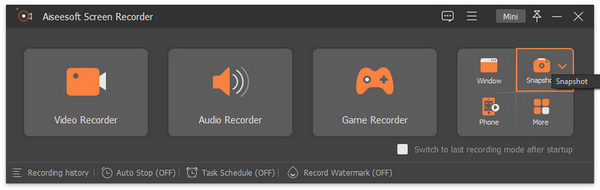
步驟 3:現在,當影片在 Google Chrome 上播放時,你可以拖曳游標,選取你想要截圖的影片區域。
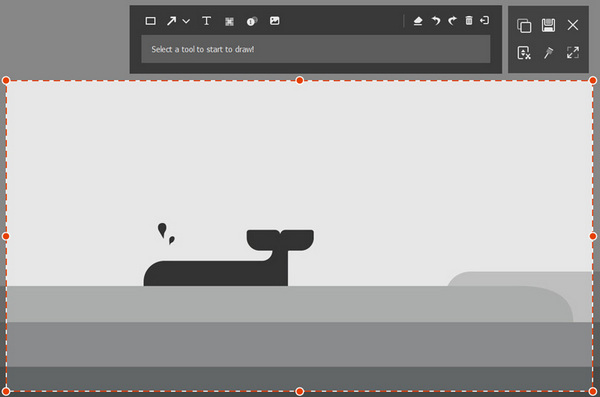
步驟 4:完成後,只要點擊儲存按鈕即可。別忘了選擇你偏好的影像格式。
借助 Aiseesoft Screen Recorder 的簡單設定和導航,使用者確實可以簡化螢幕截圖過程,使他們能夠專注於捕獲內容,而無需陷入複雜的設定或配置。
第 3 部分:如何使用 Google Chrome 擴充功能進行螢幕截圖
使用 Google Chrome 擴充功能進行螢幕截圖提供了一種方便且整合的解決方案,可以直接在瀏覽器中擷取內容。為此目的的一個值得注意的擴充功能是 Awesome Screenshot,它透過其豐富的功能增強了螢幕截圖體驗。
Awesome Screenshot 允許用戶在 Google Chrome 上捕獲螢幕截圖,用文字、形狀和箭頭對其進行註釋,然後輕鬆保存或共享它們。
步驟 1:從 Chrome 線上應用程式商店下載 Awesome Screenshot 擴充功能。
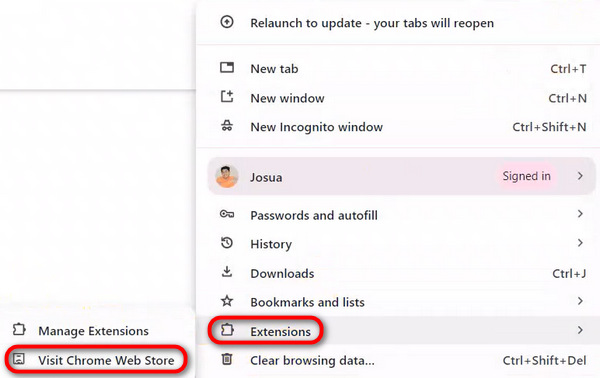
步驟 2:接著,在搜尋列中搜尋 Awesome Screenshot 擴充功能。

步驟 3:然後,點擊新增至 Chrome。
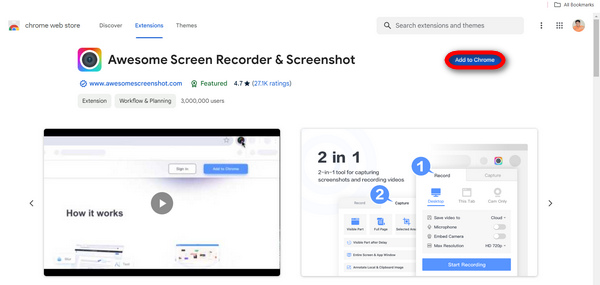
步驟 4:現在,選擇Capture分頁,並挑選你想使用的擷取類型。
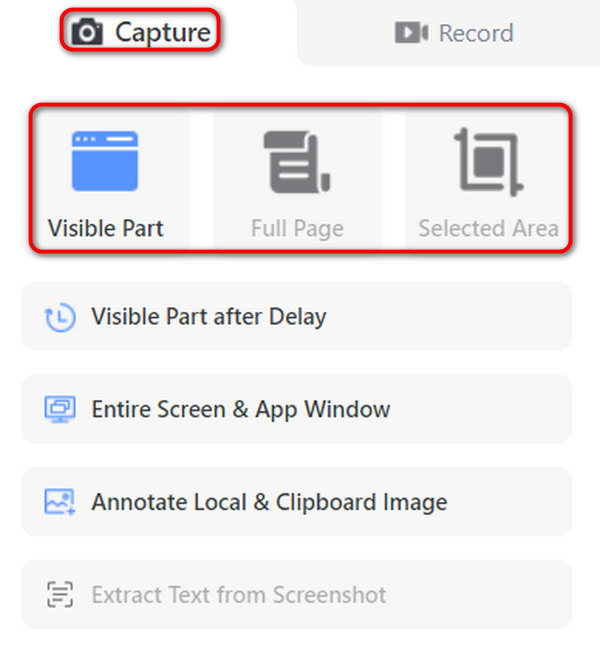
步驟 5:如有需要,可自訂或編輯截圖。完成後,它會自動儲存到你的裝置中。
就是這樣!透過 Awesome Screenshot,您可以快速輕鬆地在 Google Chrome 上擷取和分享螢幕截圖。
第 4 部分:有關 Google Chrome 螢幕截圖的常見問題解答
在使用鍵盤快捷鍵或擴充功能在 Google Chrome 中擷取螢幕截圖之前,是否需要調整任何瀏覽器設定或首選項?
要使用鍵盤快捷鍵或擴充功能在 Google Chrome 中截取螢幕截圖,通常不需要調整特定的瀏覽器設定或首選項。但是,確保您的瀏覽器是最新的始終是一個好主意,以避免快捷方式或擴充功能出現任何相容性問題。
是否可以擷取網頁中特定元素的螢幕截圖,例如下拉式選單或彈出視窗?
是的。可以使用某些擴充功能或在使用鍵盤快速鍵時選擇所需區域來擷取網頁中特定元素的螢幕截圖。像 Awesome Screenshot 這樣的擴充功能通常允許使用者選擇捕獲整個頁面或選擇捕獲的特定部分。
在 Google Chrome 中使用鍵盤快捷鍵或擴充功能擷取的螢幕截圖的大小或解析度是否有任何限制?
在 Google Chrome 中使用鍵盤快捷鍵或擴充功能擷取的螢幕截圖的大小或解析度通常沒有固有的限制。但是,螢幕截圖的品質可能取決於顯示器的解析度以及所使用的擴充功能或鍵盤快速鍵的設定等因素。
如何確保我的螢幕截圖中不會捕獲密碼或個人資料等敏感資訊?
為確保螢幕截圖中不會捕獲敏感訊息,請在保存或共享之前選擇要捕獲和查看內容的區域時務必小心。此外,某些擴充功能可能會提供模糊工具或裁剪敏感資訊等功能。
我可以在儲存或分享螢幕截圖之前直接在 Google Chrome 中編輯螢幕截圖,而無需使用其他軟體或擴充功能嗎?
雖然 Google Chrome 本身沒有用於編輯螢幕截圖的內建功能,但一些擴充功能(例如 Awesome Screenshot)會直接在瀏覽器中提供基本的編輯工具。這些工具可能包括在儲存或分享螢幕截圖之前添加註釋、文字、形狀或模糊敏感資訊的選項。或者,您可以使用外部影像編輯軟體來編輯儲存到裝置的螢幕截圖。
學會如何在 Google Chrome 上截圖,對於有效擷取與分享線上內容來說非常關鍵。無論是使用鍵盤快速鍵、螢幕錄影工具,或是瀏覽器擴充功能,都有多種方法可配合個人習慣選擇。依照以上步驟操作並處理常見問題,你就能提升瀏覽體驗與工作效率。
優化你的工作流程,馬上開始在 Chrome 上進行截圖吧!
-
 [詳細指南] 如何修復 Google Drive 視頻無法在計算機上播放
 Google 雲端硬碟上的影片無法播放,並出現錯誤「播放此影片時出現問題」。這可能是由 Google Drive 本身或 chrome 問題引起的。本文將詳細介紹6種解決方案。
-
 適用於 Windows/Mac/行動裝置的 8 款最佳螢幕錄影機 [線上與離線]
 查找適用於 Windows 和 Mac 的最出色的屏幕錄像機。閱讀本文以了解最好的免費在線和離線屏幕錄像機。
-
 ShareX屏幕錄像機評論以及如何使用ShareX記錄屏幕
 ShareX屏幕錄像機有什麼作用?如何在ShareX上記錄我的屏幕?這篇文章對ShareX進行了回顧,並展示瞭如何使用ShareX記錄屏幕。
