


 視頻轉換大師
 屏幕錄影大師
 影片修復
影片修復
 安全下載
安全下載Minecraft 中的螢幕截圖:製作輕鬆的螢幕快照
《Minecraft》是一款能帶來療癒體驗的遊戲,你可以在其中冒險、建造各種事物,還能與其他怪物戰鬥。這樣的體驗絕對值得被記住,但要如何保存並重溫那些時刻呢?你可以替自己最喜歡的地點截圖,把它保存起來,之後隨時再回來欣賞。無論你是在追尋遊戲中最稀有的礦物,還是單純想放鬆、細細品味遊戲世界,截圖都是一種表達與珍藏的方式。幸運的是,《Minecraft》截圖的方法非常簡單,只要讀完這篇文章,你就能學會三種直接在《Minecraft》遊戲中截圖的方法,方便離線瀏覽。

第 1 部分. 如何使用專業軟體在 Minecraft 中截圖
學會如何在《Minecraft》中截圖其實一點也不難,因為你可以使用專業軟體來將這段視覺旅程永存——那就是由 FVC 精選的 Screen Recorder。這款軟體能大幅提升《Minecraft》遊玩時的螢幕擷取體驗,利用它來截圖可以捕捉到玩家不想錯過的每一個細節。這是因為這款遊戲錄影工具提供了截圖快捷鍵,即使玩家正專心遊玩,也能隨時截圖。此外,使用這款軟體的螢幕擷取功能,玩家可以立即利用內建的進階編輯功能進行編輯,例如繪圖、註解,或在想要強調的部分加上醒目的標記,讓截圖多一層趣味。這款操作介面友善的軟體可免費下載到任何安裝有《Minecraft》的電腦上,能輸出高品質截圖,卻不會佔用太多電腦空間。
步驟 1: 先在電腦上下載並安裝這款螢幕錄影軟體,完成後啟動它。
步驟 2: 在軟體介面右側點選下拉選單,選擇其中的「Snapshot」功能。
步驟 3: 若要將《Minecraft》遊戲畫面全螢幕截圖,請選擇「Screen Capture」選項,或在鍵盤上按下快捷鍵 Alt + C。
注意:
◆ 您也可以在快照下拉選單中選擇捲動視窗功能或使用快速鍵 ALT + L 來進行捲動螢幕截圖。
◆ 若要截取 Minecraft 遊戲中自訂區域的螢幕截圖,您必須選擇彈出式選單擷取或點擊鍵盤上的 ALT + M。
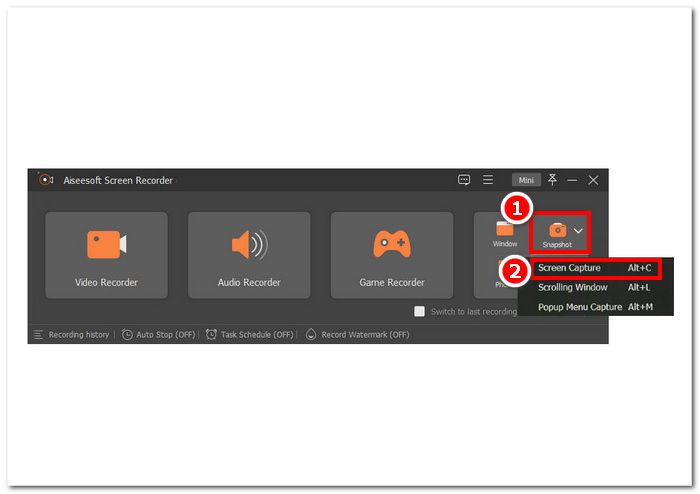
步驟 4: 當你決定好要用哪一種 Snapshot 功能來截取《Minecraft》遊戲畫面後,軟體就會自動為你的螢幕拍下截圖,並顯示預覽畫面,你可以先在這裡進行修改,再將其保存到本機儲存空間。
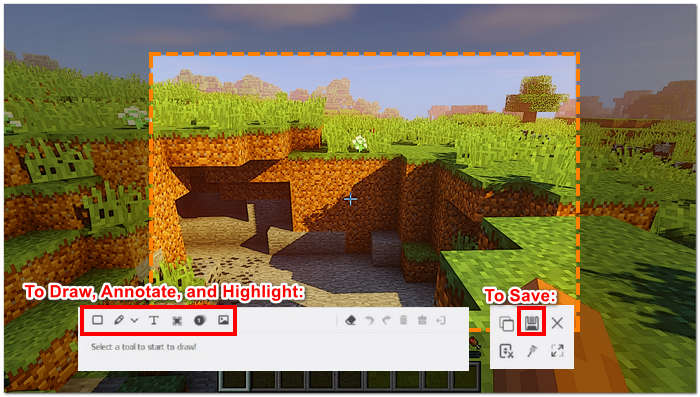
現在你已經學會如何使用像 FVC 精選 Screen Recorder 這樣的多功能工具來截圖,接下來就能放心展開無盡旅程,不必擔心錯過任何回憶。這款軟體不僅是用來截圖的工具,同時也是最佳遊戲錄影程式之一。盡情錄下你的《Minecraft》遊戲過程,並與你的好友或一起玩《Minecraft》的夥伴分享。你也可以使用這款錄影工具輕鬆在 Windows 上擷取長截圖。
第 2 部分. 如何使用內建工具在 Minecraft 中截取螢幕截圖
《我的世界》愛好者可以利用遊戲中內建的螢幕截圖工具,只需使用鍵盤快捷鍵,他們就可以以最快、最方便的方式輕鬆截取螢幕截圖。
步驟 1: 若要將《Minecraft》遊戲畫面完整截成全螢幕截圖,你需要在鍵盤上找到並點按「PrtSc」鍵,此按鍵通常位於鍵盤右上角。
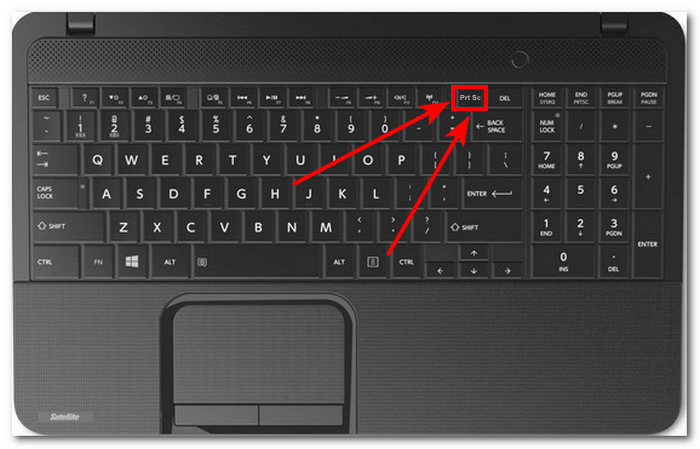
步驟 2: 如果你的桌機或筆電在按下 PrtSc 鍵後沒有反應,無法成功截圖,可以嘗試同時按下鍵盤上的 Fn + F2。
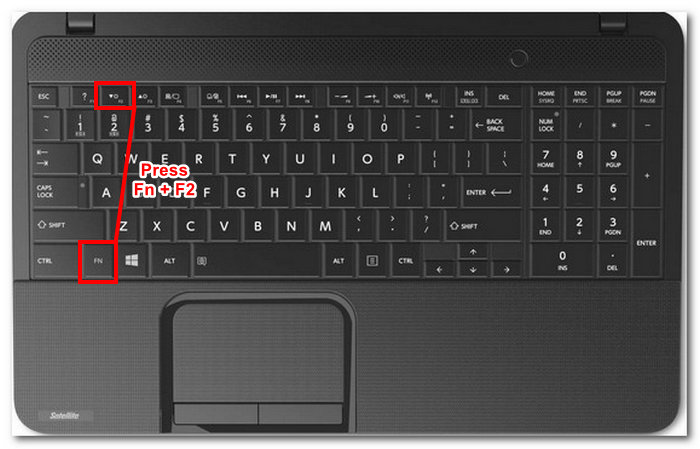
步驟 3: 在按下這組快捷鍵之後,你的遊戲畫面截圖會自動儲存在本機儲存空間中。
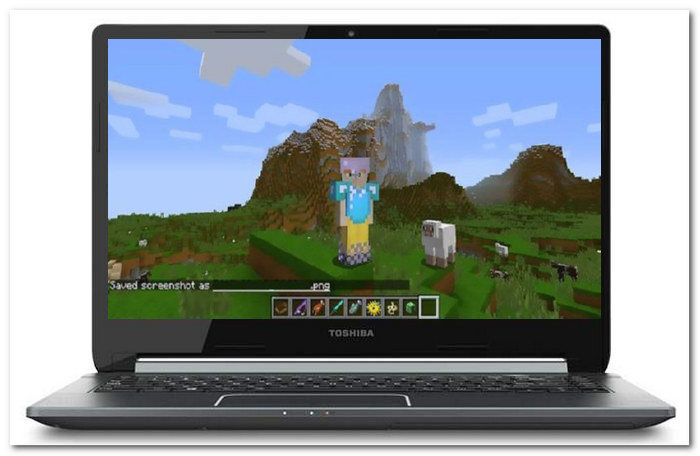
使用 Minecraft 內建的截圖快捷鍵確實是最快的方法。不過,值得注意的是,當您想要編輯螢幕截圖或突出顯示某個部分時,需要額外的工具來編輯它是一件麻煩事。當這些情況到來時,您會發現自己正在使用具有高輸出螢幕截圖功能並提供高級螢幕截圖編輯功能的軟體,例如上面提到的 FVC 選擇的軟體。此外,您可以使用螢幕錄影機錄製 Minecraft 遊戲,沒有時間限制。
第 3 部分:如何找到 Minecraft 截圖
如果您想知道 Minecraft 螢幕截圖資料夾所在的位置,請不要擔心;很容易找到!只需按照以下簡單步驟操作:
步驟 1: 透過 Windows「開始」功能表,在電腦上找到並開啟「執行」工具。
步驟 2: 開啟「執行」視窗後,在文字框中輸入 %appdata%,然後按下確認以繼續。
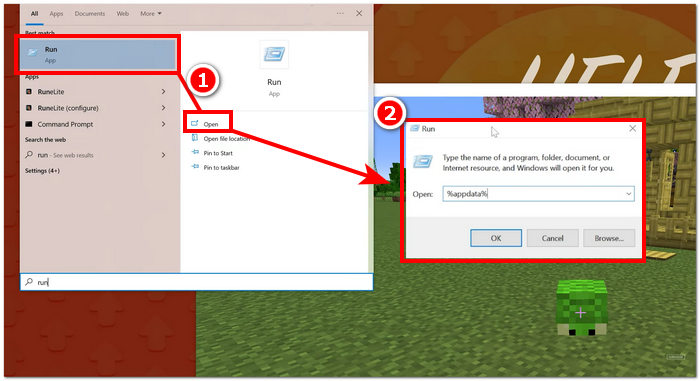
步驟 3: 在開啟的資料夾目錄中尋找「.minecraft」資料夾,接著點選其中的「Screenshot」資料夾,就可以找到已儲存的截圖。
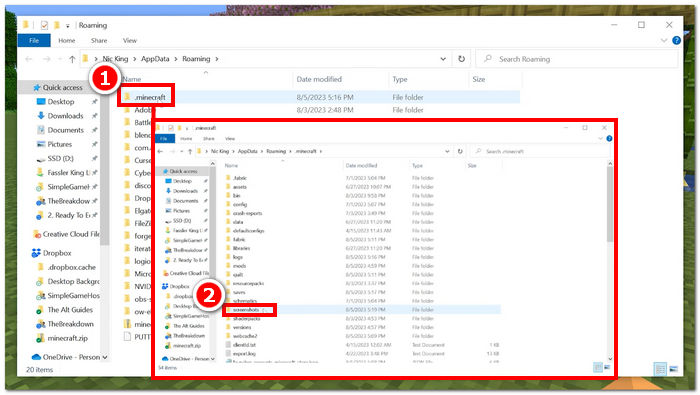
步驟 4: 現在你已經順利找到截圖資料夾,接下來只要在裡面找到想要的特定截圖,再依照自己的需求進行編輯即可。
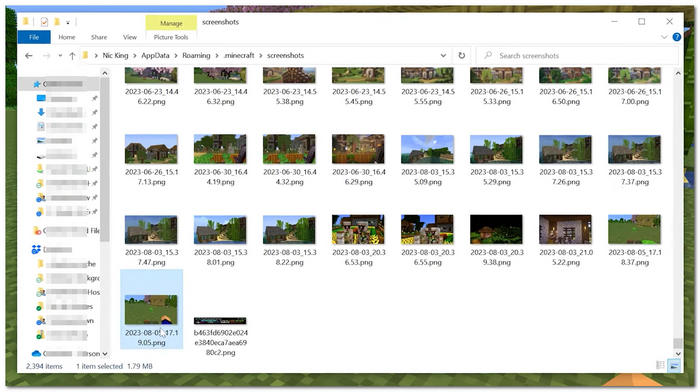
幸運的是,您可以透過執行一些簡單的步驟輕鬆存取和保存螢幕截圖。您可以了解尋找和保存螢幕截圖的確切過程,這樣您就不會錯過記錄遊戲中激動人心的冒險的機會。不幸的是,儘管對 Minecraft 遊戲進行螢幕截圖的過程很簡單,但無法建立或更改 Minecraft 螢幕截圖資料夾的位置。
第 4 部分:有關如何在 Minecraft 中截圖的常見問題解答
我可以在《我的世界》中自訂截圖鍵嗎?
是的,您可以透過存取控制設定來自訂 Minecraft 中的螢幕截圖鍵。只需導航至選項選單,選擇控件,然後為螢幕截圖功能選擇新的按鍵綁定即可。分配後,您可以使用新選擇的鍵來擷取遊戲中的螢幕截圖。
如何在 Minecraft 基岩中截取螢幕截圖?
Minecraft 基岩版可以透過點擊 Win + G 開啟設定覆蓋來截取螢幕截圖。在遊戲中開啟設定後,找到「遊戲擷取」並點擊相機按鈕來截取遊戲的螢幕截圖。
遊戲中是否有用於調整螢幕截圖品質或解析度的設定?
《我的世界》提供有限的遊戲內設定來調整螢幕截圖品質或解析度。但是,您可以透過調整遊戲的圖形設定(例如渲染距離和圖形品質)來間接提高螢幕截圖品質。更高的圖形設定通常會產生更高品質的螢幕截圖。
我可以在 Minecraft 中以第三人稱視角截取螢幕截圖嗎?
是的,您可以在 Minecraft 中以第三人稱視圖擷取螢幕截圖。只需按預設鍵(大多數系統上為 F5)即可切換到第三人稱視角,然後使用螢幕截圖鍵(預設為 F2)來擷取所需的場景。這使您可以從遊戲中的不同角度捕獲螢幕截圖。
如何與朋友或社群媒體分享我的 Minecraft 螢幕截圖?
要與朋友或在社交媒體上分享您的 Minecraft 螢幕截圖,請先在電腦上找到已儲存的螢幕截圖。一旦找到,您可以將它們直接上傳到社交媒體平台。或者,您可以透過訊息應用程式或電子郵件直接發送螢幕截圖檔案與朋友分享。
結論
將《Minecraft》的遊玩回憶提升到全新層次,是每位玩家心中的夢想與全新體驗。替那些經典場景截圖就是其中一種方式,而學會如何操作,則是讓玩家能在任何時候重溫這些時刻的必要條件。重點不在於你使用哪一種工具來在《Minecraft》中截圖,而是方便性與實用性。有些使用者會偏好快捷鍵截圖的方式,而另一些人則偏好功能豐富的軟體,例如 FVC 精選的 Screen Recorder 和剪取工具,來完成截圖。學會到哪裡去找已儲存的截圖,也是快速存取截圖、避免在電腦裡耗費數小時搜尋的重要技巧。
-
 適用於 Windows 和 Mac 的 8 大最佳網絡攝像頭錄像機
 如果您正在尋找最好的網路攝影機錄影機,我們有您想要的。閱讀本文,了解適合您的 Windows 和 Mac 的八個最佳選擇。
-
 Camtasia屏幕錄像機評論和適用於Windows / Mac的免費替代軟件
 閱讀並獲取最新的 Camtasia 螢幕錄影機評論。透過其優點和缺點,您可以判斷 TechSmith Camtasia 是否是您的最佳選擇。
-
 2025 年 6 款出色的 MP4 錄音機工具 [免費和付費]
 最好的錄製方法是選擇最好的屏幕錄像機。以下是網絡上一些最好的 MP4 屏幕錄像機。
