


 視頻轉換大師
 屏幕錄影大師
 影片修復
影片修復
 安全下載
安全下載如何在一分鐘內將 HEIC 照片從 iPhone 空投到 Mac
在所有 iOS 與 Mac 裝置上分享檔案,最可靠又最快速的方式就是使用 AirDrop。與其只用藍牙,你可以改用 AirDrop,因為它能在不到一分鐘內更有效率地傳輸多個檔案。它最早在 Mac OS X Lion 和 iOS 7 上推出。直到現在,它依然是 iOS 與 Mac 之間無線傳送圖片、影片、檔案、位置等各類內容的王牌功能。你不需要事先設定,而且檔案大小與可傳輸的檔案數量幾乎沒有任何限制。現在就來仔細看看這個功能是什麼,以及如何輕鬆把 iPhone 上的 HEIC 照片 AirDrop 到 Mac。

第 1 部分。 如何將 HEIC 照片從 iPhone 輕鬆空投到 Mac
在您可以將 iPhone 上的 HEIC 照片 AirDrop 到 Mac 之前,請確保打開 AirDrop 和兩台設備,您必須點擊並按住 iPhone 上的 AirDrop 按鈕。但在 Mac 上,您需要單擊允許我被發現。執行此操作後,屏幕上將顯示三個選項。這些是接收、僅限聯繫人和每個人。
接收關閉意味著它將關閉 AirDrop,如果您想在您的聯繫人上啟用 AirDrop 文件,您必須觸摸僅限聯繫人。最後,“所有人”,此選項將使您的設備從使用 AirDrop 的其他用戶看不到。儘管我們全部介紹了它們,但我們建議您點擊“所有人”而不是“僅限聯繫人”。因為您將需要僅聯繫人上的 iCloud,所以收件人和發件人必須在彼此的聯繫人列表中。
您需要打開藍牙和 WiFi。雖然您不需要互聯網連接,但您仍需要打開它才能在 Mac 上無線傳輸 HEIC 文件。下面指示的步驟將教您如何使用 AirDrop 功能將 iPhone 上的 HEIC 文件傳輸到 Mac。
步驟 1. 打開「照片」App,找到你想要傳輸的 HEIC 檔案並點選它。
步驟 2. 點擊分享按鈕。
步驟 3. 點選接收者的名稱,將你選好的 HEIC 檔案傳送出去。
發送後,接收方將收到通知,可選擇接受或拒絕。要將其保存在您的 Mac 上,您必須選擇獲取它,但如果發送給您的文件有誤,您可以拒絕它。
第 2 部分。 如何在 iPhone 到 Mac 上 AirDrop JPG 不是 HEIC 格式
如果要更改圖像格式,請通過 AirDrop JPG 而不是 HEIC 捕獲和發送。您必須按照以下步驟將圖像的擴展名更改為 JPEG 而不是 HEIC。請注意,以下步驟不會將 HEIC 轉換為 JPG,但會將您捕獲的圖像更改為 JPEG 而不是 HEIC。
步驟 1. 在 iPhone 上打開設定,找到並點選其中的相機選項。
步驟 2. 點擊格式,這個選項會在你點選「相機」後顯示出來。
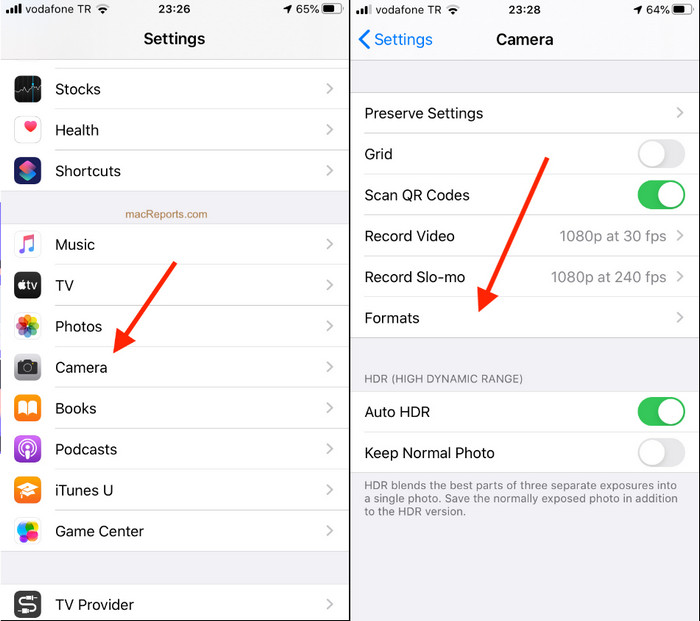
步驟 3. 點選最相容,之後 iPhone 拍攝的每張照片就會以標準 JPEG 格式儲存,而不是 HEIC,接著就能以 JPG 格式 AirDrop 到其他裝置。
第 3 部分。如何空投 JPG 而不是 HEIC 格式:您必須知道的最佳在線 HEIC 轉換器
與其直接把 HEIC 檔 AirDrop 到 Mac,不如先把格式轉成 JPEG,如此一來就能分享到 iOS 與 Mac 以外的其他裝置?FVC Free HEIC to JPG Converter 能在你傳到 Mac 之前,先將 HEIC 格式轉成相容的 JPG。與其在 iPhone 上下載 App,不妨試試看這個線上轉檔工具。因為它能和其他轉換工具一樣高效率地完成同樣的工作,你也可以將它下載到你的裝置上使用。
此外,您無需購買該工具,也無需登錄即可使用它。除此之外,即使網絡工具可以免費使用並且沒有任何廣告,我們也可以向您保證,在您的設備上訪問網絡轉換器是安全的。以下步驟將教您如何通過在此處轉換 AirDrop JPG 而不是 HEIC。
步驟 1. 點擊這個連結開啟轉換工具的網站,即可直接進入線上轉檔頁面。
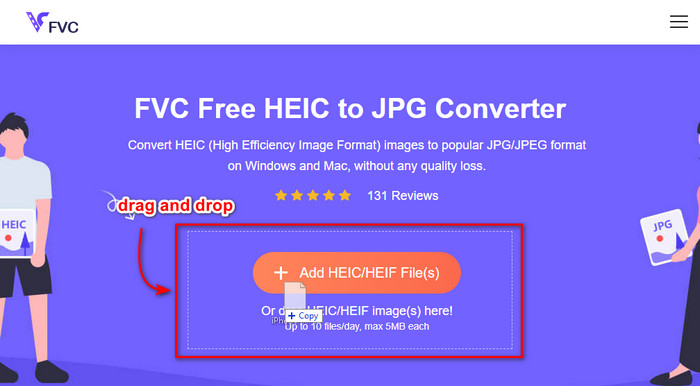
步驟 2. 你可以直接拖曳檔案到此處,把 HEIC 轉成 JPG,並輕鬆上傳檔案。
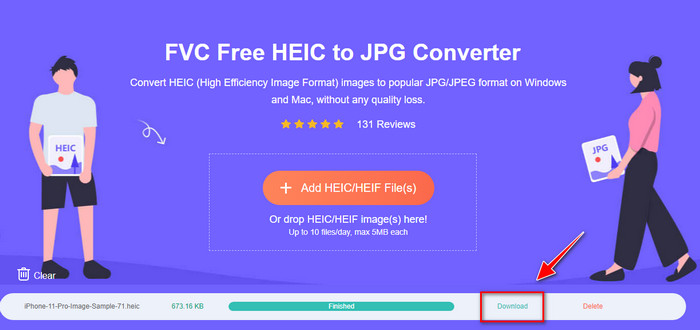
步驟 3. 轉檔會自動開始;完成後點選下載,即可將檔案儲存到你的硬碟。之後你就能輕鬆將它分享給 iPhone、Mac、Windows 及 Android 等其他裝置。
相關閱讀:
第 4 部分。有關如何將 HEIC 照片從 iPhone 空投到 Mac 的常見問題解答
AirDropping HEIC 照片從 iPhone 到 Mac 需要時間嗎?
在 Mac 上傳輸 HEIC 照片不會花費太多時間,因為它使用藍牙和 WiFi 兩種方式傳輸文件。此外,HEIC 文件更小,因此移動它們既簡單又有效。
空投 HEIC 文件會丟失質量嗎?
使用 AirDrop 傳輸 HEIC 文件不會降低圖像質量。因此,您可以期望收到與發件人在其設備上相同的費率。
為什麼我需要在 Mac 上 AirDrop HEIC 文件?
許多因素可能是您需要 AirDrop 您在 iPhone 上的 HEIC 文件的原因,首先,如果您不小心在 iPhone 上刪除了該文件,請保留該文件。接下來,如果您想釋放設備上的一些空間但又不想刪除 iPhone 上存儲的圖像,您可以將其他照片傳輸到 Mac。您需要將 iPhone 上的 HEIC 文件 AirDrop 到 Mac 的原因有數百萬,但我們只列出了幾個原因。無論您的原因是什麼,在 Mac 上移動 HEIC 圖像都是一個不錯的選擇。
結論
這篇文章教您如何在 Mac 上使用 iPhone AirDrop HEIC 轉為 JPG 或在 Mac 上傳輸相同的圖像格式,而無需將格式更改為 JPEG。無論您出於何種原因對 HEIC 文件進行 AirDropping,您都可以按照我們上面添加的指示步驟進行操作。但假設您想在 Windows 和 Android 等其他設備上共享 HEIC 文件。
在這種情況下,您需要將格式轉換為 JPG,因為它是其他設備的默認圖像格式。在在線轉換器的幫助下,我們介紹將格式轉換為 JPG 是免費且簡單的。您不需要專家來使用在線轉換器並將格式轉換為 JPEG;按照上述步驟,您可以在幾秒鐘內擁有它。
-
 如何使用您擁有的打印機打印 HEIC 照片的終極方法
 您想知道如何以高質量打印 HEIC 照片嗎?幸運的是,本文提供了打印您擁有的 HEIC 圖像的步驟。
-
 你必須知道的Apowersoft免費HEIC轉換器公平評測[2022]
 什麼是 Apowesoft HEIC 轉換器?要了解該軟件的全部內容,我們將在下面提供有關該軟件的完整詳細信息。
-
 在 Android 上免費將 HEIC 轉換為 JPG 的 3 種方法
 需要在 Android 上將 HEIC 轉換為 JPG?如果是這樣,我們將為您提供可以在 Android 設備上使用的前 3 個應用程序來完成任務。
