視頻轉換大師 大盒

多合一視訊工具箱,能夠以超快的速度將視訊/音訊轉換為 1000 多種格式。

免費下載

Login Security安全下載

免費下載

Login Security安全下載

在一分鐘內像專業人士一樣在 iPhone 上快速更改視頻元數據

Nowadays, arranging our files has become essential to many, especially iPhone users. We can determine the file's location and organize the media file in our library or folder with a proper tag. In some cases, iOS users find it inconvenient to look for a file on the iPhone with improper metadata because they aren't easy to look for. Want to know how can we fix it? The suitable solution to fixing the metadata on iPhone is by changing them according to your specification to make them visible and well-organized. Be knowledgeable and learn to change video metadata on iPhone by reading this article.

更改 iPhone 上的視頻元數據

第 1 部分。在 iPhone 上更改視頻元數據的最佳應用程序 2

Metapho – iPhone 上的視頻和照片標籤編輯器
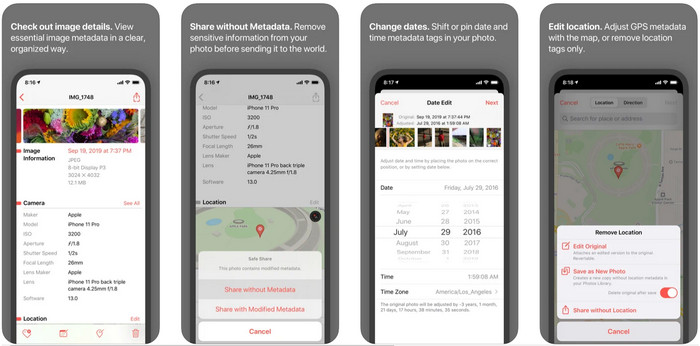
iOS 上的 Methapo

Metapho is one of the best tag editors you can download and use to change video metadata on an iPhone. The app is a simple editor that allows you to change the date, file name, size, device model, speed shutter, and location. With this app, you can also see the metadata on every live photo you take and edit them correctly if you want to. Although the app seems promising, you will need to purchase the app for editing your metadata; if you don't, then you can only freely view the metadata nothing else. But no need to worry because it is only a one-time purchase, so you will enjoy the app once you've bought it.

Step 1. Open your Appstore and download the Metapho on your iPhone.

Step 2. Open the app, choose one of the files you want to open on your Photos and click it to proceed. Then there is a setlist of editing you can do here for your tag; edit them according to your needs.

Step 3. Click the Save button if you finish editing the tags.

Exif 元數據 – iPhone 上的照片和實時照片標籤編輯器

iOS 上的 EXIF 元數據

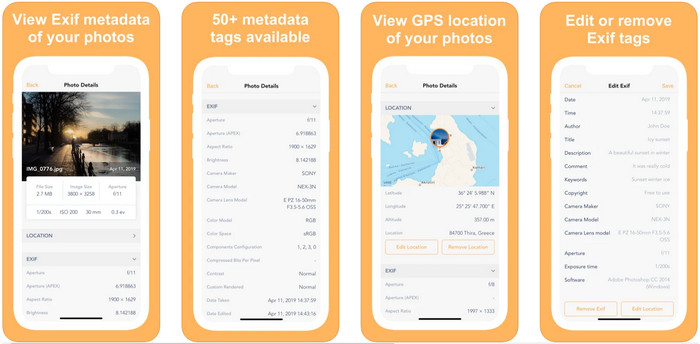
EXIF Metadata does what a metadata editor would do to help iPhone users edit their tags. This tool has a unique GUI, and it is more appealing than Metapho. With this app, you can see much in-depth information about your image for free. Even though the app offers a pro version, the editing you will need is already here on its free version, but you can have the pro version to add more information on your metadata. One of the drawbacks of this app is that it only supports image files, so changing the metadata on video is impossible. So, if you want to change image metadata on an iPhone, follow this step below.

Step 1. Download and install the app on your iPhone.

Step 2. Open the tool, tap the + button, and choose which image tag you want to change.

Step 3. Click Edit, add the information you will need, and click Save.

第 2 部分。適用於 Windows 和 Mac 的最佳媒體元數據編輯器 – FVC Video Converter Ultimate

Not all of the information you need to change on your metadata isn't supported on the app mentioned above. If you want to have more detailed information on your tag, we suggest choosing the best tag editor on Windows and Mac, the FVC Video Converter Ultimate. The software can help you add more tag information to your media file with just a few clicks. Whether you are a pro or not, adding the metadata on your file became less of a problem for the ultimate software.

也許您擔心您的文件是否在此處受支持。該工具支持 1000 多種格式,並且確實支持您擁有的格式。為了讓您提前了解如何更改 iPhone 的視頻元數據,請閱讀我們在下面列出的詳細信息以相應地關注它們,因為成功即將到來。

Step 1. By clicking the download button below, you can have the ultimate tool on both of your systems, Windows, and Mac. Click the file you've downloaded to install the tool on your drive, then launch it.

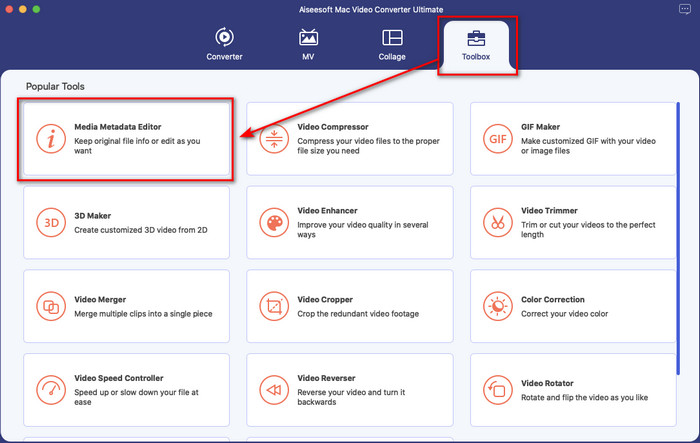
Step 2. Go to the Toolbox section, and under the set of features, click the Media Metadata Editor.

找到媒體編輯器

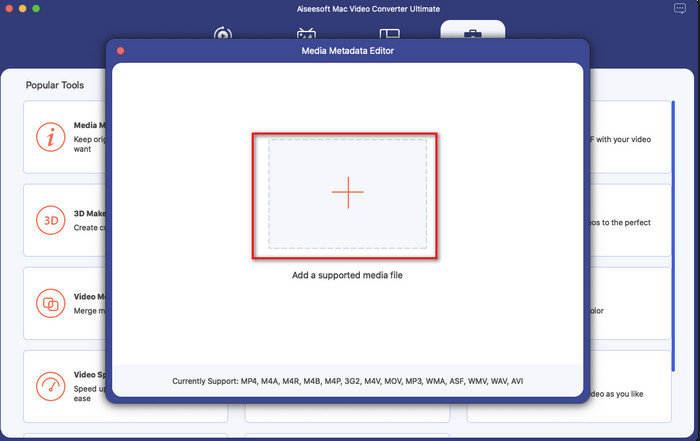
Step 3. Press the + button, and a file folder will show on your display, find the file you've want to add metadata to it, click Open to upload the file.

添加 MOV 文件

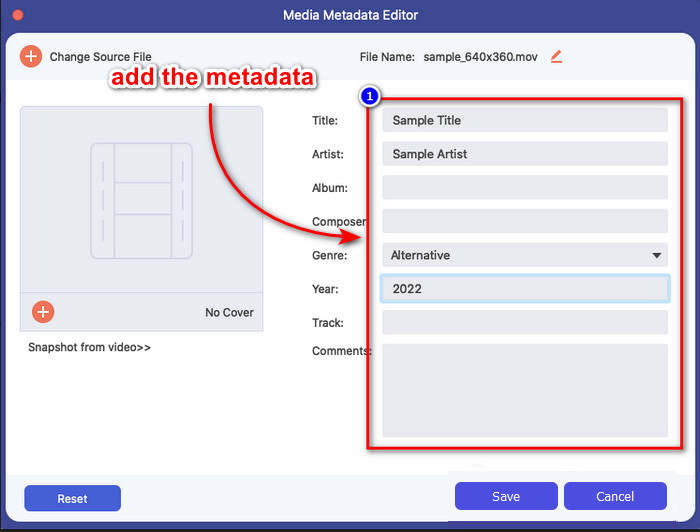
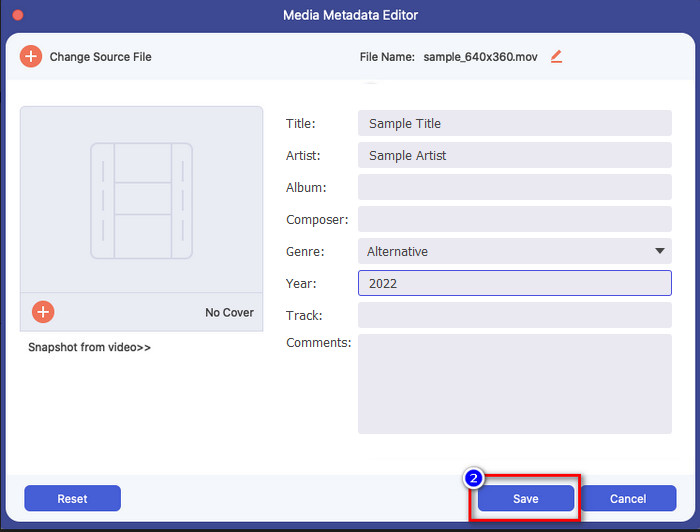
Step 4. On the new window, you can now edit or remove the metadata on your file, click each text box and type the information you; want to add as metadata. In addition, you can also add an album cover to your media file if you wish by pressing the + button, then find the album image on the file and click Open to insert it.

添加標籤

Step 5. If you've done all of the editings and changes on your media file, you may now click Save. In an instant, you have now changed the metadata of your media file; with a few simple clicks and the help of the tool, everything became possible.

保存元數據

第 3 部分。有關 iPhone 元數據編輯器的常見問題解答

我可以在 iPhone 上編輯元數據嗎?

是的,您可以在 iPhone 上編輯元數據,但您只能編輯位置和查看文件的基本標籤,但不能編輯它們。如果您想詳細更改文件的元數據,我們建議您使用可以滿足您對元數據問題的需求的第三方應用程序。

為什麼我需要刪除元數據?

We remove metadata for privacy purposes. Some people might get in-depth information about us with metadata; little did you know metadata can store your exact location, date, time, coordinates, even mobile numbers. If you don't want to exploit information about yourself, we suggest removing the metadata on your file. Want to know how? If so, this article will help you remove metadata on your file in less than a minute.

在 iPhone 上更改元數據容易嗎?

當然,是的,借助正確的元數據編輯器,在 iPhone 上更改元數據很容易。儘管這項任務看起來有點困難,但對於每個用戶來說仍然是可以管理的。如果您想知道完成此任務的最佳工具,您必須閱讀我們上面提供的兩種工具的信息。幫助您像專業人士一樣完成 iPhone 上的標籤更改。

結論

Now that you've reached the end, we have learned that changing the video metadata on iPhone is an easy task. With the help of this article and your dedication, it became possible. So now you must choose which way you think suits you. Even though the FVC Video Converter Ultimate isn't available on iPhone, it is still one of the best software you can have on your Mac or Windows to edit the tags. This tool supports adding in-depth information about the media file you have to help you make them organize and make visible. Want to know what are the other features and functions of the software? Click the download button above to take a look at what these are.

優秀的

評分:4.4 / 5(來自 146 票)