


 視頻轉換大師
 屏幕錄影大師
 影片修復
影片修復
 安全下載
安全下載如何輕鬆快速地減小 GoPro 視頻大小
你有 GoPro 相機嗎?那麼你一定是極限運動和冒險的狂熱愛好者。 GoPro其實是尼克伍德曼於2002年創立的公司,主要生產運動相機、手機應用和視頻編輯軟件。
使用 GoPro 相機,你可以錄製最高達 4K 或 HDR 高解析度的影片。但這同時也帶來了一個問題——錄製的影片檔案有時候會非常大。除了在儲存時造成嚴重的空間問題外,巨大的檔案大小也可能讓你無法將影片傳送到 Instagram、WhatsApp、Dailymotion、電子郵件和其他平台。
為了解決這個問題,我們會為你提供一份完整指南,教你如何在 Windows 和 Mac 上壓縮 GoPro 影片。

第 1 部分。 如何免費在線壓縮 GoPro 視頻
儘管 GoPro 是錄製令人驚嘆的快照和視頻片段的不錯選擇,但您可能會發現錄製的視頻佔用了太多存儲空間。但是,即使在最新的 HERO9 Black 上,每台 GoPro 攝像機上存儲視頻的空間也有限,這意味著您需要將視頻傳輸到計算機、SD 卡、閃存驅動器或硬盤驅動器以進行備份或進一步編輯。在這種情況下,它將佔用您設備上的大量空間。
因此,你需要的是一款功能強大的影片壓縮工具來縮小錄製影片的大小。FVC Free Video Compressor 允許你在任何主流瀏覽器(如 Google Chrome、Microsoft Edge 和 Mozilla Firefox)上,免費壓縮由 GoPro 相機拍攝的大型 4K 和 HDR 影片。
按照以下步驟在線將 GoPro 視頻大小減少到最小(以秒為單位)。
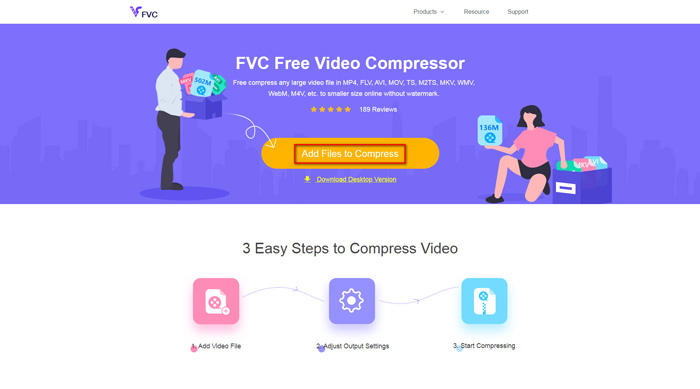
步驟 1: 點擊上方連結,在瀏覽器中開啟 FVC Free Video Compressor。然後點擊橫幅中央的 Add Files to Compress(新增檔案進行壓縮) 按鈕。依照畫面指示,在電腦上下載並安裝啟動器。
步驟 2: 現在,請在將裝置連接到電腦後,選擇你想要壓縮的 GoPro 影片檔案。要壓縮影片,只要使用 Size(大小)欄後方的滑桿,拖曳並將檔案大小調整到你想要的程度。你甚至可以分別自訂解析度與位元率。
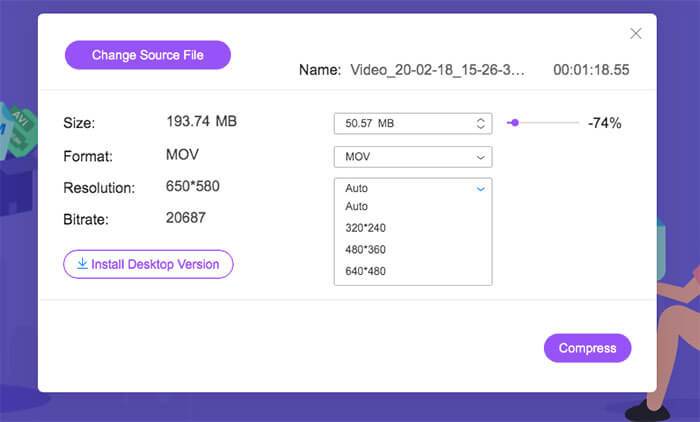
步驟 3: 選擇輸出格式。然後點擊右下角的 Compress(壓縮)。接著選擇一個資料夾來儲存壓縮後的影片。稍等片刻,你就能獲得一支高品質的目標影片。
第 2 部分。如何調整 GoPro 視頻的大小以進行上傳
但是,如果您想將 GoPro 視頻分享到 YouTube、Instagram、WhatsApp、Facebook、Twitter、Snapchat 或 TikTok,該怎麼辦?在這些平台上上傳視頻時是否有嚴格的時間/大小要求?
| 的YouTube | 微信 | 臉書 | 推特 | Snapchat | 抖音 | ||
| 期間 | ≤ 12 小時 | ≤ 2 分鐘 | ≤ 3 分鐘 | ≤ 240 分鐘 | ≤ 40 秒 | ≤ 60 秒 | ≤ 60 秒 |
| 尺寸 | ≤ 128GB | — | ≤ 16 MB | ≤ 4GB | — | — | — |
如你所見,幾乎所有平台都有自己的影片長度限制,這代表你在分享前需要先剪輯影片。這時你可以試試 Video Converter Ultimate。透過這款影片編輯工具,你可以將影片剪輯到理想長度。它也讓你能夠將多個影片片段合併成一支完整影片。
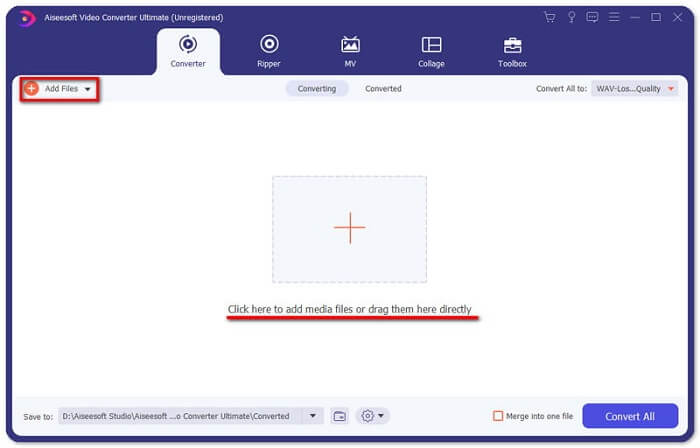
步驟 1: 在電腦上下載並安裝這款專業影片轉檔器。安裝完成後啟動程式。點擊 Add Files(新增檔案) 來加入你想編輯的 GoPro 影片檔案,或是直接將檔案拖曳到程式中。
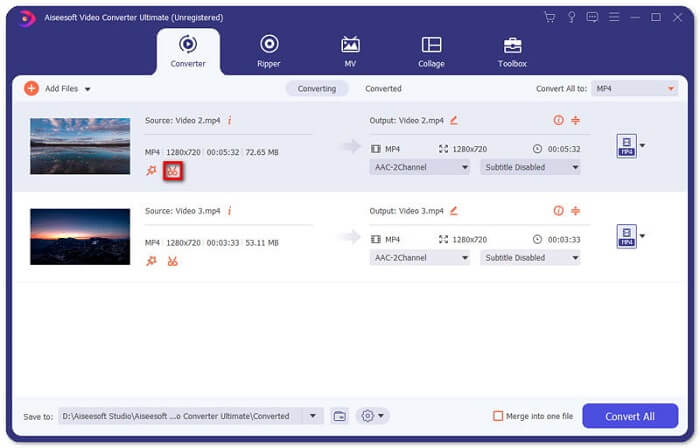
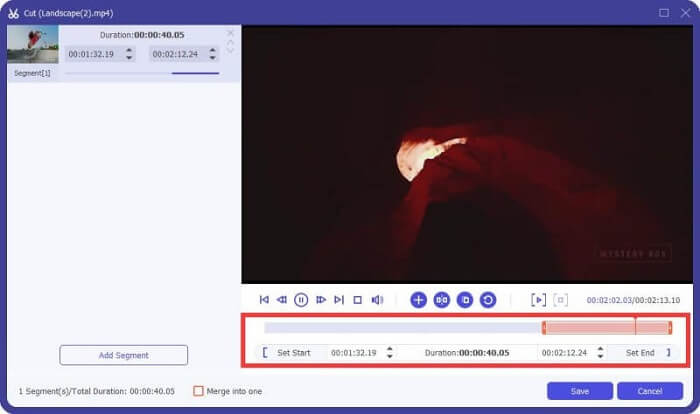
步驟 2: 上傳完成後,請點擊 Cut(剪輯) 圖示。該圖示看起來像一把剪刀,位在影片縮圖旁邊。
步驟 3: 若要剪掉不要的部分,只需拖曳進度條上的剪輯標記。你也可以直接在下方的「Duration(時長)」欄中輸入開始與結束時間。完成剪輯後,只要點擊 Save(儲存) 以保存所有變更。
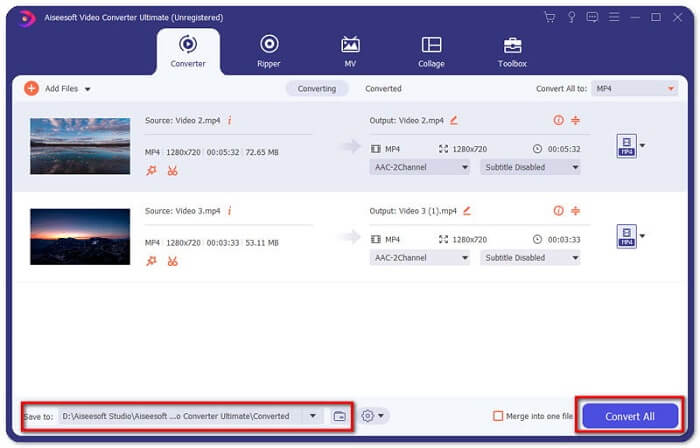
步驟 4: 回到主介面,點擊 Convert All(全部轉換),將剪輯後的影片匯出到你的電腦。如果你有多個影片片段需要合併為一支影片,只要勾選 Merge into one file(合併成一個檔案) 選項前的核取方塊即可。
將原始 GoPro 影片剪輯完成後,你就能輕鬆與他人分享你的精采時刻。但如果你使用的是 WhatsApp,由於其上傳影片的最大容量限制,你可能仍需要在上傳前先壓縮已剪輯好的影片。
第 3 部分。 壓縮 GoPro 視頻的常見問題解答
為什麼 GoPro 視頻這麼大?
那是因為您以 60FPS 的速度拍攝 1080p 甚至 4K。例如,4K 分辨率的 1 分鐘 60FPS 視頻將佔用大約 600MB 內存。
為什麼我的 GoPro 會出現分手視頻?
這稱為分段(Chaptering)。當你錄影時,如果影片檔案達到一定大小,相機可能會自動將影片切分成新的檔案段落。
GoPro 的視頻格式是什麼?
GoPro 視頻的默認格式是 MP4 文件類型,這意味著您可以在幾乎所有設備和播放器上播放它。
結論
現在你已經了解在 Mac 和 Windows 上如何壓縮 GoPro 影片。如果你不需要上傳到限制嚴格的平台,只要使用 FVC Free Video Compressor 就能輕鬆調整 GoPro 影片大小。若需要剪輯影片,也可以搭配使用 Video Converter Ultimate。
-
 從50MB到5MB –如何在幾秒鐘內壓縮MP4文件
 MP4視頻太大,無法上傳?是否要縮小視頻尺寸?這是3種無限制地將MP4文件壓縮為較小尺寸的有效方法。
-
 如何為電子郵件壓縮視頻並使它小於25MB
 無法通過太大的電子郵件發送視頻?如果遇到此問題,您可以在此處找到可行的方法來壓縮視頻以發送電子郵件。本文將詳細介紹如何免費縮小大型視頻文件。
-
 GIF壓縮–如何將動畫GIF壓縮為小文件
 這是在計算機或手機上壓縮GIF的2種簡單方法。您可以使用FVC Free Online Video Compressor和Photoshop在不同方面減小GIF文件的大小。
