


 視頻轉換大師
 屏幕錄影大師
 影片修復
影片修復了解如何在 iTunes 上編輯 iD3 標籤 [最快和最簡單的方式]
iTunes 是一款多用途軟體,你可以把它當成媒體播放器、媒體資料庫、管理工具,以及 Apple 裝置的用戶端應用程式來使用。最初,這款軟體只專注於可購買的音樂收藏。不過,隨著使用者對其他功能的需求不斷擴大,軟體也對系統進行了大規模升級。因此,如同前面所述,這個工具現在可以做到更多事情。所以,如果你想知道如何在 iTunes 編輯 ID3 標籤,這篇文章正適合你,繼續往下閱讀以了解更多相關內容。

第 1 部分。使用 3 種不同方法在 iTunes 上編輯 ID3 標籤的有效方法
如果您不知道如何使用 iTunes 編輯元數據,您可以使用三種不同的方法在 Mac 上編輯 iTunes 元數據。您可以查看以下步驟並選擇要使用的方法;我們保證您將使用 iTunes 更新您選擇的三個元數據中的任何一個。
方法 1. 使用 iTunes 上的編輯
步驟 1。 在 Mac 上開啟 iTunes 應用程式。
步驟 2。 單擊一次該媒體檔案,點擊編輯,再點擊下面的專輯資訊。
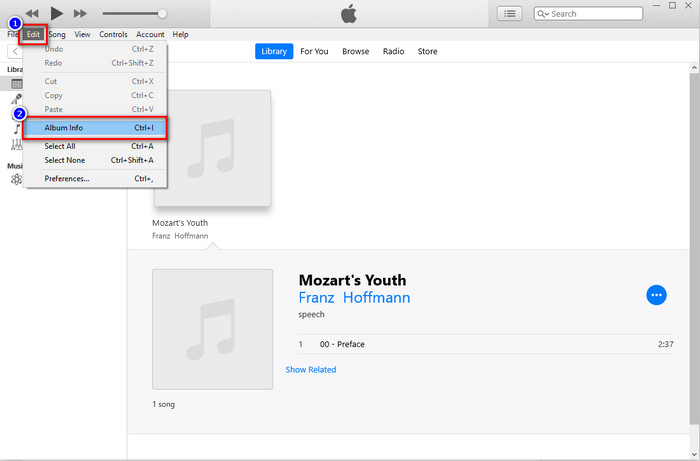
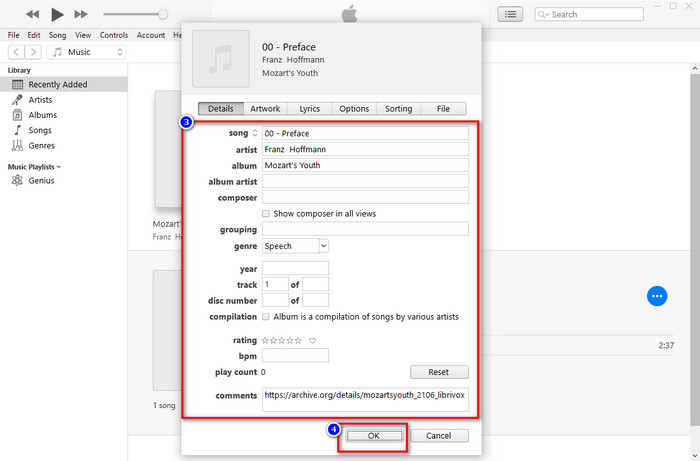
步驟 3。 螢幕上會顯示一個新面板,你可以在其中變更檔案的標籤。若你已編輯完相關資訊,現在就可以點擊確定以儲存所做的變更。
方法 2. 使用右鍵單擊 iTunes
步驟 1。 啟動 iTunes 並找到該媒體檔案。
步驟 2。 你可以不用進入「編輯」,改為按滑鼠右鍵,然後點擊專輯資訊。
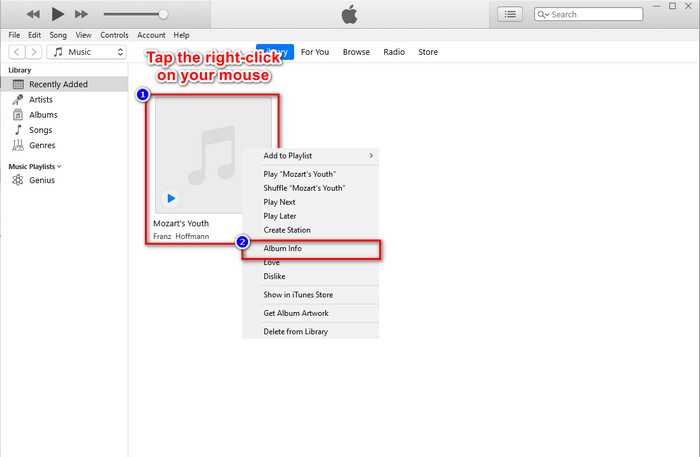
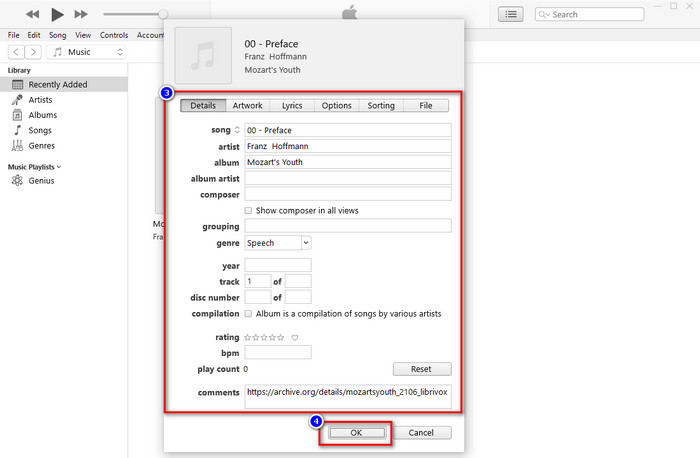
步驟 3。 在面板中填寫各個文字框以變更中繼資料,更新 iTunes 上的中繼資料;完成後就可以點擊確定來儲存。
方法 3. 使用 iTunes 上的三點
步驟 1。 在 Finder 中尋找 iTunes,點擊它以開啟。
步驟 2。 啟動軟體後,點擊一次該檔案。螢幕上會出現三個點的圖示,點擊它並選擇專輯資訊。
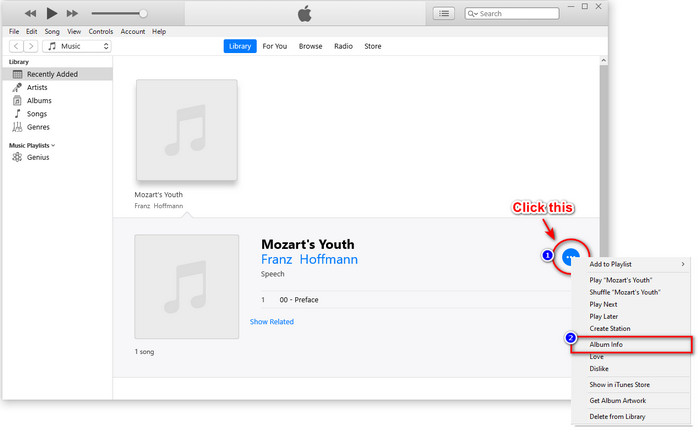
步驟 3。 螢幕上會顯示一個面板,讓你填入作為 ID3 標籤所需的重要資料,填寫完成後若想儲存變更,請按確定。
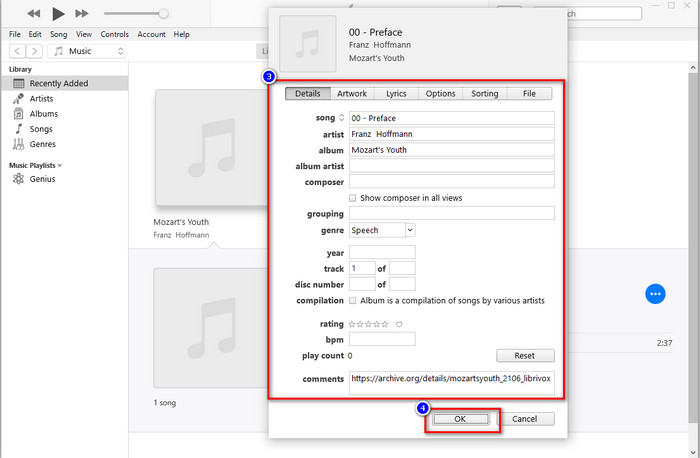
如果您注意到,這些方法沒有顯著變化,但我們仍然將它們全部包含在內,供您選擇。雖然 iTunes 在 Mac 上可用,但 Mac 的升級版本不再支持 iTunes;那你應該用什麼?幸運的是,我們提供了您可以使用的軟件,而不是在 Mac 上修復 iTunes 元數據。要了解有關此軟件替代品的更多信息,您可以繼續閱讀下面的第 2 部分並學習如何使用它。
第 2 部分。在沒有 iTunes 的情況下在 Mac 上輕鬆編輯 MP3 元數據的終極替代方案 [推薦]
iTunes 本身就被 Apple 的三個不同功能所取代:音樂、播客和節目或電影。所以現在,在現代版的 Mac 中,你不能使用 iTunes,因為它們取代了它。那麼,在沒有 iTunes 的情況下,您應該如何在 Mac 上編輯 MP3 元數據?還有可能嗎?好吧,在終極工具的幫助下,一切皆有可能。
FVC Video Converter Ultimate 是你在 Mac 或 Windows 上變更中繼資料的最佳替代工具。使用此工具,你可以輕鬆匯入 MOV、M4V、WMV、FLV、RMVB、MP4 以及 1000 多種其他格式。即使你擁有非常少見的格式,本工具也能支援。另外,這款工具還提供了 iTunes 所沒有的強大功能,都集中在與影片相關的「工具箱」裡。如果你想在 Mac 上使用這款出色的工具來變更中繼資料,可以參考下方教學並依步驟操作。
步驟 1。 請點擊下方下載按鈕並選擇 Mac 版本;但如果你是 Windows 使用者,請點擊對應的按鈕。之後安裝並快速完成設定流程,然後開啟此工具。
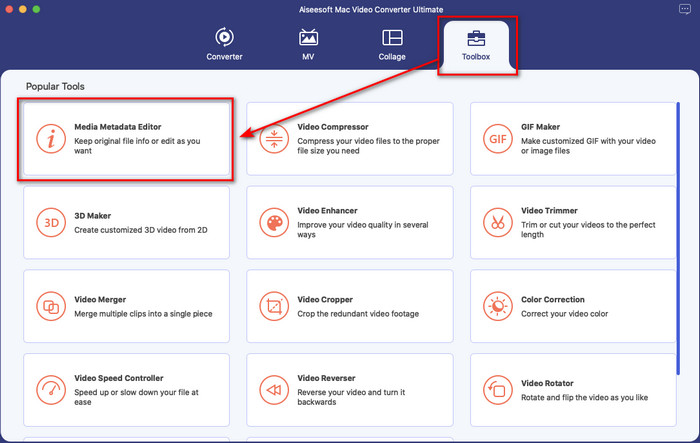
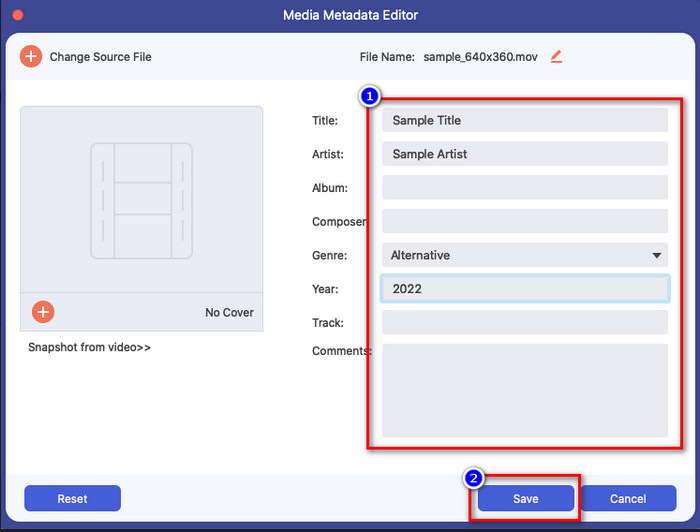
步驟 2。 開啟此終極工具的工具箱,並在其中找到媒體中繼資料編輯器。
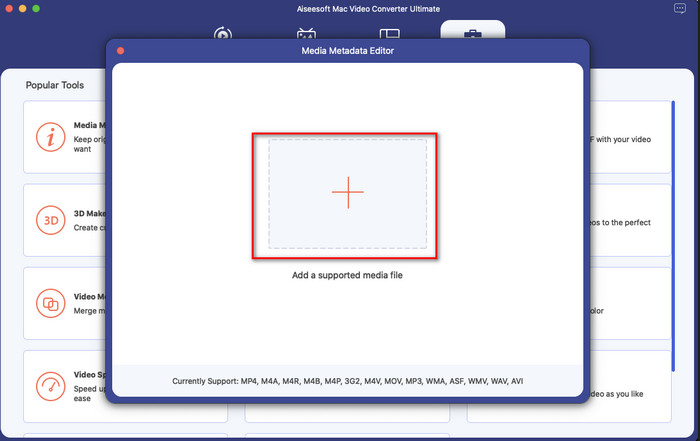
步驟 3。 點擊+按鈕後,Mac 螢幕上會跳出檔案夾視窗;選取媒體檔案,點擊它,然後按開啟以繼續。
步驟 4。 依序填寫每個文字框中的中繼資料,接著按下儲存,即可套用你在這款終極軟體中新增的所有中繼資料。很簡單吧?多虧了這款終極工具,你可以用相當低的成本,自由取代 iTunes 的音樂中繼資料編輯器。
優點
- 它使您可以輕鬆上傳任何媒體文件。
- 根據評論,它是 2022 年最好的元數據編輯器之一。
- 它能夠進行視頻和音頻編輯以及轉換。
- 它適用於所有操作系統,例如 Windows 10/11 或 macOS。
缺點
- 它不是內置的,因此您需要下載該工具。
- 採購對於釋放軟件的全部潛力至關重要。
第 3 部分。關於在 iTunes 中編輯 iD3 標籤的常見問題解答
為什麼我在 Mac 上找不到 iTunes?
如果您的 Mac 版本為 10.14 或更高版本,則 iTunes 不可用,因為內置應用程序分為三個不同的工具:節目或電影、音樂和播客。但是,您仍然可以在 10.13 或更低版本的 Mac 中使用 iTunes。
iTunes 是否支持 Windows 操作系統更改元數據?
幸運的是,如果您想在桌面上下載 iTunes,您可以在 Windows 操作系統上下載它。因此,如果您要在 Windows 上使用更改 iTunes 元數據,您可以按照上述相同的步驟進行操作。即使圖像是 Mac 上的工具,仍然可以復制上述步驟以輕鬆更改媒體文件上的元數據。
我在 iTunes 上的文件會被刪除嗎?
品牌名稱已更改,但您在 iTunes 上的文件位於 Apple Music 應用程序中。此外,iTunes 禮品卡仍可用於在新音樂商店購買一些音樂。雖然音樂、播客和電影是分開的,但它們的功能還是一樣的,但它們的 GUI 現在比以前的 iTunes 好得多。
iTunes 的首次發佈時間是什麼時候?
那是 2001 年 1 月 9 日;蘋果打開了最好的多媒體播放器,包含不同的媒體文件,如音樂、視頻和播客。
結論
既然我們已經知道如何在 iTunes 編輯 ID3 標籤,接下來就可以依照上述步驟實際操作。如果你對使用 iTunes 不滿意或是找不到它,我們建議你改用最好的替代方案,也就是FVC Video Converter Ultimate。透過這個工具,你可以輕鬆為任何受 Apple DRM 保護的影片或音訊新增或移除中繼資料。因此,如果你想更深入了解,就立刻下載並親自試用看看吧。
-
 完整審查 FFmpeg 元數據的使用和功能
 你想知道如何使用 FFmpeg 元數據編輯器嗎?當然,該軟件並不易於使用,但通過本文,您可以輕鬆完成它。
-
 如何在 iOS 上輕鬆查看照片和視頻的元數據
 您想知道如何在 iPhone 和 iPad 上查看元數據嗎?那麼閱讀這篇文章可能會幫助您毫不費力地解決這個問題。
-
 2022 年推薦的 4 位有聲讀物元數據編輯器
 如果您對有聲讀物標籤編輯器一無所知,那麼本文將對您有所幫助。通過閱讀下面的每個細節和要使用的工具來更好地了解它。
