


 視頻轉換大師
 屏幕錄影大師
 影片修復
影片修復輕鬆編輯和修復 MP4 元數據的簡單技巧
你正在嘗試編輯或修復 MP4 中繼資料嗎?幸運的是,只要使用適合此類工作的完美工具,就能輕鬆解決這個問題,不必再辛苦掙扎!今天,我們將介紹一款最佳工具,幫助你處理這類問題。所以,如果你需要協助,那你就來對地方了。只要迅速讀完這篇部落格,你就不會在面對這個問題或未來再次遇到時手足無措。我們已經整理並完成了解決問題所需的關鍵細節,並將其變得淺顯易懂,讓每一位讀者都能輕鬆理解。

第 1 部分。在 Windows 和 Mac 上輕鬆編輯或修復 MP4 元數據的最佳標籤編輯器
沒有 FVC Video Converter 無法解決的具有挑戰性的視頻相關問題,例如修復 MP4 元數據。使用此工具,設置 MP4 的標籤並不像您想像的那麼難。除此之外,您還可以上傳 1000 多種格式,並在需要時更改或修復它們的標籤。很神奇吧?嗯,這就是我們選擇終極工具來幫助您編輯標籤的原因。
此外,用戶往往會遇到其他與視頻相關的問題,如剪切、修剪、裁剪、合併等。因此,用戶傾向於在其驅動器上下載多個工具,這對存儲不友好。如果您擁有此工具,則無需下載各種工具,因為您需要的所有主要和高級功能都已在工具箱中。如果此工具引起了您的注意,那麼您可能想知道如何使用此工具輕鬆地編輯 MP4 文件上的元數據。
步驟一: 在你編輯或修復標籤之前,必須先將軟體下載到你的磁碟中,並選擇你使用的是 Windows 還是 Mac。依照安裝流程完成設定後,點擊「立即開始」(Start Now)啟動工具。
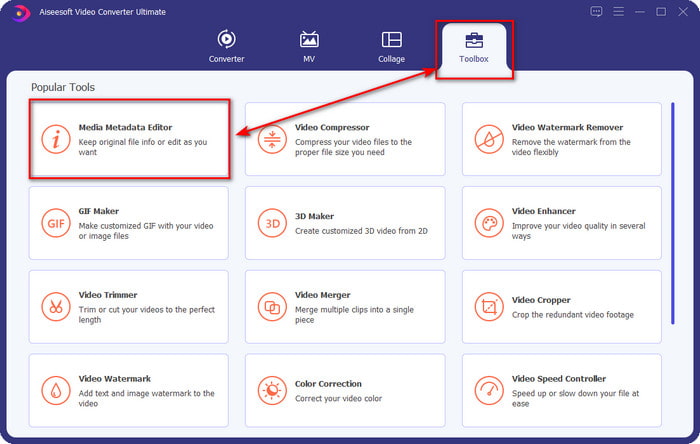
步驟二: 打開工具箱(Toolbox),在可用功能清單中找到媒體中繼資料編輯器(Media Metadata Editor)。
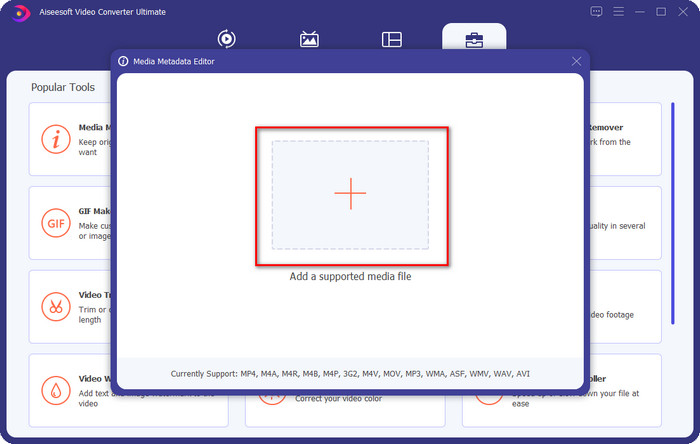
步驟三: 點擊+打開電腦資料夾,找到你想要修復或編輯中繼資料的 MP4 檔案,然後按開啟(Open)繼續。
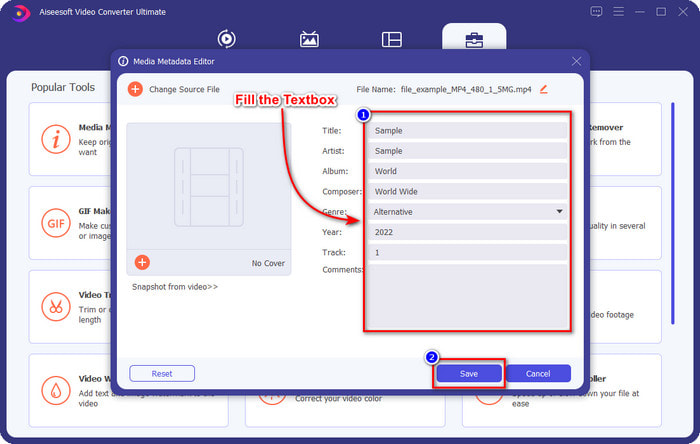
步驟四: 透過變更顯示在螢幕上的資訊來修復標籤,點選每個文字框(textbox)並依需求調整。若你已完成且對修改結果感到滿意,請點擊儲存(Save)按鈕。如此一來,你就能在不到一分鐘的時間內修好 MP4 標籤。
第 2 部分。修復無法在桌面上打開的 MP4 視頻文件的原因和解決方案
儘管大部分軟件,無論是內置的還是第三方的,都支持MP4,但還是會出現一些問題,導致打不開。但是您無法打開 MP4 文件的常見原因是什麼,修復損壞的 MP4 元數據是否可以解決此問題?如果您不知道我們在說什麼,請繼續閱讀以了解解決此問題的原因和解決方案。
第一個原因:不支持文件擴展名或編解碼器
MP4 的擴展名不僅是 .mp4,其文件擴展名還可以是 .m4a、.m4p、.m4b、.m4r 和 .m4v。儘管格式結構與 MP4 相同,但某些軟件無法將其識別為 MP4,因此您無法打開它並收到錯誤消息。此外,文件名是您需要考慮的唯一問題;編解碼器是 MP4 文件的一部分。 MP4 編碼器對視頻使用 MPEG-4 或 H.264,但音頻使用不同的編解碼器,如 AAC 和 AC3。儘管這獲得了廣泛的支持,但某些軟件不支持上述格式。
第二個原因:下載 MP4 文件被中斷
如果下載被中斷,則文件可能無法播放。用戶在網絡上下載 MP4 而網絡不穩定或意外電力短缺時,通常會遇到這種情況。一些 MP4 文件可以打開並播放,但由於文件不完整,無法播放整個視頻。如果您想欣賞它,修復完成下載是必不可少的,如果文件上沒有標籤,如果您要遵循第 1 部分,您可以輕鬆地在 Windows 或 Mac 上編輯 MP4 標籤。
第三個原因:重要數據損壞和損壞
碎了的玻璃,想用也用不了;損壞或損壞的 MP4 文件也是如此。您不能使用損壞的 MP4,因為文件已丟失。即使您下載第三方播放器來觀看,文件也不會打開,因為它已損壞或損壞。在您的屏幕上,您將收到一條彈出消息或通知,說明文件已損壞並且來自播放器的錯誤。但是您可以確定文件是否損壞或損壞,您可以在屬性中檢查它,看看文件大小是否變小,如果有重複,則比較原始文件。然而,損壞的文件或損壞的文件通常文件大小較小。
以上三個原因是您的問題之一嗎?嗯,一次處理所有這些是很有挑戰性的。下載、訪問和嘗試不同的解決方案會佔用您大量的時間。我們無需閱讀另一篇關於如何編輯 MP4 標籤和解決所有這些問題的文章,而是結合解決方案來幫助您提高工作效率。閱讀以下解決方案,了解有關修復無法在您的設備上打開的視頻的更多信息。
第一種解決方案:將文件轉換為可播放格式
使用我們上面提到的標籤編輯器,您可以使用此軟件修復 MP4 的兼容性,使其在不同的媒體軟件上可播放或可編輯,無論您使用的是 Windows 還是 Mac。按照以下指示的步驟將 MP4 文件轉換為可播放的格式。但在我們開始之前,您必須按照第 1 部分關於下載和安裝的第 1 步,然後繼續執行以下步驟。
步驟一: 啟動工具後,點擊+按鈕,找到你想要進行轉換的 MP4 檔案。選取檔案並點擊開啟(Open)以繼續。記得你可以一次新增多個 MP4 檔案,因為此工具支援批次轉檔,不妨試著同時加入多個檔案。
步驟二: 在全部轉換為(Convert All to)中選擇你想要的格式,這裡提供超過 1000 種以上的影音格式,並搭配不同解析度、品質與編碼器,選擇其中一種即可。
步驟三: 若要將 MP4 檔案轉成你所選擇的格式,請點擊全部轉換(Convert All)。
第二種解決方案:在 Web 上重新下載文件
如果下載的 MP4 文件不完整,您最好在同一網站上重新下載。但這一次,請確保您的互聯網穩定,並檢查是否會出現可能導致相同問題的電力短缺。這個解決方案沒什麼好說的,但完全下載它。
第三種解決方案:下載第三方媒體播放器
VLC 可以幫助您播放無法播放的格式,因為它支持多種格式,並且可以根據需要幫助您修復 MP4 文件的元數據。雖然這個工具很棒,但今天,我們將介紹 VLC 的最佳替代品:藍光播放器。該媒體播放器支持與 VLC 相同範圍甚至更多的媒體格式,並且其皮膚或 GUI 可自定義以使其外觀優雅。如果需要,您可以從視頻中截取屏幕截圖。無論是什麼格式,這都是完美的媒體播放器,您可以使用它來超越 VLC 為您提供的功能。如果您需要有關使用此 MP4 播放器的指南,可以單擊此鏈接並了解有關除 VLC 之外您可以使用的其他替代方案的更多信息。
第 3 部分。有關修復 MP4 元數據的常見問題解答
MP4 仍然是標準視頻格式嗎?
是的,它仍然被認為是許多消費者使用的標準視頻格式。儘管它是標準,但某些格式可以進行更好的壓縮並且比 MP4 具有更好的質量。但總的來說,它仍然是下載和流媒體的主要視頻格式。
如何使我的 MP4 壓縮以使其更小?
出於許多原因,將 MP4 檔案的大小縮小是很有必要的;如果你沒有專門的MP4 壓縮工具,可以點擊連結閱讀這篇文章。
我可以擴大 MP4 的音量嗎?
這當然有可能!透過這篇部落格,你將學會三種簡單又好上手的方式來提高 MP4 音量。
結論
FVC Video Converter Ultimate能教你如何編輯 MP4 標籤並修復 MP4 檔案中的問題,是不是很厲害?這個工具能做到的神奇功能依然令人難以置信。藉由這款工具,你可以進行許多有趣操作,例如剪輯、合併、色彩校正、變速控制等等。那還在等什麼?立刻將這款工具下載到你的裝置中,就能享有它提供的所有功能與特色。
-
 什麼是元數據:了解元數據的基本信息
 什麼是元數據?這很重要嗎?元數據的組成部分是什麼?你有同樣的問題嗎?在本文中,您將了解有關元數據的基本信息。
-
 4 個最佳在線和離線元數據查看器 [2022 年更新]
 我可以檢查文件的元數據嗎?是的,您可以,在這篇文章的幫助下,我們將向您介紹您可以使用的不同元數據查看器。
-
 6 最受歡迎的選擇 Snapchat 上的 Snapchat 動畫 Snapchat 過濾器
 想知道在 Snapchat 視頻上添加過濾器的最佳方法嗎?好吧,您可以單擊它並了解可用於應用於 Snapchat 視頻的不同過濾器。
