在 iMovie 中製作慢動作視頻的有用提示
iMovie is a great video editor available in every iOS and Mac operating system. This application is free to download and has different tools available that are very helpful in making significant changes in your video, especially when it talks about the playback speed of the video or making a slow-motion video. Since this application is user-friendly, it is difficult to understand and use to execute the slow motion you want to apply in your video. But to fully understand every detail to make slow-motion videos in iMovie, read this article and follow the steps carefully.
第 1 部分。如何使用 iPhone 在 iMovie 中製作慢動作視頻
如上所述,iMovie 只能在 iPhone 等 iOS 系統中運行。要使用此應用程序製作最佳慢動作視頻,這裡提供的步驟也將指導您如何使用此應用程序。
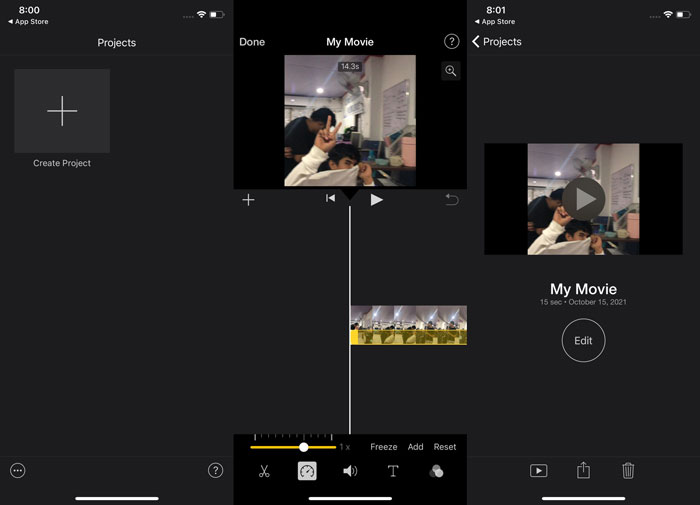
Step 1. Using your iPhone or iPad, launch the iMovie application. The Continue button will display if an overview of the UI is shown. Select the + plus sign icon from the Projects tab to edit a new video clip. To proceed, navigate to the New Projects window and select Movie.
Step 2. After selecting a video from your camera roll and pressing the Create Movie button at the bottom of the screen. The speed tool, which looks like a speedometer, can be discovered by tapping on a video clip in the timeline and then waiting for the editing tools to display before selecting one of the options. To fast forward or rewind your video clip, simply move the yellow bottom Slider to the right or left. You can accelerate items up to two times their original pace or slow them down to an eighth of their original speed.
Step 3. In the upper left corner of your phone's screen, hit Done when everything is complete. To save your completed film, click on the Share icon at the bottom of the page and choose a location to store it.
第 2 部分。如何使用 Mac 在 iMovie 中製作慢動作視頻
iMovie 也可在 Mac 上使用,以最簡單的方式製作最出色的慢動作視頻。要了解如何實現您想要的此類視頻,請按照以下步驟操作:
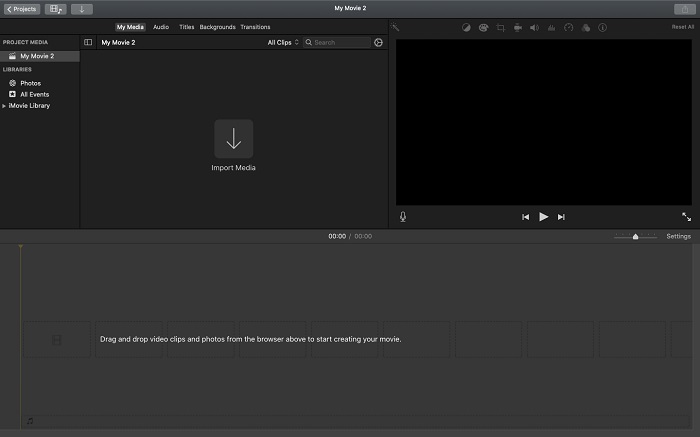
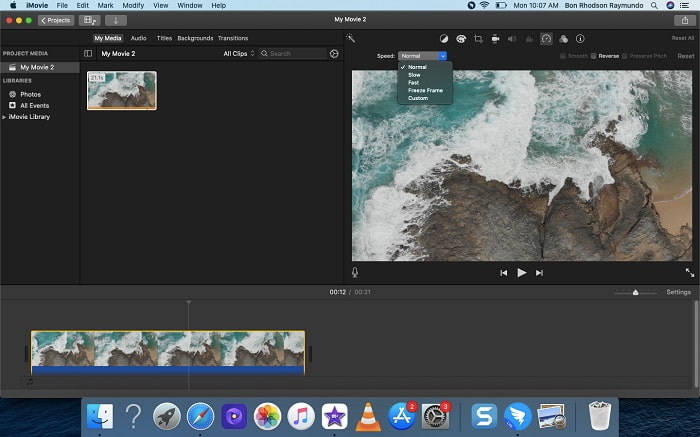
Step 1. Change the clip's speed in the iMovie program on your Mac by selecting it in the timeline and changing the clip's speed.
Step 2. The speed settings can be accessed by clicking on the Speed button located at the upper right corner of the screen. To fine-tune your download speed, just pick between Slow and Fast rates from a speed button on your computer's desktop.
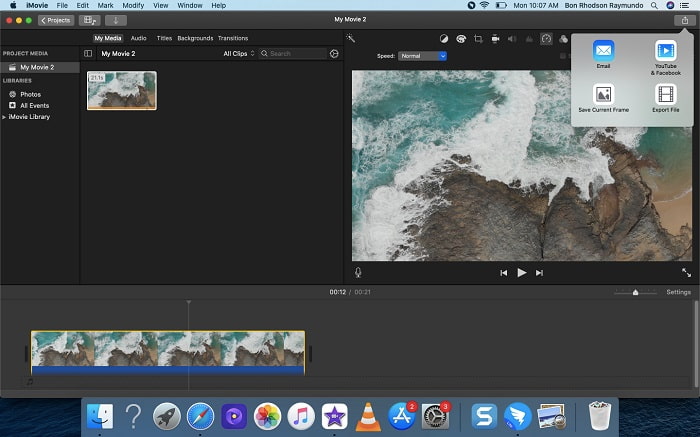
Step 3. To save the file to your computer's hard drive, click the Upload icon in the upper-right corner of the screen.
第 3 部分。 創建慢動作視頻的最佳替代方案
Besides using iMovie to make slow-motion videos, this best alternative benefits all desktop/laptop users. Video Converter Ultimate is a software that is free-to-download available in both Windows and Mac operating systems. It is accessible to use, and it has a user-friendly interface that prevents you from having a hard time analyzing tools to use in making slow-motion videos. It features one of the best tools, the Video Speed Controller, that you can use in adjusting the playback speed of a video, and with this, you can now make a slow-motion video from the normal speed video you have. To know more about the details on how to use this software in order to achieve the slow-motion you desire, here are the steps you need to know:
Step 1. Before using the software, you must first download it by clicking on the downlink below, based on your operating system. Installing it is as simple as downloading it to your desktop and clicking Start Now to begin.
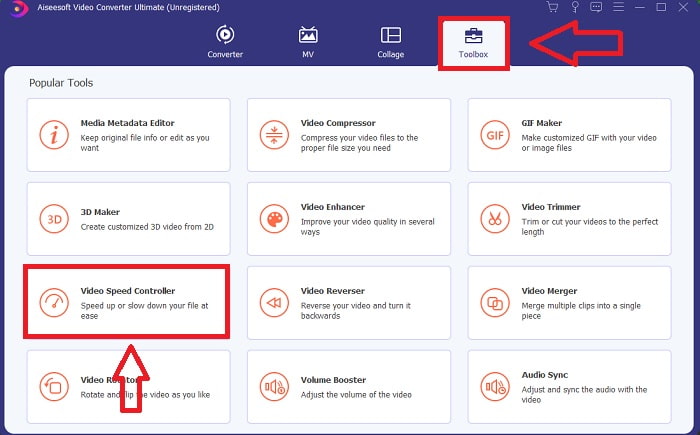
Step 2. It is possible to see the Converter feature on the main software interface when you have finished launching the program. Next, use the Toolbox feature to find what you're looking for in making slow-motion videos. If you want to change the speed of your video or simply make a slow-motion video, select Video Speed Controller from the list of available tools.
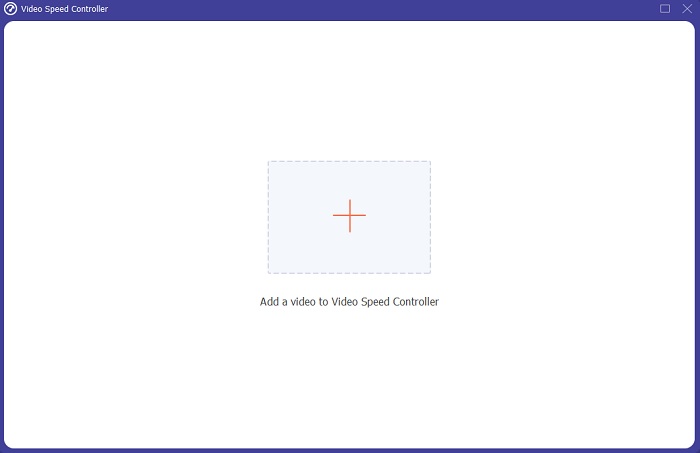
Step 3. Another window will open on your computer's screen after you proceed. To begin editing, click the plus sign +.
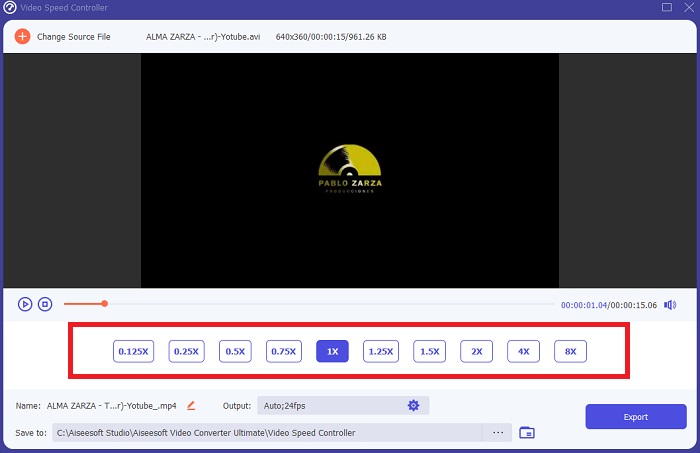
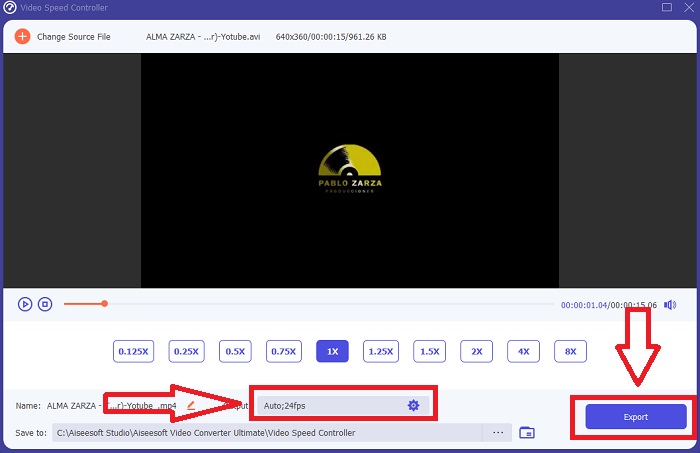
Step 4. To begin editing, choose how many times the video's frame rate will increase or decrease during playback to see how fast or slow it will be; this will define the slow-motion effect you'll apply to your video. Since you're making a slow-motion video, you will decrease the speed by choosing the video speed below the average speed. If you're happy with your video's speed, you can now fine-tune its quality by changing the format, resolution, frame rate, and so on. You will also have the option of renaming your video output.
Step 5. Click Export and choose a location in your computer's file system to save your work.
相關閱讀:
第 4 部分。 有關在 iMovie 中製作慢動作視頻的常見問題解答
如果 iMovie 無法正常工作怎麼辦?
除非有可用選項,否則視頻剪輯的長度不足以支持加速播放。您也可能需要轉換視頻。某些類型的視頻,例如在 iPhone 上拍攝的視頻或在 Flip 攝像機上以 H.264 格式拍攝的視頻,必須在速度改變之前進行轉換。在項目瀏覽器中,單擊並雙擊視頻文件將其打開。如果您在打開的檢查器中看到“轉換整個剪輯”按鈕,請選擇它。重複剪輯,然後繼續慢動作/快進過程。
你能在 iMovie 上放慢延時視頻嗎?
一旦您鬆開快門按鈕結束錄製,您的延時視頻就會開始播放。延時速度滑塊位於屏幕的最底部。當您按下快門按鈕停止錄製時,您的延時視頻將開始自動播放。延時速度滑塊位於屏幕的最底部。
你如何減慢 Youtube 視頻的速度?
在 Youtube 應用程序上播放視頻,找到齒輪圖標,或稱為設置圖標。單擊播放速度並選擇高於正常速度的選項以開始減慢您播放的視頻。
結論
To wrap everything up, the iMovie is a great video editor that is only available in iOS and Mac operating systems. But what if you're using Windows to make a slow-motion video? We recommend using Video Converter Ultimate to achieve the slow-motion video you want. This software is available in Windows and Mac. In addition, it is free and has a variety of tools to use in editing a video. It also has featured a tool used most especially in adjusting the playback speed resulting in slow-motion videos. Other than its featured tools, it also supports different video formats so that you won't have a hard time converting your video.


視頻轉換大師
屏幕錄影大師