


 視頻轉換大師
 屏幕錄影大師
 影片修復
影片修復如何將無聊的屏幕壁紙變成令人驚嘆的生動 GIF
我們大多數人都會使用高品質圖片作為背景,有些人甚至會用影片桌布。但你知道嗎,其實你也可以把 GIF 設為桌布,讓背景比以往更加生動?所以,如果你想知道如何將 GIF 設為桌布,那就往下看吧。只要花你五分鐘,就能學會如何完成設定,我們甚至會教你如何透過影片或圖片製作出完美的 GIF。

第 1 部分。 如何在 iPhone 上製作 GIF 作為牆紙
我們大多數人手上早就有一支手機,比如 iPhone。但你知道你可以把原本單調的背景變得更有趣嗎?沒錯,你 iPhone 上的桌布可以變成一個充滿魔幻效果的 GIF。不過,iPhone 裝置本身並不支援直接把 GIF 設為桌布。所以比較可行的做法,是先把 GIF 轉成 Live Photo,再把它設為新的背景。否則,你只會得到一張靜態圖片,而不是會動的畫面。在這種情況下,你需要先下載 Convert - GIF & Live Wallpaper,把 GIF 轉成 Live Photo。接著依照下列步驟,繼續了解如何在 iPhone 上把 GIF 設為桌布。
如何將 GIF 轉換為實況照片的步驟:
步驟 1. 在 App Store 下載 Convert - GIF & Live Wallpaper,下載完成後馬上開啟。
步驟 2. 點選允許讓 App 存取你的圖片,然後在相簿中選取要使用的 GIF。
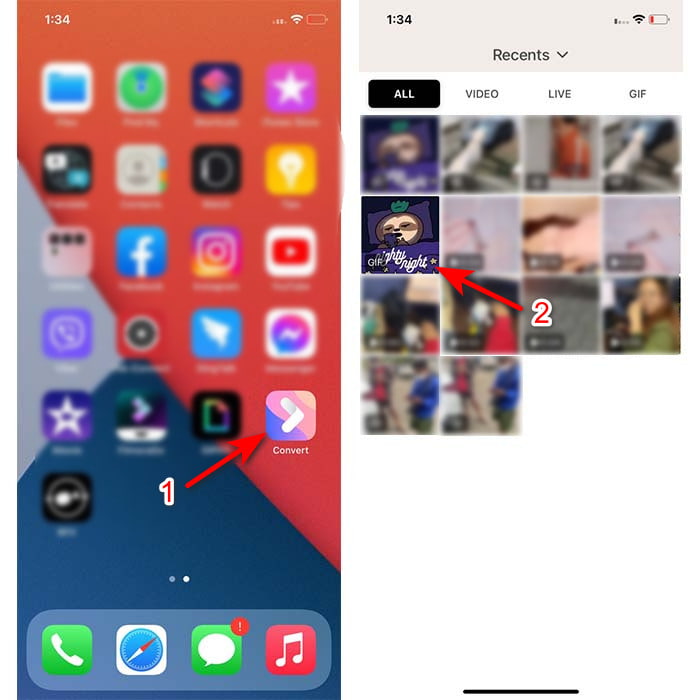
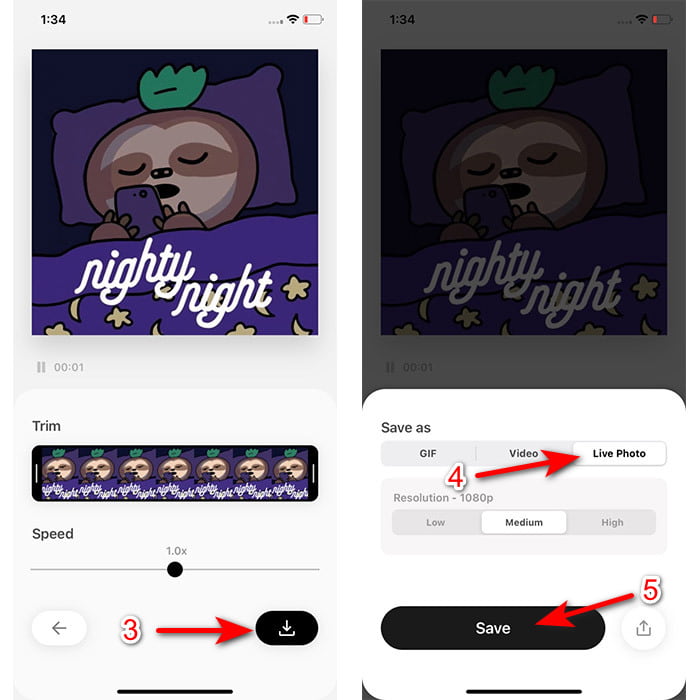
步驟 3. 接著點擊下載按鈕,將儲存格式設為Live Photo,再點選儲存以繼續。
如何在 iPhone 上將實況照片製作為牆紙的步驟:
步驟 1. 打開照片,在資料庫中找到你剛剛轉好的 GIF(Live Photo)。
步驟 2. 然後按下分享按鈕,尋找用作桌布選項。
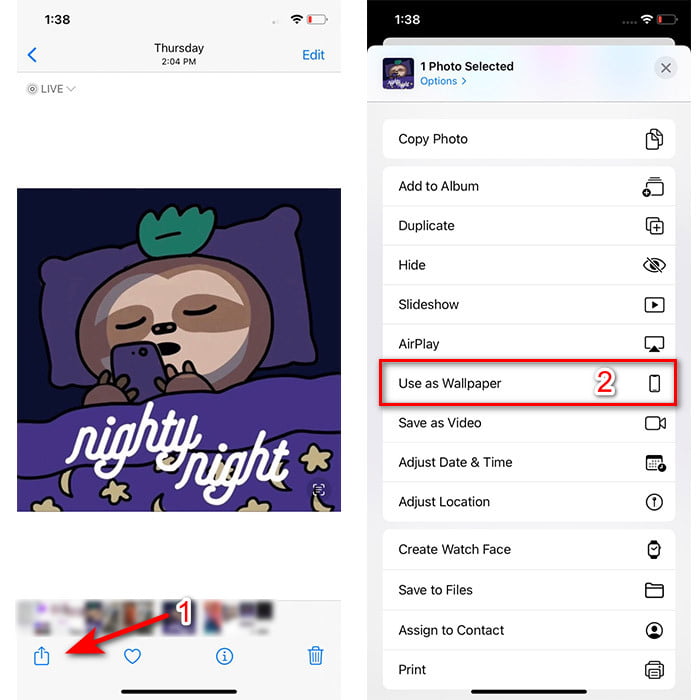
步驟 3. 按下 Live Photo,確認已開啟,再點選設定。選擇你要將它設為鎖定畫面、主畫面或兩者皆是。另外要注意,Live Photo 在主畫面上不會有動態效果,因為你必須長按螢幕 3 到 5 秒才會動作。因此,比較理想的做法是把 Live Photo 設在鎖定畫面。
第 2 部分。 如何在 Windows 上製作 GIF 作為牆紙
如果你想讓 Windows 的背景看起來更炫一點,可以試著按照下面的步驟來做。雖然在這種情況下,你不能直接把 GIF 套用為桌布,否則只會顯示成靜態圖片。為了避免這種情況,你需要使用像 Lively Wallpaper 這樣的第三方工具。現在,就讓我們開始,一步步教你如何在 Windows 10 上把 GIF 設為桌布。
步驟 1. 從 Microsoft Store 下載 Lively Wallpaper。下載完成後啟動程式。
步驟 2. 點選左上角的 + 按鈕,然後按下瀏覽。在跳出的資料夾視窗中找到你的 GIF 檔案並點選開啟。接著會出現一個小型素材庫,點選確定再按儲存。
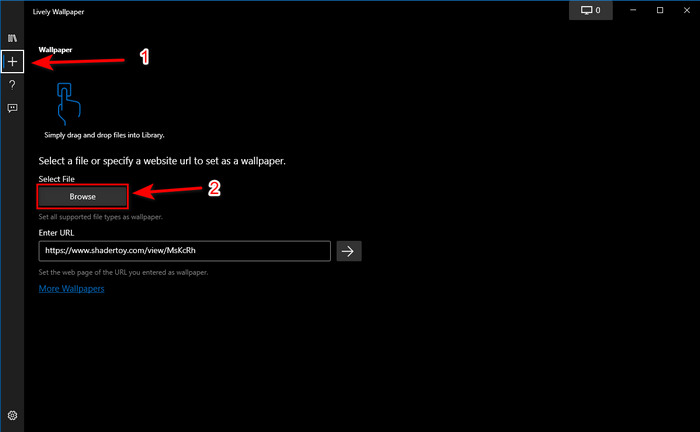
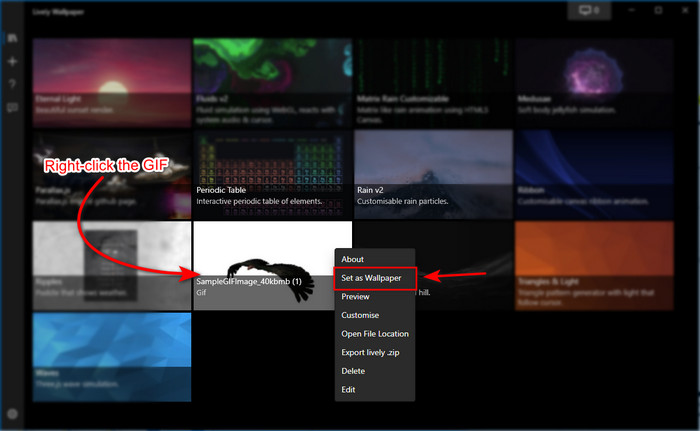
步驟 3. 在內建的圖庫中找到該 GIF,然後右鍵點擊,選擇設為桌布。
第 3 部分。如何使用 Video Converter Ultimate 從視頻/照片創建 GIF
使用 Video Converter Ultimate 中創建的動畫 GIF 使您的屏幕背景栩栩如生。該軟件已經證明,無論是圖像還是視頻,製作 GIF 都可以輕鬆完成。此外,與任何其他在線和離線工具不同,該工具與它們相比非常獨特。因為終極轉換器已經擁有您可能會使用的所有高級功能。
雖然這款軟體具備進階功能,但介面仍相當友善,不論是專業用戶還是新手都能輕鬆上手。現在,我們就來教你如何製作用於桌布的 GIF,適用於 PC、Mac、Android 和 iPhone。此外,我們也會示範不同的方法,讓你看到即使是影片或圖片,也能在 Video Converter Ultimate 的協助下變成精彩的 GIF。在開始操作步驟之前,你必須先將工具下載到你的裝置上,接著安裝、完成快速設定,最後按下完成以繼續。
從視頻製作動畫 GIF 的 4 個簡單步驟:
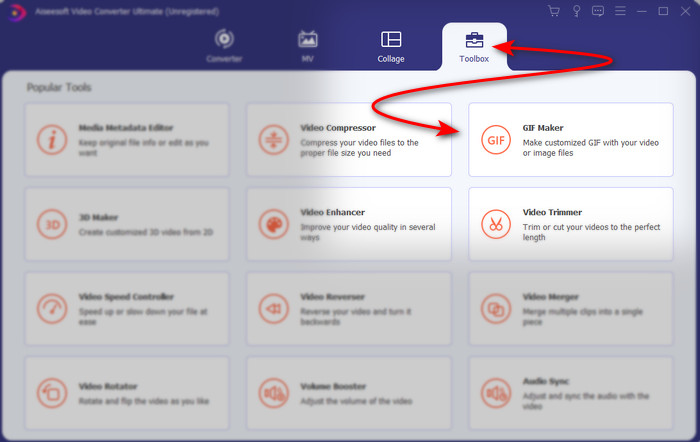
步驟 1. 啟動程式,找到工具箱,在其下方可以看到GIF 製作,點擊進入。
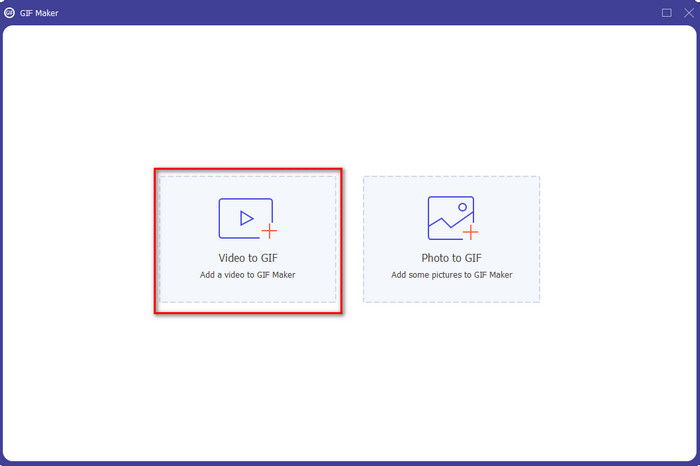
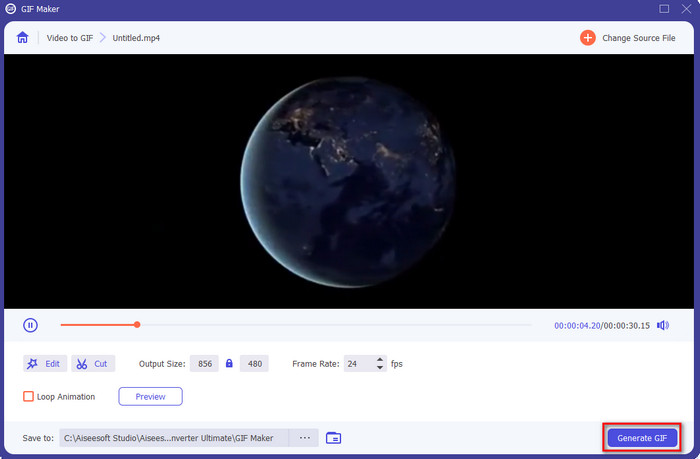
步驟 2. 接著點選影片轉 GIF,點擊後會立即跳出檔案資料夾視窗。選取你想要轉成 GIF 的影片檔,然後按下開啟。
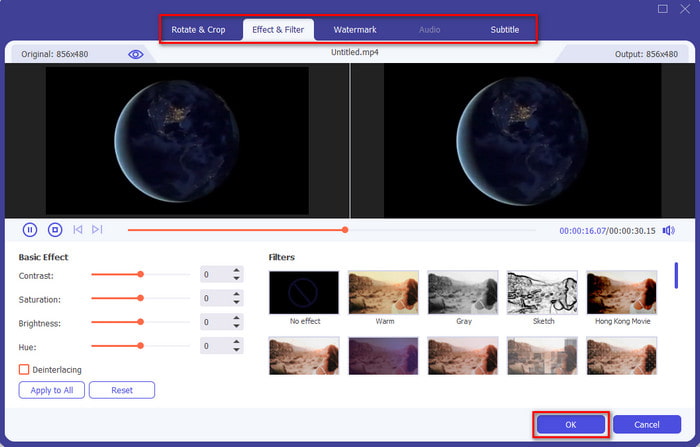
步驟 3. 在操作介面中,點擊魔術棒按鈕來編輯影片。完成編輯後,按下確定以儲存你所做的修改。
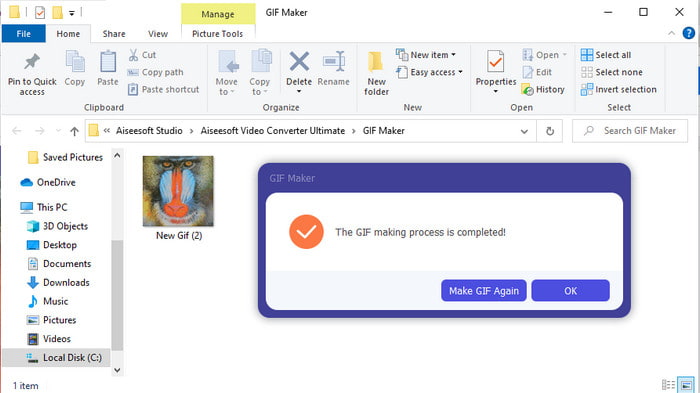
步驟 4. 點擊產生 GIF,即可立即將 GIF 儲存到你的裝置中。當影片轉換成 GIF 完成後,檔案總管會自動跳出並顯示該 GIF 檔,點開即可預覽。
從圖像製作動畫 GIF 的 4 個簡單步驟:
步驟 1. 如果軟體已完整安裝,請將它開啟。前往工具箱區域,在那裡找到GIF 製作。
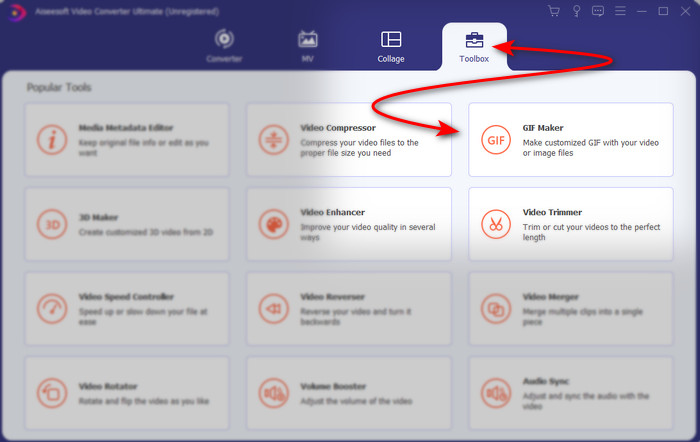
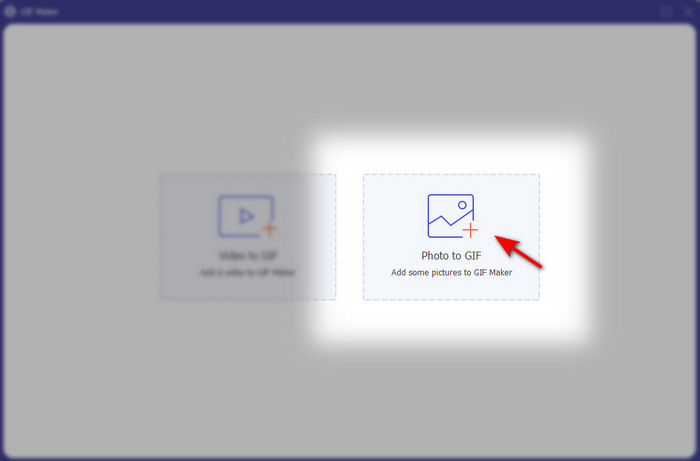
步驟 2. 若要把圖片製作成動態 GIF,請點選圖片轉 GIF。螢幕上會隨即顯示資料夾視窗,先選擇第一張圖片,再按下開啟。
步驟 3. 接著會自動顯示輸出設定視窗,點選確定繼續。若要加入兩張或更多圖片,請按下 + 按鈕。另外,需要注意的是,在這裡無法像影片轉 GIF 那樣進行大量編輯,不過你可以調整圖片的順序及顯示時間長度。
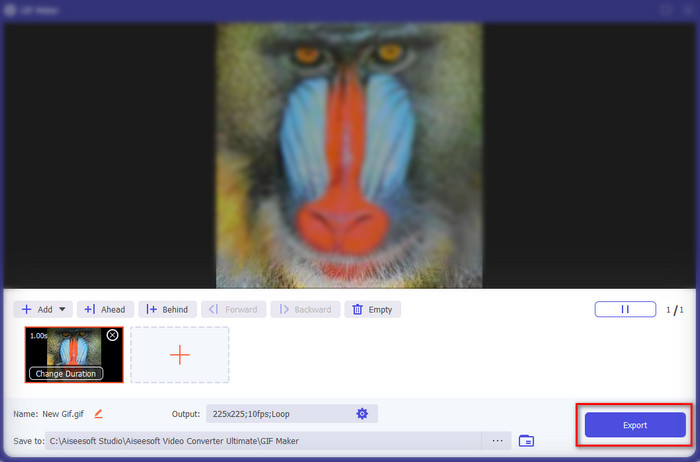
步驟 4. 如果一切都已設定完成,現在就可以點擊匯出按鈕繼續。匯出完成後,檔案管理員會跳出並顯示你剛剛製作的 GIF 檔。
相關閱讀:
第 4 部分。 有關將 GIF 設為牆紙的常見問題解答
為什麼 GIF 在用作背景時會凍結?
並非所有設備都自然支持 GIF 作為背景。但是,您仍然可以使用第三方工具將 GIF 應用於背景。
我可以在線保存動畫 GIF 並將它們用作 iPhone 上的牆紙嗎?
絕對沒錯!你可以保存它們。如果您當前正在使用 GIPHY,則單擊省略號將其保存為實時照片。所以現在,您可以跳過將 GIF 轉換為實時視頻的步驟,繼續學習如何使用 GIF 將其用作上面的背景。
動態壁紙會消耗電池壽命嗎?
事實上,這是肯定的,因為動畫壁紙或動態壁紙確實消耗了幾乎 2-4% 的電池壽命,因為 CPU 和 GPU 仍在後台運行。
結論
在文章的尾聲,我們已經知道,其實可以使用 GIF 作為桌布,讓原本單調的圖片變得鮮活起來。當然,文中所介紹的每一款 App 都在各自的領域表現優異。就像 Video Converter Ultimate,只要透過這套軟體,你就能輕鬆學會如何在各種平台上使用 GIF 作為桌布。如果你也想製作獨一無二的 GIF,不妨把這套工具下載到電腦上,自己動手試試看。
-
 高質量壓縮GIF和減小文件大小的教程
 這裡有 2 種簡單的方法可以在您的計算機或手機上壓縮 GIF。您可以使用 FVC 免費在線視頻壓縮器和 Photoshop 在不同方面減小 GIF 文件大小。
-
 通過在線 GIF Maker [2021] 創建您最好的動畫 GIF
 一個內容豐富的評論,關於如何使用這些簡單的在線 GIF 製作工具製作 GIF,您已經在網絡上遇到過或沒有遇到過。
-
 在線和離線選擇最佳 GIF 裁剪器來裁剪 GIF [2021]
 選擇最好的裁剪工具是必須的,一些 GIF 製作者沒有提供這個功能。但是什麼是最好的 GIF 裁剪工具以及如何使用它?
