


 視頻轉換大師
 屏幕錄影大師
 影片修復
影片修復
 安全下載
安全下載如何免費加入MOV(QuickTime)文件
收集許多MOV視頻資料後,您可能需要整理這些資料並將它們加入一個完整的文件中。但是,對於初學者或業餘視頻製作人來說,使用Adobe Premiere Pro這樣的技術工具可能太複雜了。也許您將花費數天甚至數月來研究如何操作該程序。
其實,如果你只是想合併影片片段,可以使用一款簡單又有效的影片合併工具來解決問題,只需幾分鐘就能將兩個或多個 MOV 檔案合併在一起。
按照下列步驟操作,你就能在 Mac 和 Windows 上輕鬆合併 MOV 檔案。請繼續往下讀,並親自試試這些方法。

第1部分。如何在QuickTime中合併MOV視頻
MOV,也就是我們常說的 QuickTime File Format(QTFF),是一種搭配 MPEG-4 編碼的數位影片容器格式。它由 Apple 於 1998 年推出,用來支援 QuickTime Player。因此,如果你使用的是 Mac,其實可以直接用 QuickTime Player 輕鬆合併 MOV 檔案。
令人驚訝的是,QuickTime不僅是媒體播放器,還是視頻編輯器,使您可以合併單獨的視頻,編輯視頻剪輯,甚至在Mac上錄製音頻或視頻。此外,它易於使用並保持視頻的原始質量。
以下是有關如何在QuickTime中加入視頻剪輯的步驟。
步驟一: 找到你想要合併的影片,並用 QuickTime Player 開啟其中一個。(你可以先把它們集中放到同一個資料夾或桌面,以免麻煩。)
步驟二: 開啟檔案後,畫面上會出現播放視窗。現在將另一段影片拖曳到 QuickTime Player 中。你可以按住並拖曳影片片段,調整成正確的順序。當你放開滑鼠時,影片旁邊會出現一個完成按鈕,點擊它。
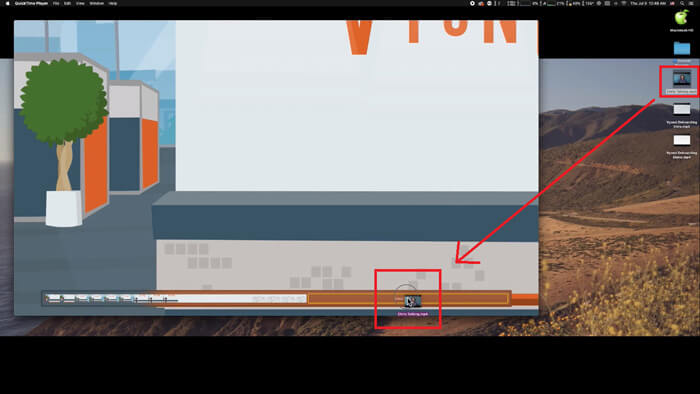
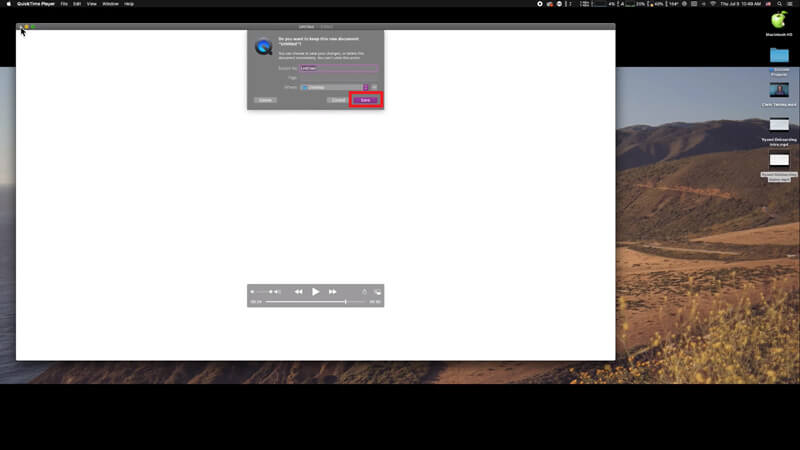
步驟三: 關閉 QuickTime,你會立刻看到提示視窗,提醒你儲存已合併的影片。輸入新檔名並選擇儲存位置,然後點擊儲存按鈕即可。
第2部分。如何在線和免費合併MOV文件
不過,QuickTime 無法幫你將 MP4、MOV、AVI、WMV、FLV 等不同格式的各種影片檔合併成一個 MOV 檔案。這種情況下,你就需要使用一款支援多種影片格式的專業影片合併工具。
因此,在這裡向你推薦FVC Free Online Video Merger,這是一款能免費合併影片的優質線上影片合併器。使用這個工具,你可以不限數量地上傳影片。除了 MOV 之外,你還可以匯出其他常見影片格式,方便你將影片分享至 YouTube 等影音串流網站。
您可以使用此易於使用的視頻合成器,將任何視頻加入在線製作一個令人驚嘆的視頻,而無需在PC上安裝昂貴且昂貴的程序,還可以創建無水印的視頻。無論您使用Windows,Mac或Linux上的哪種系統,它都能正常運行。您只需要一個瀏覽器和一個穩定的網絡即可。
以下步驟將指導您如何操作此視頻合併工具。
步驟一: 點擊上方連結,在瀏覽器中開啟FVC Free Online Video Merger的網站。
步驟二: 先點擊橫幅中的上傳影片以進行合併(Upload Videos to Merge)按鈕。接著依照畫面上的指示,在電腦上下載並安裝啟動器。
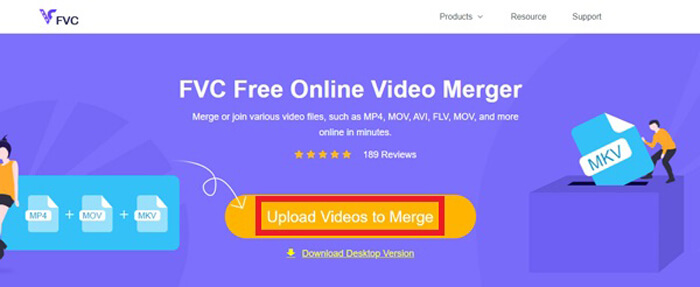
步驟三: 安裝完成後,視窗會自動跳出。現在你就可以選取並加入所有想要合併的 MOV 檔案到影片合併工具中。
步驟四: 上傳完成後,請先確認影片片段的順序是否正確。接著依需求調整解析度(Resolution),並將格式(Format)設定為 MOV 或其他你想要的格式。
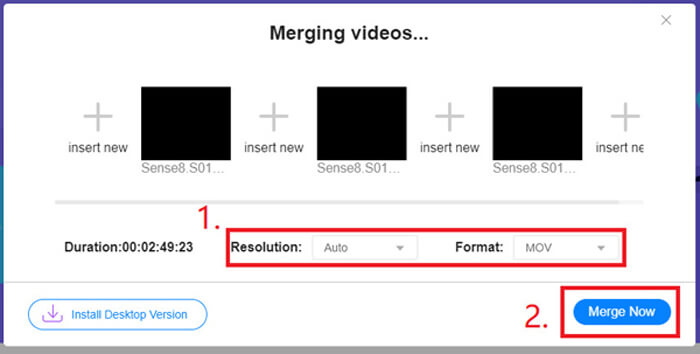
步驟五: 點擊立即合併(Merge Now)即可開始合併。
第3部分。如何在Windows 10中合併MOV文件
如果您沒有Mac,但擁有裝有Windows 10的PC,則可以嘗試以下步驟來加入MOV文件。
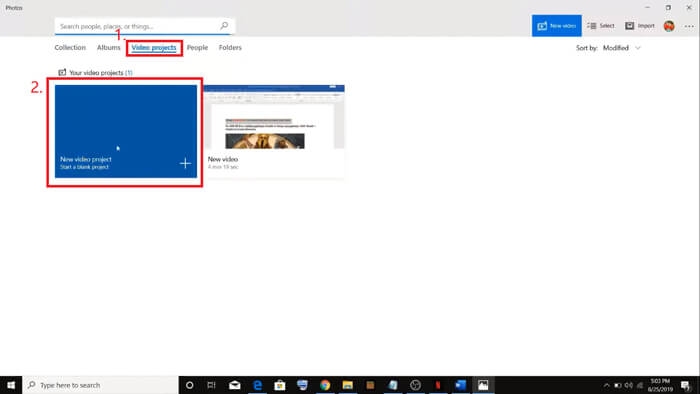
步驟一: 在你的電腦上開啟相片(Photos)應用程式。你可以在搜尋列中輸入名稱來找到它。然後選擇上方的影片專案(Video projects)分頁並點擊新增影片專案(New video project),再為影片專案命名。
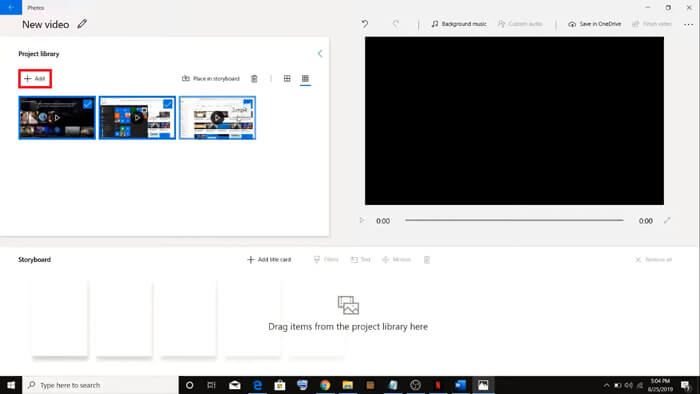
步驟二: 點擊左上角的新增(Add)按鈕,從電腦中選取所有你想要合併的影片。
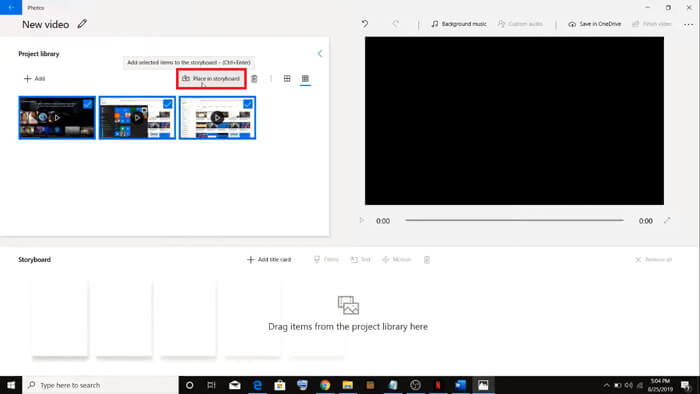
步驟三: 然後點擊放入故事板(Place in storyboard)按鈕,把所有 MOV 檔案合併到一個專案中。
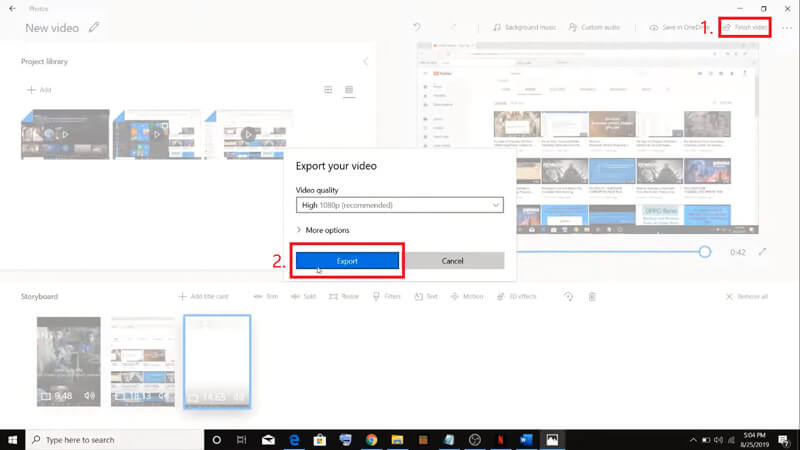
步驟四: 調整好影片順序後,點擊右上角的完成影片(Finish video)。接著將已合併的影片匯出到你的電腦。
第4部分。合併MOV的常見問題解答
1.我可以在Windows上使用QuickTime Player嗎?
儘管 Apple 已不再為 Windows 提供 QuickTime 支援,你仍然可以在網路上找到 QuickTime 的安裝檔。不過要注意的是,你只能用它來播放影片,所以它基本上就是一款普通播放器,幾乎幫不上什麼忙。
如果你是想要合併 MOV 檔案的 Windows 使用者,只要使用功能強大的FVC Free Online Video Merger就可以了。
2.哪個更適合YouTube,MOV或MP4?
當你透過合併所有素材,製作出一支精彩影片後,可能會想將它上傳到 YouTube、Facebook、Instagram 或其他平台。如果是這樣,MP4 會是更好的選擇,因為它檔案較小,更方便在網路上分享。
若你想進一步了解MOV 與 MP4 之間的差異,也可以點擊查看。
3. QuickTime Player可以導出MP4視頻嗎?
既不算是,也可以說是。因為原本的 QuickTime 並不支援匯出 MP4 檔案。但如果你付費升級為 QuickTime Pro,就可以在合併 MOV 檔案的同時,自動取得轉檔後的 MP4 檔案。如果你不想花任何錢,卻仍希望在 Mac 上將 MOV 轉成 MP4,可以試試一款同時相容於 Mac 和 Windows 的免費線上轉檔工具:FVC Free Online Video Converter。
結論
以上就是在需要將多個 MOV 檔案合併為一個時,可以採用的各種方法。如果你使用的是 Mac,可以直接利用內建軟體 QuickTime Player 來取得合併後的 MOV 檔案。Windows 10 使用者則可以嘗試使用「相片」應用程式。至於其他版本的 Windows,用戶可以選擇FVC Free Online Video Merger,享受無額度限制、無廣告、無病毒的絕佳線上影片合併體驗。
如果您喜歡這篇文章,並且覺得很實用,可以與您的朋友分享。並且不要猶豫,給我們留下您的評論。現在輪到您嘗試這些方法並合併您的文件了。
-
 如何在Windows / Mac / Online / iOS / Android上將QuickTime轉換為MP4
 閱讀並獲得4種在手機或計算機上免費將QuickTime轉換為MP4視頻的方法。您可以輕鬆地在Windows / Mac / iPhone / Android /在線上將文件格式從MOV更改為MP4。
-
 的4種免費方式將MP4轉換為MOV
 如何在Mac上將MP4轉換為MOV?有沒有免費的方法可以將MP4轉換為MOV而不會造成質量損失?這篇文章分享了4種簡單的方法來幫助您在Mac,Windows PC和在線上將視頻從MP4轉換為MOV。
-
 如何在Windows / Mac上將M2TS轉換為MOV(在線/離線)
 是否需要將M2TS轉換為MOV才能在許多播放器和平台上播放視頻文件?本文將幫助您找到最佳的在線/離線方法,以在Windows / Mac上將M2TS轉換為MOV。
