


 視頻轉換大師
 屏幕錄影大師
 影片修復
影片修復適用於 Windows 和 Mac 的 7 大元數據編輯器
使用中繼資料編輯器來加入標籤是必不可少的,特別是當你打算保護檔案,避免有人聲稱那是他們的作品時。即使你不加浮水印,標籤也能替它進行防護。不過,並不是所有標籤編輯器都能輕鬆為我們的影片、音訊、照片和文件加入標籤,因此要選擇對的工具對大家來說可能有點困難。基於這個原因,你可以繼續閱讀本文,我們會為你一一說明。了解各種能輕鬆編輯檔案標籤的工具。

第 1 部分。桌面上視頻和音頻的最佳元數據編輯器第 3 部分 [離線]
1. Video Converter Ultimate [最推薦]
毫無疑問,Video Converter Ultimate 是 Mac 和 Windows 上一款真正出色、且最適合作為影片中繼資料編輯器的工具,只要下載即可使用。這款工具深受數以百萬計、且持續成長的使用者青睞,用來快速更改任何影片與音訊檔案的中繼資料。與其他工具不同的是,它還能協助你完成多種任務,例如轉檔、剪輯、製作 MV、拼貼等等;所有這些功能都集成在同一套工具中。如果你已經厭倦不斷下載、測試多款工具來完成進階功能,那麼現在正是你在桌面端入手這款工具、處理所有影音相關工作的好機會。想試試這款旗艦軟體嗎?那麼你可以閱讀下方資訊,了解如何像專業人士一樣,為媒體檔案加入中繼資料。
步驟一: 在 Windows 或 Mac 上下載軟體,點擊下方下載按鈕並等待下載完成。下載完畢後即可點擊檔案進行安裝。按照安裝流程操作,接著點選「立即開始」以啟動程式。
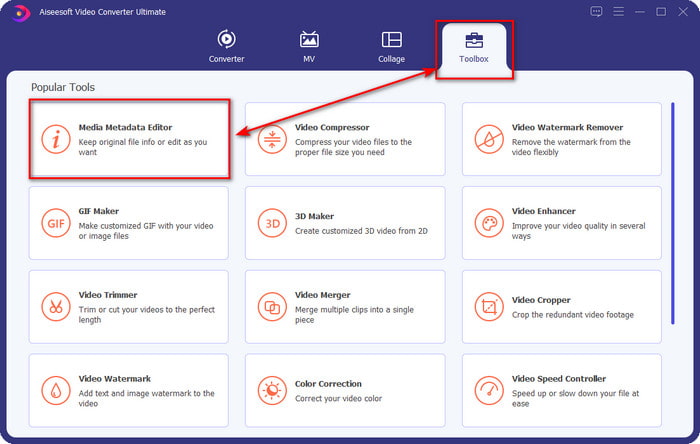
步驟二: 首先前往工具箱區域,然後在顯示的列表中點擊媒體中繼資料編輯器。
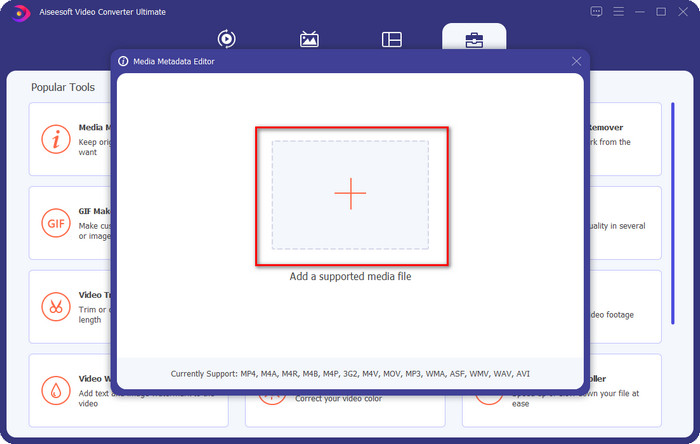
步驟三: 點擊新增按鈕開啟檔案總管,尋找要處理的媒體檔案,然後點選開啟以上傳檔案。
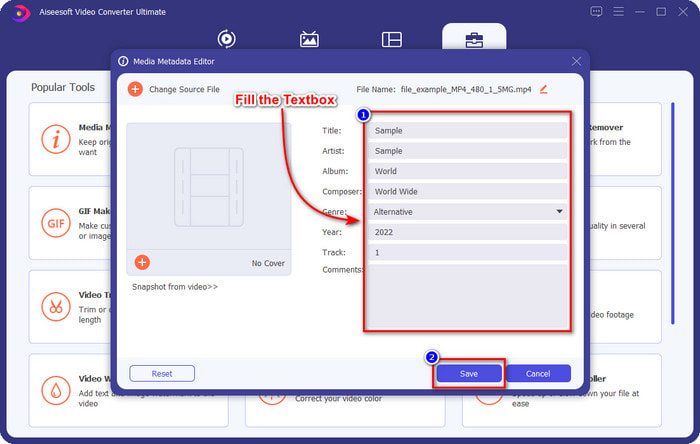
步驟四: 在文字方塊中,你可以點選並輸入想要加入作為標籤或中繼資料的內容。接著點擊「儲存」,套用你新增的中繼資料或標籤。就這麼簡單,在這款工具的協助下,為媒體檔案加入中繼資料變得輕鬆好上手。
2. MP3標籤
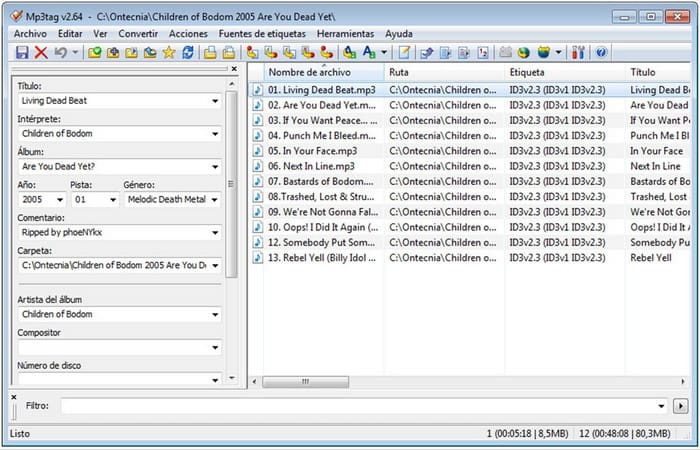
MP3tag 是一款可在 Mac 上下載使用的優秀中繼資料編輯器。如果你想把音樂整理得井井有條,這套軟體非常適合。它已經證明了修改音訊檔案中繼資料既簡單又人人可上手。透過這款工具,你幾乎可以加入所有你需要、用來保護 Mac 上音訊檔案的重要資訊。雖然名稱中有 MP3,但它同樣能編輯其他音訊格式的標籤。不過,如果你使用這款工具,新變更不會自動儲存,因此需要手動儲存;一旦發生電力中斷,你新增的標籤就會被刪除。
步驟一: 下載並開啟 MP3tag,準備開始加入標籤。
步驟二: 點擊檔案,在資料夾中找到目標音訊檔案。
步驟三: 在右側加入相關資訊,然後點擊儲存。
3. Windows 上的屬性
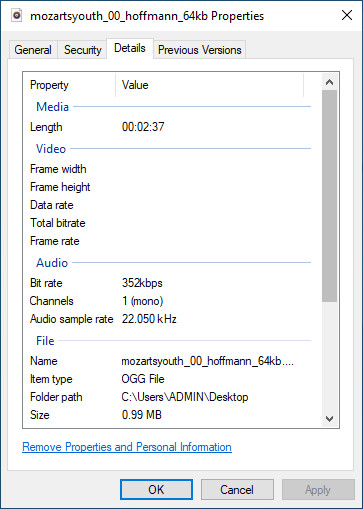
如果您在 Windows 10 上尋找可訪問的元數據編輯器,我們建議使用 Windows 上的屬性。這個功能不如你可以在列表中使用的呈現的標籤編輯器;此功能希望保持簡單,編輯和保存標籤。儘管該工具並不比其他工具好,但它被認為是盡快編輯任何媒體文件的絕佳選擇。儘管該工具很簡單,但它仍然不如您可以在網絡上下載或使用的其他標籤編輯器。儘管如此,值得嘗試使用該工具。
步驟一: 先找到你想編輯中繼資料的媒體檔案。
步驟二: 於檔案上按滑鼠右鍵,找到「內容」,接著點擊「詳細資料」。
步驟三: 加入你想新增到媒體檔案的標籤,然後點選確定以儲存。
相關閱讀:
第 2 部分。網絡上照片的最佳元數據編輯器的第 2 部分
1.皮瓦里奧
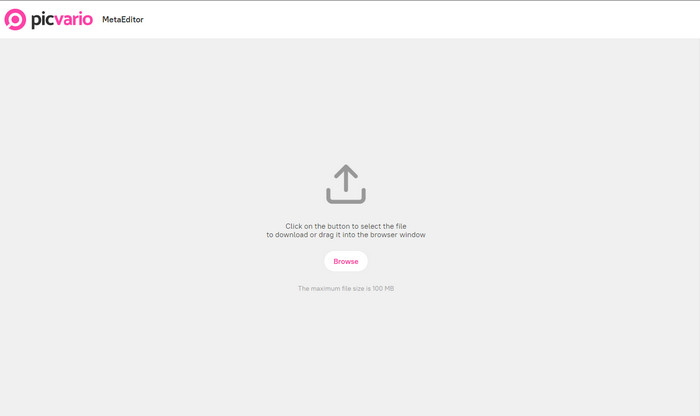
Picvario 是一款可在網頁上使用的照片中繼資料編輯器。只要將照片上傳到這個網站,就能修改其中的標籤。與 MP3tag 類似,你在這裡能新增的資訊有限,但它的優點是以網頁形式運作。這個網頁工具沒有太多可誇耀之處,因為它並沒有提供其他地方找不到的獨特功能。此外,在你能替照片新增或修改中繼資料之前,必須先註冊帳號並登入。
步驟一: 開啟瀏覽器並搜尋 Picvario,在其官方網站建立帳號並登入。
步驟二: 點擊匯入,在資料夾中找到影像,然後點擊調整按鈕,為圖片加入標籤。完成後點擊套用。
步驟三: 點擊下載按鈕,將已含標籤的圖片儲存下來。
2.西弗
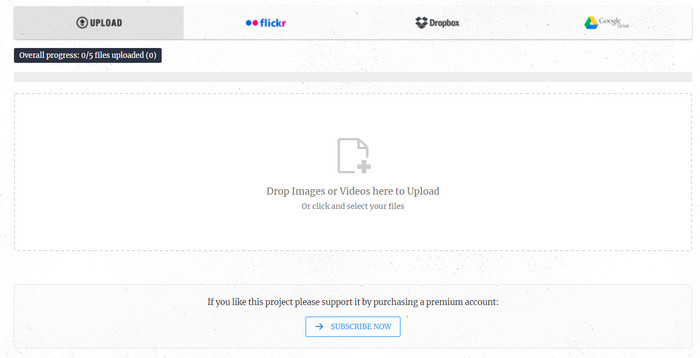
theXifer 是一款免費的線上影像與影片中繼資料編輯器,你也可以選擇訂閱進階服務。透過這個網頁工具,你可以在圖片中加入精確位置等中繼資料,以及其他你所需的重要資訊。與 Picvario 不同的是,這款工具能為圖片加入更多資訊。不過,它對檔案大小以及你在特定時間內可處理的次數有一定限制。即便有這些限制,談到圖片與影片中繼資料編輯時,它依然被視為最佳競爭者之一。
步驟一: 搜尋並開啟此工具。將檔案拖曳到網頁工具中以上傳,然後點擊EXIF.ME。
步驟二: 依照需求填寫資訊欄位以編輯標籤。
步驟三: 點擊Go EXIFING,下載已含中繼資料的圖片。
文檔或 PDF 的最佳元數據編輯器的第 3 部分。第 2 部分 [在線和離線]
自動元數據
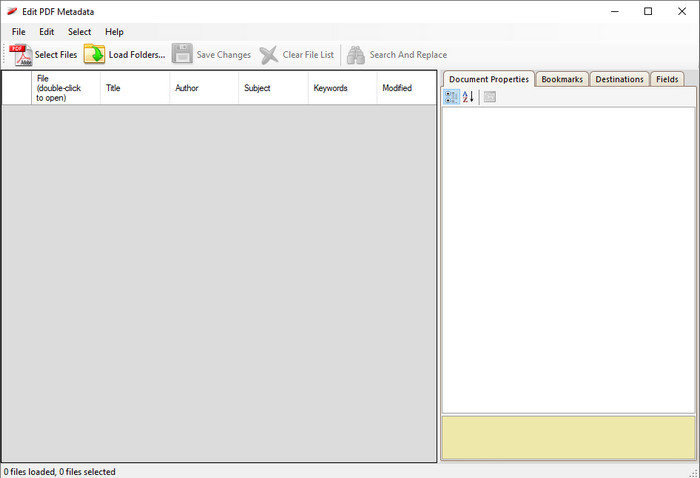
Auto Metadata 是可在 Windows 上下載使用的免費中繼資料編輯器。它能讓你輕鬆編輯 PDF 或文件中的多組中繼資料。若你需要在 PDF 上加入標題、作者、主題、製作程式與關鍵字等標籤,它都能辦到。一般而言,PDF 並不需要像影片、音訊與照片那樣大量的資訊。利用這款工具,你還可以在編輯前先檢視 PDF 檔案中既有的中繼資料;已加入 PDF 的資訊都能在這裡看到。雖然你在 PDF 編輯器中可以看到其他標籤,但這些並非此工具的重點功能,不過請記住,你仍然可以透過這款軟體修改 PDF 的中繼資料。
步驟一: 將 PDF 檔案匯入 Auto Metadata。
步驟二: 點擊「編輯」選單,接著選擇「為所選記錄設定內容」。
步驟三: 在你完成 PDF 中繼資料的修改後,即可點擊儲存變更,套用你新增或更新的標籤。
賽達
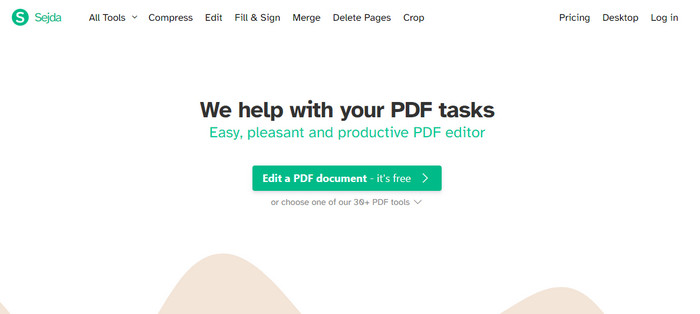
如果你不想下載任何 PDF 中繼資料編輯器,也可以改用Sejda。凡是與 PDF 相關的編輯需求,在這裡幾乎都能完成,包括轉檔、合併、刪除頁面等等。由於介面簡潔,許多使用者已經下載它的離線版本。雖然這個網頁工具也有桌面版,我們仍將焦點放在線上版,因為它具備相當不錯的功能。儘管這款工具能幫你完成工作,使用者仍覺得稍嫌不足,主因在於它有一些限制,例如可處理的 PDF 頁數上限。如果你想試用此工具,請依照下列步驟操作。
步驟一: 開啟 Sejda 並點選上傳 PDF 檔案。
步驟二: 在 PDF 上填入你所需的資訊,如有需要也可以新增欄位。
步驟三: 按下更新 PDF 中繼資料以儲存。
第 4 部分。關於最佳元數據編輯器的常見問題解答
我應該添加到文件中的關鍵元數據是什麼?
標題和作者姓名最容易識別,尤其是通過庫或文件夾。但是您可以通過添加其他信息來更具體地了解該文件,這些信息將幫助您確定文件是什麼並添加保護。
元數據有限制嗎?
無論是在線還是離線,某些軟件都會限制您可以在文件中添加的元數據。所以,如果你想添加很多關於你的文件的信息,它會比以前更好,更容易識別,甚至更好。
為什麼在文件上添加元數據會變大?
元數據是視頻、音頻、圖像、PDF 等元素的一部分。因此,如果您將元數據添加到文件中,請不要感到震驚,因為您添加的元數據會擴展媒體文件的大小。
結論
現在我們了解了視頻、音頻、圖像和 PDF 的不同元數據編輯器,是時候選擇了。有了這篇文章,我們現在對個人編輯的能力有了一個清晰的認識,這無疑可以幫助你。無論您的任務是關於元數據的,這都是只適合您的完美文章。但是如果你想改變視頻和音頻的元數據,你必須選擇終極工具,因為它的簡單性和專業的輸出。要了解更多,您必須下載該軟件並使用它!
-
 如何在 Windows 10/11 和 Mac 上編輯 WAV 文件的屬性 [已解決]
 您是否正在尋找一種在 Windows 10/11 上編輯 WAV 文件屬性的方法?如果您繼續閱讀本文,這個問題將會有答案。
-
 Windows/Mac/iOS/Android 上的最佳 ID3 標籤編輯器 [已驗證]
 編輯 ID3 標籤對您來說是個問題嗎?如果是這樣,這篇文章是給你的。閱讀下面有關要使用的 ID3 標籤編輯器的完整詳細信息。
-
 如何在 Windows 10/11 上更改文件詳細信息 [最簡單的方法]
 需要知道如何在 Windows 10/11 上更改文件詳細信息?如果是這樣,這是您必須閱讀的正確文章,其中包含重要的詳細信息和要使用的工具。
