了解 Reach 提供的 7 種流行音樂標籤編輯器

A media player has an inbuilt meta editor to edit or add music tags by filling the artist's name, title, and genre. However, most of them limit what they can provide to help the users add the tags or metadata. Isn't it frustrating? Fortunately, the best way to handle editing the metadata is to use a metadata editor on your phone. But the question is, which app should you use? Which app is suitable for your needs in regards to editing the metadata? If you're asking yourself the same question, there is no need to worry. Because today we review the six best apps you can use to edit it on your devices, so read them thoroughly to know more music metadata editor apps you can download and use.

音樂標籤編輯器

第 1 部分。可在 Windows 和 Mac 上使用的終極音樂標籤編輯器

If you have a Windows or Mac to edit metadata, then which tool should you use? Then we suggest that you depend on FVC Video Converter Ultimate. Unlike the tag editors, this tool supplements all the needs that you want to have or add to your metadata in a few clicks. Imagine this: all of the apps you can offer are inside this tool, but not the auto tags. More importantly, you can edit, remove, and update all of the tags on your audio file by following the steps below. So, to edit music tags on Windows 10/11 or Mac, the tutorial below will help you do it.

Step 1. To download the metadata editor on your Windows or Mac, press the appropriate button below. Once it is finished, click the file to install the app, follow its process, then open the tool.

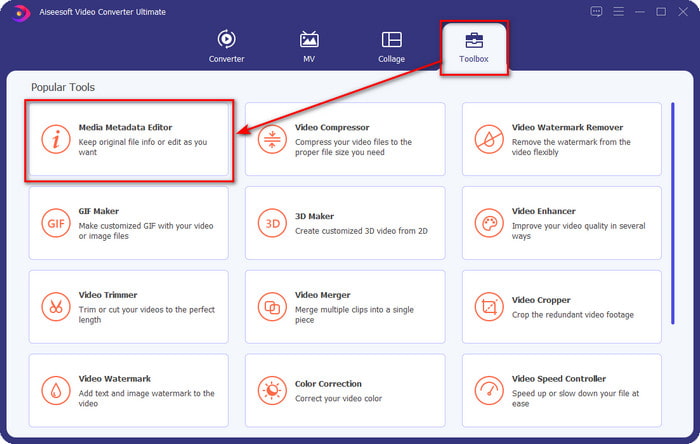
Step 2. Hit the Toolbox section, locate and click the Media Metadata Editor on the list that will show.

命中工具箱

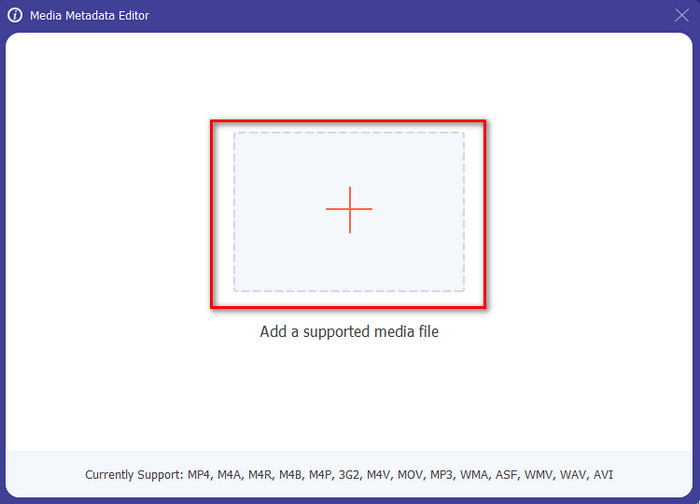
Step 3. By pressing the + icon, the folder will show on your screen; find the audio file you wanted to edit and press Open to go to the next step.

添加媒體文件

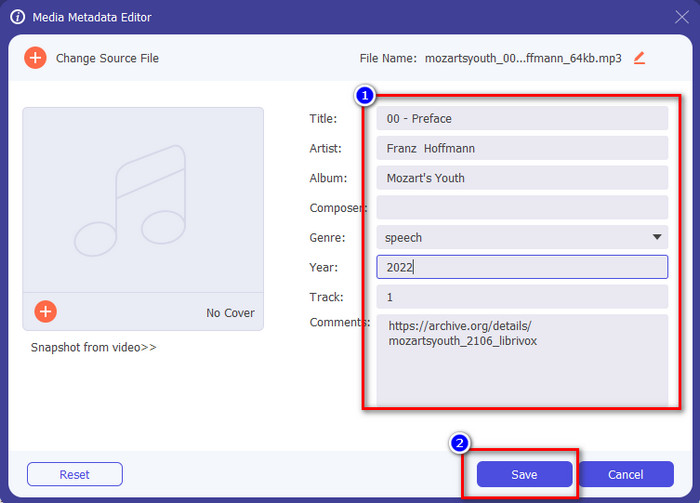
Step 4. Update the audio file tag by typing it out on the text box. After that, you must now click the Save, and all the tags you change will update. Even if you transfer the file on your mobile phone, the tags are still intact on the audio file.

保存音頻

相關閱讀:

Best Metadata Viewer

How to Remove Metadata

第 2 部分。Android 和 iOS 設備上最佳音樂標籤編輯器應用程序的 6 部分

自動標籤編輯器
自動標籤編輯器

Device Supported: Android

Stars on Playstore: 4.4 Stars

Reviews or Ratings: 81, 332 People

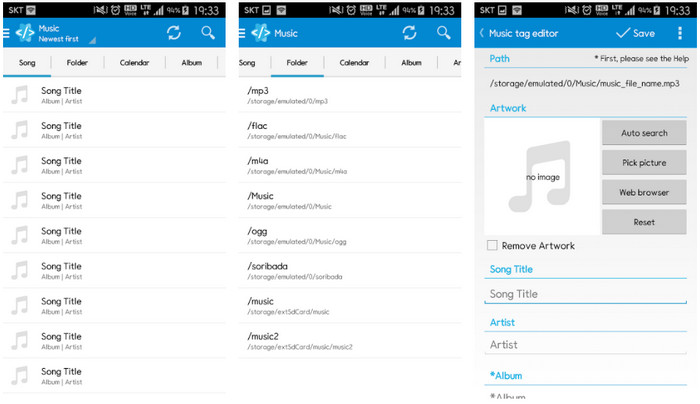
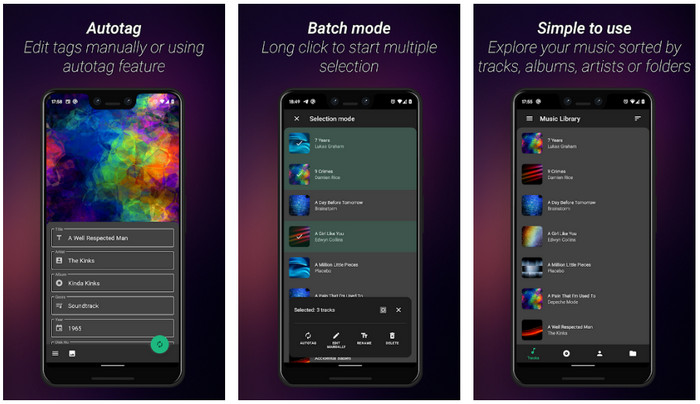
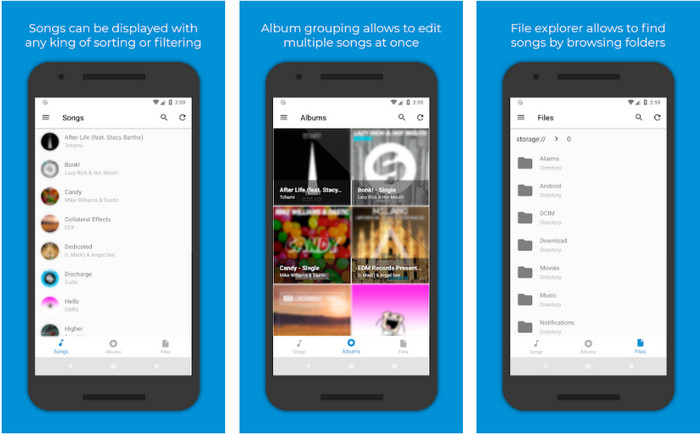
You can access the Automatic Tag Editor, the best music metadata editor if you are an Android user. This app is perfect for editing tags on your audio files in less than a minute. Another good thing about this app is that it has an automatic metadata editor for filling or updating the data on your files, especially if you bought the digital copy. It supports multiple tags it can fill in, such as title, genre, year, and many more, to help you recognize the file even better. In the recent update, many users find that some glitches and bugs happen while using the app on their Android. Also, it supports an average music format you can upload on like MP3, M4A, OGG, FLAC, WMA, and WAV.

明星音樂標籤編輯器

星標編輯器

Device Supported: Android

Stars on Playstore: 4.0 Stars

Reviews or Ratings: 293, 598 People

Star Music Tag Editor is another music tag editor you can download on the Playstore. This app is excellent because it provides a simple GUI to understand it better than the other app can offer. Same as the first tool, it also supports auto-search that effectively fills your music tags. Although the app is easy to use and has a lot to offer, there are some cases that it isn't as effective as the other says. When we tried to edit the metadata on this app, there were times that it didn't save. Also, if you're about to keep the metadata, a pop-up text will show on your screen saying invalid audio frame exception with the new music because of the corrupted file. But some users don't have that kind of problem using the app, so if you want to use this app, you can download it on the Playstore to use it.

音樂標籤編輯器 - Mp3 標籤器 |免費音樂編輯器

音樂標籤編輯器

Device Supported: Android

Stars on Playstore: 3.8 Stars

Reviews or Ratings: 11, 378 People

If you have a problem with the wrong tags, use the Music Tag Editor - Mp3 Tagger | Free Music Editor to fix the music metadata quickly. This tool can fill the other data if you insert the song and artist name first to search the proper tags correctly. With this app, you can easily add tags to different audio files at once. However, the automatic search tags it offers take a lot of time to gather the information, and sometimes it includes unrelated tags. Also, when you are about to add an image on the audio track, it won't attach the image on that track you've edited.

Ever Tag:音樂標籤編輯器 4+

永恆標籤

Device Supported: iOS

Stars on Playstore: 4.7 Stars

Reviews or Ratings: 1.1k People

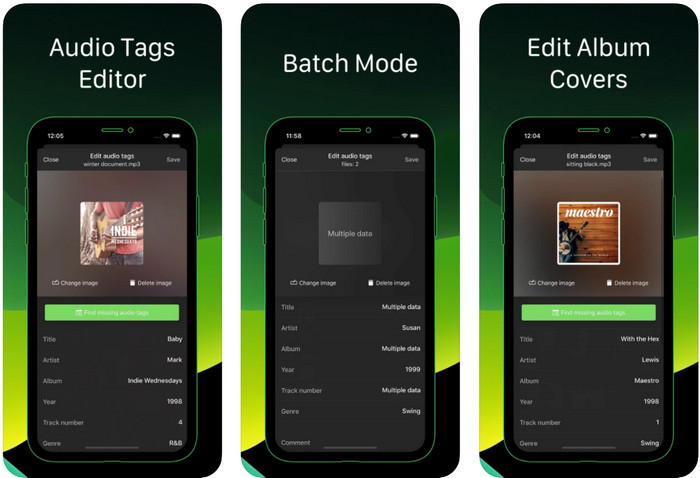
Learn how to edit music tags on iPhone with the help of the Ever Tag: Music Tag Editor 4+. This app on iOS supports multiple audio formats, so uploading metadata is easier than ever; the same goes for editing the data. Moreover, this app offers you different sets of metadata tags to add to your audio file by filling them individually, starting from the title up to ratings. The downside of using the app is that it can't automatically fill the tags with the auto search the other Android tool can offer to you. Even though the app said it provides a batch process for editing the metadata, you can't do it in reality. But if you want to try and use this app, download it on your App Store now.

音樂標籤生成器

標籤生成器

Device Supported: iOS

Stars on Playstore: 4.5 Stars

Reviews or Ratings: 55 People

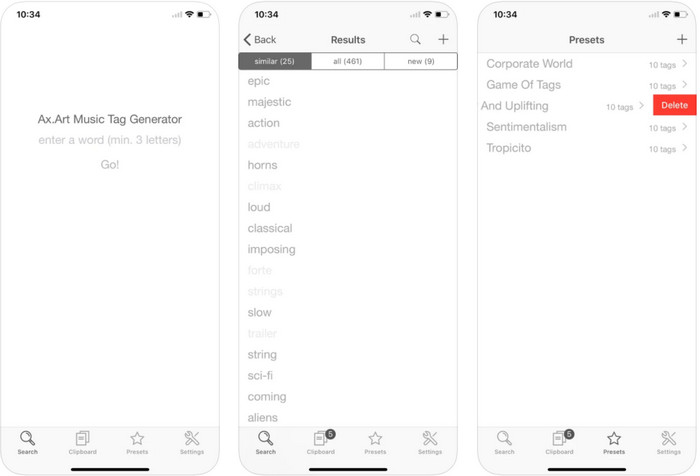
Although the popularity of Music Tag Generator isn't as much as the other editors, you can still see and edit what a tag in music is. This tool is your mini utility app to find and arrange the music tracks by tags. Besides arranging the tags, you can also use this app to change the metadata according to your needs and organize them. Although the app can help you edit, it is still not as good as the other editor in this article. It has a simple interface, but its features are comprehensive as you expected.

的iTunes

的iTunes

Device Supported: iOS

Stars on Playstore: 4.9 Stars

Reviews or Ratings: 1.4k People

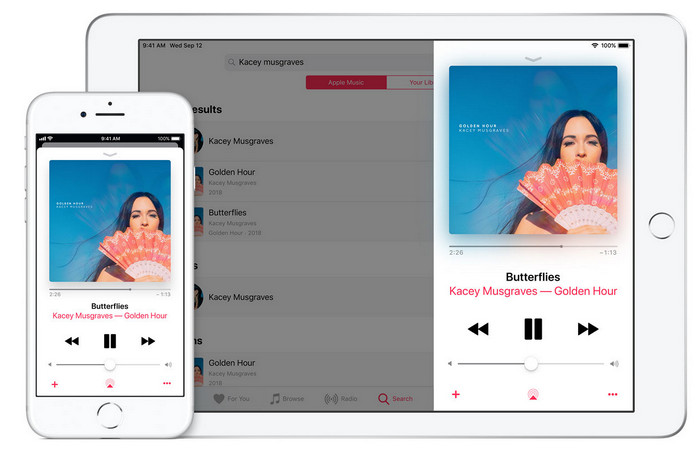
這個應用程序有一個內置的音樂庫,您可以購買、下載和使用。 iTunes 不是您可以在 iOS 上使用的典型元數據編輯器應用程序,因為該應用程序以存儲音樂而聞名,就像 Spotify 可以提供的那樣。儘管您可以在此應用上找到的音樂具有元數據和標籤,但您仍然可以根據需要更改或更新標籤。但是,您無法使用此應用輕鬆編輯或更新標籤,因為在學習如何在 iTunes 中標記音樂之前,您需要滿足一些要求。

這裡提到的大多數應用程序都有一個自動標籤,它可以幫助您自動將標籤或元數據添加到您擁有的音頻文件中。但是,與手動在文件中添加不相關的標籤不同,此功能存在缺陷。如果您想避免這些錯誤,讓我們通過閱讀第 2 部分繼續了解 PC 上最好的音樂標籤編輯器。

部分 3. 關於音樂標籤編輯器的常見問題解答

ID3標籤是什麼?

您可以在音樂上經常看到這些 ID3 標籤,因為它們包含有關媒體文件的數據,特別是音頻。通過將 ID3 標籤添加到您的音頻文件,您可以根據您使用的媒體播放器排列文件。

手機錄音有標籤嗎?

是的,它有標籤和元數據。但是,這些標籤並不像其他媒體文件那樣全面。

為什麼添加元數據後我的音頻文件損壞了?

音頻損壞的原因與您添加或刪除的元數據無關,而是與您用於編輯文件標籤的工具有關。因此,如果您想避免這種情況,您必須選擇可以幫助您輕鬆添加或刪除元數據的完美工具。請記住,如果該過程開始,請確保您不會取消編輯元數據的過程,

結論

You must now select which app you can use to edit your music metadata, please make sure that you select the app that is in your platform to download it easily on your Play Store or Appstore. But if you feel like you need a tool that performs the best. then you must use the ultimate tool on the desktop. FVC Video Converter Ultimate provides the best way to add tags to your music easily. But before you can use this tool, you will need to download the tool first and follow the instructions we present in part 2. To know more, read it carefully.

優秀的

Rating: 4.2 / 5 (based on 161 votes)