


 視頻轉換大師
 屏幕錄影大師
 影片修復
影片修復
 安全下載
安全下載有效刪除視頻上 Picsart 過濾器水印的完整方法
現今,要在桌面上擁有一款可靠的視覺媒體編輯軟體(例如 Picsart),已成為不可或缺的利器。有了它,你只需調整幾個選項,就能把普通圖片變成前所未有的攝影級影像!你可以藉由自己製作的吸睛圖片吸引更多顧客或觀眾。不過,使用 Picsart 有一個問題,就是在匯出後會自動加上浮水印。若不移除,這個浮水印會相當惱人,甚至在畫面上造成干擾。所以,如果你想要這款軟體以及一份移除 Picsart 濾鏡浮水印的教學,那就繼續往下閱讀本文,深入了解相關內容!

第 1 部分。如何使用桌面上的免費軟件刪除 Picsart 過濾器水印
FVC Video Converter Ultimate - Windows 和 Mac 上的第一水印去除劑
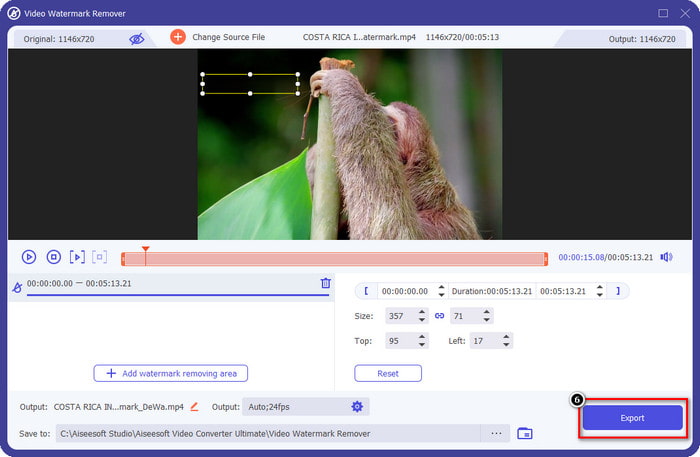
先從我們排行第一的軟體開始介紹,它可以協助並教你如何移除 Picsart 的浮水印。FVC Video Converter Ultimate 是你武器庫中不可或缺的一款工具,能輕鬆移除影片中的浮水印,同時輸出專業級成品。由於效能與功能都相當出色,許多使用者已經試用過,且工具並未讓他們失望。如果你需要協助來移除影片上的浮水印,可以參考下方步驟並依照操作。
步驟 1. 點擊下方相對應的下載按鈕,將這款旗艦軟體下載到你的裝置。之後在電腦上安裝軟體,完成後點擊「Start Now」啟動程式。
步驟 2. 在 工具箱(Toolbox) 區域,你會看到其他可用功能,可以幫助你為影片增添完美潤飾。但今天請點擊 Video Watermark Remover(影片浮水印移除)。
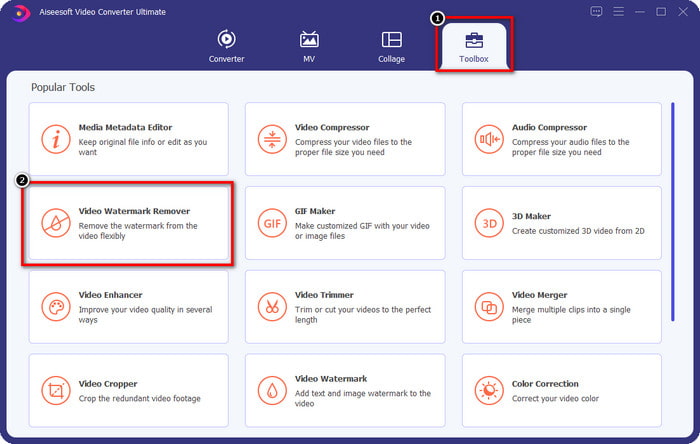
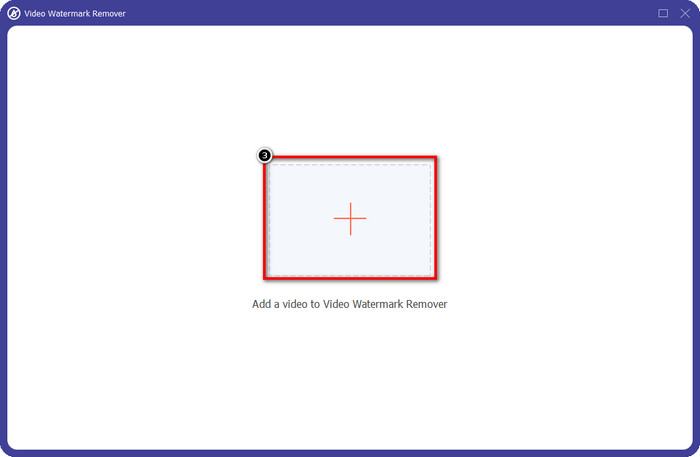
步驟 3. 點擊 + 圖示,匯入你在 Picsart 編輯好的影片。在出現的資料夾中搜尋檔案,接著點擊 Open。
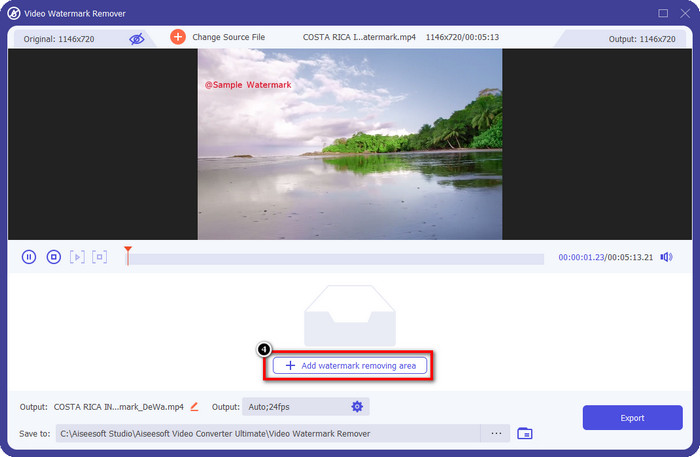
步驟 4. 按下 Add Watermark Removing Area(新增浮水印移除區域),將你上傳影片中嵌入的浮水印標記出來以便移除。
步驟 5. 拖曳並放置選取框到浮水印的位置,將其完整覆蓋。你可以依照個人需求放大或縮小這個方框。
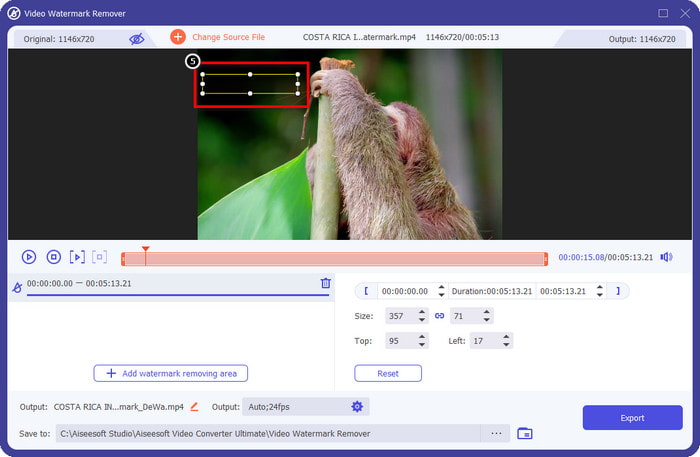
步驟 6. 當你已經利用選取框完整覆蓋浮水印後,點擊 Export,即可將最終成果儲存到本機磁碟。
Windows 上的照片 - 帶有 3D 設計的封面水印
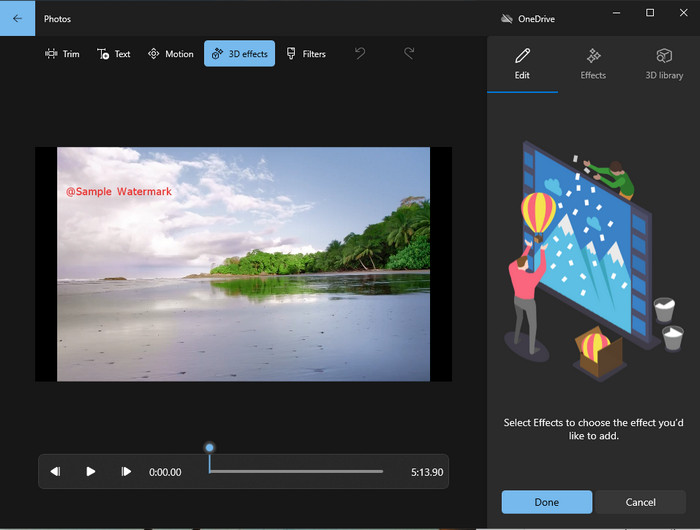
如果你不喜歡下載軟體,而且是 Windows 使用者,那就一定要試試用 相片(Photos) 來編輯影片中的浮水印。學習如何用這個工具移除 Picsart 浮水印會更快速,因為你不必再下載額外的應用程式。嚴格來說,這個工具並不會真正移除影片中的浮水印,但你可以用 3D 設計來遮蓋它。儘管如此,這款預設的視覺媒體檢視與編輯工具在表現上依然不錯。還不確定嗎?那就先閱讀以下步驟,若有需要可以依照教學操作。
步驟 1. 點擊工作列上的 Windows 鍵,搜尋「Photos(相片)」並將其開啟。
步驟 2. 開啟內建編輯器後,點擊 + 符號,上傳你想在此編輯的影片。
步驟 3. 前往 3D Effects(3D 效果),點擊 3D Library(3D 資料庫),搜尋你想用來遮蓋浮水印的設計。將所選設計放置在有浮水印的畫面區域。
步驟 4. 按下 Finish Video(完成影片),即可將最終成品儲存到 Windows 本機磁碟。
PickFrom 在線模糊視頻
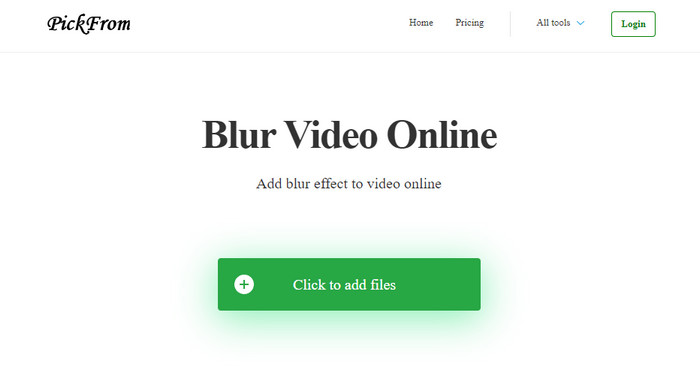
PickFrom Blur Video Online 能協助你移除網路上影片中的 PicsArt 浮水印。這款工具對多數人來說仍不太知名,但我們今天會特別介紹。之所以將它納入,是因為它在移除上傳影片浮水印方面的效率相當不錯。其介面(GUI)簡潔直觀,即使第一次使用也不會迷路。所以,如果你想移除浮水印,我們就一起進入下方的操作流程。
步驟 1. 開啟你的網頁瀏覽器,搜尋它的名稱,然後點擊第一個搜尋結果進入線上浮水印移除工具。
步驟 2. 點擊「Click to Add File」,即可在此上傳影片。
步驟 3. 勾選 Blur Part of the Video(模糊影片的部分區域),然後將選取框放到浮水印所在位置。
步驟 4. 按下 Start,即可下載已無浮水印的影片。
第 2 部分。如何通過購買高級版刪除 Picsart 水印
如果您不想在刪除 Picsart 金色水印時遇到麻煩,您必須購買該軟件。這將花費您一定的費用,因為您需要先付費才能使用它,然後導出沒有任何嵌入水印的視頻。因此,如果您想要購買 Picsart 的分步教程,您必須按照我們添加的下一個教程進行操作。
步驟 1. 開啟 Picsart 官方網站並登入你的帳號。如果你尚未擁有帳號,必須先在此註冊。
步驟 2. 在主頁上點擊「Pricing(價格)」,查看各個可用方案的費用。
步驟 3. 選擇你想要的方案(按月或按年),然後點擊 Go to Payment。
步驟 4. 填寫帳單資訊所需的各項資料,接著點擊 Purchase Now 完成購買。
相關閱讀:
第 3 部分。有關如何刪除 Picsart 水印的常見問題解答
我可以永久購買 Picsart Gold 嗎?
它不支持一次性付款方式或計劃,因此如果您想使用 Picsart Gold,您需要使用月度或年度計劃。通過訪問其官方網站查看每個計劃的價格。
我可以在 Picsart 上創建自定義訂閱嗎?
是的,您可以在 Picsart 上為團隊創建訂閱。您可以設置將使用該應用程序的人數。
我在哪裡可以訪問 Picsart?
您可以在 Windows、Android 和 iOS 上下載 Picsart。不幸的是,該應用程序目前沒有 Mac 版本,但不要難過,因為您可以使用系統上可用的其他媒體編輯軟件。
結論
我們之前教過的教程讓您了解使用 PicsArt 去除水印以及您可以使用的最佳水印去除器。您現在可以欣賞您在 Picsart 上編輯的視頻,而無需擔心它添加到最終輸出中的產品水印。因此,如果您仍然不相信我們提供的工具,則必須先嘗試它們,尤其是 FVC Video Converter Ultimate。單擊下載按鈕並將其免費安裝在您的 Windows 和 Mac 上,然後享受它提供的可利用的特性和功能。
-
 如何使用終極工具去除 Pond5 水印
 按照以下簡單步驟了解如何刪除 Pond5 水印。您可以使用這些令人印象深刻的工具輕鬆刪除圖像上的 Pond5 水印。
-
 2 如何刪除 Dxtory 水印的強大方法
 通過以下兩種最佳方法了解如何刪除 Dxtory 水印。如果您正在尋找最合適的工具來刪除 Dxtory 水印,請閱讀此處。
-
 你不能錯過的傑出的阿諾德瑪雅水印去除劑
 許多水印去除器可以去除 Arnold Maya 水印。但是,如果您想知道什麼是最好的 Arnold Maya 水印去除劑,請閱讀此頁面。
