


 視頻轉換大師
 屏幕錄影大師
 影片修復
影片修復
 安全下載
安全下載如何快速從 Wondershare DVD Creator 中刪除水印的最佳方法
關於翻錄 DVD、CD 和藍光,選擇 Wondershare DVD Creator 不會出錯。該工具可以翻錄整個數據並將ISO文件刻錄到磁盤上;它是一個開膛手和燃燒器。儘管它是最好的開膛手和刻錄機之一,但它仍會在視頻上留下水印,尤其是在您使用免費版本的情況下。令人沮喪對吧?在這種情況下,總有一個解決方案可以幫助您。該信息是您需要了解並了解如何在幾分鐘內從 WonderShare DVD Creator 中刪除水印的詳細信息。

第 1 部分。 如何從 Wondershare DVD Creator 中刪除水印
能夠解決你問題的最佳方案,是在終極工具的協助下移除 Wondershare DVD Creator 的浮水印,而這個終極工具就是 FVC Video Converter Ultimate。這款專業工具能夠像抹奶油一樣迅速地移除附加在已轉製 DVD、CD 和藍光上的浮水印。由於它內建了多種功能,並且處理速度極快,越來越多使用者樂於使用這款工具。透過這個工具,你可以輕鬆又快速地去除影片中的任何浮水印。
除了水印去除功能外,您還可以為視頻添加新水印。您可以製作個性化水印,然後根據需要將其應用於您的視頻。因此,如果您認為您可以依賴此工具,這是真的,您可以按照以下後續步驟操作,因為我們提供瞭如何刪除 WonderShare DVD Creator 在您的視頻上留下的水印。
如何使用終極軟件刪除 Wondershare DVD Creator 水印:
步驟 1. 若要在桌上型電腦下載此軟體,可以點擊下方提供的下載按鈕,並選擇相對應的按鈕來下載正確版本。將軟體安裝到你的電腦上後,點擊「Start Now」以在桌面上執行此軟體。在繼續之前,請先熟悉此工具的圖形介面(GUI),以獲得流暢的使用體驗。
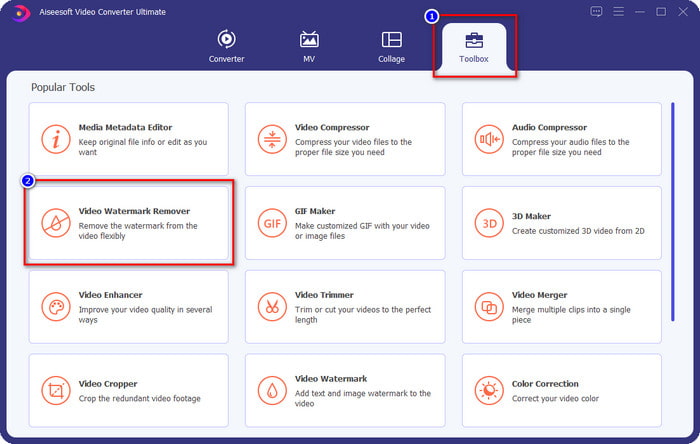
步驟 2. 啟動軟體後,前往 Toolbox,尋找 Video Watermark Remover。此工具中還有其他功能與特效可供使用,你可以在移除浮水印之後再進一步探索。
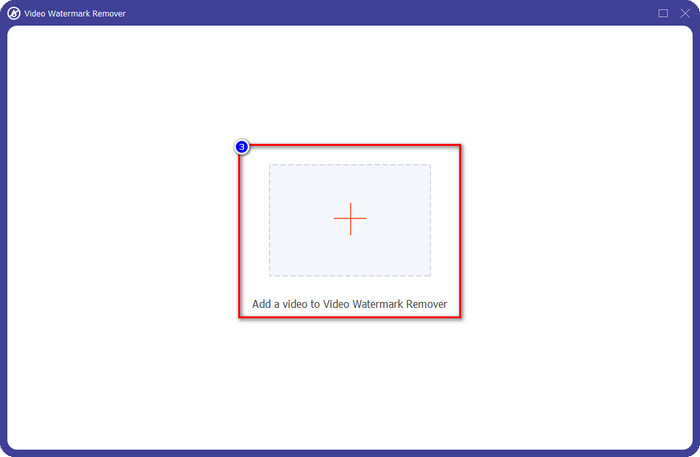
步驟 3. 按下 加號 圖示,加入你在 Wondershare DVD Creator 匯出的影片,先點選檔案,接著按 Open,即可順利將影片上傳至工具中。
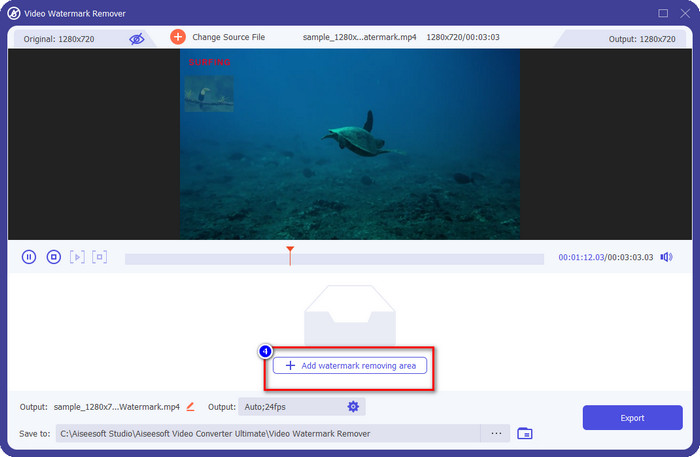
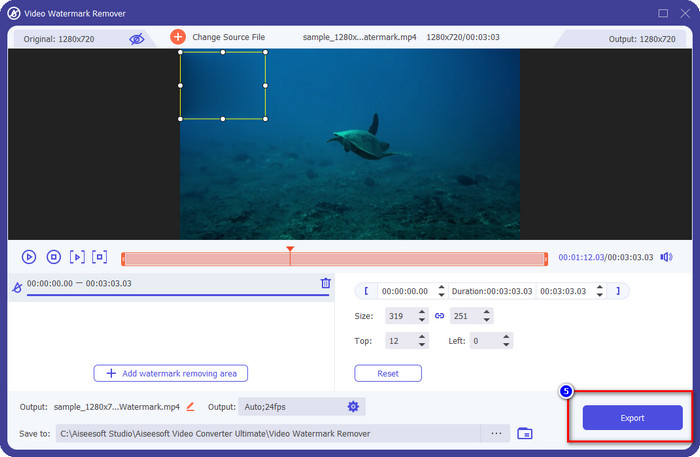
步驟 4. 上傳完成後,點擊 Add Watermark Removing Area 繼續操作。此功能可讓你在影片上覆蓋浮水印的位置。
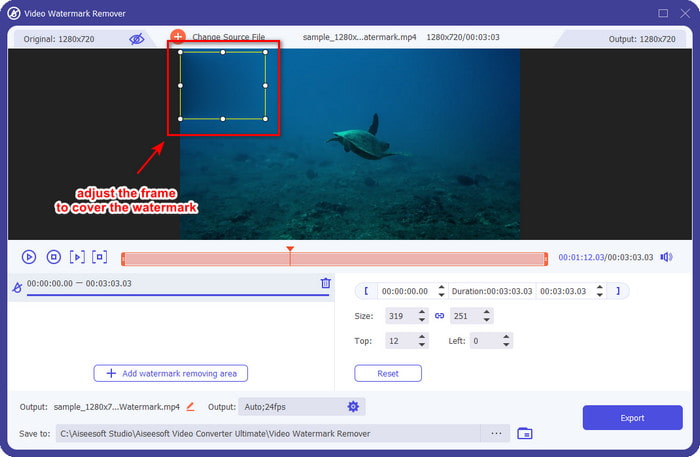
步驟 5. 請務必完整遮蓋影片上的浮水印,這樣在匯出時浮水印才會被移除。你可以調整覆蓋框的範圍與位置,讓它完全覆蓋住浮水印。
步驟 6. 完成所有設定後,點擊 Export 按鈕,就可以將影片儲存為沒有浮水印的版本。就這麼簡單,你就能取得在 Wondershare 中匯出的、已移除浮水印的影片。
優點
- 它使用起來並不復雜,所以如果你是初學者,你可以設法掌握它。
- 它可以很好地去除您上傳的視頻上的水印。
- 它對上傳和文件大小沒有限制。
- 導入和導出過程變得更加輕便,因為它支持超快速的過程。
- 它支持多種視頻格式,如 MP4、AVI、MKV、WMV 和 1000+ 格式。
- 可在 Windows 和 Mac 版本上下載。
缺點
- 下載它是必要的。
- 您可以購買該軟件以獲得您可以在這裡獲得的終極功能和特性,但它不會花費您太多。
第 2 部分。 如何在 Wondershare DVD Creator 上翻錄和刻錄無水印文件
在轉製與燒錄檔案方面,Wondershare DVD Creator 可以幫上忙;若你想移除匯出影片上的浮水印,也可以購買這款工具。雖然價格可能會比前面提到的終極軟體更高一些,但它仍然是一款相當好用的工具。你可以依照下列步驟,學習如何在沒有浮水印的情況下使用 Wondershare DVD Creator。
在我們繼續翻錄和刻錄視頻文件之前,請確保在您的桌面上下載該軟件並在其官方網站上購買其高級版本。
如何使用 Wondershare DVD Creator 翻錄 CD、DVD 和藍光上的視頻:
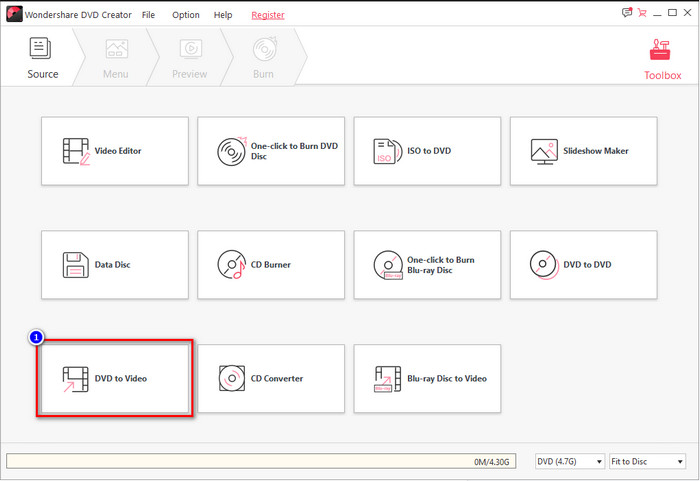
步驟 1. 下載並安裝軟體後,點擊 Wondershare DVD Creator,在你的裝置上啟動它。在主介面上點擊 More DVD Tool,然後按 DVD to Video。
步驟 2. 點擊 Load DVD 以載入你插入到裝置中的光碟,接著前往 Add DVD,上傳你想從光碟中轉製(擷取)的影片檔案。
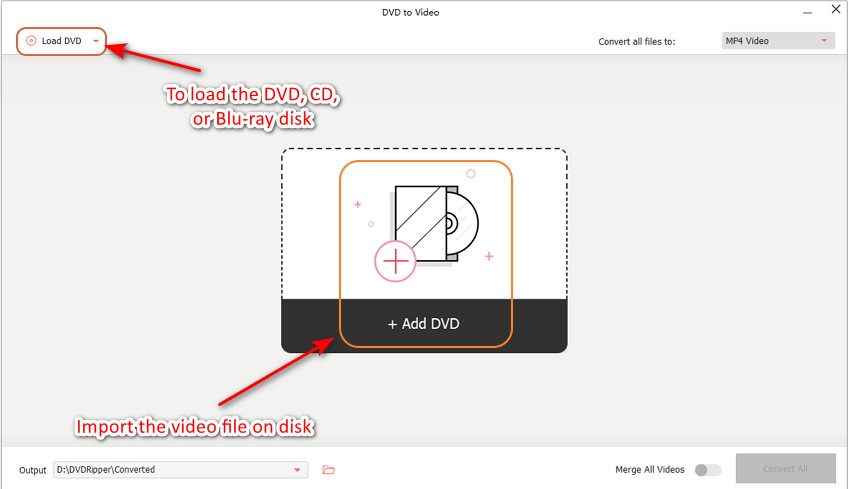
確保 CD、DVD 或藍光光盤已註入您正在使用的設備上,以便您可以在計算機文件夾中找到該文件。
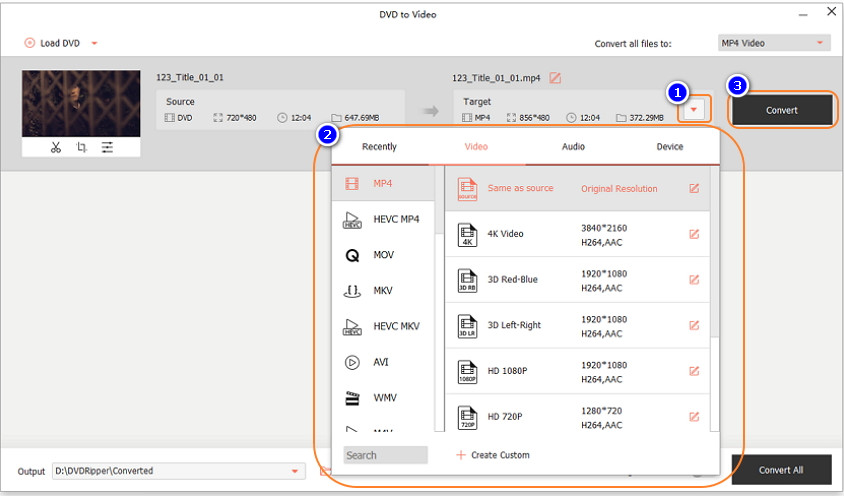
步驟 3. 點擊 下拉式 按鈕,選擇你想要的輸出格式,然後點擊 Convert,開始將影片轉製(轉檔)到光碟。
如何使用 Wondershare DVD Creator 在 CD、DVD 和藍光上刻錄視頻:
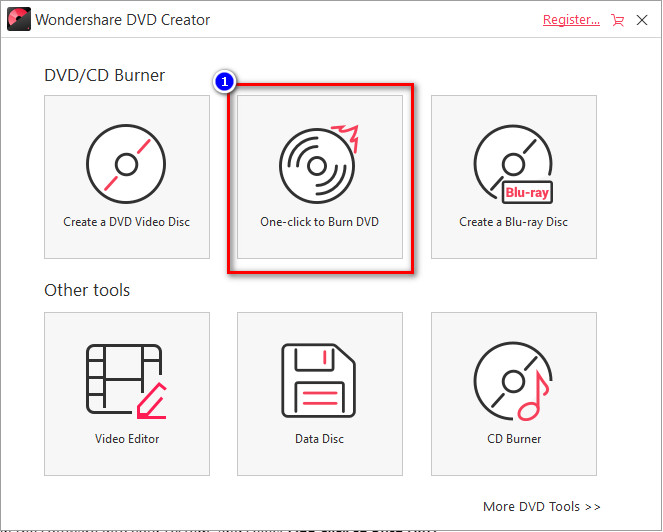
步驟 1. 在系統中執行此軟體,並選取 One-click to Burn DVD(一鍵燒錄 DVD)。
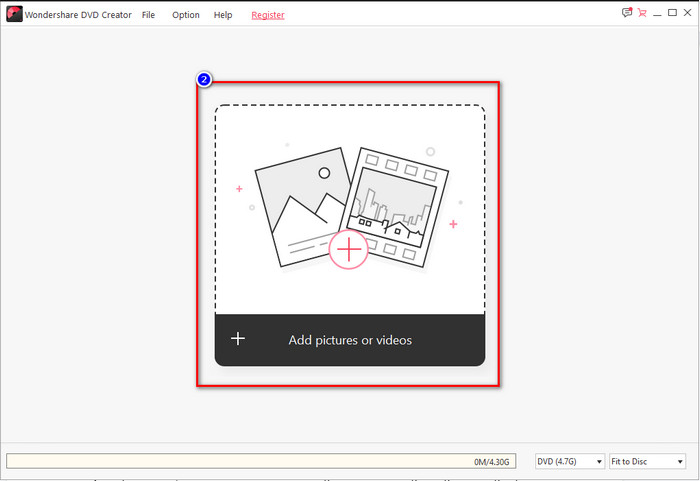
步驟 2. 點擊 Add pictures or video 並上傳你想要燒錄到 CD、DVD 或藍光光碟中的影片。
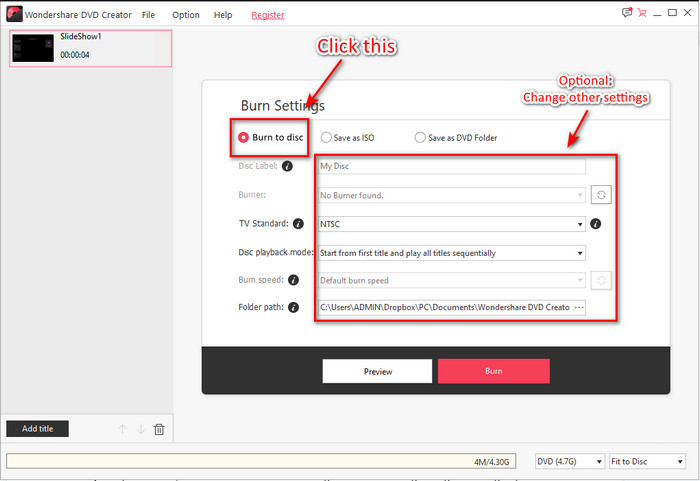
步驟 3. 放入光碟後,點擊 Burn to Disk,然後依照你的需求調整其他燒錄設定。
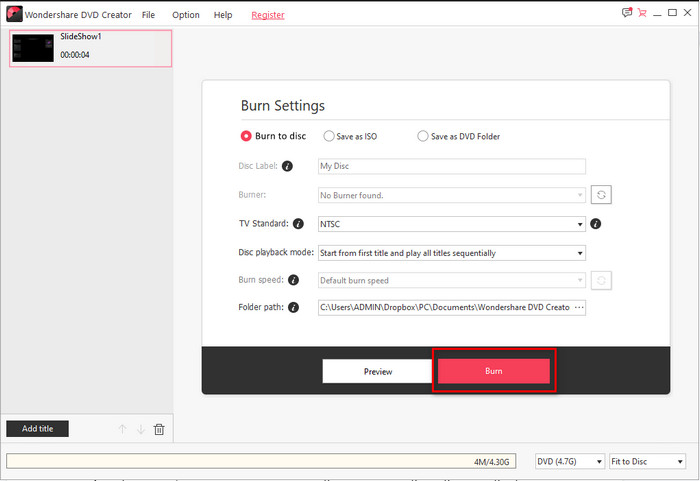
步驟 4. 全部設定完成後,點擊 Burn,即會開始將檔案燒錄到你插入的光碟中。
相關閱讀:
第 3 部分。有關如何在 Wondershare DVD Creator 上刪除水印的常見問題解答
Wondershare DVD Creator 的價格是多少?
對於一年訂閱,您需要每年支付 $39.95、終身 $55.95 和多用戶許可 $89.95。它不支持一個月的訂閱,如果您每年訂閱,它會自動續訂您的訂閱。
Wondershare DVD Creator 的浮水印可以被移除嗎?
絕對可以,您在此軟件中導出的視頻上的水印可以擦除。您購買該軟件或使用 FVC Video Converter Ultimate 之類的水印去除器。您需要的所有信息都已在本文中。
是否有其他方式可以移除 Wondershare 的浮水印?
除了使用水印去除器之外,您還可以使用視頻切割器將沒有水印的視頻切割尺寸並保存。但是,切割視頻以去除水印並不理想,因為它會佔用視頻的許多維度和幀。失去視頻質量的機會很高。
結論
現在我們可以刪除 Wondershare DVD Creator 試用水印,您可以在 FVC Video Converter Ultimate 等其他軟件的幫助下或購買它來選擇適合您的情況。我們確保您將在沒有任何水印的情況下獲得最佳視頻輸出。因此,如果您認為本文有幫助,您可以在下方留下五顆星,我們希望您可以應用以上所有信息來幫助您去除視頻上的水印。
-
 如何在 Windows 和 Mac 上的 Photoshop 中為視頻添加水印的最佳方法
 想知道如何在 Photoshop 上為視頻添加水印?在這種情況下,本文將為您提供您需要知道的一兩件事。
-
 3 如何輕鬆從視頻中刪除水印的最佳解決方案
 想要去除視頻上惱人的水印?通過此博客,您可以了解去除視頻水印的不同想法。
-
 如何快速在任何視頻上添加水印的 4 種最佳方法
 如果您閱讀本文,讓我們通過詳細步驟了解如何在 Windows、Mac、在線、iOS 和 Android 上的任何視頻中添加水印。
