


 視頻轉換大師
 屏幕錄影大師
 影片修復
影片修復掌握如何以最佳方式加速 Windows Media Player 中的視頻 [基於證據]
所有影片畫面的播放速度各不相同,而在變更速度時,其目的也有所差異。當你加快影片速度時,通常象徵電影或影片中較無關緊要、較不有趣的片段。相反地,當你放慢影片速度時,則會強調某些在畫面中非常重要的時刻或場景。這些對播放速度的調整,在剪輯或製作影片時都極為關鍵。請閱讀本文,教導使用者如何加快影片播放速度,特別是在桌面上一些常見的媒體播放器中,例如Windows Media Player(Windows 媒體播放器)。

第 1 部分。 Windows Media Player:如何加速視頻
Windows Media Player 是 Microsoft 提供的免費媒體播放器,它隨每個 Windows 副本一起提供。它也被微軟稱為 WMP 或 WM 播放器。除了讓他們看照片和聽音樂外,它還允許他們觀看視頻。使用 Windows Media Player (WMP) 可以翻錄音頻 CD 和整理音樂庫。它還有一個編輯選項卡,可以幫助調整視頻、圖片和音樂。如果您想使用 Windows Media Player 加速視頻,請按照以下步驟操作:
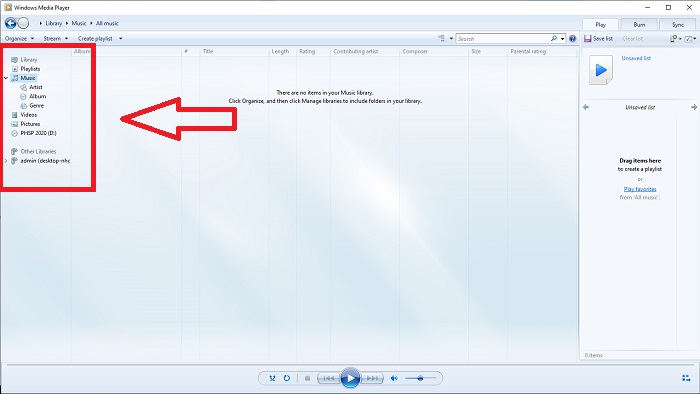
步驟一: 開啟 Windows Media Player,在左上角選擇「視訊」分頁。
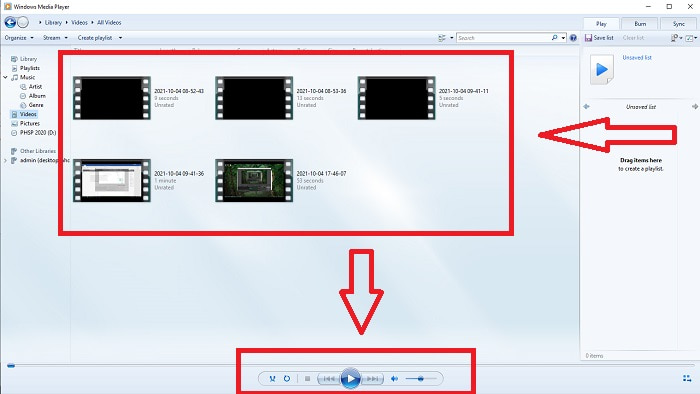
步驟二: 播放影片,你可以連按兩下左鍵或按滑鼠右鍵播放,或是點擊介面下方中央的「播放」按鈕。
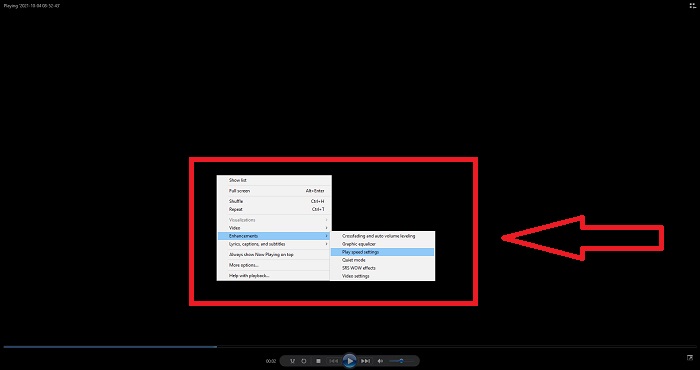
步驟三: 接著在播放畫面上按滑鼠右鍵,以開啟編輯選單。然後依序點選 Enhancements(增強功能) 與 Play Speed Settings(播放速度設定)。之後,你就可以拖曳滑桿(Slider)來調整影片片段的播放速度。
第 2 部分。 如果 Windows Media Player 播放速度不起作用怎麼辦?
在播放 AVI、WAV 或 MOV 視頻文件時,您可能會遇到 Windows 媒體播放器並在播放文件時遇到問題。質量一般的視頻經常以 AVI 格式觀看。其他媒體播放器播放 AVI 沒有問題。另一方面,WMP 在播放 AVI 文件時可能會出現故障。 Windows Media Player 不支持 AVI 文件,因為它們是使用編解碼器進行編碼的。您可能已收到以下通知:Windows Media Player 無法播放該文件。播放機可能不支持該文件類型或可能不支持用於壓縮文件的編解碼器。對這種現像有兩種可能的解釋。
1. 由於與所需文件不匹配,Windows 媒體播放器 (WMP) 無法支持該文件的編解碼器。
2. Windows 媒體播放器不支持壓縮編解碼器。
步驟一: 在電腦上開啟控制台,找到檢視方式(View By),然後點選大型圖示(Large Icons)以存取控制台的所有完整功能。
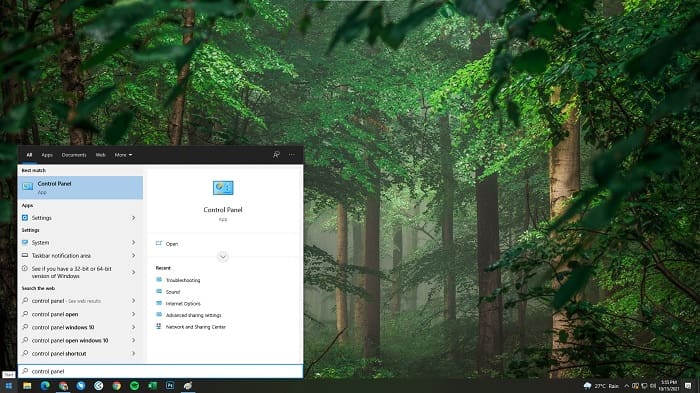
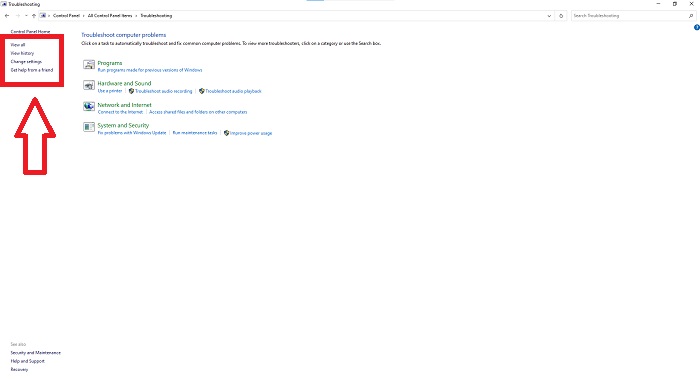
步驟二: 接著點選疑難排解(Troubleshooting)。在左側點選檢視全部(View all),然後找到Windows Media Player Library(Windows Media Player 資料庫)。
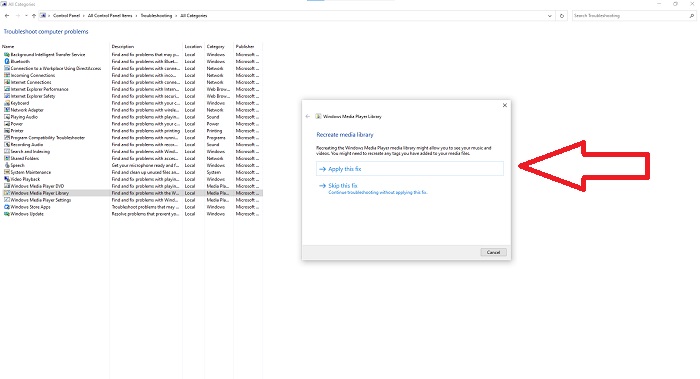
步驟三: 最後,對 Windows Media Player 進行疑難排解,當出現視窗時,點選「下一步」,接著選擇套用此修正(Apply this Fix)。完成疑難排解後,你可以選擇關閉疑難排解工具,或對此工具提供意見回饋。
第 3 部分。 加速視頻的另一種可行方法
假設您由於復雜的步驟而無法修復視頻的播放速度。此外,如果故障排除不起作用,您仍然無法播放視頻。互聯網上有可用的網絡工具,其中一些需要購買才能使用完整的工具。 Video Converter Ultimate 是加速視頻的最佳選擇,並且可以免費使用。該軟件可以將您的視頻編輯到一個新的水平,以下是提供的步驟:
步驟一: 在電腦上選擇「免費下載」,直接下載此軟體。之後依照需求自訂並安裝程式。
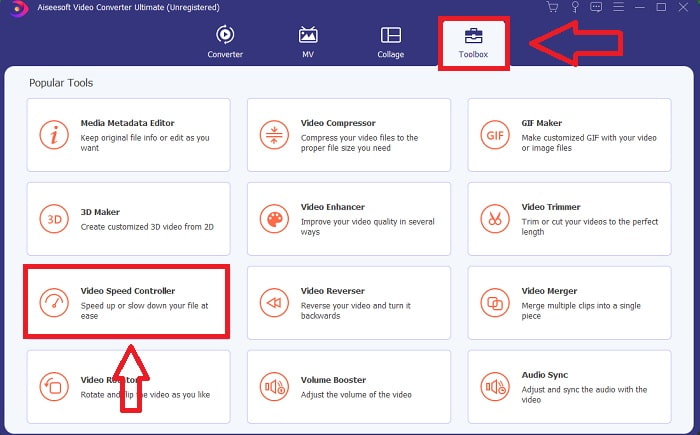
步驟 2: 軟體安裝完成後,啟動程式,在選單列中選擇 Toolbox(工具箱)選項,然後在出現的清單中選擇 Video Speed Controller(影片速度控制器)。
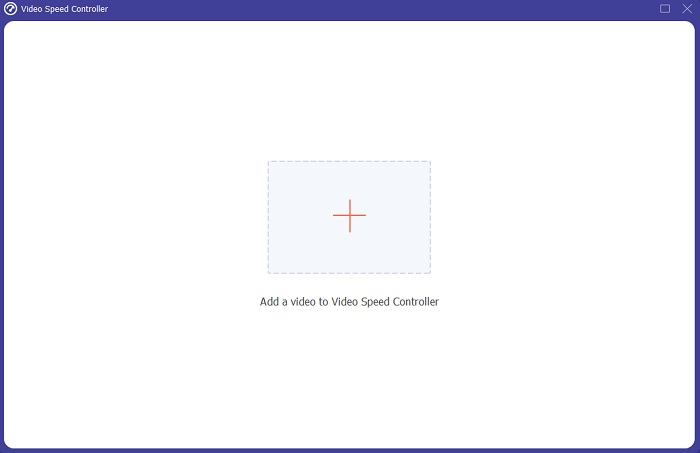
步驟三: 依你的偏好點選「+」按鈕加入檔案,然後繼續編輯影片。
步驟四: 選擇要將影片的畫面播放速率增加或減少幾倍,以改變播放速度。
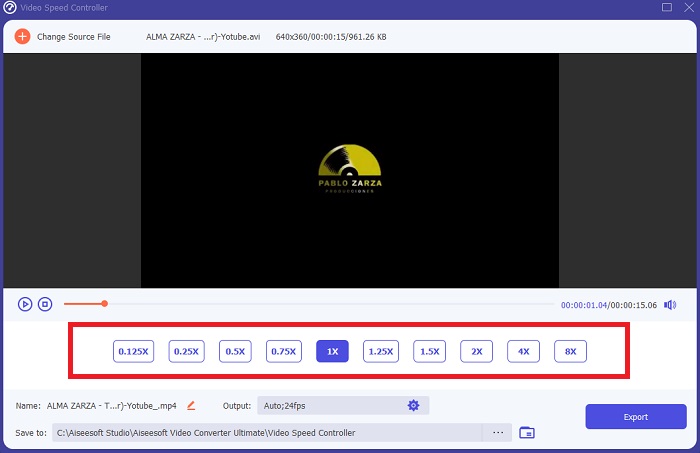
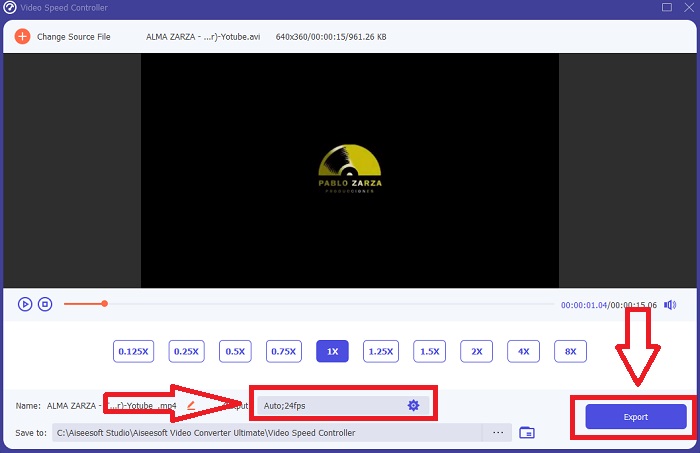
步驟5: 更改格式、解析度、品質等參數,讓你在調整完影片播放速度後,能選擇理想的輸出設定。最後點擊匯出,並選擇儲存位置以保存你的作品。
第 4 部分。 關於如何在 Windows Media Player 中加速視頻的常見問題解答
如何修復無法在 Windows Media Player 上播放的 MP4 視頻?
如本文前面所述,Windows Media Player 並不支援廣泛的影片格式。由於它只支援多數適用於 Windows 的格式,因此要用這個媒體播放器來修正錯誤會比較困難。這就是為什麼你需要學習如何轉檔或如何播放 MP4 影片格式。此連結是一篇有助於你解決該問題的文章。
如何在 Windows Media Player 中播放 DVD?
有些影片是存放在 DVD 上,若要播放,就需要找到合適的媒體播放器來播放 DVD。Windows Media Player 是常見可以播放 DVD 的媒體播放器之一。此外,這個媒體播放器也提供一些設定,能在播放 DVD 的同時協助進行簡單的編輯。想進一步了解,請參考如何在 Windows Media Player 中播放 DVD的詳細說明。
如果提高播放速度,視頻的文件大小是否會變小?
每次提高或降低視頻的播放速度時,只會分割幀。如果將其提高 0.5 倍,則該幀將是每 1/120 秒 60 幀。簡而言之,除非視頻已經具有低幀率,否則它不會影響視頻。
結論
總結來說,Windows Media Player 可能是一套在格式支援上相對有限、略顯不足的軟體,但它仍具備一些功能,可以用來解決與影片格式相關的問題。不過,如果你想提升影片片段的播放速度,建議下載Video Converter Ultimate,它不只可以加速影片播放,更能將你的影片提升到另一個層次。憑藉其完整豐富的功能,我們推薦這會是最好且最易上手的軟體選擇。
-
 WebM 到 GIF – 3 個免費的 WebM 到 GIF 轉換器來創建您自己的 GIF
 WebM 是 GIF 嗎?如何將視頻轉為 GIF?有沒有免費的 WebM 到 GIF 轉換器?這篇文章分享了 3 種免費方法來幫助您將 WebM 轉換為 GIF。
-
 如何在沒有 Photoshop/FFmpeg 的情況下將 MKV 視頻轉換為動畫 GIF
 在您的計算機上下載並觀看 MKV 電影后,您可能想與朋友或在互聯網上以 GIF 格式分享一些精彩瞬間。在本文中,您可以了解將 MKV 轉換為 GIF 的兩種最簡單的方法。
-
 通過在線 GIF Maker [2021] 創建您最好的動畫 GIF
 一個內容豐富的評論,關於如何使用這些簡單的在線 GIF 製作工具製作 GIF,您已經在網絡上遇到過或沒有遇到過。
