


 視頻轉換大師
 屏幕錄影大師
 影片修復
影片修復
 安全下載
安全下載最好的視頻修剪器以及如何從視頻中剪切一部分的方法
Do you want to cut some parts of your video to create a highlight? Or do you want to shorten the length of your video? This guidepost might be for you. We will introduce you to numerous video editing software for trimming a video. You will also discover their capabilities, compatibility, and descriptions. Aside from that, the post will also offer you the steps of trimming a video using the tools. If you want to know about these video trimmers, click this post and read more.

第 1 部分。修剪視頻的原因
用戶需要修剪視頻的原因有多種。請參閱以下原因以便更好地理解。
Creating Highlights.
正如我們在這個現代時代觀察到的那樣,互聯網上有更多的短片。您可以在一分鐘內觀看視頻。如果您還想創建那種視頻並只顯示亮點,那麼修剪視頻是您可以做的最好方法。
Unnecessary Footage.
您需要修剪視頻的另一個原因是刪除不必要的鏡頭。如果你想刪除視頻的某些部分,尤其是不需要的部分,修剪是最好的解決辦法。
Length Restrictions.
一些社交媒體平台不支持長視頻或剪輯。例如,如果您在故事中發布視頻,則禁止播放長視頻,尤其是在 Facebook 或 Instagram 上。這樣,您需要做的最好的事情就是剪切視頻。
Matching video with music.
一些用戶希望將視頻與音頻同步。在這種情況下,修剪視頻是滿足同步音頻要求的另一種解決方案。
第 2 部分。最簡單的視頻修剪器
Nowadays, you can find many video editing software online and offline. Some of them are useful, and some are challenging to utilize. If that is the concern, there is an exceptional offline video trimmer you can use to trim your videos. This program is the Video Converter Ultimate. With the assistance of this tool, you can easily shorten and split your video. Additionally, it offers an intuitive interface with straightforward ways, making it perfect for all users. During the trimming process, there are more things you can do. You can navigate to the Output settings and make some changes. You can change the video’s quality, frame rate, encoder, resolution, and other parameters. You can even save your final output in various formats, including MOV, AVI, MP4, MKV, and more. Moreover, after editing the video, the program won’t put watermarks on it. This way, you can still enjoy watching the edited video without disturbance. Furthermore, Video Converter Ultimate is accessible on both Windows and Mac. It means that the program is convenient for both Windows and Mac users.
Rating: 9.5/10
Compatibility: Windows and Mac
主要功能特色:
◆ 提供視頻剪輯、旋轉、編輯、去水印等工具箱。
◆可轉換各種視頻、音頻、圖像。
◆ 它提供了一個拼貼製作器。
See the basic procedure below to learn how to shorten a video.
Step 1 Download Video Converter Ultimate on your device. Click the Download button below based on the device you use. Windows and Mac versions are available below. Then, proceed to the installation process. After that, launch the program.
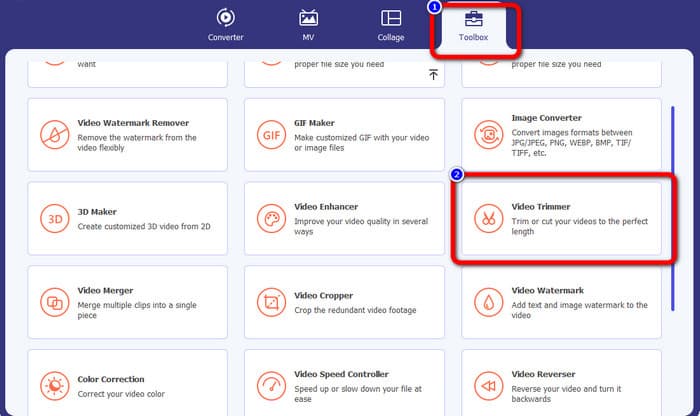
Step 2 After launching the program, the interface will appear on the screen. Select the Toolbox option on the upper interface and click the Video Trimmer tool.
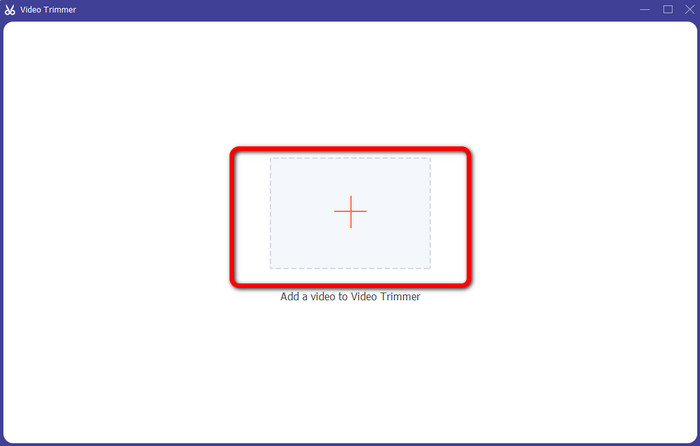
Step 3 Another interface will show up on the screen. Click the Plus symbol on the center part of the interface. Then, open the video you want to trim from your computer folder.
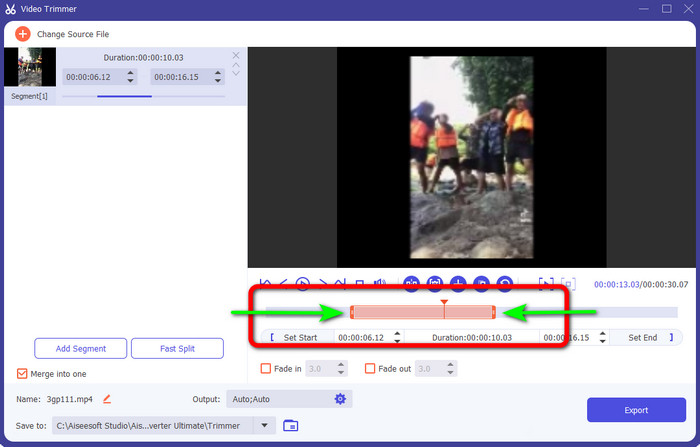
Step 4 In this part, you can already trim the video. Navigate to the adjustable bar section. Then you can control the right and left edges of the bar to trim the video. Go to the part of the video that you want to trim.
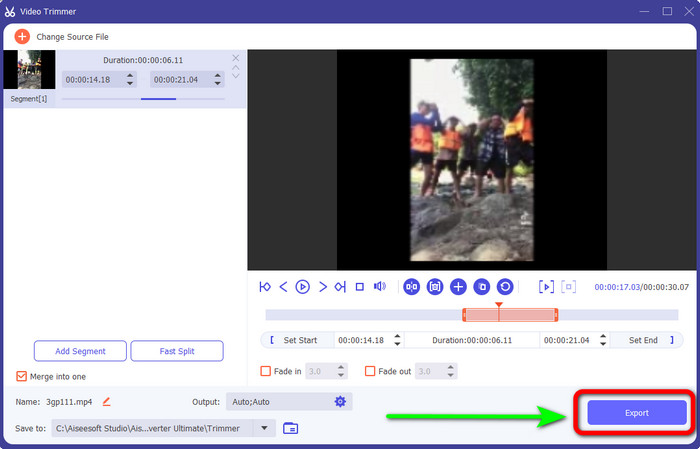
Step 5 After trimming, you can save the edited video by clicking the Export button. Then, open the video from the output folder to play the video.
第 3 部分。最佳免費視頻切割器
1. VLC 媒體播放器
VLC Media Player is not only reliable for playing videos. You can use this offline program to cut videos to remove unnecessary parts. This way, VLC is considered video cutting software. With the help of this offline program, you can cut videos to create video clips. It allows you to select a particular part of the video and cut it out. It also enables you to cut a video's beginning and ending points. As we all know, VLC is not an advanced video editing software, but cutting videos is easy. However, since it is not advanced software, VLC has many limitations. If you want to play the video, you must open them first in their folders, making it too time-consuming. Also, the installation process could be faster. You need to be patient when trying to use this offline program.
Rating: 8/10
Compatibility: Windows and Mac
主要功能特色:
◆ 修剪和剪切視頻。
◆ 輕鬆即時播放視頻。
◆ 轉換各種視頻格式。
◆ 音頻標準化以保護耳朵。
Use the steps below to cut the video in VLC.
Step 1 Download VLC Media Player on your computer. After that, follow the installation process and run the program. Then open the video you want to cut.
Step 2 Click the View menu on the upper part of the interface. Then, click the Advanced Controls option.
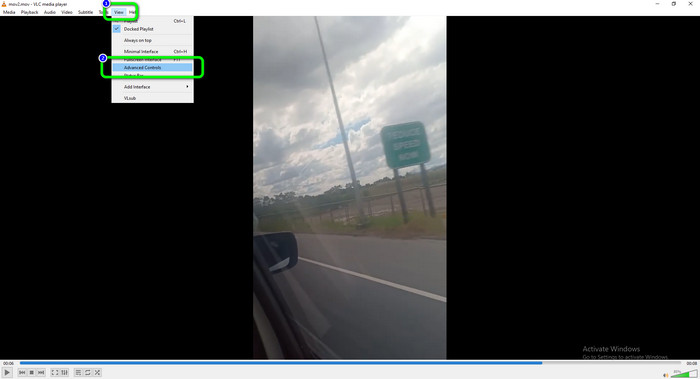
Step 3 The Record button will appear on the upper part of the player control buttons. Click the record button to start cutting the video. You can click the Record button at the video's starting point you want to cut. Then, if you reach the ending point, click the record button again. The record button is the red circle shape on the screen.
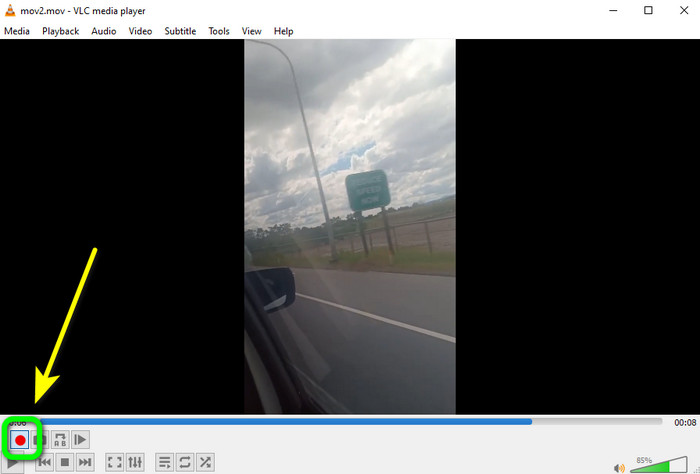
Step 4 After that, you can open the edited video on your Computer > Videos option.
2.FFmpeg
If you want to cut some parts of your video, another tool you can use is FFmpeg. It is a command-line utility capable of making, processing, and editing various media types. FFmpeg is beneficial in this kind of field. However, it has some drawbacks. FFmpeg takes work to utilize. When downloading the program, you need to do many processes. Also, setting it up is complicated, making it unsuitable for non-professional users. In addition, there are numerous commands you need to memorize first before operating the program. So, if you are a non-professional user, you must study the program first. Another option is to look for a much easier video cutter to cut some videos.
Rating: 7/10
Compatibility: Windows and Mac
主要功能特色:
◆ 修剪和剪切視頻。
◆ 使用特定時間剪切視頻。
◆ 對視頻格式進行編碼和解碼。
How to use FFmpeg to trim videos
Step 1 Download FFmpeg on your computer. Follow all the processes to set up FFmpeg on your device. After that, navigate to the start button from your computer and type cmd.
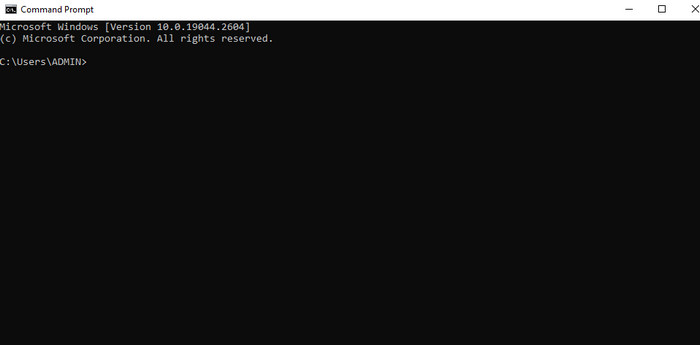
Step 2 Then, type $ ffmpeg -i input.mp4 -ss 00:05:10 -to 00:15:30 -c:v -c:a copy output2.mp4 on the command prompt. The -to command is used to specify the exact time to cut from a starting point. In the example, the cut video is from 00:05:10 to 00:15:30. It results in a 10- and 20 seconds video.

Step 3 Finally, click the Enter key on your keyboard to run the process. After that, you can already open the video from your computer.
3.i電影
You can use iMovie to cut your videos if you are a Mac user. This program offers a cutting tool to eliminate unnecessary footage on your film. In addition, it has a straightforward process of editing a video. This way, skilled and non-professional users can utilize the program with ease. Aside from that, iMovie has more features to offer. You can also rescale and resize your video using this offline program. However, iMovie has many disadvantages. If you work with large files, the process will be too slow. Also, if you are looking for an advanced program with advanced features, there are better tools than iMovie. You must look for another tool that can meet your expectations.
Rating: 7.5/10
Compatibility: Mac
主要功能特色:
◆ 修剪和剪切視頻。
◆ 它提供了一個視頻rescaler 和resizer。
Follow the methods below to learn how to cut clips in iMovie.
Step 1 The first step is to launch iMovie on your Mac computer. Then, navigate to the Project tab. After that, click the Create New option and select Movie.
Step 2 Then, click the Import Media option to add the video you desire to edit in iMovie.
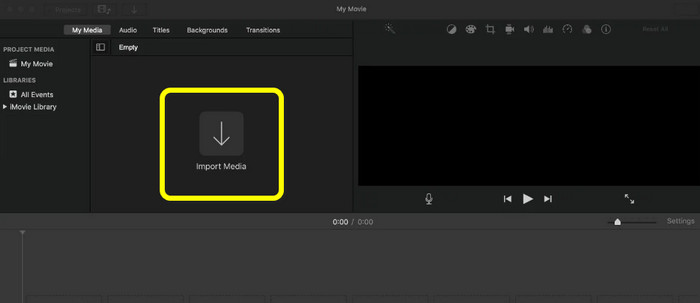
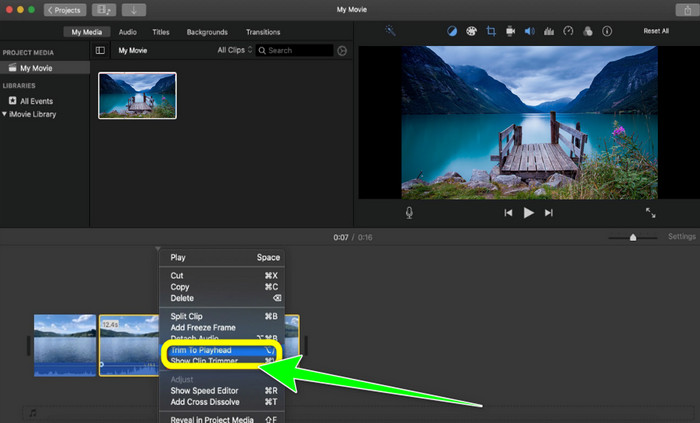
Step 3 The next step is to drag the movie on the Timeline to trim the video. Right-click the video and select the Trim to Playhead option. After that, your video is already finished. You can remove the unnecessary video and see the edited one.
4.開槍
Another tool is Openshot. This program is also reliable in cutting/trimming a video. Also, this is suitable for beginners. It only offers a simple method for the trimming process. This way, even if you don’t have editing skills, you can still use the program. However, OPenshot has many drawbacks. You can only make a basic edit to videos. Advanced editing tools are not available.
Rating: 8/10
Compatibility: Windows and Mac
主要功能特色:
◆ 提供剪輯視頻工具。
◆ 提供實時預覽。
◆ 視頻過渡、製作和擦除
◆ 圖像序列和二維動畫。
How to use Openshot to cut videos
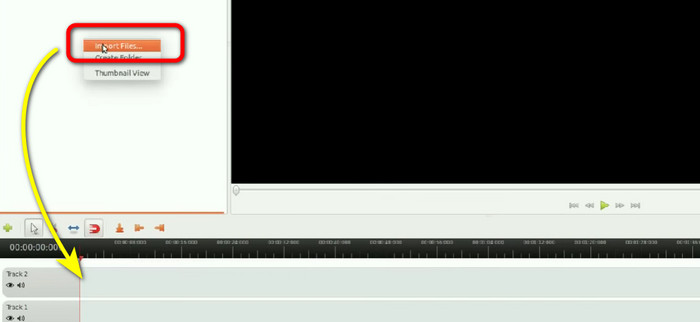
Step 1 Download Openshot on your computer. After installing it, run the program. When the interface shows up, click the Import File option to insert the video. Then put the video on the Timeline.
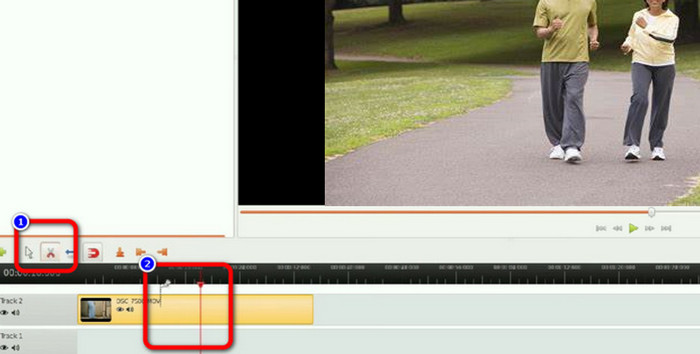
Step 2 Click the Cut icon and go to the area of the video where you want to cut.
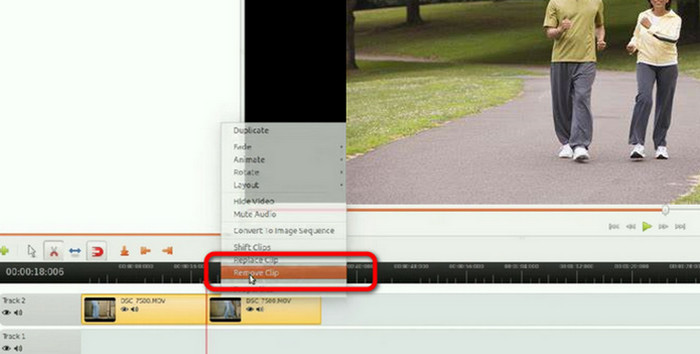
Step 3 When the video is divided into two, right-click the unnecessary one, and select the Remove clip option. After that, you can already save your output.
5.Windows 媒體播放器
您想知道如何使用 Windows Media Player 剪輯視頻嗎? Windows Media Player 允許用戶在 Windows 操作系統上播放媒體文件。 Windows 用戶經常希望找到一種直接在 Windows Media Player 中編輯或修剪視頻的方法。那麼,Windows Media Player 可以編輯視頻嗎?遺憾的是,這款 Windows 軟件無法編輯視頻。但是,這並不意味著如果您想修改您的電影就必須放棄 Windows Media Player。最好的方法是使用插件。它稱為 SolveigMM。此插件可幫助 Windows Media Player 有效地剪切視頻。
Rating: 7/10
Compatibility: Windows
主要功能特色:
◆ 播放視頻。
◆ 以簡單的方式修剪視頻。
◆ 轉換各種視頻格式。
To trim videos in Windows 11, use Windows Media Player. See the steps below to trim a video.
Step 1 Start by downloading the SolveigMM Trimmer Plugin from the official website. Then, install the program on your computer by completing the installation process.
Step 2 Start the Windows Media Player and inject the plugin to make the trimming feature available. Choose Tools > Plug-ins > SolveigMM WMP. Then, you should notice another choice at the bottom of the panel's interface.
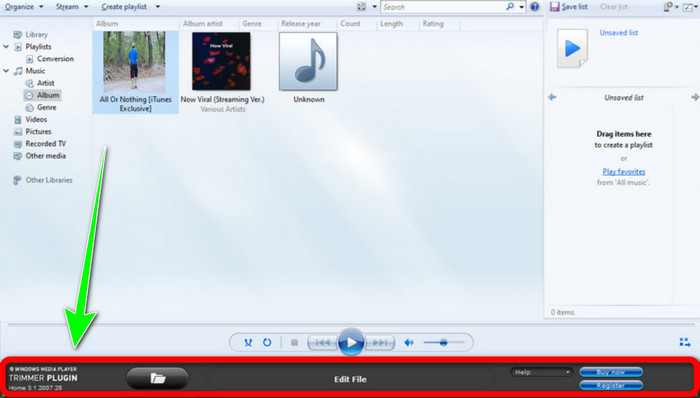
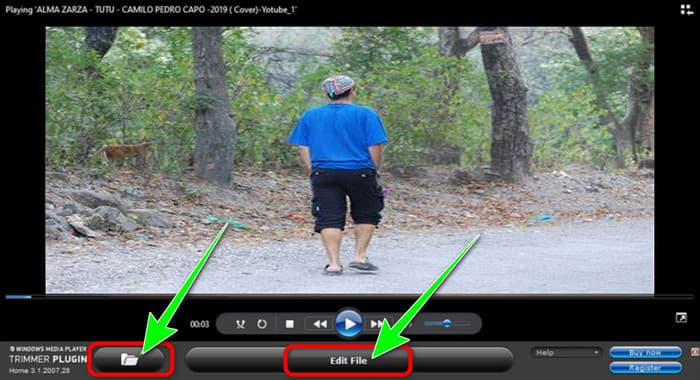
Step 3 Add the video that you want to cut now. To do this, select the video to add to the software by clicking the Folder icon, then browse for it. The video ought to start playing immediately. After that, click Edit File to start reducing the video.
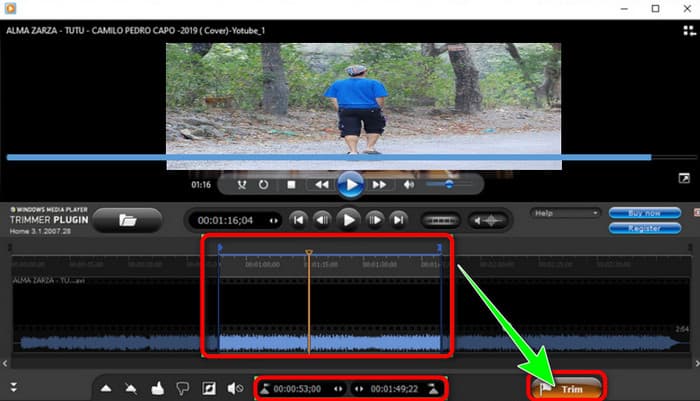
Step 4 Choose the precise time or position that you want to shorten after that. You may also refer to the time to establish the starting and ending positions. Click the Trim button after finishing the process, and preview the video to determine if the adjustments took effect.
6.QuickTime 播放器
Apple's default media player is QuickTime, but you can also edit and chop your videos. Videos can be rotated, rearranged, and cropped using QuickTime Player's features. A video can be divided into distinct clips, each of which can be edited independently. Quicktime will always be free to use since it is a component of macOS. However, QuickTime Player has limited features. If you want to edit videos professionally, you can use another video editing software.
Rating: 8 /10
Compatibility: Mac
主要功能特色:
◆ 提供剪輯視頻的方法。
◆ 適用於視頻的旋轉排列。
◆ 播放各種格式的視頻。
Follow the steps below to trim the video in QuickTime.
Step 1 Launch QuickTime Player on Mac. After that, go to File > Open and add the video.
Step 2 After opening the video, go to the Edit menu and click the Trim option. This way, you can start trimming the video.
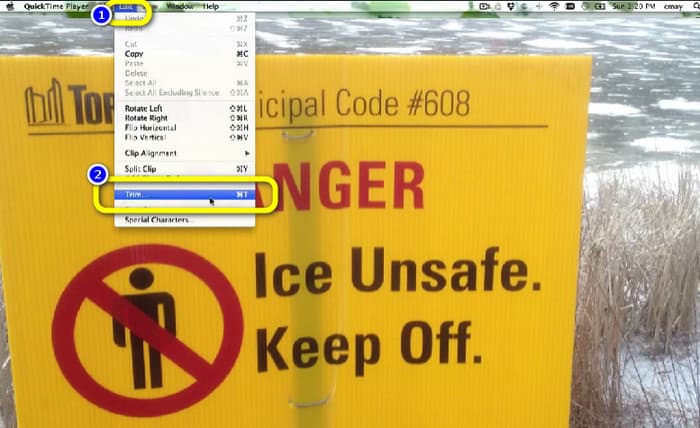
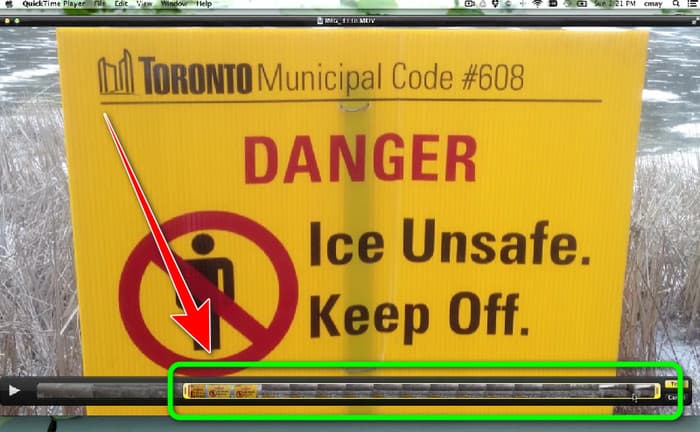
Step 3 In this part, you can already trim the video. Click and drag the edge part of the bar. You can adjust both left and right. After trimming the video, you can go to the File menu and Export your final output.
第 4 部分。付費和專業視頻剪輯器
1. 後效
Suppose you are a knowledgeable user looking for an advanced video editing program, After Effects is ideal. Editing in After Effects can be challenging, and with good cause, as it’s not technically editing software. Although After Effects is a robust animation toolset that can help you create fantastic effects, it is not designed for quick clip editing. Even though you'll probably finish editing your project in Premiere Pro, it's still vital to understand how to split and cut your clips in Adobe After Effects. If you are a beginner, maybe this program is too much for you. Its interface is complicated and has many options, which is confusing for beginners.
Rating: 8 /10
Compatibility: Mac and Windows
主要功能特色:
◆ 動畫可用。
◆ 修剪和剪切視頻。
How to cut a clip on After Effects
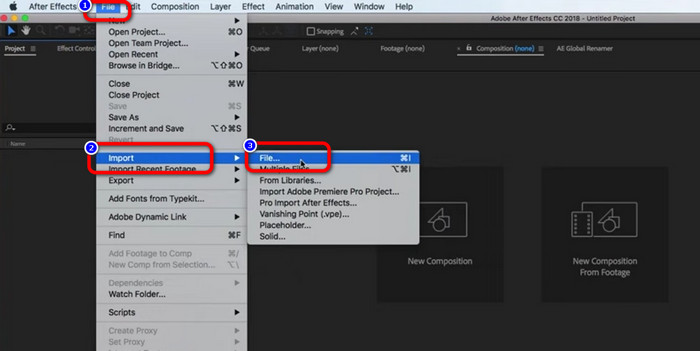
Step 1 Launch Adobe After Effects on your computer. Then go to the File menu. Select the Open > File option to add the video.
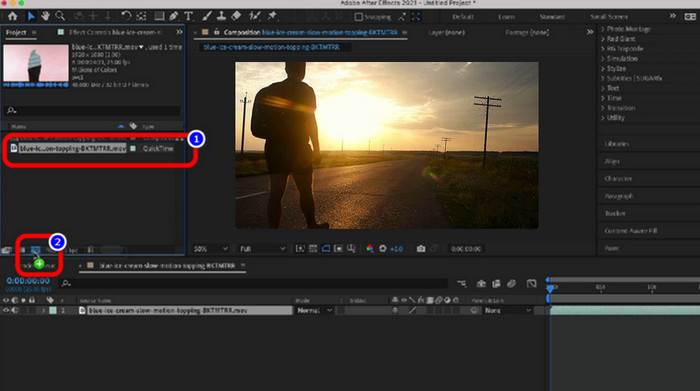
Step 2 Drag the video to the New Comp icon in the Layer panel to start a new composition.
Step 3 Set the playhead to where you wish to separate the layer. If you don't have a full keyboard, you can shift the playhead one frame at a time by pressing Page Up/Down or Cmd+Left Arrow & Cmd+Right Arrow.
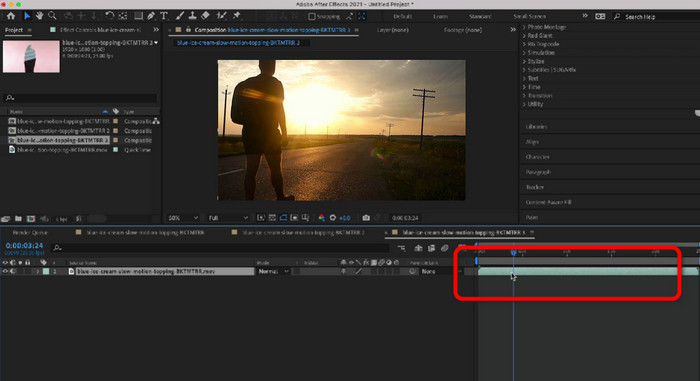
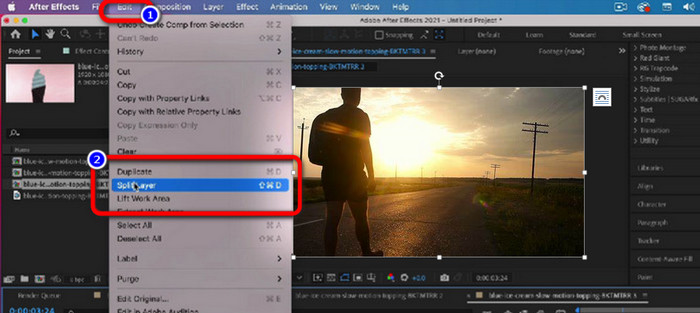
Step 4 To remove the unwanted part of the video, go to the Edit menu and click the Split Layer option. You can remove the unnecessary part and save the edited video.
2.達芬奇解決
Another advanced video trimmer you can use offline is DaVinci Resolve. This program is reliable in trimming/cutting a video. With the help of this downloadable program, you can eliminate all the disturbing parts of your video. Moreover, there are more features you can encounter when using DaVinci Resolve. You can enhance the video quality, add effects, denoise audio, and more. However, it is difficult for beginners since DaVinci is a professional video editing software. The offline program has a confusing interface, making it complicated to understand. Also, you need to purchase the subscription plan for more great features.
Rating: 8.5/10
Compatibility: Mac and Windows
主要功能特色:
◆ 剪切和修剪視頻剪輯。
◆ 具有音頻降噪功能。
◆ 可以提高視頻質量。
How to cut a clip in DaVinci Resolve
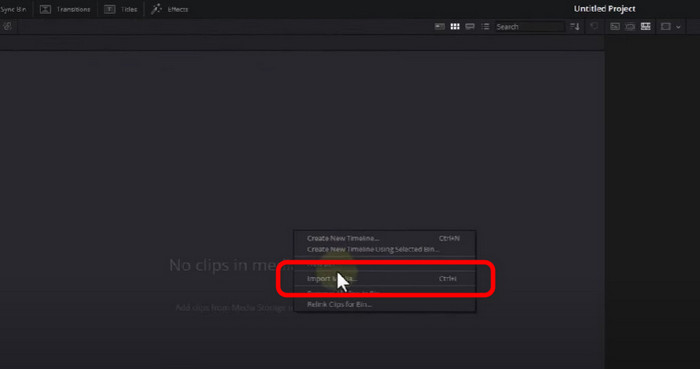
Step 1 Run DaVinci Resolve on your Windows or Mac computer. After that, right-click on the blank part and select the Import Media option. Select the video from your file folder.
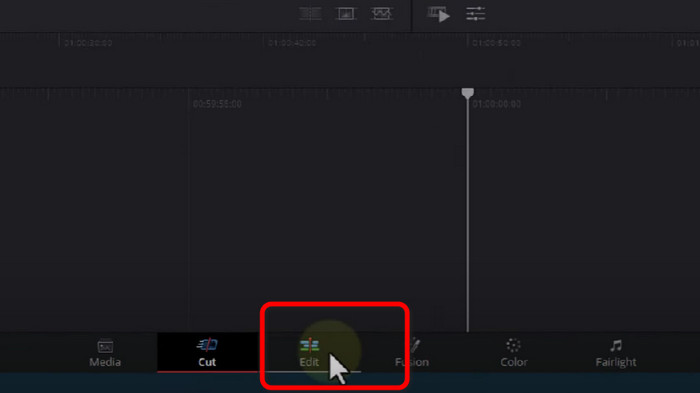
Step 2 Go to the lower part of the interface and ensure you are on the Edit layout.
Step 3 After that, drag and drop the video on the Timeline to start the trimming process.
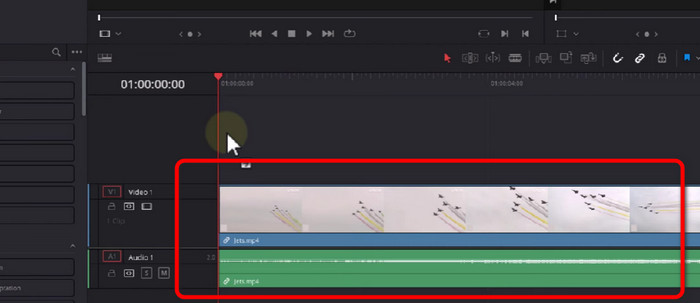
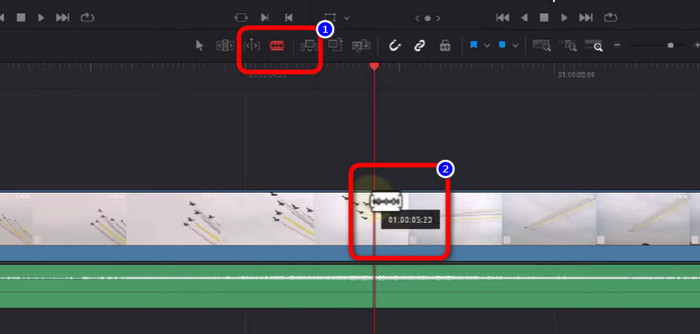
Step 4 Split the footage using the Blade Edit Mode and edit from there. With this simple technique, you can cut the video as necessary.
3. Adobe Premiere Pro
Generally speaking, video cutting and trimming are essential skills for any video editor. It is assumed that everyone will inevitably cut out unwelcome scenes and awkward times from the videotapes. Unquestionably, Adobe Premiere Pro offers a one-stop shop for post-editing video, including video cutting. So, if you desire to know how to cut clips in Premiere Pro, read continuously. However, this offline program is suitable only for advanced users. If you don’t have a skill in editing videos, you will find it hard to utilize the program. Also, Adobe Premiere Pro is expensive. You need to buy a subscription plan to use more advanced features.
Rating: 8/10
Compatibility: Mac and Windows
主要功能特色:
◆ 高效剪切和修剪視頻片段。
◆ 將一個剪輯剪輯成多個部分。
◆ 為視頻添加濾鏡和效果。
如何在 Premiere 中剪切剪輯
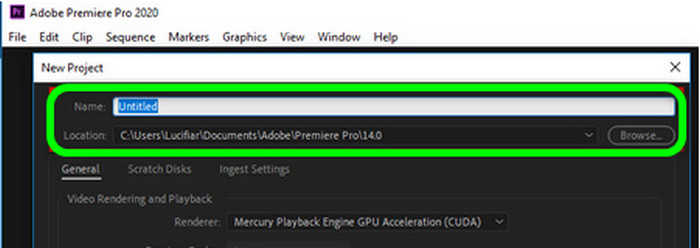
Step 1 Open Adobe Premiere Pro, start a new project, name your project, and select where to save the Premiere files.
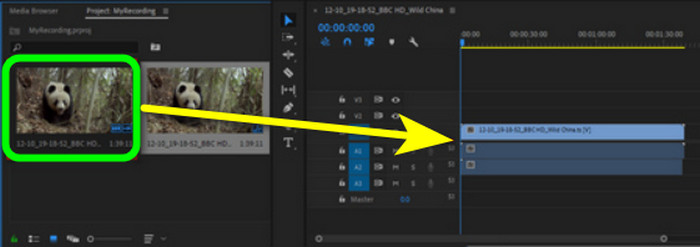
Step 2 Then, go to the blank section and import the clip. Then put it on the timeline.
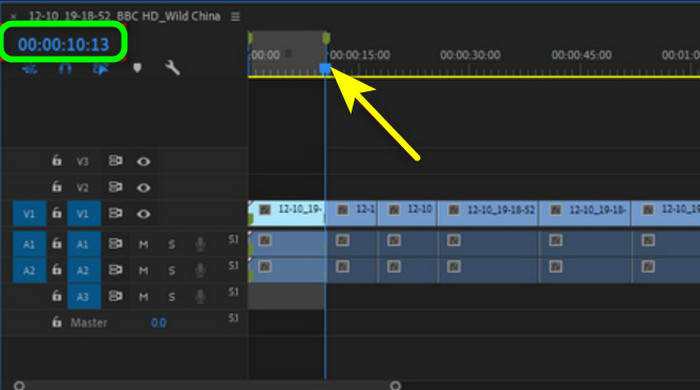
Step 3 To trim a start point, drag the blue slider over it, choose Sequence > Add Edit, or simply press Ctrl + K. You'll find a dividing line that cuts the footage into two sections. After that, remove all the unnecessary footage on the timeline and save the trimmed video.
4.最終剪輯專業版
If you want another video trimmer for Mac and Windows, use Final Cut Pro. This program can help you efface all the unwanted portions of your video. Also, Final Cut Pro offers an interface with numerous options. This way, there are more things you can do besides trimming. However, the program requires a subscription plan to enjoy more fantastic features. In addition, the installation process is time-consuming. It also consumes storage space, so ensure that you have enough storage.
Rating: 8.5/10
Compatibility: Mac and Windows
主要功能特色:
◆ 有效修剪和剪切視頻。
◆ 創建高質量的視頻。
◆ 提供光線和顏色校正工具。
Here is the instruction you can try to know how to trim video on Final Cut Pro.
Step 1 Download Final Cut Pro on your Windows or Mac. Then, open the program after the installation process.
Step 2 Go to Projects > Clips option to see the video. After that, drag the video to the Timeline.
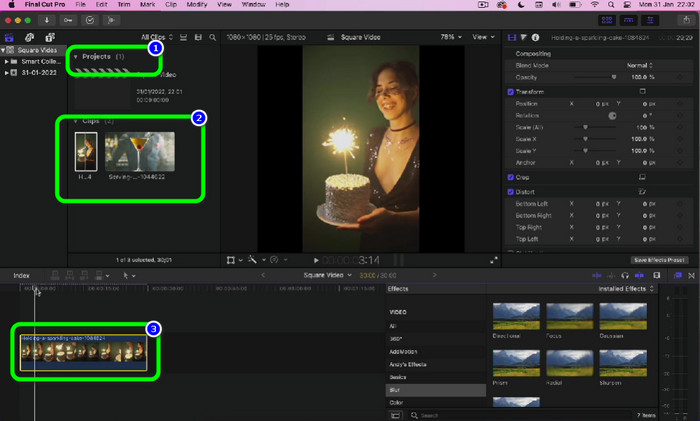
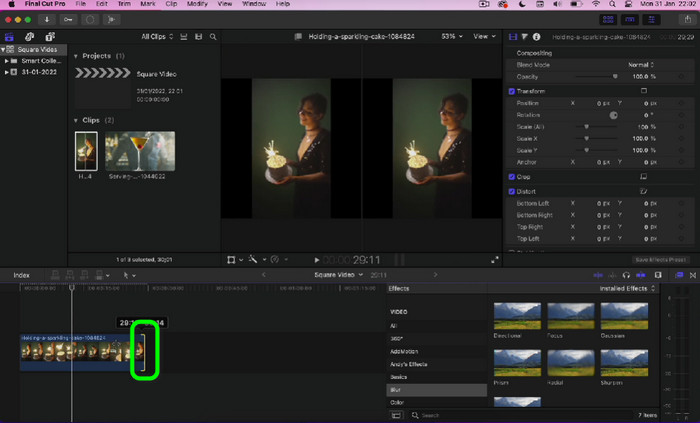
Step 3 After that, go to the part of the video you want to trim. Then, you can click the edge part of the video and drag it to trim the video. You can drag the left and right edges of the video. Then, there you go. You can already save the video after trimming it.
第 5 部分。 關於視頻修剪器的常見問題解答
1. 剪輯視頻會降低其質量嗎?
如果您購買了出色的視頻修剪器,修剪通常不會導致視頻質量下降。您應該知道分辨率、比特率和幀是視頻質量的關鍵決定因素。所以在導出編輯好的視頻時一定要保留原來的參數。
2. 哪種視頻剪輯器最好?
If you want the most exceptional video trimmer, use Video Converter Ultimate. This downloadable program allows you to trim a video with a trouble-free method. Also, its interface is easy to understand. In addition, it is free to download, unlike other video editing software.
3. 什麼是視頻剪輯?
為了進一步說明,編輯的基本步驟之一是修剪。它涉及拍攝視頻的開頭或結尾。通常,目的是從視頻中刪除除最有價值的材料以外的所有內容。
4. 如何在 PowerPoint 中裁剪視頻?
啟動 PowerPoint 並導航到“插入”>“視頻”選項。單擊功能區編輯區域中的修剪視頻。您可以使用標記來選擇起點和終點,手動輸入開始時間和結束時間,或者將兩者結合起來。如果您知道,您可以在相應的區域中輸入準確的開始和結束時間。通過在剪輯視頻後立即檢查頂部的持續時間,您可能會看到是否由於時間限制只能看到特定部分。準備好所需的視頻部分後,單擊“確定”。
結論
If you desire to shorten a long video, the best solution is to trim it. Therefore, this guidepost provided the most proven and tested video trimmers. However, some video trimming software is challenging to utilize. So, if you want more accessible software, use Video Converter Ultimate. This downloadable program can help you trim a video without encountering any difficulties.
-
 通過程序和信息發現最好的 MP4 修剪器
 您想學習如何剪輯像您觀看的視頻博主一樣的視頻嗎?然後繼續閱讀這篇文章,了解您可以使用哪些 MP4 修剪器。
-
 通過程序和信息發現最好的 MP4 修剪器
 您想學習如何剪輯像您觀看的視頻博主一樣的視頻嗎?然後繼續閱讀這篇文章,了解您可以使用哪些 MP4 修剪器。
-
 2023 年適用於 Windows 和 Mac 的最佳 MP4 編輯器
 無論您是使用計算機進行MP4視頻編輯還是在手機上工作,都可以在此處找到一些不錯的選擇,包括適用於Windows和Mac的最佳MP4編輯器。
