


 محول الفيديو النهائي
 مسجل الشاشة
 إصلاح الفيديو
 تنزيل آمن
كيفية تحويل تسجيل Zoom إلى MP4 على أجهزة الكمبيوتر التي تعمل بنظام Windows وMac
Zoom هي منصة تتيح إجراء مكالمات فيديو، مثل الاجتماعات والفصول الدراسية عبر الإنترنت. عادةً ما تحفظ التسجيلات بصيغة يمكن تشغيلها على معظم الأجهزة، مثل MP4. ومع ذلك، إذا أوقفت التسجيل عن طريق الخطأ في وقت مبكر، فقد يظل الملف عالقًا في صيغة المنصة الأصلية، وهي .zoom، والتي لا يمكنك فتحها مباشرة. يحدث هذا لأن Zoom لم يحصل على فرصة لتحويل الملف تلقائيًا إلى MP4. إذا حدث ذلك معك، فستحتاج عندها إلى تحويل ملف Zoom إلى MP4 سواء داخل المنصة أو خارجها. ولحسن الحظ، هناك عدة طرق لجعل Zoom يُكمل عملية التحويل هذه. سنرشدك خطوة بخطوة لكيفية القيام بذلك باستخدام برنامج Zoom نفسه وأداة خاصة تأتي مع Zoom. وإذا لم تنجح هذه الطرق معك، فقد ذكرنا أداة أخرى يمكنك استخدامها بدلاً من ذلك. إذن، دعنا ننتقل مباشرةً إلى المحتوى!

الجزء 1. هل تسجيلات التكبير بصيغة MP4؟
أولاً وقبل كل شيء، يقوم Zoom بإنتاج تسجيلات MP4، وهو الإعداد الافتراضي الخاص به. ومع ذلك، فإن هذا لن يحدث في لحظة. ما نعنيه هو أنه أثناء التسجيل، فإن لقطاتك الأولية ليست بعد بتنسيق MP4 الذي تعتقد أنه موجود. في واقع الأمر، كما هو مذكور أعلاه، فإن اللقطات الخاصة بالعملية لا تزال بتنسيق .zoom، وهو التنسيق الخاص بالمنصة، ولن يتم تحويلها إلى MP4 إلا بمجرد الانتهاء من التسجيل واكتمال التحويل. هذا صحيح بشكل خاص عندما تقوم بإيقاف التسجيلات عن طريق الخطأ.
الجزء 2. 3 طرق لتحويل تسجيل التكبير/التصغير إلى MP4 باستخدام التكبير/التصغير
دعنا ننتقل الآن إلى الأدوات الفعالة التي ستساعدك على تحويل تسجيلات Zoom إلى MP4 إذا فشلت في الحصول على واحدة داخل النظام الأساسي.
1. عميل Zoom (سطح المكتب)
هل تعلم أن Zoom يتتبع جميع تسجيلاتك داخل تطبيق عميل سطح المكتب؟ لا يمكنك الوصول إلى تسجيلاتك بسهولة فحسب، بل يوفر Zoom أيضًا محولًا مدمجًا. سيضمن هذا توافق التشغيل على معظم الأجهزة. وبالتالي، إذا لم تكن متأكدًا من كيفية استخدامه، فإليك تفصيلًا تفصيليًا لكيفية العثور على تسجيلات Zoom وتحويلها إلى تنسيق MP4.
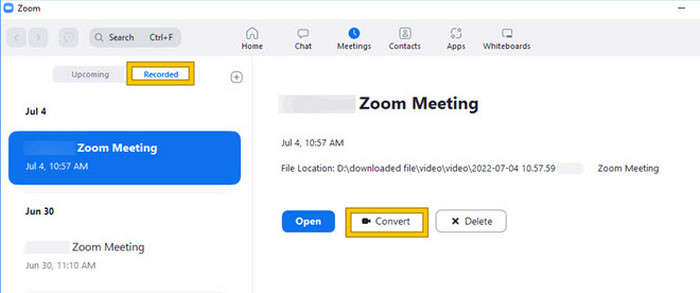
الخطوة 1. شغّل برنامج Zoom على جهاز الكمبيوتر الخاص بك، ثم انتقل مباشرةً إلى قسم الاجتماعات (Meetings) لفتح سجل اجتماعاتك.
الخطوة 2. بعد فتحه، ستظهر لك قائمة بالاجتماعات التي قمت بتسجيلها. ابحث عن التسجيل الذي تريد تحويله، ثم انقر عليه لتحديده.
الخطوة 3. بعد التحديد، ستظهر لك خيارات على الجانب الأيمن من الشاشة. انقر على زر تحويل (Convert) وانتظر حتى تحصل على النتيجة النهائية بصيغة MP4.
2. تحويل الشفرة (macOS)
إذا كنت من مستخدمي Mac وفشل تحويل التسجيل التلقائي في Zoom إلى MP4، فإليك أداة مفيدة تسمى Transcode لمساعدتك. تتيح لك هذه الأداة تحويل ملفات .zoom يدويًا إلى ملفات MP4، والتي قد لا يتم تشغيلها بشكل صحيح بسبب فشل التحويل التلقائي. في الجوهر، يوفر Transcode حلاً يدويًا لمستخدمي Mac لضمان إمكانية الوصول إلى تسجيلات Zoom الخاصة بهم وقابلة للاستخدام عندما لا تعمل العملية التلقائية كما هو متوقع.
الخطوة 1. حدد موقع ملف .zoom لديك، ثم انقر عليه نقرًا مزدوجًا، واختر اختيار تطبيق (Choose Application) من النافذة المنبثقة. بعد ذلك، افتح الملف باستخدام تطبيق Transcode، ويمكنك أيضًا ضبطه ليكون التطبيق الافتراضي لفتح هذه الملفات دائمًا.
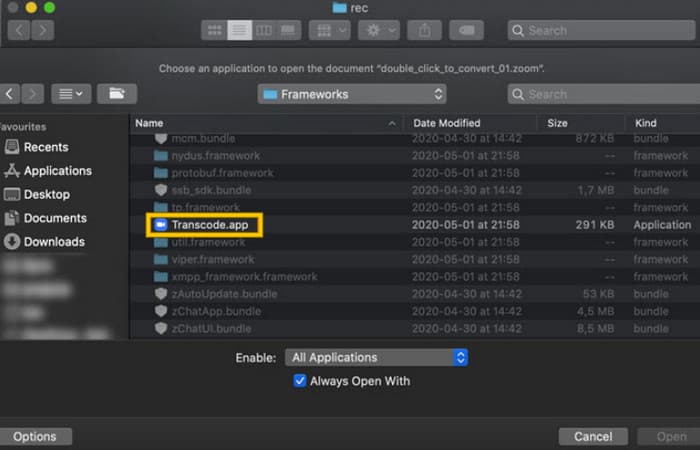
الخطوة 2. مباشرة بعد اختيار التطبيق، ستبدأ عملية التحويل تلقائيًا.
الخطوة 3. عند انتهاء عملية التحويل، اختر المجلد الذي تفضله لحفظ الملف الناتج.
3. زد تسكودر (سطح المكتب)
إذا كنت تريد أداة مشابهة للأداة السابقة لسطح المكتب الخاص بك، فإننا نوصي باستخدام zTscoder. zTscoder هو إصدار Windows من Transcode، وهو البرنامج الذي يعتمد عليه مستخدمو Mac في المواقف المماثلة. تسمح لك كلتا الأداتين بتحويل ملفات Zoom يدويًا إلى تنسيق MP4 القياسي، والذي قد لا يتم تشغيله بشكل صحيح. وبالتالي، إذا كنت الآن تواجه سطح المكتب، فاتبع الخطوات أدناه.
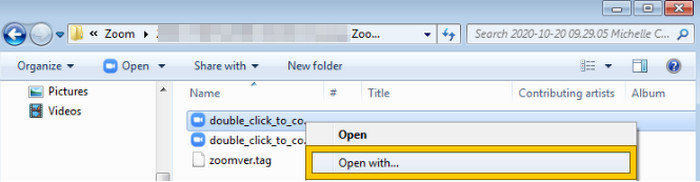
الخطوة 1. حدد المجلد الذي تُحفظ فيه تسجيلات Zoom، ثم اختر التسجيل الذي تحتاج إلى تحويله. انقر بزر الماوس الأيمن على الملف وافتحه باستخدام أداة zTscoder.
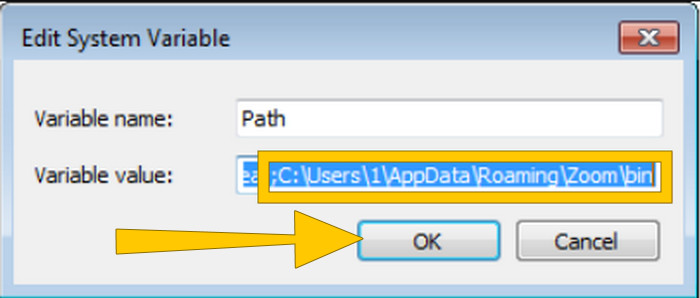
الخطوة 2. إذا كانت الأداة لا تستجيب، يمكنك الذهاب إلى لوحة التحكم (Control Panel)، ثم الانتقال إلى النظام والأمان > النظام (System and Security > System)، وبعدها فتح إعدادات النظام المتقدمة (Open Advanced System settings). من هناك، أضِف المسار C:\Users\*your username*\AppData\Roaming\Zoom\bin في قيمة المتغير (variable value)، ثم انقر على OK.
الخطوة 3. بمجرد ضبط فتح الملف باستخدام الأداة، ستبدأ عملية التحويل تلقائيًا.
الجزء 3. سجل اجتماعات Zoom بصيغة MP4 بجودة تصل إلى 4K
هل تريد حلاً جيدًا لجعل اجتماعات Zoom لديك بصيغة MP4؟ قم بتسجيلها باستخدام FVC Screen Recorder! يقدّم هذا المسجل حلاً متعدد الاستخدامات يتجاوز مجرد اجتماعات Zoom. تُمكّنك هذه الأداة من تسجيل الدروس عبر الإنترنت والمؤتمرات والشروحات أو أي شيء يظهر على شاشة Zoom الخاصة بك. علاوة على ذلك، لديك مرونة تسجيل الشاشة بأكملها أو نافذة محددة فقط، لأنه يوفر إعدادات مخصصة لذلك. كما يمكنه التقاط صوت الميكروفون والصوت الصادر من النظام وحتى عرض كاميرا الويب، بشرط ضبط الإعدادات مسبقًا. هذا البرنامج متوافق مع أجهزة Mac وWindows، ويسمح لك بحفظ تسجيلاتك بجودة عالية، بما في ذلك دقة تصل إلى 4K. ومن الأسباب اللافتة الأخرى لاستخدام FVC أنه يذهب إلى أبعد من ذلك من خلال توفير أدوات تعليق (annotation) تسمح لك بإبراز النقاط المهمة أثناء التسجيل. وإليك الآن كيفية تحويل تسجيلات Zoom إلى MP4.
الخطوة 1. ثبّت برنامج المسجل على جهاز الكمبيوتر الخاص بك. يمكنك استخدام زر التنزيل الموضح أدناه. وأثناء عملية التثبيت، افتح اجتماع Zoom الذي تريد تسجيله بصيغة MP4.
تنزيل مجانيلنظام Windows 7 أو الأحدثتنزيل آمن
الخطوة 2. شغّل البرنامج، ثم انقر على أداة مسجل الفيديو (Video Recorder). بعد ذلك، اضبط عرض الشاشة بحيث يغطي واجهة اجتماع Zoom بالكامل. يمكنك أيضًا ضبط الصوتين: صوت النظام والميكروفون، إذا رغبت بذلك.
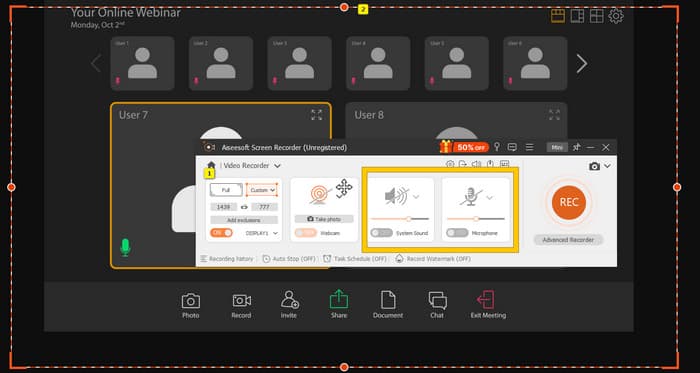
الخطوة 3. بعد ذلك، انقر على زر REC لبدء التسجيل. وعندما ينتهي الاجتماع، انقر على زر الإيقاف (Stop) من الشريط العائم. ثم قم ببعض التعديلات البسيطة في النافذة الجديدة، أو انقر على زر DONE للمتابعة وحفظ التسجيل.
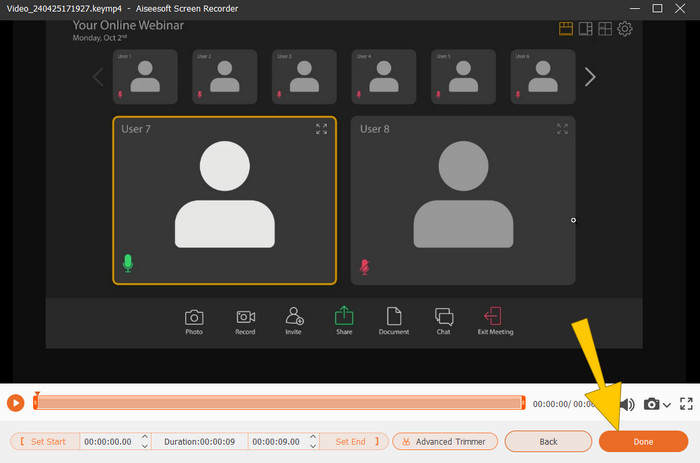
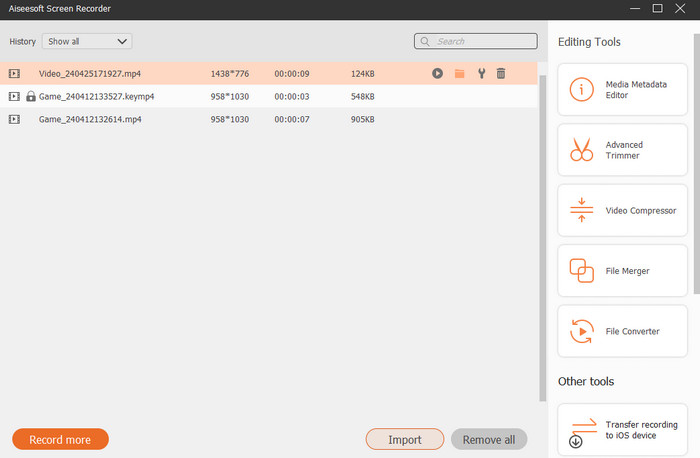
الخطوة 4. لمزيد من خيارات التحرير، سينقلك البرنامج إلى مكتبته الداخلية، حيث سترى قائمة تسجيلاتك. وستجد هناك أيضًا أدوات التحرير التي يمكنك استخدامها بحرية.
قراءة موسّعة:
6 أدوات مذهلة لتسجيل MP4 في عام 2024 [مجانية ومدفوعة]
أفضل 5 مسجلات لاجتماعات Zoom لتسجيل الاجتماعات على Zoom [2024]
الجزء 4. الأسئلة الشائعة حول تحويل تسجيل Zoom
هل تسجيلات Zoom بصيغة MP4؟
نعم. ومع ذلك، قد لا تكون التسجيلات بصيغة MP4 إذا تم إيقافها عن طريق الخطأ.
هل هناك حد لمدة التسجيلات التي يمكنني تحويلها إلى MP4؟
هذا يعتمد. قد يكون للحسابات المجانية قيود على مساحة التخزين وخيارات التحويل، بينما توفر الخطط المدفوعة عادةً مرونة أكبر وحدودًا أعلى.
كيف يمكنني تحويل تسجيل Zoom إلى MP4؟
يمكنك تحويل تسجيل Zoom إلى MP4 باستخدام عميل Zoom نظرًا لأنه يحتوي على ميزة تحويل مدمجة. عند فتح التسجيل، ما عليك سوى النقر فوق الزر "تحويل".
خاتمة
يتم حفظ اجتماعات Zoom افتراضيًا بصيغة MP4، ولكن إذا لم تُحفَظ التسجيلات بشكل صحيح، فستظل بحاجة إلى تحويل تسجيلات Zoom إلى MP4. ومن الجيد أن الطرق الفعّالة لإجراء هذا التحويل مذكورة في هذا المقال. نأمل أن يكون قد أفادك.
-
 7 من مسجل الصوت الرائع الذي يمكن الوصول إليه في جميع الأنظمة الأساسية
 هل تريد معرفة كيفية القيام بالتسجيل الصوتي؟ ثم انتقل إلى هذه المقالة حيث نتحدث عن أفضل مسجل صوت يمكن أن يلائم احتياجاتك.
-
 مراجعة CamStudio 2025: إيجابيات وسلبيات استخدام CamStudio
 CamStudio هو برنامج رائع لالتقاط الشاشة ومفتوح المصدر لتسجيل عرض الشاشة. هل مسجل شاشة CamStudio آمن؟ حسنًا ، ستساعدك هذه المراجعة على اكتشاف جميع ميزات CamStudio.
-
 طرق مجدية حول كيفية تسجيل الصوت باستخدام مشغل VLC
 تعرف على أفضل الطرق لتسجيل الصوت باستخدام مشغل VLC والأدوات العملية الأخرى ، من خلال قراءة المقال.
