


 Video Converter Ultimate
 Gravadora de pantalla
 Reparació de vídeo
Apreneu a sincronitzar correctament l'àudio i el vídeo a iMovie amb els passos proporcionats
No és molt irritant veure un vídeo amb l’àudio desincronitzat? Bé, això ens passa sovint a molts de nosaltres. Així que, si et trobes amb aquest problema al teu Mac, és imprescindible arreglar‑lo amb l’ajuda d’iMovie. A més, no t’has de preocupar, perquè no necessitaràs una hora per aprendre com sincronitzar àudio i vídeo a iMovie. Només necessitaràs 4 minuts per llegir atentament aquest article i menys de 3 minuts per posar‑ho en pràctica. Així doncs, si estàs a punt per fer que el teu àudio i vídeo vagin alhora, vegem com utilitzar iMovie a l’iPhone i al Mac.

Part 1. Com sincronitzar àudio i vídeo a iMovie a iOS
Amb el teu iPhone pots crear gairebé el mateix que amb un Mac. Un gran exemple és iMovie, encara que la interfície d’iMovie a l’iPhone no és igual que al Mac. Tot i així, pots aconseguir la sincronització d’àudio i vídeo fins i tot sense un Mac. Per tant, si vols saber com sincronitzar àudio i vídeo a iMovie a l’iPhone, segueix els passos indicats.
Pas 1. Cerca iMovie a l’App Store i descarrega’l al teu iPhone. Un cop s’hagi instal·lat l’eina, toca‑la per obrir‑la.
Pas 2. A continuació, toca el botó + per afegir el vídeo i després prem Movie. Cerca el vídeo que vols sincronitzar i toca Create Movie.
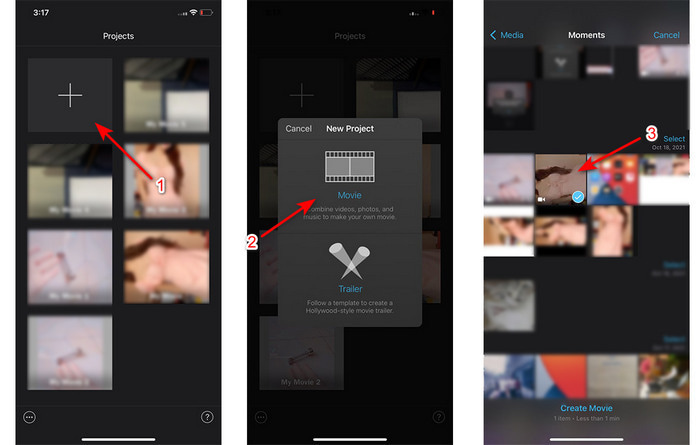
Després toca el signe + per localitzar el mateix vídeo, però ara n’afegirem només l’àudio. Quan hagis localitzat el vídeo, toca els tres punts i selecciona Audio Only.
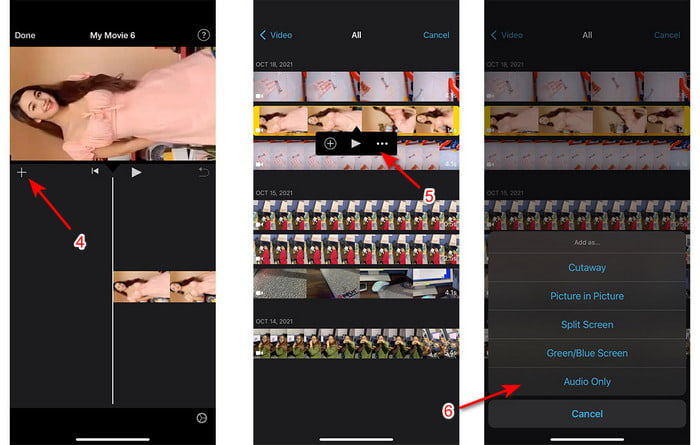
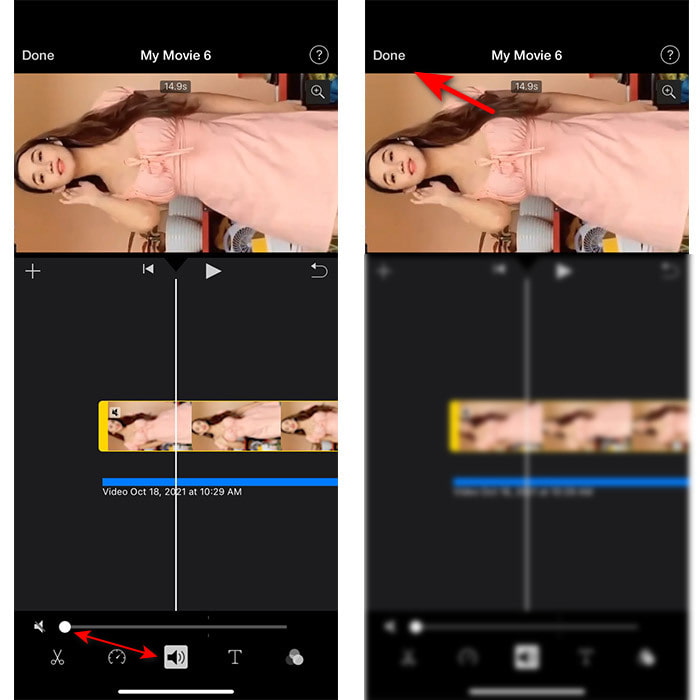
Pas 3. Prem sobre el vídeo a la línia de temps i toca la icona del Speaker, i posa l’àudio a zero. Després ajusta el fitxer d’àudio perquè quedi sincronitzat amb el vídeo. Llavors toca Done per desar l’edició que has fet.
Part 2. Com sincronitzar àudio i vídeo a iMovie al Mac
Si vols gaudir de totes les funcions d’edició que ofereix iMovie, fes servir un Mac. Aquest programari és molt elegant i funciona molt bé al Mac. Per això, si vols sincronitzar àudio i vídeo, aquí ho pots fer fàcilment. Ara bé, és una mica més difícil d’utilitzar al Mac que a l’iPhone. Per tant, si vols saber com sincronitzar l’àudio amb el vídeo a iMovie al Mac, copia aquests 3 passos senzills.
Pas 1. Localitza iMovie al Finder i obre’l. Un cop l’eina estigui oberta, fes clic a File i després ves a Import Media. Selecciona el fitxer a la carpeta i fes clic a Import Selected.
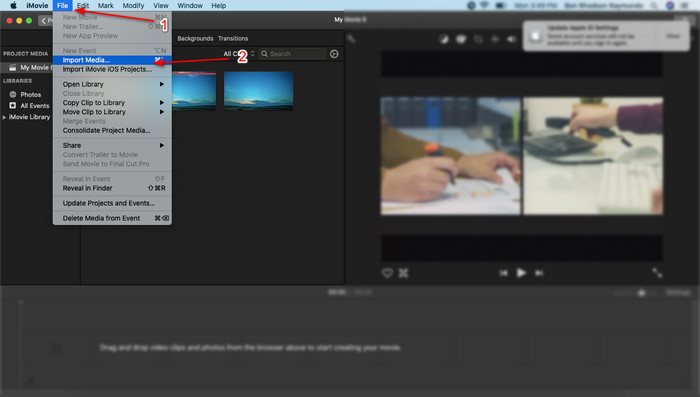
Pas 2. Arrossega primer el vídeo a la Timeline i després fes el mateix amb l’àudio.
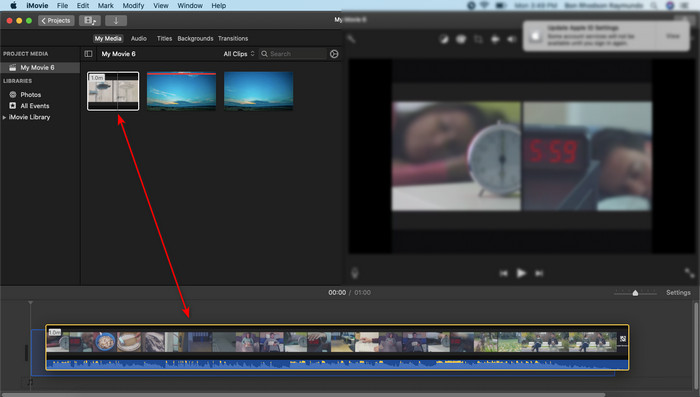
Fes clic al fitxer de vídeo i prem el botó del Speaker per eliminar l’àudio del vídeo.
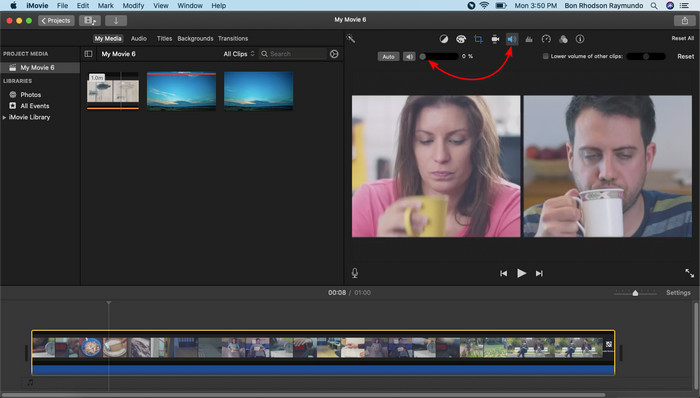
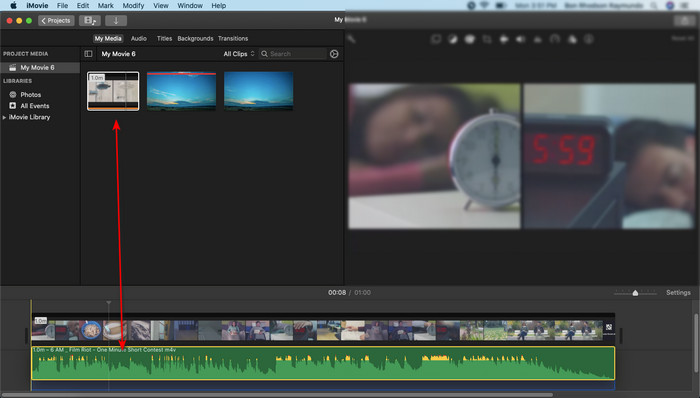
Afegiu el mateix fitxer però ara a l'àudio i després ajusteu l'àudio perquè se sincronitzi amb el vídeo.
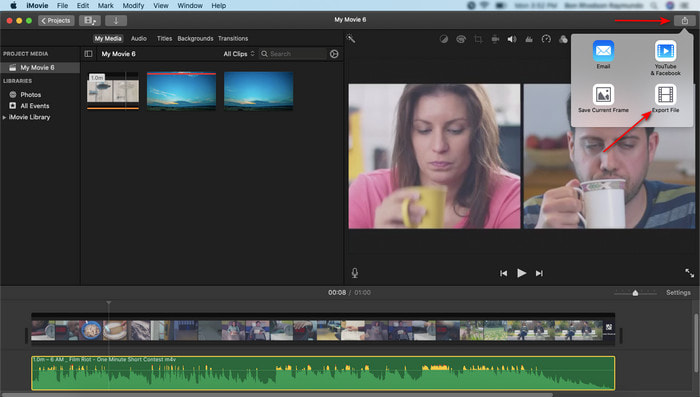
Pas 3. Per desar el vídeo al disc, fes clic al botó de share i selecciona Export File.
Part 3. Com sincronitzar àudio i vídeo amb Windows Phenomenal Editor
Si no tens un Mac o un iPhone, encara pots sincronitzar el teu àudio i vídeo de manera eficaç i molt més fàcil amb el Video Converter Ultimate. Aquest programari extraordinari és el millor en comparació amb iMovie i, a més, està disponible en totes les plataformes, excepte en telèfons mòbils. Tant si ets principiant com professional, podràs aconseguir que el teu vídeo sigui espectacular i provoqui un efecte «wow» en l’espectador. Per tant, si vols aprendre com sincronitzar àudio i vídeo en una alternativa a iMovie, segueix els passos detallats que l’autor ha preparat per a tu i continuem.
Passos per sincronitzar àudio i vídeo a Windows amb Video Converter Ultimate:
Pas 1. Abans de poder utilitzar l’eina, primer l’has de descarregar. Després instal·la‑la i fes clic a Finalitza per continuar.
Descàrrega gratuïtaPer a Windows 7 o posteriorDescàrrega segura
Descàrrega gratuïtaPer a macOS 10.7 o posteriorDescàrrega segura
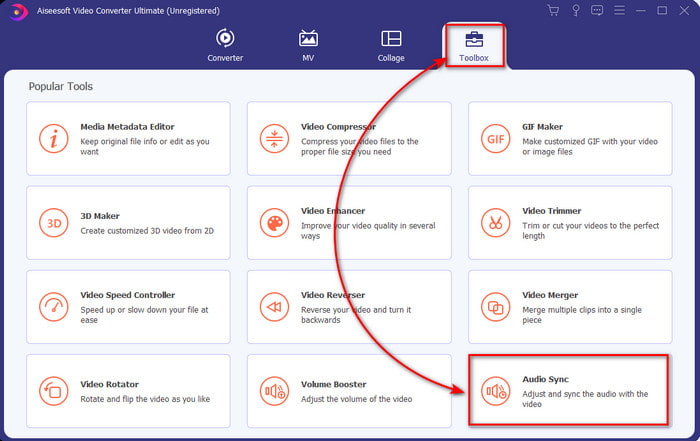
Pas 2. Després del procés d’instal·lació, és el moment d’obrir l’eina. Ves a la Toolbox i prem Audio Sync.
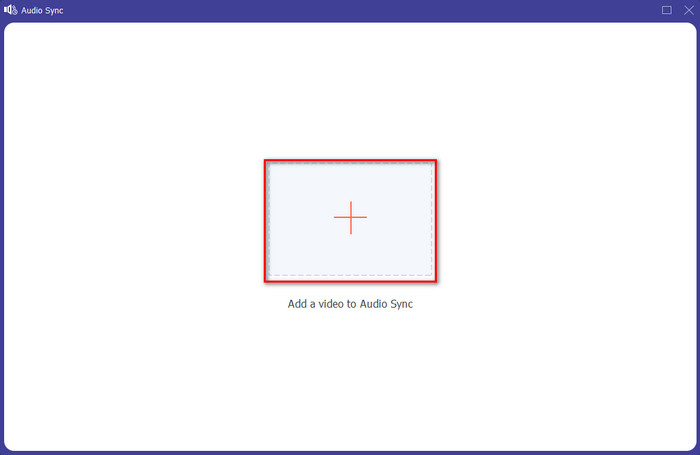
Pas 3. Per afegir l’àudio desincronitzat, prem el botó + i selecciona el fitxer a la carpeta, després fes clic a Open.
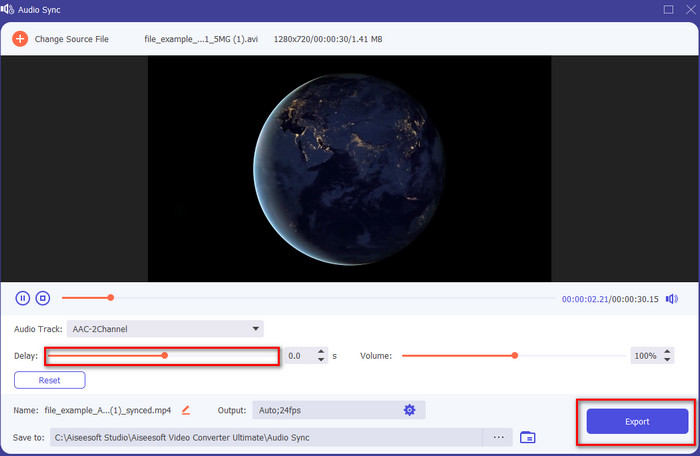
Pas 4. Modifica el slider del retard fins que coincideixi amb el vídeo. Quan hagis acabat d’ajustar l’àudio al vídeo, fes clic al botó Export per començar el procés.
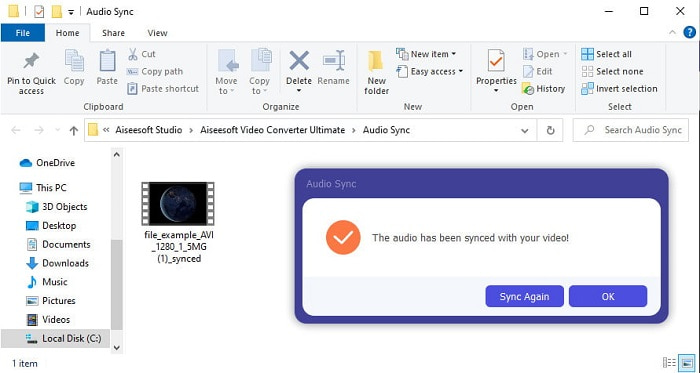
Pas 5. Quan finalitzi, es mostrarà una carpeta a la pantalla amb el fitxer sincronitzat. Fes clic al fitxer per gaudir de l’àudio i el vídeo sincronitzats.
Part 4. Preguntes freqüents sobre la sincronització d'àudio i vídeo a iMovie
Puc utilitzar iMovie a Windows?
Malauradament, no pots descarregar iMovie a Windows. Però hi pots trobar altres alternatives que funcionen igual que iMovie o fins i tot millor, com aquests 5 editors de vídeo semblants a iMovie.
Per què l'AVI no és compatible amb iMovie?
AVI no és compatible amb iMovie a causa de l’estructura confusa d’aquest format. Per tant, la millor manera d’editar un fitxer de vídeo AVI és convertir‑lo a un fitxer MOV. Si no tens ni idea de com convertir AVI a MOV, llegeix aquest article per fer‑te’n una idea.
El fitxer exportat a iMovie té una marca d'aigua?
Tots els projectes que exporteu a iMovie no tenen una marca d'aigua fins avui. Tot i que l'eina és gratuïta als dispositius Apple, les marques d'aigua no s'inclouen a la sortida final. Tanmateix, podeu afegir-hi la vostra pròpia marca d'aigua si voleu que tingui.
Puc utilitzar iMovie per gravar un vídeo amb la càmera encesa?
En realitat, també pots gravar la pantalla fàcilment amb iMovie. Així que, si en vols tenir una idea, fes clic en aquest enllaç per continuar.
Conclusió
Ara que ja tenim clar que pots utilitzar el teu iPhone o Mac per sincronitzar el teu vídeo i àudio amb l’ajuda d’iMovie, cal dir que, tot i que la interfície i algunes funcions no estan disponibles a l’iPhone, igualment el pots gestionar fàcilment sense ser un expert. Tanmateix, si vols la manera més senzilla, fes servir el Video Converter Ultimate. En lloc de fer ajustos complicats, ho pots resoldre amb uns quants clics amb aquest programari. Per tant, avui és el teu dia de sort, perquè si segueixes els passos sobre com sincronitzar l’àudio i el vídeo amb l’Ultimate Converter, t’assegurem l’èxit.
-
 Importa i converteix AVI a format compatible amb iMovie [2021]
 Teniu un problema perquè no podeu importar el vostre fitxer AVI a iMovie? Si llegiu aquest article, ja heu escollit el remei adequat per a aquest problema.
-
 Tutorial concret: Com combinar dues pistes d'àudio a Audacity
 Audacity gaudeix de la reputació d’editar àudio. Heu baixat Audacity però no sabeu combinar pistes d'àudio a Audacity? Aquesta publicació us explicarà com combinar pistes a Audacity.
-
 Com retallar fitxers MP4 sense perdre cap qualitat del vídeo [2021]
 Apreneu a retallar MP4 amb passos senzills només per a vosaltres. Per tant, seguiu el ritme perquè us presentem la millor de les millors eines de retall que podeu utilitzar.
