


 Video Converter Ultimate
 Gravadora de pantalla
 Reparació de vídeo
Procés de conversió de fitxers WebM a MOV: mètodes sense problemes que hauríeu de conèixer
Quan es tracta de producció i reproducció en temps real, no tots els formats de vídeo són compatibles amb totes les plataformes digitals. Quan intenteu introduir, produir, carregar o descarregar fitxers rellevants, això pot causar problemes importants. Apple, per exemple, no utilitza els navegadors tradicionals en què hem crescut en els dies: té la seva pròpia plataforma anomenada Safari. És per això que els formats de vídeo que només són compatibles amb Google Chrome, Mozilla Firefox, Opera i Microsoft Edge no sempre són accessibles per als usuaris de Mac des del navegador.
Un d’aquests és un vídeo WebM, que és un format que proporciona compressió de vídeo oberta per a HTML5. Si fas servir Mac, necessites un reproductor multimèdia de tercers per poder-lo veure. En canvi, el format de fitxer MOV és el que et convé si vols reproduir els teus vídeos sense complicacions, ja que és un desenvolupament propi d’Apple per a Apple QuickTime Player. Per tant, el que vols és convertir WebM a MOV al teu Mac, i en aquest article et proporcionem les millors maneres de fer-ho.
Part 1. Una visió general: WebM i MOV
Si fa temps que estàs exposat al consum de vídeo i a la transmissió en temps real, has d'haver mirat molts vídeos de diferents formats amb diferents plataformes. És possible que alguna vegada us heu preguntat què representen aquestes extensions de fitxer o com són diferents entre elles. Segur que heu provat de reproduir un determinat vídeo al vostre navegador, però no ho farà, dient que no és compatible. WebM, per exemple, només és compatible amb diversos navegadors moderns com Chrome, Firefox i Edge, ja que normalment s'incrusta a pàgines web amb HTML5.
Part 2. Millor convertidor que ajuda a convertir WebM a MOV
Convertir fitxers de vídeo no és tan difícil com et pots pensar. Tot i que hi ha una gran quantitat de programes i aplicacions que poden ajudar-te, n’hi ha un que fa la feina de manera ràpida i senzilla. FVC Video Converter Ultimate és un programari de descàrrega gratuïta que t’estalvia temps buscant pel web el millor convertidor en línia. Nosaltres ens encarreguem de portar-te el millor. No t’has de preocupar pel format del vídeo que vols convertir, perquè aquest programa admet diversos formats i, a més, t’ofereix moltes opcions per editar el teu vídeo durant el procés de conversió. Aquests són els passos que has de seguir per utilitzar aquest programari:
Pas 1: Abans del procés de conversió, primer has de descarregar el programa i ho pots fer clicant el botó Free Download. Pots triar entre la versió per a Windows o per a Mac. En aquest cas, tria For Mac OS. Espera que l’arxiu .exe acabi de descarregar-se i obre’l quan hagi acabat per començar la instal·lació.
Pas 2: Quan el programa hagi acabat d’instal·lar-se, obre’l i et mostrarà una interfície. Un cop el programa s’hagi iniciat, t’apareixerà automàticament la pestanya Converter. Si no és així, hi has de fer clic.
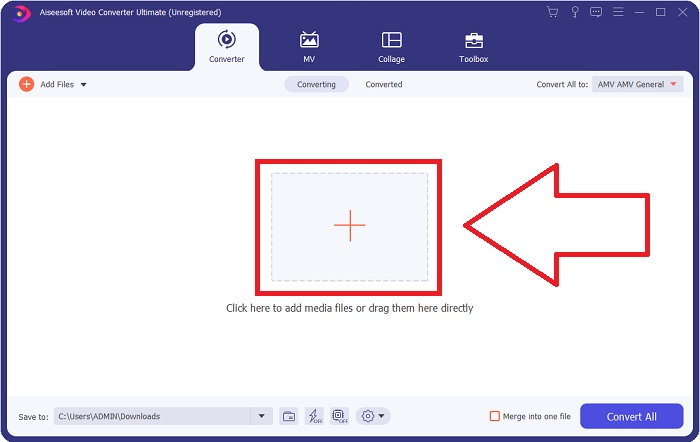
Pas 3: Hi haurà un botó amb el signe + al centre de la interfície perquè hi facis clic i importis el fitxer de vídeo que vols convertir. També pots arrossegar i deixar anar els teus vídeos amb facilitat.
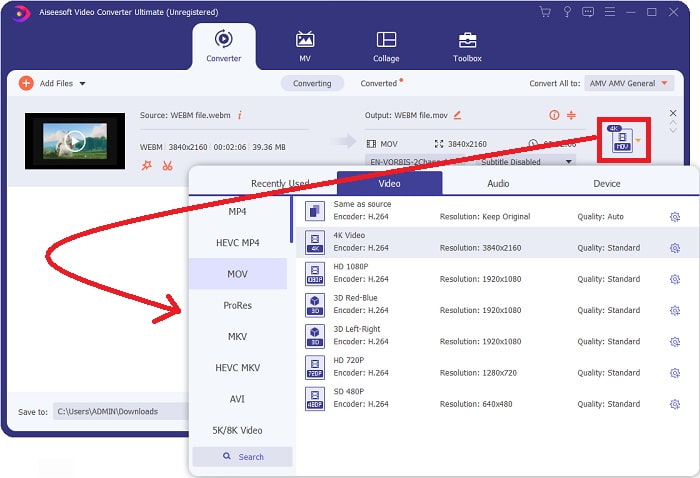
Pas 4: Apareixerà una altra interfície quan el teu vídeo s’hagi importat correctament. Des d’allà, pots veure el format actual del teu vídeo a l’extrem dret. Hi ha una fletxa desplegable al costat; clica-hi i apareixeran diverses opcions. Pots triar qualsevol format al qual vulguis convertir el teu vídeo, però en aquest cas selecciona MOV. Hi ha opcions per triar, com ara la resolució i la qualitat de l’àudio. Per obtenir-ne més, clica la icona d’engranatge al costat de la qualitat o la resolució que hagis triat i podràs editar encara més el teu vídeo segons el que necessitis. Per desar els canvis realitzats, clica Create New.
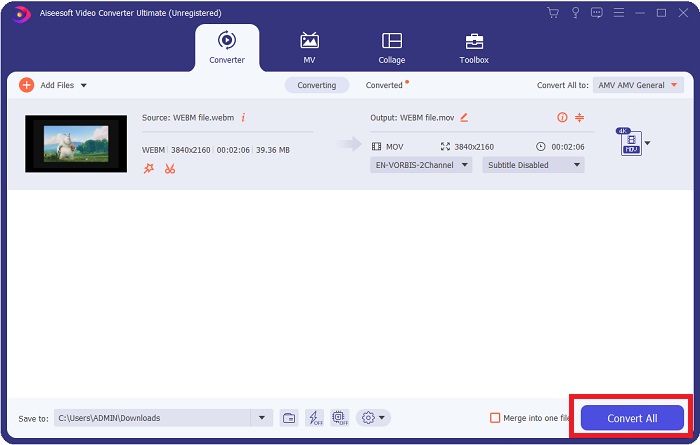
Pas 5: Quan hagis acabat i estiguis satisfet amb els canvis, busca el botó Convert All a l’extrem inferior dret de la interfície i clica-hi per exportar el teu vídeo convertit.
Part 3. Consells de bonificació: Altres convertidors en línia que converteixen WebM a MOV
Mètode 1: utilitzeu Free Convert
Si ja no voleu descarregar programari i només heu de continuar amb el procés de conversió, us podem mostrar alternatives per a aquest. Això es fa exclusivament en línia mentre encara us ofereix les funcions que necessiteu per a les vostres necessitats d'edició. Si voleu un mètode sense problemes, aquesta eina web és un camí a seguir.
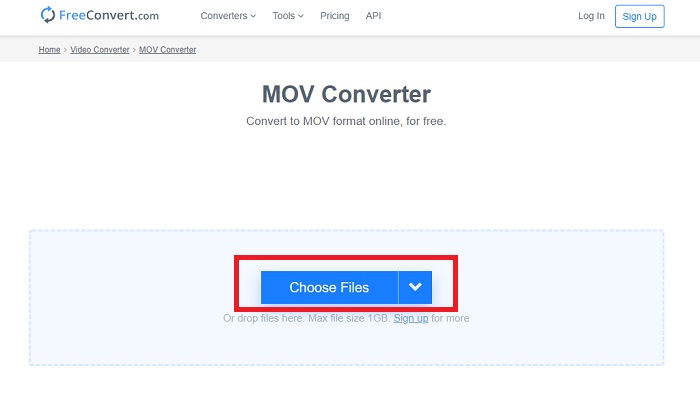
Pas 1: Ves al lloc web i hi trobaràs una interfície en la qual hi ha un botó Choose Files al centre de la pàgina. Fes-hi clic per importar el fitxer de vídeo que vols convertir.
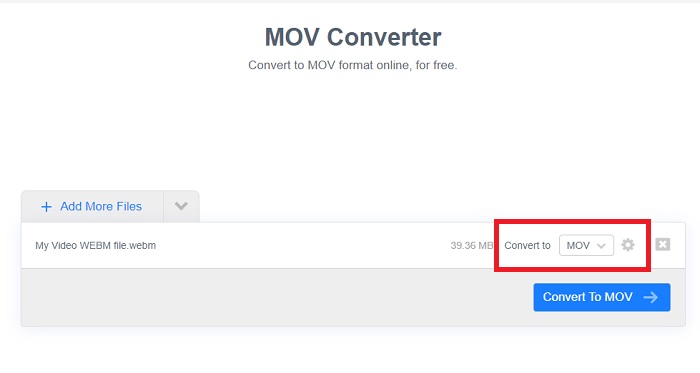
Pas 2: Igual que al programari d’escriptori, pots veure el format actual del teu vídeo a la dreta i al costat hi ha una fletxa desplegable. Fes-hi clic i tria entre els formats als quals vols convertir el teu vídeo. Per a més opcions, fes clic a la icona d’engranatge per editar més a fons el teu vídeo. Clica el botó Apply Settings per conservar els canvis que hagis fet.
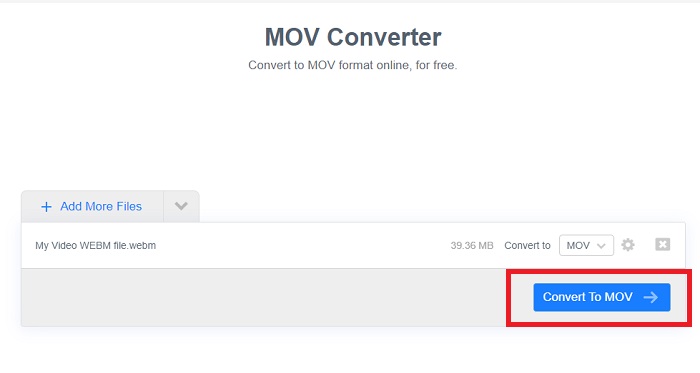
Pas 3: Quan hagis acabat tots els canvis, ja pots iniciar la conversió clicant el botó Convert to MOV que hi ha just a sota i espera que acabi. Després, ja pots exportar el teu vídeo convertit clicant Download MOV.
Mètode 2: utilitzeu Cloud Convert
Aquesta eina web us ofereix algunes opcions més mentre convertiu el vostre fitxer WebM a MOV en línia. No només podeu editar la resolució o la qualitat de l'àudio, sinó també els fps, els subtítols i molts més. Seguiu aquests senzills passos per utilitzar aquest convertidor en línia:
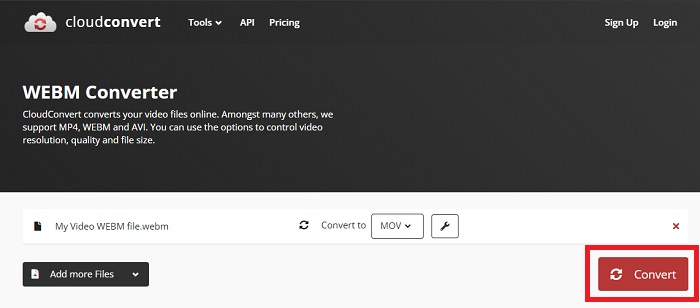
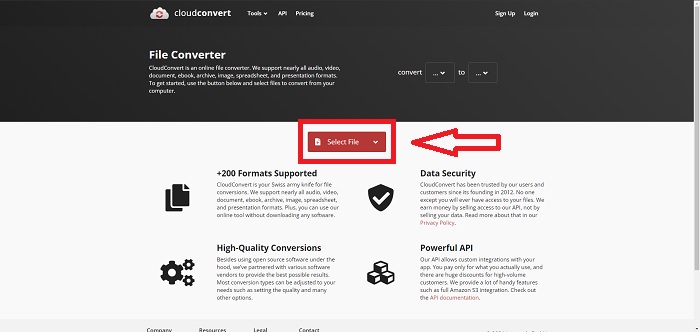
Pas 1: Primer has d’importar el fitxer de vídeo que vols convertir fent clic al botó Select File al centre de la pàgina. Si vols convertir diversos fitxers alhora, fes clic a Add more Files.
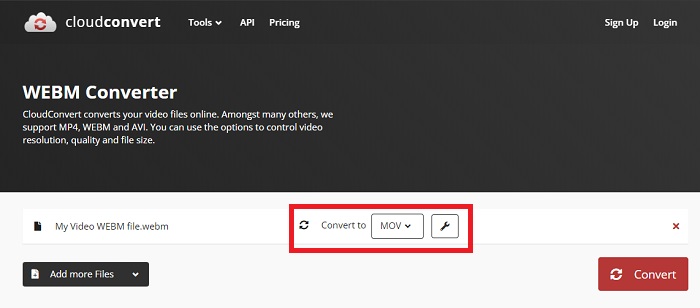
Pas 2: Al costat del fitxer, pots seleccionar el format de vídeo fent clic a la fletxa desplegable. També pots fer clic a la icona de clau anglesa per obtenir més opcions. Des d’allà, pots editar diversos aspectes del teu vídeo i del seu àudio. Després, fes clic a OK per desar els canvis.
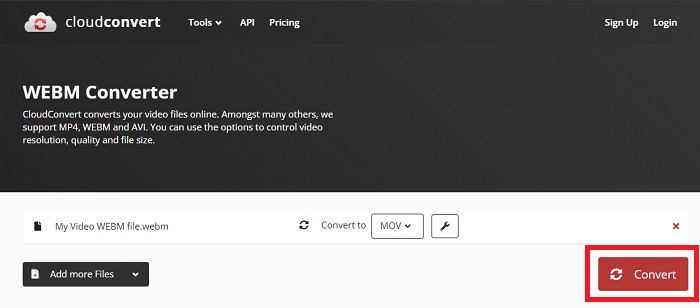
Pas 3: Quan hagis acabat totes les edicions, fes clic al botó Convert ressaltat en vermell i espera que finalitzi. Finalment, fes clic a Download ressaltat en verd per exportar el teu vídeo totalment convertit.
Mètode 3: utilitzeu ZamZar Convert
Aquesta eina web ofereix menys opcions per al vostre vídeo, ja que només converteix el format de vídeo i àudio. Tanmateix, fa la feina més ràpidament que els altres mètodes esmentats. Per utilitzar aquest convertidor en línia, seguiu els passos indicats:
Pas 1: Al centre de la pàgina, només hi ha tres botons per fer que el teu vídeo es converteixi. Primer, fes clic a Add files per importar el teu fitxer de vídeo.
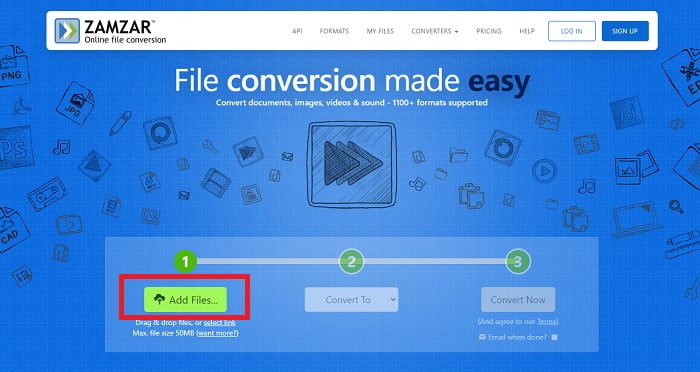
Pas 2: Amb el segon botó, pots triar el format de vídeo i d’àudio que vols per al teu vídeo. En aquest cas, selecciona el format MOV.
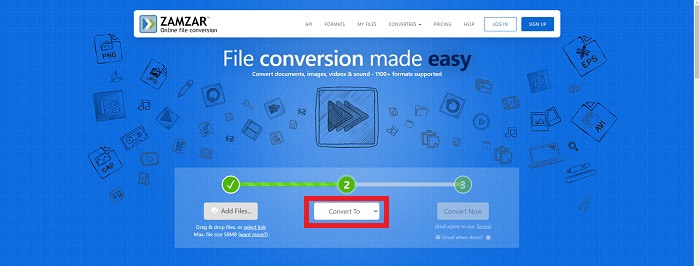
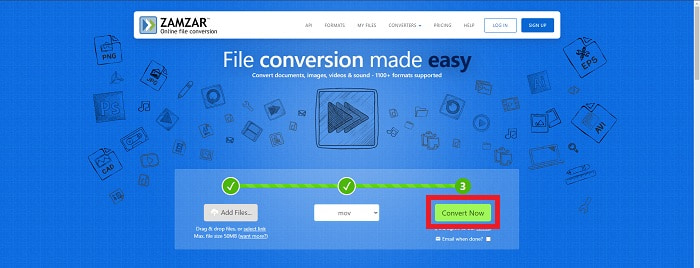
Pas 3: Finalment, fes clic al tercer i últim botó, Convert Now, per començar pròpiament la conversió i espera que acabi. Un cop hagi finalitzat, fes clic a Download per exportar finalment el teu vídeo a l’escriptori.
Part 4. Preguntes freqüents sobre la conversió de WebM a MOV
Què és exactament el format WebM?
WebM és un format de fitxer multimèdia obert específic per a la web que inclou fluxos de vídeo comprimits amb còdecs de vídeo VP8 o VP9, fluxos d'àudio comprimits amb còdecs d'àudio Vorbis o Opus i textos WebVTT. L'estructura de fitxers WebM es basa en el contenidor multimèdia Matroska. La majoria dels navegadors web accepten fitxers WebM, ja que de vegades s'utilitzen en llocs web HTML5 per reproduir pel·lícules en línia. Per exemple, YouTube utilitza el format de fitxer de vídeo WebM per a tots els vídeos de la seva pàgina, des de 360p fins a altres qualitats extremadament altes. Wikimedia i Skype són el mateix.
Quins reproductors multimèdia necessito per reproduir vídeos WebM en cas que no vull convertir-los a MOV?
Hi ha una alternativa si no vols passar per tot el procés de conversió per reproduir el teu vídeo WebM. Pots utilitzar una aplicació de tercers, el que anomenem multiplataforma. Alguns d’aquests reproductors multimèdia de tercers són VLC, KM Player, Media Player Classic, Winamp, jetAudio Basic, Moovidia, Persian i XBMC, que pots descarregar dels seus respectius llocs web per reproduir els teus fitxers WebM.
El MOV és d'alta o baixa qualitat?
La reproducció de vídeo és d'alta qualitat amb fitxers MOV. MOV és especialment útil ja que pot contenir suports mixts com ara imatges, vídeos i animacions de 360 graus. També conté tota la informació de vídeo i àudio. Això fa que l'edició del fitxer sigui molt més senzilla.
Conclusió
De fet, hi ha moltes eines que podeu utilitzar per convertir el vostre vídeo d'un format a un altre, ja sigui mitjançant l'ús d'un programari o mitjançant una eina web que podeu trobar en línia. Tanmateix, encara van de la mà pel que fa a les opcions o comoditat que ofereixen. Alguns acaben de fer la feina i d'altres ofereixen diverses opcions per triar. Aquest article se centra en això per ajudar-vos a saber quin heu d'utilitzar segons les vostres necessitats. És per això que us recomanem Video Converter Ultimate més, ja que ofereix totes les opcions addicionals que potser mai sabeu quan el necessitareu. És millor tenir aquest programari al vostre costat tot el temps per estalviar-vos tots els problemes de trobar un convertidor en línia cada vegada que ho necessiteu.
-
 Com canviar el GIF al format WebM sense perdre la qualitat dels fitxers
 Converteix els teus Gifs a un format de vídeo WebM per tenir una etiqueta de vídeo HTML5. Confieu en aquesta eina a continuació per saber quina és la millor per a la feina.
-
 3 maneres de convertir WebM a MP3 sense perdre la qualitat del so
 Teniu un problema perquè els fitxers WebM no es poden utilitzar per reproduir l'àudio que deseu? Aleshores, llegiu aquest article perquè us proporcionem una ajuda eficaç convertint WebM a MP3.
-
 3 programari impressionant utilitzat per convertir fitxers WebM en format AVI
 No tens idea de com convertir WebM a AVI? Aleshores, comencem a llegir aquest article. Com especifiquem tots els detalls a WebM i els tres convertidors que podeu utilitzar per convertir.
