


 Video Converter Ultimate
 Gravadora de pantalla
 Reparació de vídeo
 Baixada segura
Com unir fitxers MOV (QuickTime) de forma gratuïta
Després de recollir molts materials de vídeo MOV, és possible que vulgueu organitzar els materials i unir-los a un fitxer complet. Tanmateix, per a principiants o productors de vídeos aficionats, utilitzar una eina tècnica com Adobe Premiere Pro pot ser massa complicat. Potser passareu dies o fins i tot mesos per estudiar com operar el programa.
De fet, si només vols unir clips de vídeo, pots utilitzar un senzill i efectiu ajuntador de vídeos per resoldre el teu problema, que només et portarà uns minuts per unir dos o més fitxers MOV.
Amb els passos següents, pots combinar fitxers MOV fàcilment tant a Mac com a Windows. Per tant, continua llegint i prova tu mateix els mètodes.

Part 1. Com combinar vídeos MOV a QuickTime
MOV, també conegut com a QuickTime File Format (QTFF), és un contenidor de vídeo digital amb còdec MPEG-4. Va ser introduït per Apple l’any 1998 per donar suport a QuickTime Player. Per això, si tens un Mac, en realitat pots utilitzar QuickTime Player per unir fitxers mov amb facilitat.
Sorprenentment, QuickTime no només és un reproductor multimèdia, sinó també un editor de vídeo que us permet combinar vídeos separats, editar videoclips i fins i tot gravar àudio o vídeo al vostre Mac. A més, és fàcil d’utilitzar i manté la qualitat original dels vídeos.
A continuació es detallen els passos per unir clips de vídeo a QuickTime.
Pas 1. Busca els vídeos que vols unir i obre’n un amb QuickTime Player. (Pots moure’ls primer a una carpeta o a l’escriptori per estalviar feina.)
Pas 2. Després d’obrir el fitxer, apareixerà una finestra de reproducció a la pantalla. Ara arrossega l’altre clip de vídeo dins de QuickTime Player. Pots mantenir premut i arrossegar el clip de vídeo fins a l’ordre correcte. Quan deixis anar el ratolí, apareixerà un botó Fet al costat dels teus clips de vídeo. Fes-hi clic.
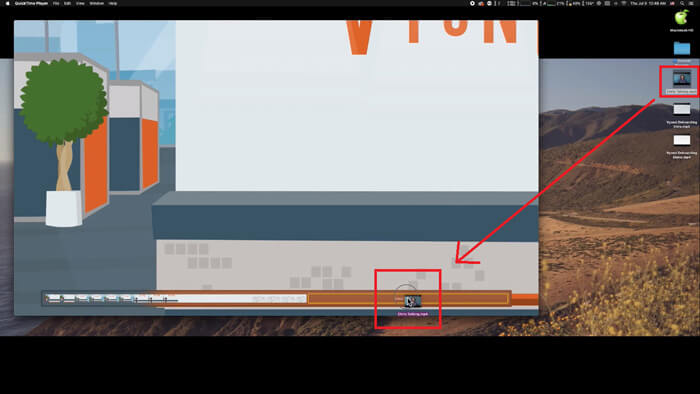
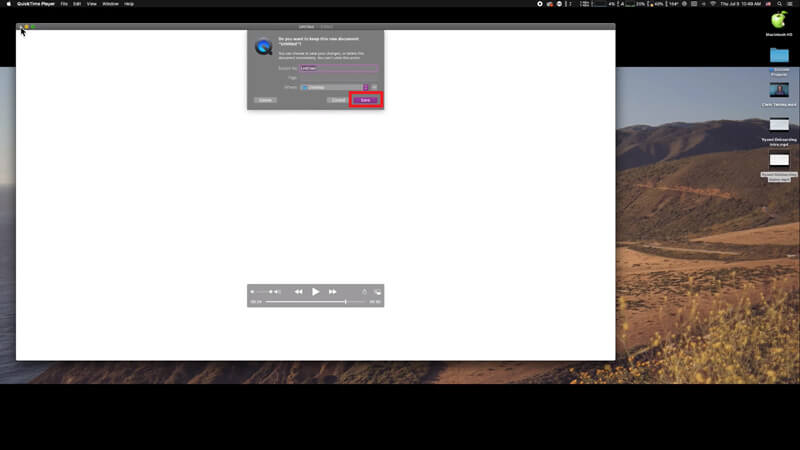
Pas 3. Surt de QuickTime i tot seguit apareixerà un avís que et recordarà que has de desar el vídeo unit. Només cal que escriguis un nom nou i seleccionis una destinació abans de fer clic al botó Desa.
Part 2. Com combinar fitxers MOV en línia i gratis
No obstant això, QuickTime no et pot ajudar a unir diversos fitxers de vídeo en diferents formats, com MP4, MOV, AVI, WMV, FLV, etc., en un sol fitxer MOV. En aquest cas, cal que facis servir un ajuntador de vídeos més professional que admeti múltiples formats de vídeo.
Així doncs, coneix FVC Free Online Video Merger, el millor ajuntador de vídeos per unir vídeos de manera gratuïta. Amb aquesta eina, pots pujar tants vídeos com vulguis sense límit. A més de MOV, pots exportar altres formats de vídeo populars, cosa que et resulta molt pràctica per compartir el vídeo a plataformes de streaming com YouTube.
En lloc d’instal·lar un programa seriós i costós al vostre PC, podeu unir qualsevol vídeo per produir un vídeo increïble en línia amb aquest combinador de vídeo fàcil d’utilitzar, que també us permet crear un vídeo sense filigrana. Independentment del sistema que utilitzeu, Windows, Mac o Linux, pot funcionar bé. Tot el que necessiteu és un navegador i una xarxa estable.
Els passos següents us guiaran sobre com utilitzar aquesta eina de combinació de vídeos.
Pas 1. Fes clic a l’enllaç de dalt per obrir al navegador el lloc web de FVC Free Online Video Merger.
Pas 2. Primer fes clic al botó Upload Videos to Merge del bàner. Després has de seguir les instruccions en pantalla per descarregar i instal·lar un llançador a l’ordinador.
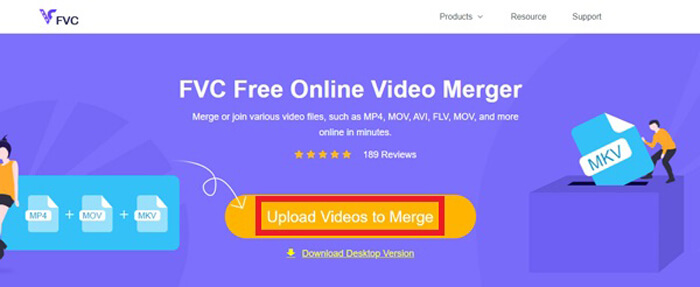
Pas 3. Un cop finalitzada la instal·lació, apareixerà immediatament una finestra emergent. Ara ja pots seleccionar i afegir tots els fitxers MOV que vols unir a l’ajuntador de vídeos.
Pas 4. Després de pujar-los, comprova si l’ordre dels clips de vídeo és correcte. A continuació, canvia la Resolution segons convingui i el Format a MOV o a qualsevol altre format que vulguis.
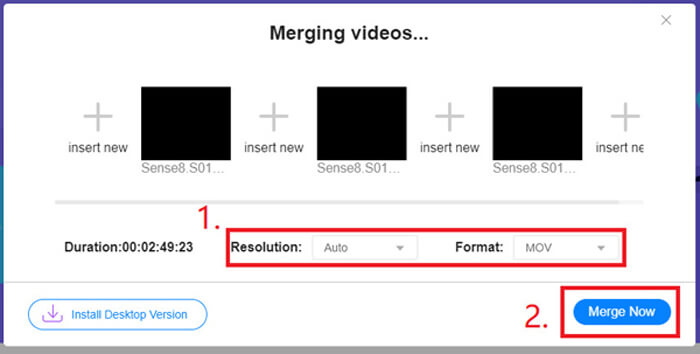
Pas 5. Fes clic a Merge Now per començar la combinació.
Part 3. Com combinar fitxers MOV al Windows 10
Si no teniu un Mac però teniu un PC amb Windows 10, podeu provar els passos següents per unir fitxers MOV.
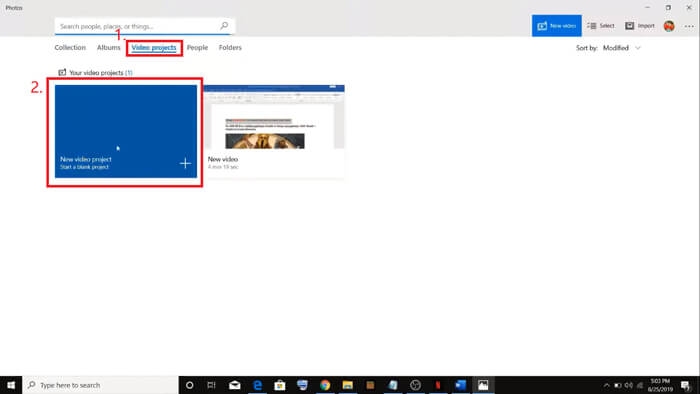
Pas 1. Obre l’aplicació Fotos al teu PC. La pots trobar cercant-la a la barra de Cerca. Després selecciona la pestanya Projectes de vídeo de la part superior i fes clic a Nou projecte de vídeo. Posa nom al projecte de vídeo.
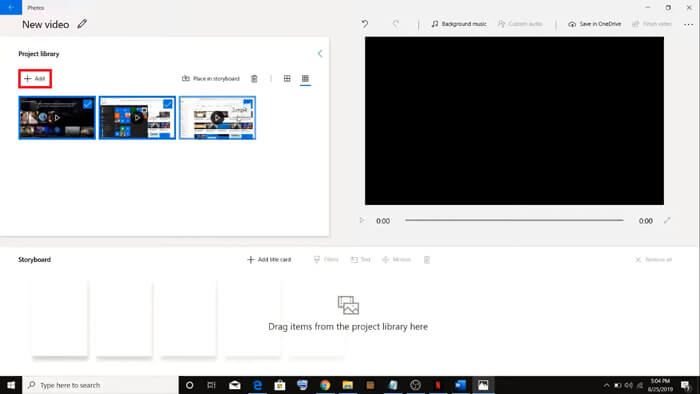
Pas 2. Fes clic al botó Afegeix a la cantonada superior esquerra i selecciona tots els vídeos que vols convertir des del teu PC.
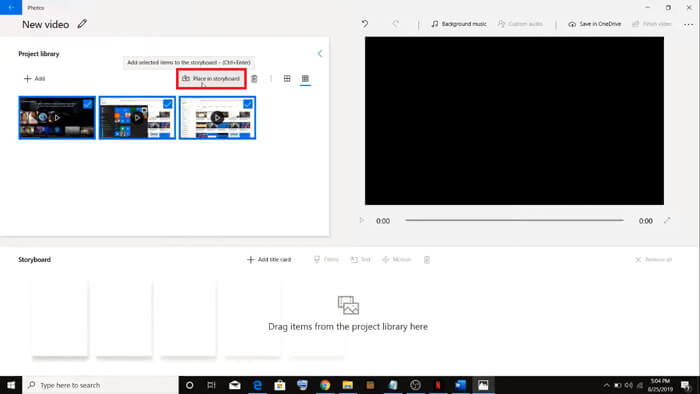
Pas 3. Després fes clic al botó Posa-ho a l’escenari gràfic per combinar tots els fitxers MOV.
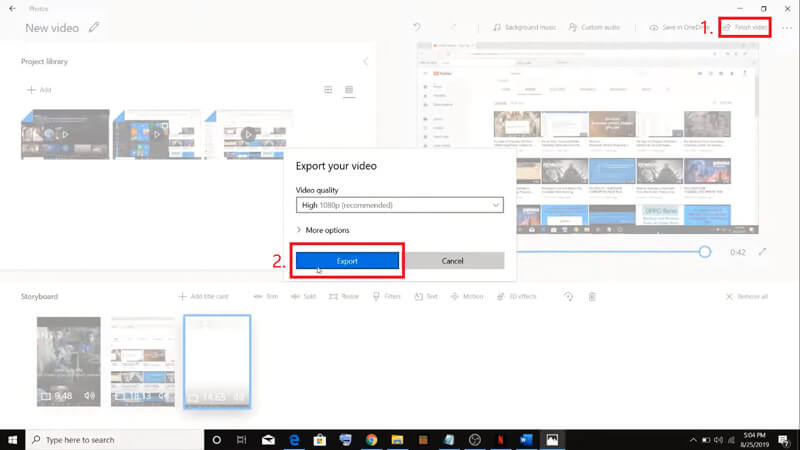
Pas 4. Després d’ajustar l’ordre dels vídeos, fes clic a Finalitza el vídeo a la cantonada superior dreta. Després exporta el vídeo unit al teu PC.
Part 4. Preguntes més freqüents sobre la fusió de MOV
1. Puc utilitzar QuickTime Player al Windows?
Encara que Apple ja no dona suport a QuickTime per a Windows, encara pots trobar el paquet d’instal·lació de QuickTime a Internet. No obstant això, has de tenir en compte que només el podràs utilitzar per reproduir vídeos. Així que, bàsicament, és un reproductor normal que t’ajuda ben poc.
Si ets un usuari de Windows que vol unir fitxers MOV, simplement pots utilitzar el potent FVC Free Online Video Merger.
2. Què és millor per a YouTube, MOV o MP4?
Després de produir un vídeo magnífic unint tot el teu material de vídeo, potser voldràs pujar-lo a YouTube, Facebook, Instagram o altres plataformes. En aquest cas, MP4 serà una opció millor, perquè és més petit en mida i més fàcil de compartir per Internet.
Potser vols saber més diferències entre MOV i MP4.
3. QuickTime Player pot exportar vídeo MP4?
No i sí. Perquè QuickTime en si no permet als usuaris exportar fitxers MP4. Però si has pagat i has actualitzat QuickTime a QuickTime Pro, llavors pots gaudir d’unir fitxers MOV i obtenir automàticament el fitxer MP4 convertit. Si no vols pagar ni un cèntim però igualment vols convertir MOV a MP4 en Mac, pots provar un convertidor en línia gratuït anomenat FVC Free Online Video Converter, que és compatible tant amb Mac com amb Windows.
Conclusió
Aquests són, doncs, els mètodes que pots adoptar quan necessitis unir fitxers MOV en un de sol. Si utilitzes Mac, pots fer servir directament el programari integrat QuickTime Player per obtenir el fitxer MOV unit. Els usuaris de Windows 10 poden provar Fotos. Pel que fa a altres ordinadors amb Windows, els usuaris poden triar FVC Free Online Video Merger i gaudir d’una experiència fantàstica d’unió de vídeos sense restriccions, sense anuncis i sense virus.
Si us agrada aquesta publicació i us sembla pràctic, podeu compartir-la amb els vostres amics. I no dubteu a deixar-nos el vostre comentari. Ara és el vostre torn provar els mètodes i combinar els fitxers.
-
 Com convertir QuickTime a MP4 al Windows / Mac / en línia / iOS / Android
 Llegiu i obteniu 4 maneres de convertir QuickTime a vídeos MP4 de forma gratuïta al telèfon o a l'ordinador. Podeu canviar el format de fitxer de MOV a MP4 al Windows / Mac / iPhone / Android / en línia amb facilitat.
-
 Principals 4 maneres de convertir gratuïtament MP4 a MOV
 Com convertir MP4 a MOV a Mac? Hi ha alguna manera gratuïta de convertir MP4 a MOV sense pèrdua de qualitat? Aquesta publicació comparteix 4 maneres senzilles d'ajudar-vos a fer la conversió de vídeo de MP4 a MOV en Mac, PC amb Windows i en línia.
-
 Com convertir M2TS a MOV a Windows / Mac (en línia / fora de línia)
 Necessiteu convertir M2TS a MOV per reproduir fitxers de vídeo en diversos reproductors i plataformes? Aquest article us ajudarà a trobar el millor mètode en línia / fora de línia per convertir M2TS a MOV a Windows / Mac.
