


 Video Converter Ultimate
 Gravadora de pantalla
 Reparació de vídeo
Com afegir imatges ràpidament a un vídeo en menys d'un minut
Hi ha moltes raons per les quals cal afegir imatges al vídeo. Per exemple, alguns editors van trobar que afegir imatges als seus vídeos crea una nova interacció per als altres usuaris. D'aquesta manera, podeu utilitzar-lo per representar la vostra marca o fer una excel·lent presentació visual i ajudar el vostre vídeo a transmetre el missatge adequat als usuaris. Però, sabíeu que moltes eines fan la mateixa feina? Sabem que és difícil triar quina eina us convingui millor. Així que avui, ja hem escollit les tres eines que hem trobat que funcionen bé. Un cop llegiu aquest article, aprendràs a afegir imatges als teus vídeos.

Part 1. Guia pas a pas per afegir imatges al vídeo amb Video Converter Ultimate
Vols afegir una imatge al vídeo amb l’eina definitiva? En aquest cas, fes servir el Video Converter Ultimate. Amb l’ajuda d’aquesta eina definitiva, pots superposar fàcilment la imatge al vídeo encara que no siguis un professional en aquest àmbit d’edició. A més de la seva funció de superposar imatges al vídeo, pots utilitzar aquesta eina per afegir música de fons, afegir subtítols i molt més. És coneguda per ser la solució integral per a la majoria dels problemes relacionats amb el vídeo. Vols saber quins són els avantatges d’utilitzar-la? Si és així, pots llegir els detalls que es proporcionen tot seguit.

FVC Video Converter Ultimate
Més de 5.689.200 descàrregues- Proporciona un rendiment excel·lent en la conversió i l'edició.
- Editeu i feu un vídeo fantàstic amb uns quants clics.
- Admet més de 200 formats, com ara MP4, MOV, FLV, WMV, AVI, MTV, etc.
- Disponible en totes les plataformes multiplataforma per descarregar, com Windows i Mac.
Descàrrega gratuïtaPer a Windows 7 o posteriorDescàrrega segura
Descàrrega gratuïtaPer a macOS 10.7 o posteriorDescàrrega segura
No és sorprenent quines són les coses que pots fer amb l'eina? Sí, sabem que l'eina és impressionant en molts aspectes. Si aquesta eina us ha cridat l'atenció i voleu aprendre a afegir una imatge a un vídeo amb aquesta eina, podeu llegir el tutorial a continuació.
Pas 1. Fes clic al botó de descàrrega que hi ha a continuació per descarregar-la directament al teu disc, segueix la instal·lació i obre el programa. Abans de res, t’agrairíem que et familiaritzessis amb la interfície de l’eina per poder distingir fàcilment els passos següents.
Descàrrega gratuïtaPer a Windows 7 o posteriorDescàrrega segura
Descàrrega gratuïtaPer a macOS 10.7 o posteriorDescàrrega segura
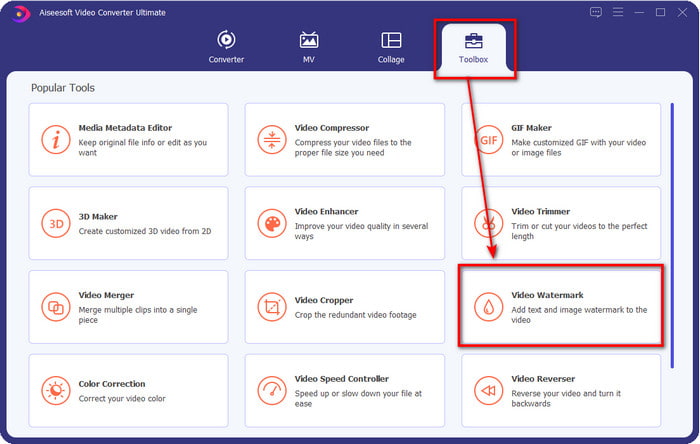
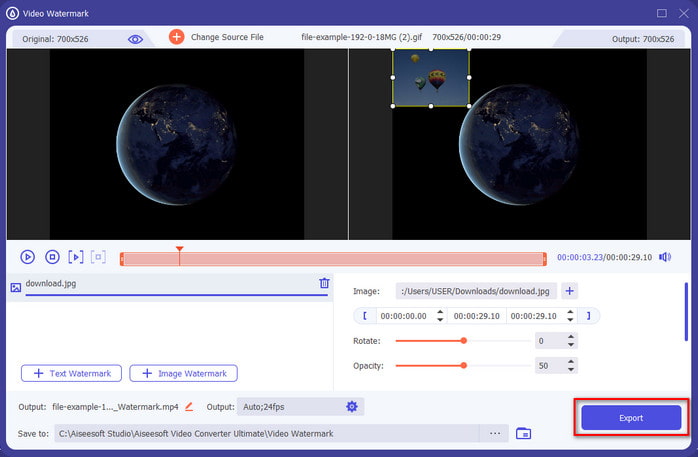
Pas 2. Un cop l’eina estigui en funcionament al sistema, fes clic a Toolbox; a sota, localitza Video Watermark i obre-ho.
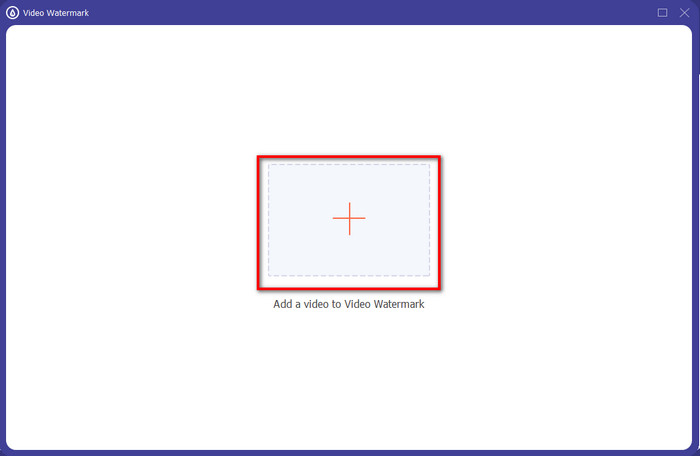
Pas 3. Després de prémer el botó +, apareixerà una carpeta a la pantalla; localitza el fitxer i prem Open si aquest és el fitxer de vídeo.
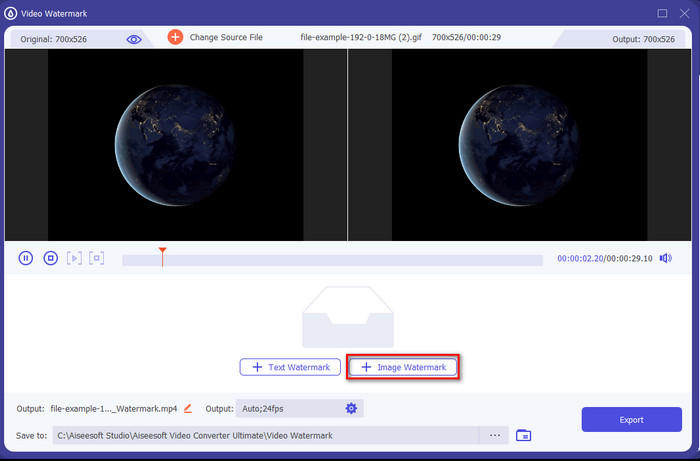
Pas 4. Apareixerà una finestra nova, fes clic a Image Watermark; a continuació tornarà a aparèixer una carpeta, però aquesta vegada hauràs d’inserir la imatge que vols afegir al teu vídeo i prémer Open.
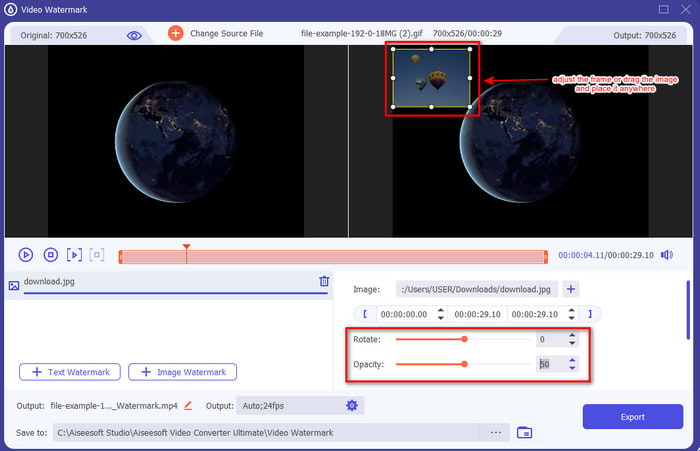
Pas 5. Ajusta la mida de la imatge que has inserit al vídeo i la seva posició arrossegant el marc de la foto. Pots col·locar-la on vulguis mantenint premut i arrossegant la imatge. A més, també pots ajustar la visibilitat de la imatge modificant l’Opacity. Igualment, pots girar la imatge arrossegant el control lliscant de Rotate.
Pas 6. Quan hagis editat la foto, és el moment de fer clic a Export.
Relacionat:
Com afegir subtítols a un vídeo
Part 2. Com superposar imatges a vídeos a Internet de forma gratuïta
Tallador de vídeo en línia: afegiu una imatge a un vídeo
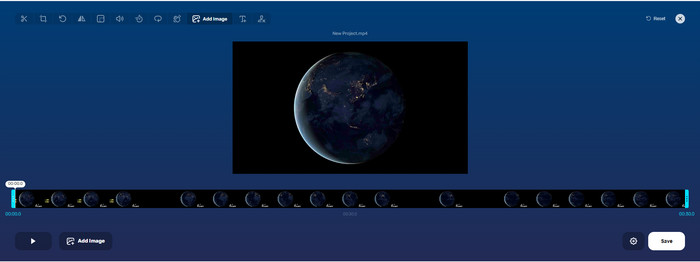
Si vols superposar imatges en línia, pots utilitzar Online Video Cutter – Add Image to a Video. Aquesta eina web ofereix una manera senzilla però efectiva d’afegir fotos a qualsevol vídeo. Tot i que l’eina és molt bona d’utilitzar, continua sent una mica feixuc pujar-hi el vídeo perquè depèn de la teva connexió a Internet. A més, aquí no hi pots afegir dues imatges perquè no ho admet. Però si vols utilitzar l’eina, pots seguir els passos següents.
Pas 1. Obre el navegador i cerca l’eina web al quadre de cerca, després obre-la.
Pas 2. Fes clic a Open File per pujar el vídeo i després fes clic a Add Image per pujar la imatge que hi vols inserir.
Pas 3. Arrossega la imatge per canviar-ne la posició, fes clic a Save per codificar el vídeo i desar-lo a l’ordinador.
Pros
- L'ús és gratuït i no cal que el descarregueu.
- Admet funcions d'edició bàsiques per als usuaris.
- No té una marca d'aigua a la sortida final.
Contres
- No pot afegir fins a 2 o més imatges al vídeo.
- Penjar la imatge i el vídeo triga temps a carregar-se.
Flixier
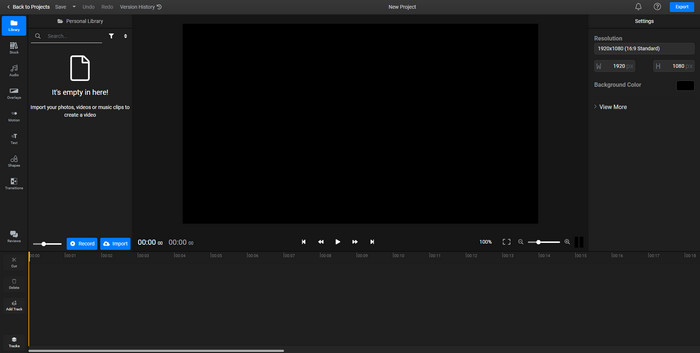
Pots utilitzar Flixier per afegir una imatge a un vídeo en línia de manera gratuïta. A més, amb aquesta eina en línia pots editar la plantilla del teu vídeo, incloent-hi afegir-hi imatges. Aquesta eina ofereix funcions d’edició integrades excepcionals que pots utilitzar per millorar l’aspecte del teu vídeo. Tot i que l’eina web t’ofereix aquesta funció única, en el moment d’exportar el vídeo hi haurà una marca d’aigua al resultat final perquè és gratuïta. Però pots adquirir la versió premium per eliminar aquesta marca d’aigua.
Pas 1. Obre el teu motor de cerca, cerca el nom de l’eina i fes clic a Choose File.
Pas 2. Fes clic a Import per pujar el vídeo i les imatges, arrossega el vídeo i la imatge a la línia de temps, i assegura’t que la imatge estigui per sobre del vídeo. Canvia la posició de la imatge arrossegant-la dins del vídeo.
Pas 3. Fes clic a Export i després a Export and Download per desar-lo al disc del teu ordinador.
Pros
- Gratuït i accessible a la web.
- Proporciona més funcions d'edició que la primera eina en línia.
- Admet afegir diverses imatges al vostre vídeo.
Contres
- La sortida final té una marca d'aigua al final perquè és gratuïta.
- Ha de comprar la versió VIP per eliminar la marca d'aigua a la sortida de vídeo.
Part 3. Preguntes freqüents sobre com afegir imatges al vídeo
Afegir imatges a un vídeo afecta la qualitat?
La qualitat del vídeo no afectarà la imatge que afegiu. Per simplificar, afegir imatges no té una qualitat de vídeo significativa, fins i tot si afegiu moltes fotos. Tanmateix, si exporteu el vídeo a l'editor que heu utilitzat i el configureu en baixa qualitat, espereu la sortida de vídeo a continuació.
Per què les imatges que afegeixo al vídeo es tornen borroses?
El motiu principal és que la imatge ja està borrosa des del principi. Per evitar aquest problema, primer heu de comprovar la imatge i assegurar-vos que no estigui borrosa abans d'utilitzar-la al vostre vídeo.
Puc afegir una transició a la imatge del vídeo?
Amb alguns editors, és possible afegir una transició a la vostra imatge. Tot i que hi ha moltes transicions animades diferents, tallar, esvair, esborrar i dissoldre són les més habituals. Tot i que aquests són els més habituals, segueix sent ideal per afegir una transició a la imatge per fer el vídeo més professional i emocionant.
Conclusió
Després d’haver llegit aquest bloc, aprendre com afegir fotos a un vídeo esdevé més fàcil d’entendre si en llegeixes tot l’article amb els diferents instruments en línia i fora de línia. Encara que presentem diferents conjunts d’eines, continuem recomanant que qualsevol usuari utilitzi l’eina definitiva per dur a terme aquesta tasca. Video Converter Ultimate ofereix una interfície fàcil d’entendre per ajudar els usuaris a fer la feina amb eficàcia. Encara no saps si s’adapta a tu? Doncs bé, descarregar l’eina és l’única manera de comprovar que et va bé.
-
 5 convertidors OGV a WMV beneficiosos per convertir els vostres fitxers OGV
 Hi ha 5 convertidors OGV a WMV diferents que podeu utilitzar per convertir els fitxers OGV. Aquest article proporciona un fet fort sobre els 5 convertidors ogv disponibles.
-
 Tutorial per als 2 millors programes de conversió d'AMV a WMV [2022]
 Vols convertir AMV a WMV? Si és així, heu de llegir aquest article per tenir una idea de què és AMV i com convertir el fitxer a format WMV.
-
 Eines més útils per convertir SWF a WMV (en línia i fora de línia)
 Teniu problemes per trobar un reproductor per als vostres fitxers SWF? No us haureu de preocupar perquè només podeu convertir-lo a format WMV per obtenir una millor experiència de consum de vídeo. Llegiu aquest article per saber més sobre aquest procés de conversió.
