


 Video Converter Ultimate
 Gravadora de pantalla
 Reparació de vídeo
 Baixada segura
6 La manera més eficaç de canviar la mida d'una imatge al web i a l'escriptori
Amb milers de milions de fotografies de prestigi que podem descarregar, la majoria de nosaltres fem imatges boniques, però hi ha casos en què la seva mida no és la que més preferim. Els usuaris van intentar canviar la mida de la imatge que tenien ajustant l'alçada, l'amplada i la relació d'aspecte de la imatge mitjançant l'editor, que va canviar el PPI de la imatge. El resultat no és el que tothom esperava; les imatges d'alta definició es tornen pixelades.
Why? Because the editor they used to resize can’t create or fill in the gap of pixels on the resized version. Thus, the queries about this topic became popular, and we are here to help you solve the problem. In this blog post, we will let you have hands-on experience on how to resize an image without any distortion left on the final output.

Part 1. Millors redimensionadors de fotos als quals podeu accedir al web per canviar la mida de la imatge en línia [3 eines gratuïtes]
Aquestes eines en línia que afegim aquí estan disponibles en diferents navegadors web que teniu al vostre dispositiu. A més, són gratuïts, però hi ha una eina que haureu de comprar per utilitzar-la sense cap limitació. No obstant això, es tracta d'eines en línia a les quals podeu accedir per començar a canviar la mida de la imatge que teniu. Llegeix els passos per saber com utilitzar-los.
1. FVC Free Image Upscaler - Millor redimensionador d'imatges al web [Opció favorable]
With FVC Free Image Upscaler Online is an artificial intelligence web tool that can quickly resize images without losing quality. Indeed, the web tool will automatically resize every image file you upload here. Despite being an online tool, its performance in resizing is fast and effective. Every image you upload here is automatically deleted on the server once you resize it. Also, it has the cleanest and most versatile resizer you will ever need; even though you are using different devices, you can access this web tool as long as you have internet connectivity. Want to see how this software performs in this task? If so, read the steps below and copy them to change the image size quickly and effectively.
How to Resize Image Using FVC Free Image Upscaler:
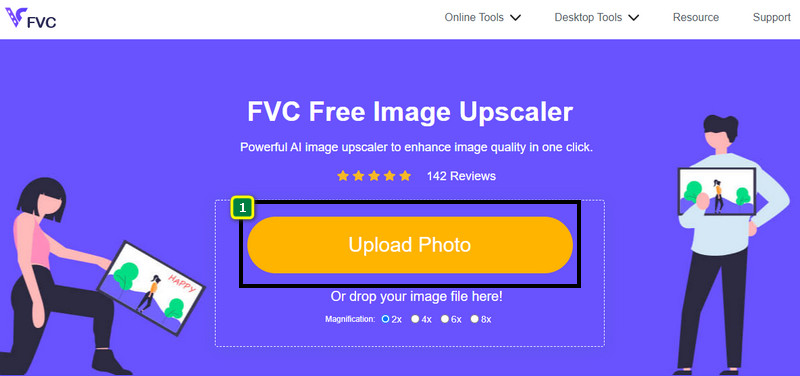
Step 1. To access the web tool, you can click this link, which will automatically lead you to the official website of the resizer.
Step 2. Click the Add Image so that a folder will show on your screen, select the image file you want to upload, and press Open.
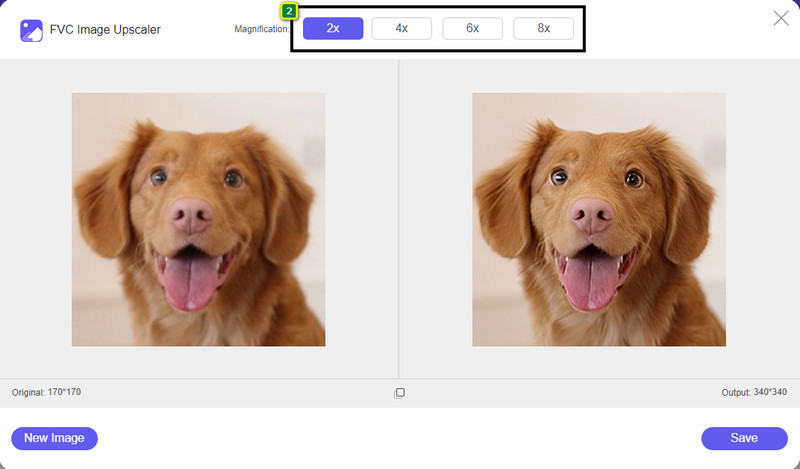
Step 3. To change the picture size, you must select what type of magnification to apply to your image. You can see that the overall dimension of the image is changed once you try and click the 2x, 4x, 6x, and 8x
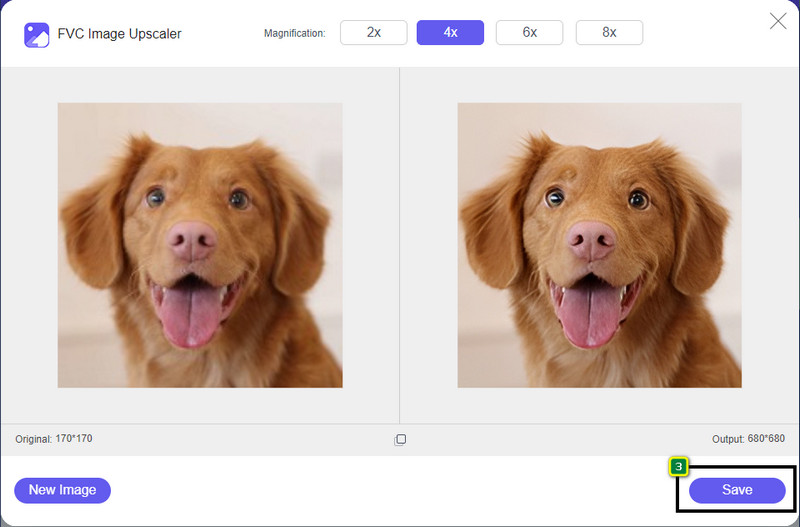
Step 4. After you have selected the magnification you want to apply, voila, you can now press Save to download the resized version of it on your desktop drive.
2. Be Funky - Editor de fotos [Gratis i de pagament]
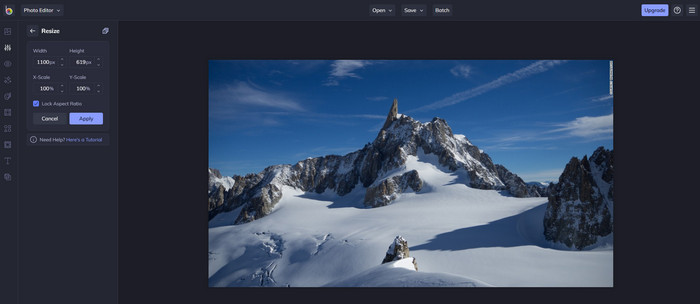
Be Funky - Photo Editor is a creative platform you can use to make extraordinary things on your images. It can resize BMP without losing quality. This tool is considered one of the finest image editors you can access online. Though it has a similar GUI to Photoshop, the features it brings are simplistic and easy to understand, so we can say that it is also user-friendly. So, if you want to try using this online tool to resize your image easily, follow the steps we include here.
How to Resize Image Using Be Funky:
Step 1. Search the name of it on your web browser, then click Get Started and Edit Photo.
Step 2. Press Open to upload the BMP or any images you have that you want to resize here.
Step 3. Go to Edit and press the Resize option.
Step 4. Here, you can freely change the width and height or the x and y scale of the image. Then press Apply to see what the resized version looks like.
3. Redimensionador simple d'imatges [gratuït]
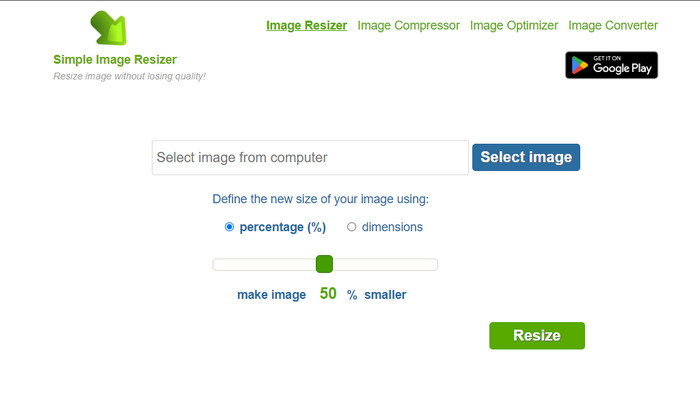
Simple Image Resizer allows you to resize an image by defining the new size of the image by changing the percentage or measurement. It is the last image resizer we added to this article. Its simple GUI and ease of use became the major factor in why we added this. In addition to its resizing feature, you can optimize, compress, and convert your image here for free but with annoying ads on the web. So, if you want to try using this resizer online, follow the steps below.
How to Resize Image Using Simple Image Resizer:
Step 1. Using your web browser, search the name of it to start using this web resizer.
Step 2. Press Select Image to add the photo you want to resize here.
Step 3. Choose which you prefer to use on resizing, and change the percentage or measurement. Either way, they do the same.
Step 4. Click Resize to save the final output on your desktop.
Part 2. Com canviar la mida d'una imatge a Windows i Mac [Pagat i gratuït fora de línia]
A diferència de la primera eina en línia esmentada 3, les següents eines que vam introduir no depenen d'Internet, el que significa que fins i tot si no teniu Internet, podeu utilitzar-les sense tenir cap problema. Perquè es poden descarregar o ja estan preinstal·lats al vostre escriptori. Apreneu a utilitzar-los avui llegint la informació que afegim a cadascun d'ells.
1. Adobe Photoshop [Windows i Mac]
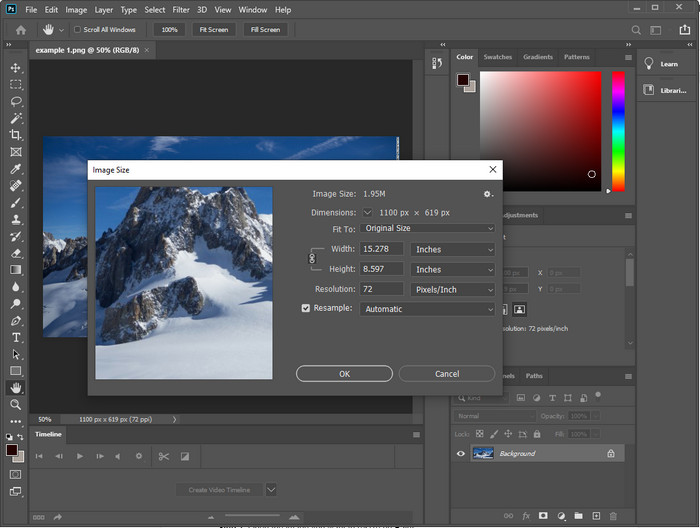
Our first choice offline image resizer you can download on your device is Adobe Photoshop. Why? Because it creates another pixel data once you resize it and avoid having a low-quality output at the end of the process. Plus, this software is known for being a professional image editor that could easily process any raster and vector images. Though the software is a professional tool, it is still a bit too much to purchase if you are about to use it only on resizing. But if you are interested in how to resize an image in Photoshop.
How to Resize Image Using Adobe Photoshop:
Step 1. Download and install the software on your desktop by visiting its official website.
Step 2. Hit the File, and locate the image on the folder after you click Open.
Step 3. Press the Image menu at the top, then select the Image Size.
Step 4. Change the measurement of Width and Height according to your preferences, then click OK to apply the changes.
Step 5. Go back to File and save the image on your desktop.
2. Paint [Aplicació predeterminada a Windows]
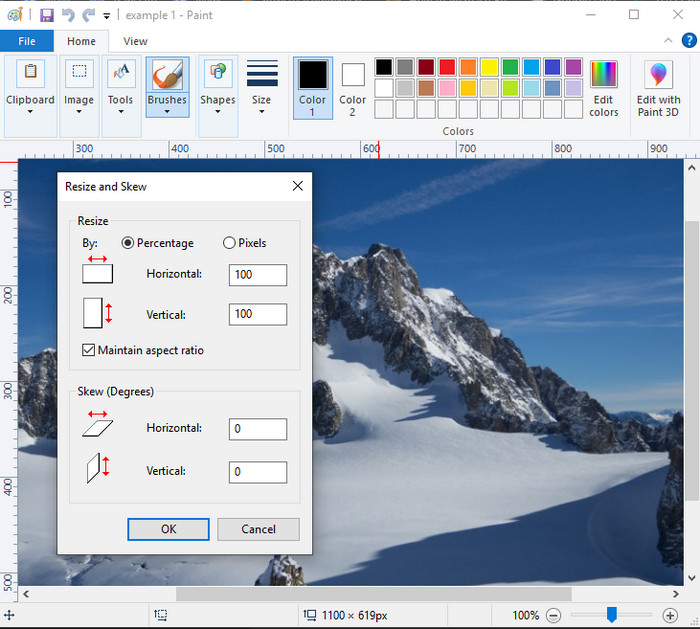
Paint is known for being an application that you can draw on a blank canvas. Different users of Windows normally use it to create something into a blank page, add details on images, and resize them accordingly. Though it isn’t a dedicated editor, it can still resize any raster image you have on your local drive. The advantage of using this is that you wouldn’t need to download the software on your Windows because it is pre-installed. So, if you want to know how to resize low-resolution pictures with this app, read the tutorial, we add below.
How to Resize Image Using Paint:
Step 1. Open the image you want to resize on Paint.
Step 2. After opening the image, click the two-squares icon to start resizing the image you open here.
Step 3. To resize the image, you can change it by percentage or pixel. After you’ve changed the number, press OK to apply the changes.
Step 4. Hit the save icon to export the image you resized here.
3. Vista prèvia [Aplicació predeterminada a Mac]
Preview is a dedicated app you can depend on and lead you to how to resize an image on a Mac. If you don’t like downloading an application on your macOS, then you better use this app. It is an underrated solution, but it can resize your photo on your desktop. Learning how to use it can be a huge advantage to you to maximize the full potential of this software. If you are interested in how this tool works, proceed to the info we add next.
How to Resize Image Using Preview:
Step 1. Right-click the image on your Mac, click Open with, and press Preview.
Step 2. On the upper part, click Tools, then select Adjust Size.
Step 3. Change the image measurements based on your needs, then press OK to save the changes you made.
Part 3. Addicional: Top Image Resizer que podeu baixar a Android i iPhone
1. Redimensionador de fotos i imatges [Android]
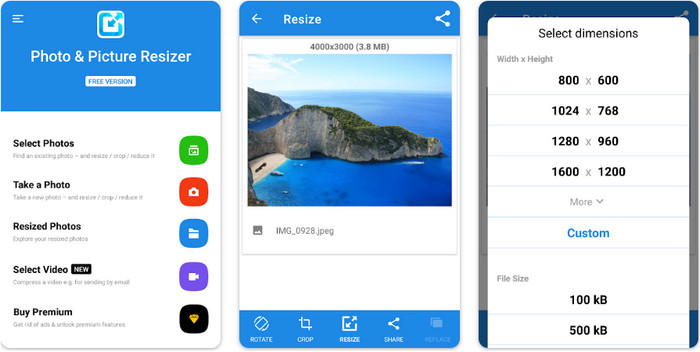
Photo & Picture Resizer is one of the fastest and easiest ways to resize the image you have on your Android device. Even inexperienced users who want to resize can download and use this as their image resizer. This app is free, so if you want to use its additional features, you will need to purchase it. Overall, its resizing features are great, and you can master it on the first try.
2. Image Resizer Free [iPhone]
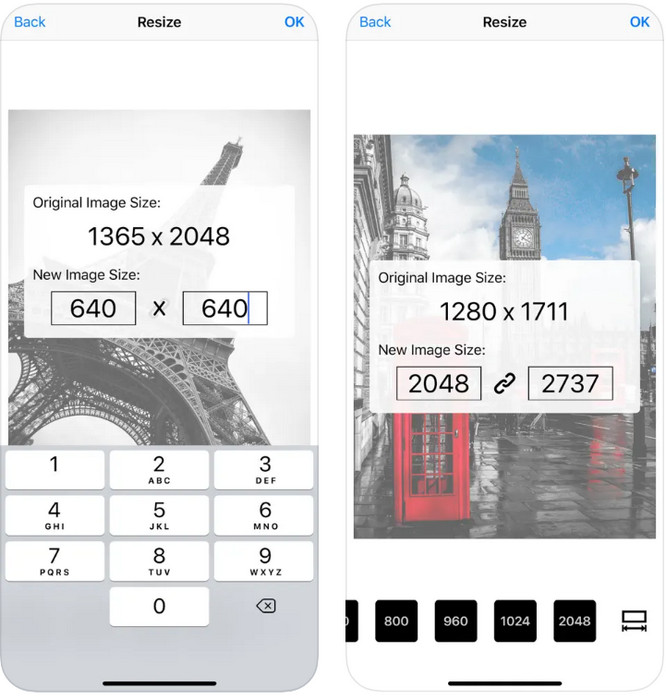
Image Resizer Free is an iOS-based application you can download on iOS 7.0 or higher. This application is an on-point image resizer that many iOS users use. It doesn’t have additional features other than its main function, resizing. Though the tool is user-friendly, many users complain that it can’t overwrite the original image into the resized version.
Part 4. Preguntes freqüents sobre com canviar la mida de la imatge
Quin format és millor per canviar la mida, ràster o vector?
Els formats ràster estan formats per petits píxels per crear l'aspecte de la imatge i, quan en canvieu la mida o la dimensió, aquests píxels s'estenen i es tornen visibles. A diferència de si canvieu la mida de la imatge vectorial, està dissenyada específicament per canviar la mida i augmentar l'escala de la imatge sense crear-hi un embolic.
Puc canviar la mida de BMP en línia?
Sí, podeu canviar la mida del BMP mitjançant la solució en línia que afegim aquí. Tanmateix, quan amplieu la imatge, el BMP tendeix a pixelar-se perquè són imatges ràster. Per tant, si voleu evitar el problema de canviar la mida del fitxer BMP, és millor que trieu el FVC Free Image Upscaler Online, ja que no deixa pixelació a la sortida final del BMP redimensionat.
La mida del fitxer augmenta després de canviar la mida de la imatge?
Si ho és. Principalment perquè la imatge que heu canviat de mida afegeix dades de píxels addicionals a la sortida real. No obstant això, la seva mida de fitxer no difereix gaire de la seva mida de fitxer original.
Conclusió
Which resizing image technique do you think fits you well? Choose amongst the resizer we add here. If you are having trouble choosing an internet connection, we highly recommend using the FVC Free Image Upscaler Online because of its performance on resizing. There is no difficulty resizing if you use this resizer on the web.
-
 Imatge de 1440p: informació tot inclòs que necessitareu [Actualització 2022]
 Vols saber sobre les imatges de 1440p? O on el pots aconseguir? Voleu la vostra imatge a 1440p? Llegeix això per conèixer-los tots.
-
 Tutorial per despixelar una imatge amb el 3 Millor Photo Unpixelator
 Teniu problemes per manejar imatges pixelades? Avui hem resolt el problema i podeu utilitzar les eines que afegim aquí.
-
 Com afinar la imatge a la foto amb 3 maneres [tutorial ràpid]
 Problema amb la imatge sense nitidesa? Aquí, presentarem com millorar les imatges a Photoshop mitjançant les tres maneres que afegim.
