


 Video Converter Ultimate
 Gravadora de pantalla
 Reparació de vídeo
 Baixada segura
Apreneu a convertir HEIC a JPG a Google Drive i alternatives
HEIC és el format de fitxer més nou d'Apple. Aquest nou format d'imatge és una millor manera de desar les imatges al dispositiu. A més, HEIC fa que la teva imatge sigui més petita mentre manté la seva alta qualitat. A més, a moltes persones els encanta el format HEIC perquè són un excel·lent format d'imatge per a fotografies en directe. Tanmateix, HEIC és compatible amb dispositius Apple; per tant, no és compatible en moltes plataformes. Per tant, si voleu utilitzar fitxers HEIC o carregar HEIC en altres plataformes compatibles amb Windows, heu de convertir-lo al format de fitxer JPG, que admeten moltes plataformes i llocs web.
I sabies això? Google Drive va començar a admetre formats HEIC perquè els dispositius iOS puguin fer còpies de seguretat dels seus fitxers mitjançant aquest servei al núvol. I si et preguntes si pots convertir HEIC a JPG a Google Drive, llegeix a continuació per saber-ne la resposta.

Part 1. Com convertir HEIC a JPG a Google Drive sense pèrdues
Google Drive és probablement el servei d'emmagatzematge al núvol més conegut disponible. Amb aquest programa, podeu emmagatzemar i recuperar qualsevol imatge o vídeo que vulgueu carregar. A més, molts usuaris de dispositius Apple prefereixen utilitzar Google Drive per emmagatzemar les seves imatges o vídeos. A més, aquest programa pot alliberar espai al dispositiu que ocupa una mida de fitxer gran. Tanmateix, Google Drive no pot convertir imatges o vídeos. Per tant, si heu penjat un fitxer HEIC a la vostra unitat, no podeu convertir-lo a un format de fitxer JPG.
Però en aquesta part, us mostrarem un mètode per carregar la vostra imatge HEIC a JPG a Google Drive. Tingueu en compte que això només està disponible a la versió web de Google Drive, no a la versió de l'aplicació.
Com convertir HEIC a JPG a Google Drive baixant HEIC com a JPG:
Pas 1. Per començar, ves a l’app Fotos i selecciona el fitxer HEIC que vols convertir. Després, toca la icona de Compartir i selecciona l’opció Google Drive.
Pas 2. Connecta el teu iPhone a una xarxa perquè les fotos es pugin al teu compte.
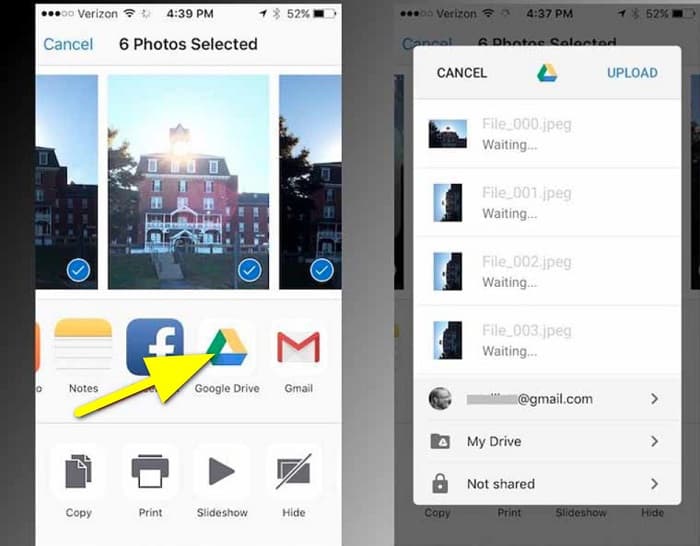
Pas 3. A continuació, obre un ordinador, obre el navegador i cerca Google Drive al quadre de cerca. Inicia sessió amb el compte que has utilitzat per fer la còpia de seguretat de la teva imatge HEIC.
Pas 4. Després, fes clic a la imatge HEIC al teu Google Drive i obre-la a resolució completa. Tot seguit, fes clic dret sobre la foto i selecciona Desa la imatge com a.
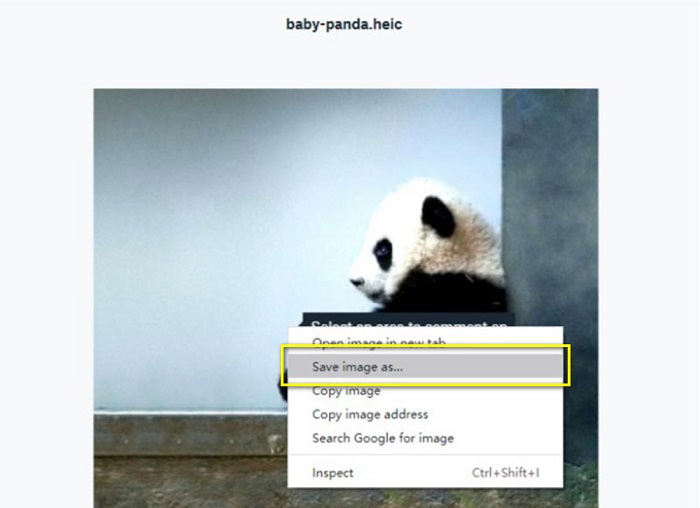
Pas 5. Al menú emergent, localitza la carpeta on vols desar la imatge. Defineix l’extensió del fitxer com a .jpg i fes clic al botó Desa per desar els canvis.
Part 2. Com convertir HEIC a JPG a l'alternativa de Google Drive
Com que Google Drive no té una funció per convertir imatges o vídeos, cerquem que podeu utilitzar per convertir les vostres imatges HEIC. Tanmateix, hi ha moltes eines de conversió disponibles al mercat, no totes admeten el format HEIC. Per tant, hem cercat al web el convertidor més sorprenent que admeti formats d'imatge HEIC. A més, parlarem de l'ús d'aquest convertidor d'imatges per convertir HEIC a JPG sense pèrdues.
FVC lliure HEIC a JPG convertidor
FVC Free HEIC to JPG Converter és un convertidor HEIC en línia al qual pots accedir des de tots els navegadors web, com Google, Internet Explorer i Safari. Aquesta aplicació en línia admet el procés de conversió d’HEIC a JPG, cosa que moltes aplicacions no fan. A més, pots convertir el teu HEIC a JPG mantenint les dades EXIF, com ara les dimensions, el format, la mida, la data i hora de captura, l’exposició i més. Aquest programa et permet convertir la teva imatge HEIC sense perdre qualitat. A més, utilitza un mètode de conversió amb IA que converteix automàticament les imatges sense pèrdua. Un altre avantatge d’utilitzar aquesta eina en línia és que pots convertir per lots dues o més imatges simultàniament.
FVC Free HEIC to JPG Converter no requereix que us registreu, subscriviu o utilitzeu complements de tercers per utilitzar-lo. I no cal que us preocupeu per la seguretat de les vostres dades perquè 100% és segur d'utilitzar. Llegiu els senzills passos següents per saber com convertir HEIC a JPG mitjançant el convertidor gratuït de FVC HEIC a JPG.
Com convertir HEIC a JPG a l'alternativa de Google Drive:
Pas 1. Primer, obre el navegador web i cerca FVC Free HEIC to JPG Converter al quadre de cerca.
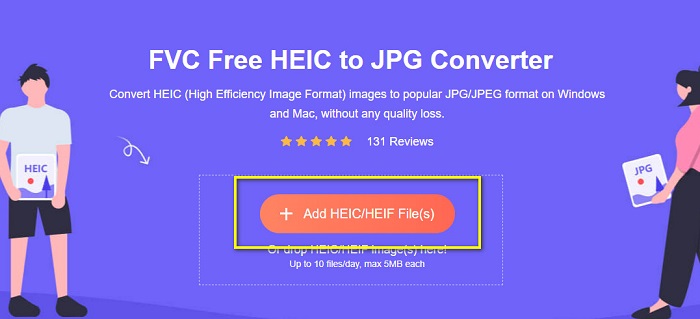
Pas 2. Després, inicia l’aplicació abans d’utilitzar-la. A continuació, fes clic al botó Add HEIC/HEIF Files a la mateixa interfície per afegir la imatge HEIC que vols convertir.
Pas 3. FVC Free HEIC to JPG Converter convertirà automàticament la teva imatge després de pujar-hi el fitxer HEIC. Veureu la icona Finished a la part inferior de la interfície.
Pas 4. Finalment, descarrega la imatge convertida fent clic al botó Download. Després, localitza el teu fitxer de sortida entre els fitxers de l’ordinador.
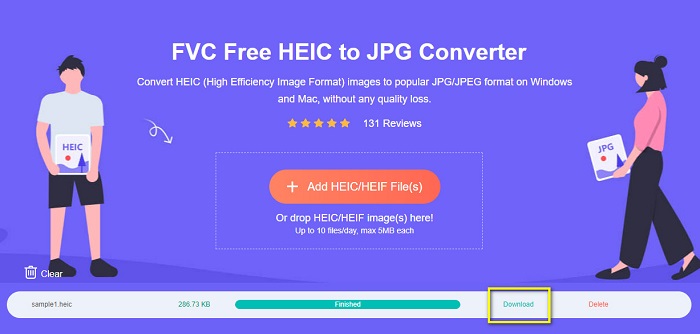
Tan fàcil com això, podeu convertir el vostre HEIC a JPG fàcilment al vostre ordinador.
Convertidor Aiseesoft HEIC
Aiseesoft HEIC Converter és una aplicació de descàrrega gratuïta que pots utilitzar si busques el millor convertidor HEIC. A més, aquest programa et permet convertir HEIC a JPG mantenint les dades EXIF de la imatge. També pots modificar la qualitat de la imatge si en vols reduir la mida. A més, admet la conversió per lots, cosa que et permet convertir dos o més fitxers HEIC alhora. A més a més, el pots descarregar gratuïtament a totes les plataformes, com Windows, Mac i Linux.
Aiseesoft HEIC Converter és una eina fàcil d'utilitzar perquè té una interfície d'usuari intuïtiva. A més, admet formats de fitxer estàndard, com HEIC, JPG i PNG. Tanmateix, primer heu de comprar l'aplicació abans de poder utilitzar les seves altres funcions.
Com convertir HEIC a JPG amb Aiseesoft HEIC Converter:
Pas 1. Descarrega Aiseesoft HEIC Converter al teu ordinador. Després d’instal·lar l’aplicació, executa-la al dispositiu.
Pas 2. Fes clic al botó Add HEIC a la interfície principal per importar la imatge HEIC que vols convertir.
Pas 3. A continuació, selecciona JPG/JPEG com a format de sortida a l’opció Format. Recorda marcar la casella al costat de Keep EXIF Data.
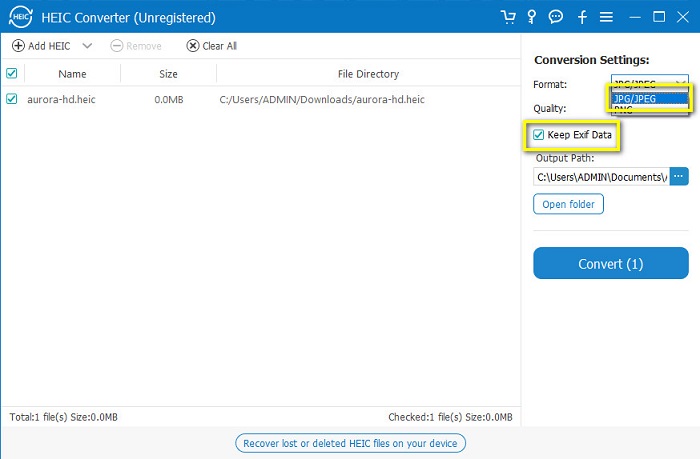
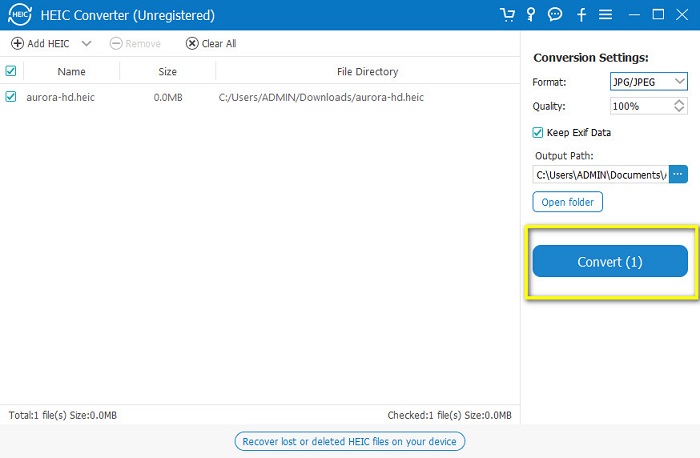
Pas 4. Finalment, fes clic al botó Convert per començar a convertir el teu HEIC a JPG. Espera que acabi la conversió i llestos! La teva imatge HEIC ara és una imatge JPG.
Part 3. Preguntes freqüents sobre la conversió de HEIC a JPG a Google Drive
Com gestionar les imatges HEIC a Google Drive?
Pots gestionar les teves imatges HEIC a Google Drive mitjançant Google Fotos. Des que Google va introduir la tecnologia d’IA a Google Fotos, ara pots organitzar les fotos per persona, categoria o tema.
Per què es pengen les meves fotos a Google Drive com a HEIC?
Google Drive desa els fitxers que heu penjat com a HEIC perquè el vostre navegador només desa la còpia de previsualització de la imatge a l'ordinador.
És HEIC millor que el format JPG?
Pel que fa a la compressió i la qualitat de la imatge, HEIC és millor que els formats JPG. HEIC us permet millorar la qualitat de la vostra imatge amb transparència i dinàmiques més àmplies.
Conclusió
Ara que ja saps que no pots convertir HEIC a JPG a l’app de Google Drive, pots utilitzar el mètode amb què pots desar la teva imatge HEIC com a JPG al Google Drive del navegador. Tanmateix, només pots processar una imatge cada vegada i has de treballar des del navegador. Per tant, et recomanem utilitzar FVC Free HEIC to JPG Converter, que és gratuït i fàcil d’utilitzar.
-
 Converteix HEIC a PDF utilitzant les 4 millors maneres millorades el 2022
 Per obtenir més informació sobre el millor convertidor de HEIC a PDF, podeu descarregar aquest 2022. Podeu llegir aquest article ja que els vam oferir una ressenya.
-
 5 de les millors eleccions de convertidors HEIC a JPG aquest 2022
 Amb el convertidor HEIC a JPC podeu canviar fàcilment el format d'imatge a un JPG portàtil. Vols saber quines són aquestes 5 eines? Llegeix aquest article.
-
 Millor convertidor HEIC gratuït i de pagament que heu de conèixer [Actualitzat el 2022]
 Vols saber què és el convertidor HEIC? Si és així, incloem els 5 principals convertidors HEIC gratuïts i de pagament que podeu utilitzar per canviar el format HEIC.
