


 Video Converter Ultimate
 Gravadora de pantalla
 Reparació de vídeo
 Baixada segura
Com convertir i penjar qualsevol fitxer de vídeo FLV a YouTube
“Acabo d’arxivar un fitxer de vídeo amb extensió .flv, però he rebut un missatge d’avís que deia format de fitxer no vàlid. Com puc pujar FLV a YouTube?” FLV no és només una extensió de fitxer, sinó també un contenidor de vídeo. Això vol dir que un fitxer de vídeo FLV pot emmagatzemar diversos còdecs de vídeo i d’àudio, i alguns d’ells no són compatibles amb YouTube. Aquest article t’explicarà tot el que necessites saber sobre com pujar FLV a YouTube sense problemes.

Primera part: què és compatible amb els còdecs de vídeo i àudio de YouTube
Segons Google, YouTube prefereix el format de difusió, així com els fluxos MPEG-2 compatibles amb DVD amb extensió .mpg. Els còdecs compatibles amb YouTube inclouen:
- MPEG-2
- Còdec d'àudio: MPEG Layer II o Dolby AC-3
- Taxa de bits d’àudio: 128 kbps o millor
- MPEG-4
- Còdec de vídeo: H.264
- Còdec d'àudio: AAC
- Taxa de bits d’àudio: 128 kbps o millor
A més, YouTube només admet contenidors WAV amb àudio MP3 o PCM, MOV amb àudio AAC i àudio FLAC. YouTube admet WMV, AVI, MOV, MP4 i FLV amb els còdecs adequats.
Quan es tracta de FLV, YouTube accedeix als vídeos codificats amb còdec de vídeo Adobe-FLV1 juntament amb àudio MP3 i AAC. Si el vostre vídeo FLV conté àudio sense compressió o àudio ADPCM, YouTube no ho acceptarà.
A més, hi ha més regles per penjar FLV a YouTube:
- Recomana la freqüència de fotogrames: 24 a 60
- Recomanació de resolució: 1080p
- Durada mínima: 33 segons
Part 2: formes més fàcils de convertir FLV a YouTube
Manera 1: converteix FLV a YouTube a l’escriptori
Si trobes un error quan puges un FLV a YouTube, el primer que has de fer és buscar un convertidor FLV, com ara FVC Free FLV Converter. Et permet ajustar els còdecs de vídeo i d’àudio, així com altres paràmetres, de manera que puguis adequar els fitxers FLV a les normes de YouTube. A més, fa servir acceleració per maquinari i multihil per millorar-ne el rendiment.
Funcions clau del millor convertidor FLV per a YouTube
- 1. Ajusteu fàcilment els còdecs de vídeo i àudio de FLV.
- 2. Processar per lots vídeos FLV il·limitats alhora.
- 3. Protegiu la qualitat del vídeo automàticament mentre feu la conversió.
Descàrrega gratuïtaPer a Windows 7 o posteriorDescàrrega segura
Descàrrega gratuïtaPer a MacOS 10.7 o posteriorDescàrrega segura
Com convertir FLV per a YouTube a l’escriptori
Pas 1: Afegeix fitxers FLV
Inicieu el millor convertidor FLV un cop l’instal·leu a l’ordinador. Feu clic al menú Afegeix fitxers a la part superior esquerra i afegiu els fitxers FLV que vulgueu penjar a YouTube.

Pas 2: Canvia els còdecs
Fes clic al menú desplegable al costat de Format de sortida a la part inferior per obrir el quadre de perfil. Introdueix FLV al quadre Cerca perfil i prem la tecla Retorn del teclat. Després, selecciona el format FLV amb els còdecs de vídeo i d’àudio adequats.
Si el teu vídeo FLV és massa llarg, és millor dividir-lo en clips i després pujar-los a YouTube. Pots fer clic al menú Edita per obrir la finestra de l’editor de vídeo.

Pas 3: Converteix FLV per a YouTube
A continuació, ves a la part inferior i fes clic al botó Obre carpeta. Selecciona una carpeta específica per desar-hi els vídeos de sortida. Finalment, fes clic al botó Converteix per començar immediatament a convertir FLV per a YouTube.

Manera 2: converteix FLV a YouTube en línia
Si no t’agrada instal·lar programari convertidor de vídeo al disc dur, FVC Free Online Video Converter és una bona solució alternativa. És gratuït i sense cap límit, com ara marques d’aigua. A més, no té restriccions de mida de fitxer. A continuació tens els passos:
Pas 1: Visita https://www.free-videoconverter.net/free-online-video-converter/ en un navegador i fes clic al botó Afegeix fitxers per convertir per obtenir el llançador.

Pas 2: Fes clic al botó Afegeix fitxer per pujar diversos fitxers FLV. Després prem la icona d'Engranatge per obrir el diàleg de perfil. Aquí pots ajustar el Codificador de vídeo i el Codificador d’àudio. Prem D'acord per confirmar-ho.

Pas 3: Tria un format compatible amb YouTube a la part inferior i fes clic al botó Converteix per començar a convertir FLV per a YouTube. Quan acabi, descarrega els fitxers de sortida.
No t’ho perdis:
Part 3: Com penjar FLV a YouTube
Després de convertir-lo, ja podeu penjar els vostres fitxers FLV a YouTube al vostre ordinador. Aquí compartim els passos perquè no us perdeu.
Pas 1: Ves a la pàgina principal de YouTube i inicia la sessió al teu compte.
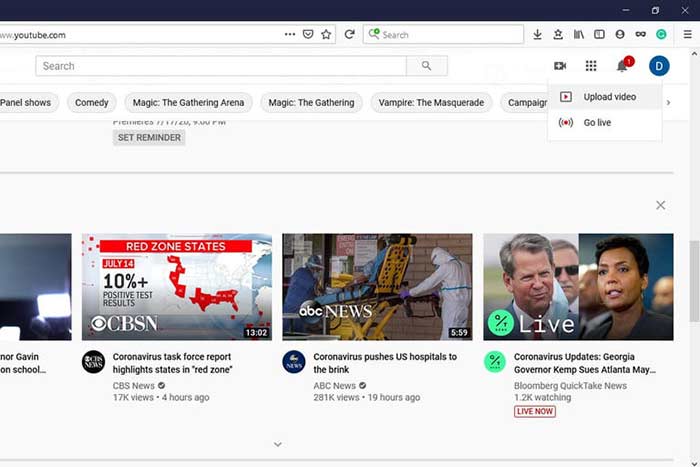
Pas 2: Fes clic a la icona de la Càmera i selecciona Pujar vídeo per entrar a la pàgina de pujada.
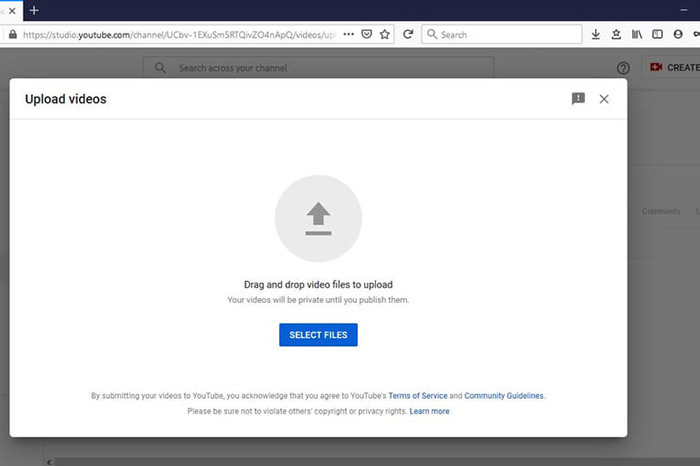
Pas 3: Prem el gran botó Selecciona fitxers de la pàgina i, a continuació, obre els fitxers FLV convertits per a YouTube. O bé arrossega i deixa anar els fitxers FLV a la pàgina per pujar-los.
Pas 4: Després decideix la configuració de privacitat. Per defecte és Públic, però la pots canviar a Privat, Programat o No catalogat.
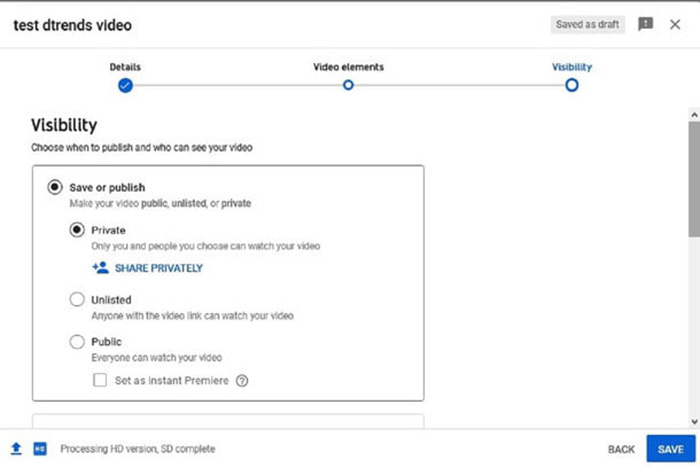
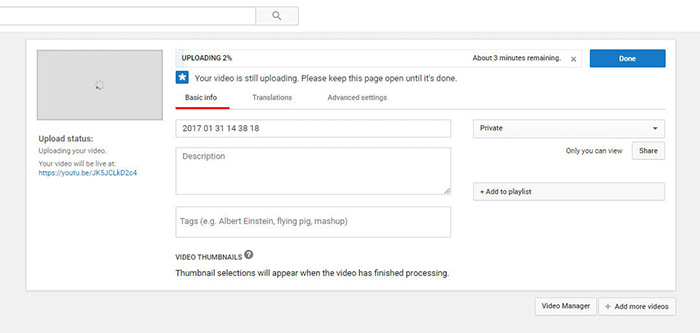
Pas 5: Fes clic al botó Desa o Publica després de fer la configuració. A continuació, se’t redirigirà a la pàgina del Panell de control. Aquí podràs veure el FLV pujat al teu compte de YouTube.
Part 4: PMF sobre FLV a YouTube
Es pot penjar FLV a YouTube?
Sí i no. YouTube admet el format de vídeo FLV, però com a contenidor de vídeo, només podeu penjar fitxers FLV amb còdecs de vídeo i àudio compatibles; en cas contrari, serà un fracàs.
Puc descarregar vídeos de YouTube en FLV?
Si el vídeo de YouTube ofereix el botó de descàrrega, podeu fer-hi clic i seleccionar el FLV com a format de sortida.
Quin format de vídeo és millor per a YouTube?
MP4 és el millor format de vídeo per a YouTube. Google recomana utilitzar MP4 amb còdec de vídeo H.256 i còdec d’àudio AAC. Això es deu a que produeix alta qualitat amb una mida de fitxer més petita. A més, MOV, WMV, AVI, FLV i 3GPP també són compatibles amb YouTube.
Conclusió
Aquesta guia us indica quins formats de vídeo accepta YouTube i com penjar FLV a YouTube sense fallar. FVC Free FLV Converter us pot ajudar a convertir FLV per a YouTube i us permetrà ajustar fàcilment els còdecs de vídeo i àudio. Fins i tot no requereix cap habilitat tècnica, de manera que els principiants poden dominar ràpidament. Si teniu altres problemes a l'hora de penjar vídeos a YouTube, deixeu un missatge a sota d'aquesta publicació.
-
 Com convertir els vostres fitxers de vídeo FLV a MP4 sense pagar un cèntim
 Aquesta guia comparteix quatre mètodes gratuïts per convertir els fitxers de vídeo FLV a format MP4 a Windows 10/8/7 / XP i Mac OS X, de manera que pugueu gaudir dels vídeos en qualsevol dispositiu.
-
 Com convertir els vostres vídeos FLV a fitxers d'àudio MP3 a l'escriptori i en línia
 Com convertir un FLV a un fitxer MP3? Tot el que heu de fer és llegir atentament aquest article, trobar el vostre mètode preferit i seguir la nostra guia pas a pas per obtenir el que voleu.
-
 3 maneres lliures de convertir FLV a WAV
 Com puc convertir un fitxer FLV? Es pot convertir VLC de YouTube FLV a WAV? Aquesta publicació explica 3 maneres gratuïtes de convertir FLV a WAV sense pèrdues de qualitat.
