


 Video Converter Ultimate
 Gravadora de pantalla
 Reparació de vídeo
 Baixada segura
Com convertir MOV a GIF: una guia completa per augmentar la presència en línia
Mantenir l'atenció del vostre públic en el ràpid món digital actual requereix la creació de contingut visual atractiu. Els GIF animats s'utilitzen àmpliament per la seva capacitat per transmetre conceptes complexos, sentiments i missatges de marca d'una manera divertida i memorable. Però no tots els formats de vídeo són accessibles mitjançant diverses plataformes i dispositius. Per fer-ho, podeu utilitzar un convertidor MOV a GIF.
Una animació lleugera i d’alta qualitat que es pugui compartir fàcilment al teu lloc web, a les xarxes socials i a les aplicacions de missatgeria es pot crear convertint els teus fitxers MOV en GIF animats. Pots millorar encara més l’eficàcia promocional dels teus GIFs afegint-hi text, filtres i elements de marca. Convertir de MOV a GIF pot semblar complicat, però hi ha diversos programes de conversió disponibles en línia i fora de línia que simplifiquen el procés. Aquest article et mostrarà com convertir MOV a GIF i aprofundirà més en els avantatges de fer-ho.

Part 1. Converteix MOV a GIF fora de línia
Tot i que les eines fora de línia requereixen una instal·lació única, ofereixen una major flexibilitat i control sobre els processos de conversió de fitxers. És important triar un proveïdor de programari de confiança i mantenir el programari actualitzat per garantir un rendiment i una seguretat òptims. Dit això, aquí us oferim una llista de programes per ajudar-vos a convertir MOV a GIF a Mac, Windows i iPhone. Consulteu-los per obtenir més informació.
FVC Free Video Converter té la capacitat de convertir fitxers de vídeo MOV en fitxers d’imatge GIF. Fa que aquest procés sigui senzill proporcionant una interfície simple i intuïtiva per seleccionar el teu fitxer MOV i especificar els paràmetres de sortida per al fitxer GIF. En convertir MOV a GIF amb FVC Free Video Converter, pots indicar la mida i la qualitat de sortida del fitxer GIF, així com la taxa de fotogrames i altres ajustos. El programari també ofereix una funció de previsualització que et permet veure el GIF abans de desar-lo. En general, FVC Free Video Converter és una eina útil per a qualsevol persona que vulgui convertir vídeos MOV en imatges GIF per a diversos propòsits. Obtingues més informació sobre aquest programa consultant-ne les funcions clau.
Funcions clau:
◆ Converteix diversos vídeos alhora.
◆ Conversió d'alta velocitat amb tecnologies d'acceleració.
◆ Dissenyat per ser fàcil d'utilitzar pels usuaris.
Pas 1. Descarrega el programa a l’ordinador
Per dominar com convertir MOV a GIF, descarrega i instal·la amablement FVC Free Video Converter al teu ordinador. Pots obtenir aquest programa fent clic al botó Free Download que trobaràs a continuació. Pots triar entre l’instal·lador per a Mac i per a Windows.
Baixada gratuïtaPer a Windows 7 o posteriorBaixada segura
Descarrega gratisPer a MacOS 10.7 o posteriorBaixada segura
Pas 2. Afegeix el(s) fitxer(s) MOV de destinació
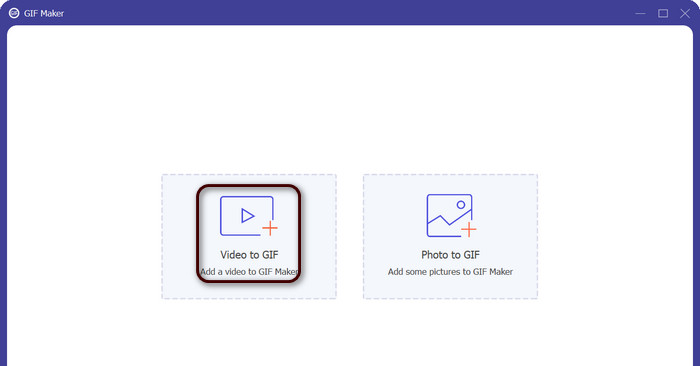
Obre el programa per veure la interfície principal. Des d’aquí, ves a la pestanya Toolbox i fes clic a l’eina GIF Maker. Després, prem el botó Video to GIF per afegir els teus fitxers MOV de destinació.
Pas 3. Edita el vídeo
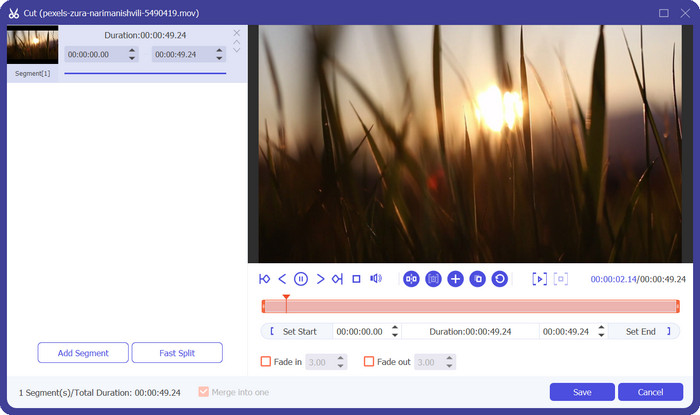
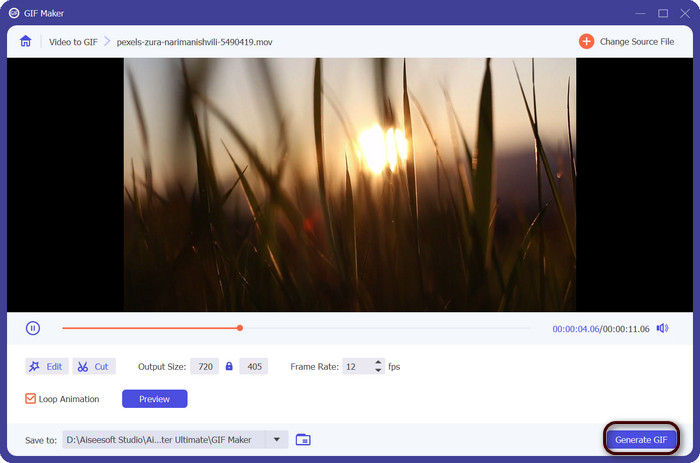
Si vols retallar algunes parts del vídeo, marca el botó Cut. Ara, utilitza la barra lliscant o introdueix hores d’inici i final específiques per seleccionar la part del vídeo que vols utilitzar per al teu GIF. A continuació, personalitza els paràmetres del GIF, incloent-hi la mida de sortida, la taxa de fotogrames i la qualitat. També pots afegir text o adhesius al GIF fent clic al botó Edit.
Pas 4. Canvia MOV a GIF
Previsualitza el GIF per assegurar-te que té l’aspecte que vols. Fes clic al botó Generate GIF per crear el teu GIF. El GIF es desarà al teu ordinador en la ubicació que hagis especificat als paràmetres de sortida.
2. FFmpeg
FFmpeg és una eina de programari versàtil i potent que ofereix als desenvolupadors, professionals dels mitjans i aficionats una varietat de funcions per treballar amb fitxers d'àudio i vídeo. Amb la seva compatibilitat multiplataforma, podeu utilitzar FFmpeg en diferents sistemes operatius, la qual cosa la converteix en una solució ideal per a projectes que requereixen flexibilitat i versatilitat. Una de les característiques més destacades de FFmpeg és la seva capacitat per fer front a diversos formats de fitxers d'àudio i vídeo, inclosos formats populars com MP4, MOV, AVI i molt més. Apreneu a convertir MOV en GIF mitjançant les instruccions següents.
Funcions clau:
◆ Conversió i transcodificació.
◆ Suport per a una àmplia gamma de formats de vídeo i àudio.
◆ Transmissió i difusió.
◆ Interfície de línia d'ordres.
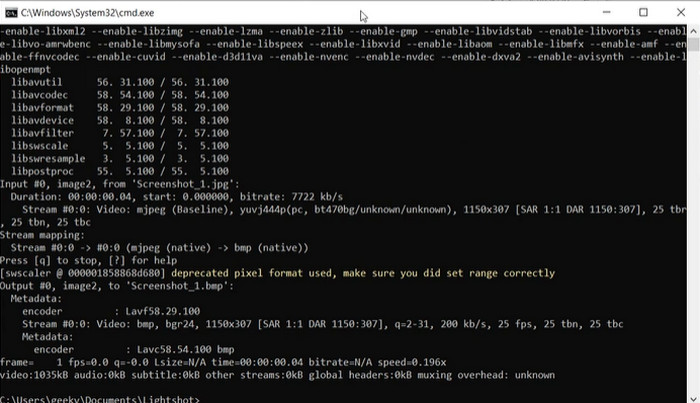
Pas 1. Obre una finestra d’indicador d’ordres o de terminal al teu ordinador. Després, navega fins al directori on es troba el teu fitxer MOV per començar la conversió de MOV a GIF amb FFmpeg.
Pas 2. Introdueix la comanda següent: ffmpeg -i input.mov output.gif. Substitueix input.mov pel nom del teu fitxer MOV i output.gif pel nom desitjat per al teu fitxer GIF. Opcionalment, pots personalitzar la sortida afegint etiquetes addicionals a la comanda. Per exemple, pots establir la taxa de fotogrames del GIF de sortida afegint l’etiqueta -r, així: ffmpeg -i input.mov -r 10 output.gif. Això establirà la taxa de fotogrames en 10 fotogrames per segon.
Pas 3. Prem Enter per executar la comanda. FFmpeg convertirà el teu fitxer MOV en un GIF, i el fitxer resultant es desarà al mateix directori que el teu fitxer d’entrada. Així és com es converteix un MOV en un GIF.
3. Photoshop
Photoshop d'Adobe Systems és un programari estàndard del sector per editar i dissenyar imatges digitals. Nombrosos professionals dels camps de la fotografia, el disseny gràfic i l'art depenen d'ell per generar i modificar fotografies, gràfics i obres d'art digitals. Afortunadament, les nombroses eines de Photoshop faciliten la transformació de vídeos MOV en GIF. Alguns dels aspectes més destacats inclouen els següents:
Funcions clau:
◆ Funció de línia de temps de vídeo per importar fitxers de vídeo.
◆ Exporta GIF a diferents mides i resolucions.
◆ Creeu animacions fotograma a fotograma amb un tauler d'animació.
Pas 1. Obre Photoshop al teu ordinador i ves a File > Import > Video Frames to Layers. Al quadre de diàleg Import Video to Layers, selecciona el teu fitxer MOV i fes clic a Open.
Pas 2. Al quadre de diàleg Video Layer, selecciona From Beginning to End si vols utilitzar tot el vídeo o Selected Range Only si només vols utilitzar una part del vídeo. Després fes clic a OK.
Pas 3. Photoshop importarà els fotogrames de vídeo com a capes. Ves a Window > Timeline per obrir el panell d’animació. Al panell d’animació, fes clic al botó Create Frame Animation.
Pas 4. Fes clic a la icona de menú de l’angle superior dret del panell d’animació i selecciona Make Frames From Layers. Al panell d’animació, pots ajustar la durada de cada fotograma fent clic al temps que hi ha sota cada fotograma i introduint un valor nou.
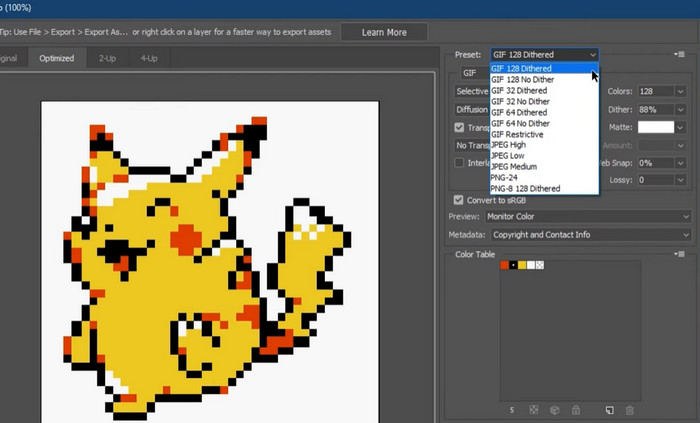
Pas 5. Quan estiguis satisfet amb el teu GIF, ves a File > Export > Save for Web (Legacy). Al quadre de diàleg Save for Web, tria GIF com a tipus de fitxer. Ajusta la configuració al teu gust, com ara la mida, la paleta de colors i les opcions d’optimització. Fes clic a Save per desar el teu GIF. Així és com s’exporta un MOV a GIF a Photoshop.
Part 2. Converteix MOV a GIF en línia
L'ús de programes en línia per convertir fitxers ofereix una manera còmoda i accessible de convertir fitxers sense haver d'instal·lar cap programari ni navegar per interfícies complicades. Si teniu curiositat sobre quin programa utilitzar, podeu fer una ullada als millors convertidors en línia de MOV a GIF a continuació.
1. Convertidor de vídeo gratuït en línia
Free Video Converter Online de FVC ofereix una interfície senzilla i fàcil d’utilitzar, que permet als usuaris convertir ràpidament i amb facilitat els seus fitxers de vídeo. Els usuaris poden seleccionar el fitxer d’entrada i escollir el format i la qualitat de sortida desitjats. L’eina també permet personalitzar diversos paràmetres, incloent-hi la resolució de vídeo, la taxa de bits i la taxa de fotogrames.
Pas 1. Comença obrint un navegador web i ves al lloc web de FVC Free Video Converter Online.
Baixa la versió d’escriptori per convertir fitxers per lots.
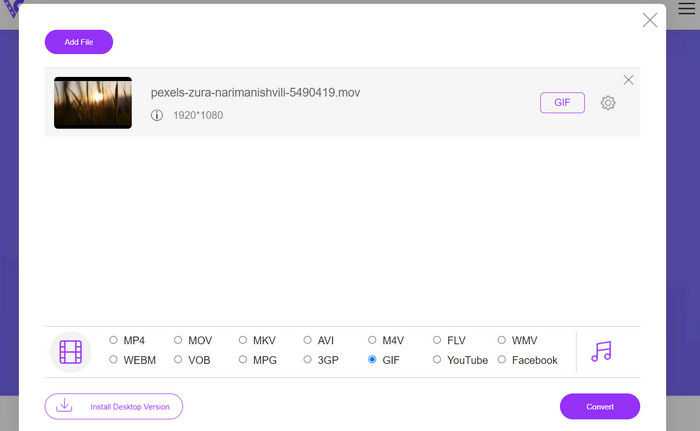
Pas 2. Ara, fes clic al botó Add Files to Convert per pujar el fitxer de vídeo MOV que vols convertir. També pots arrossegar i deixar anar el fitxer a la zona designada.
Pas 3. Selecciona el format de sortida marcant el botó d’opció GIF. Prem el botó Convert per començar el procés de conversió.
2. CloudConvert
CloudConvert és una aplicació web de conversió de fitxers en línia que permet als usuaris convertir diversos tipus de fitxers, inclosos vídeos, imatges, documents i molt més. Ofereix una àmplia gamma d'opcions de conversió, admet més de 200 formats de fitxer, inclosos formats populars com MP4, MOV, GIF i altres.
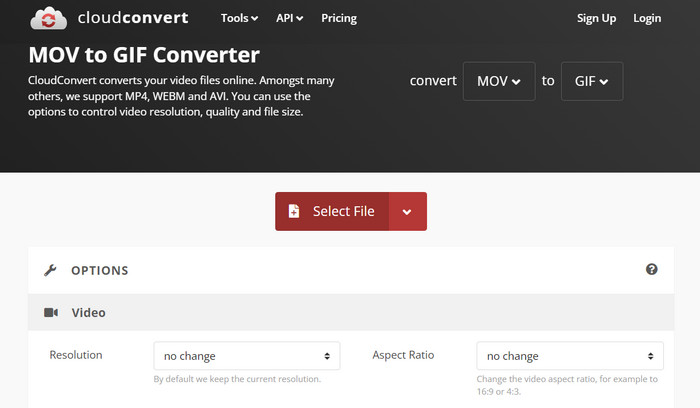
Pas 1. Per utilitzar CloudConvert per a la conversió de MOV a GIF, obre un navegador web i ves al lloc web de CloudConvert. Fes clic al botó Select Files per pujar el teu fitxer MOV.
Pas 2. Un cop el fitxer s’hagi pujat, selecciona GIF com a format de sortida al menú desplegable. Opcionalment, pots personalitzar els paràmetres de sortida, com ara la taxa de fotogrames i la mida de la imatge.
Pas 3. Marca el botó Convert per iniciar el procés de conversió. Un cop finalitzat, podràs descarregar el fitxer GIF convertit al teu ordinador. Així és com funciona aquesta eina en línia gratuïta per convertir MOV a GIF.
3. EZGIF
EZGIF és una aplicació web flexible que ofereix una àmplia gamma d'opcions per treballar amb GIF. El programa és un recurs gratuït per crear, editar i optimitzar GIF a partir de fitxers de vídeo, fotos fixes i fins i tot altres GIF. La capacitat d'EZGIF de transformar ràpidament fitxers de vídeo en GIF és un dels seus punts de venda més atractius. Els usuaris poden penjar vídeos en formats com MP4, AVI o MOV i fer-los convertir a GIF amb configuracions com la velocitat de fotogrames i la mida de la imatge que poden ajustar al seu gust. Utilitzeu EZGIF per convertir MOV a GIF seguint els passos següents.
Pas 1. Obre el navegador web i ves a EZGIF per convertir el teu vídeo en un GIF animat.
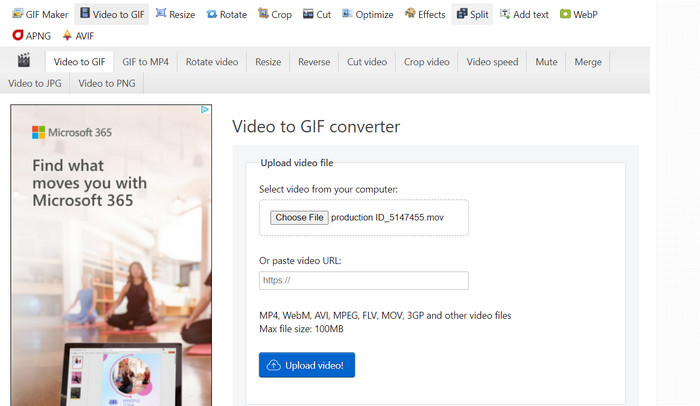
Pas 2. Per canviar un MOV en un GIF, simplement fes clic a Choose File i localitza el fitxer que vols modificar.
Pas 3. Utilitza els controls lliscants proporcionats per establir l’hora d’inici i de final per al GIF un cop el fitxer s’hagi enviat. També es poden canviar la mida i el títol del GIF. Per començar la transformació, selecciona l’opció Convert to GIF.
Lectura addicional
[Gratuït i en línia] 4 mètodes per convertir MOV a MP4
Repetir en bucle un GIF amb el millor reproductor de GIF animats per a Windows i Mac
MOV vs. GIF
El format MOV es pot utilitzar per emmagatzemar una pel·lícula, un programa de televisió, un videoclip curt o una pel·lícula casolana. De fet, es desa en el format de fitxer QuickTime (QTFF), que va ser introduït per Apple l'any 1991. Els fitxers MOV s'utilitzen sovint quan la gent vol desar un vídeo amb alta qualitat.
GIF és un format d'imatge comú per a gràfics web. A més de desar imatges petites i imatges que contenen text, GIF també pot contenir i mostrar animacions bàsiques als llocs web. És un format sense pèrdues i la compressió GIF no degrada la claredat de la imatge.
Part 3. Preguntes freqüents sobre MOV a GIF
Quins paràmetres he d'utilitzar per convertir un MOV en un GIF?
La configuració que hauríeu d'utilitzar quan convertiu un MOV a un GIF dependrà de les vostres necessitats específiques. En general, voldreu ajustar la velocitat de fotogrames, la mida de la imatge i la profunditat del color per optimitzar el GIF per al vostre ús previst.
Puc convertir una part d'un fitxer MOV en un GIF?
Sí, la majoria de les eines us permeten seleccionar una part específica d'un fitxer MOV per convertir-lo en un GIF. Això pot ser útil si només voleu
Quins són els usos habituals dels GIF creats a partir de fitxers MOV?
Els GIF creats a partir de fitxers MOV es poden utilitzar per a una àmplia gamma de propòsits, com ara publicacions a les xarxes socials, animacions de llocs web i campanyes de màrqueting per correu electrònic.
Conclusió
Convertir de MOV a GIF pot ser un procés útil per a una gran varietat de finalitats, des de crear contingut atractiu per a les xarxes socials fins a mostrar les característiques d’un producte o crear tutorials. Hi ha moltes eines disponibles per fer aquesta conversió, des d’eines en línia com EZGIF i CloudConvert fins a aplicacions d’escriptori més avançades, com Photoshop i Adobe After Effects.
-
 5 millors maneres de canviar la imatge a GIF animat [Actualitzat el 2023]
 Necessites un convertidor d'imatge a GIF? Aquest article proporcionarà els cinc millors convertidors que podem trobar al mercat. Per tant, anem a descobrir aquestes eines llegint aquest article.
-
 Converteix MOV a WMV fàcilment amb aquests increïbles convertidors
 Voleu convertir el vostre fitxer MOV a fitxer WMV? Aquí teniu les maneres senzilles de convertir fàcilment MOV a WMV mitjançant aquests convertidors en línia i fora de línia que us recomanem utilitzar.
-
 La millor guia sobre com tallar GIF per donar vida al vostre contingut
 No et perdis aquesta guia de lectura obligatòria. Apreneu a retallar i retallar GIF per captar l'atenció del vostre públic amb grans talladors de GIF en línia i fora de línia.
