


 Video Converter Ultimate
 Gravadora de pantalla
 Reparació de vídeo
Directrius que heu de seguir per convertir MXF a MOV amb alta qualitat
Material Exchange Format és el que significa MXF. Un format de fitxer obert que permet l’intercanvi de material audiovisual i les seves dades i metadades associades s’anomena OMF. El disseny inicial de MXF va ser creat per un grup d’empreses capdavanteres en radiodifusió i producció digital. L’objectiu de MXF és estandarditzar els formats de fitxer, facilitar la compatibilitat entre diversos proveïdors de maquinari i programari i, finalment, eliminar la necessitat de la cinta. Si busques un convertidor adequat per convertir MXF a MOV, aquí tens diverses opcions perquè triïs la que et convingui més.
Part 1. Visió general: MXF i MOV
MXF és una opció excel·lent tant per a la captació com per a la distribució. L’ús de compressió interframe no és òptim per al procés de producció cinematogràfica. La descompressió de la compressió interframe és més lenta, ja que molts mètodes requereixen informació subpíxel per aconseguir precisió fotograma a fotograma a AE. Quan s’utilitza compressió interframe, els usuaris han de recrear alguns fotogrames durant la descompressió, i és aquí on After Effects sol tenir problemes.
Tanmateix, l’extensió de fitxer MOV simbolitza el format de vídeo QuickTime d’Apple. Aquest contenidor multimèdia també pot emmagatzemar moltes pistes amb dades diferents (àudio, vídeo, subtítols). Funcions com la separació de les dades de mitjans dels desplaçaments dels mitjans, les referències de dades abstractes i les llistes d’edició de pistes el fan ideal per a l’edició de vídeo. El contenidor de vídeo MOV també s’utilitza àmpliament per a la distribució de vídeo en línia.
Part 2. Excel·lents mètodes per utilitzar per convertir MXF a MOV
Amb el programari més nou i eficient anomenat Video Converter Ultimate, ara pots convertir MXF a MOV fora de línia en una àmplia varietat de formats que es poden recuperar. Amb aquest programari, pots convertir MXF a MOV més ràpidament que amb altres convertidors. També pots modificar la qualitat del vídeo abans de convertir-lo. A més, pots millorar el teu fitxer de vídeo fent ús de les diverses funcions del convertidor. Utilitzant aquesta aplicació, no t’hauràs de preocupar de convertir formats de vídeo que no siguin compatibles amb el que prefereixes. Un cop has conegut el millor convertidor, això és el que has de fer a continuació:
Pas 1. Fes clic al botó Free Download de més avall per començar la descàrrega. Un cop la descàrrega estigui completa, pots triar descarregar el programari per a Windows o per a Mac. Primer has d’instal·lar el programari a l’escriptori de l’ordinador i després fer clic a Start Now per començar a utilitzar-lo.
Descàrrega gratuïtaPer a Windows 7 o posteriorDescàrrega segura
Descàrrega gratuïtaPer a macOS 10.7 o posteriorDescàrrega segura
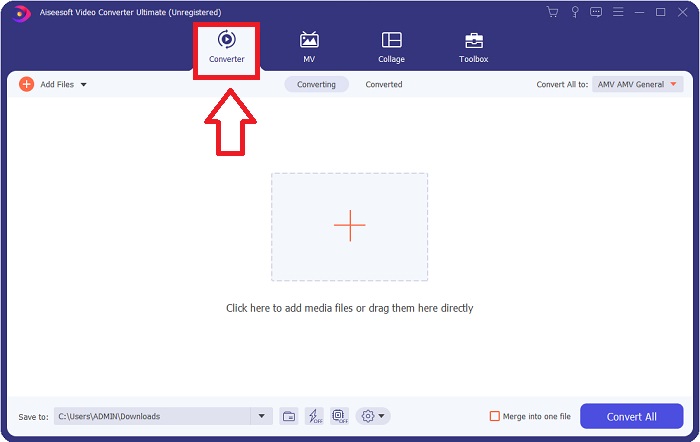
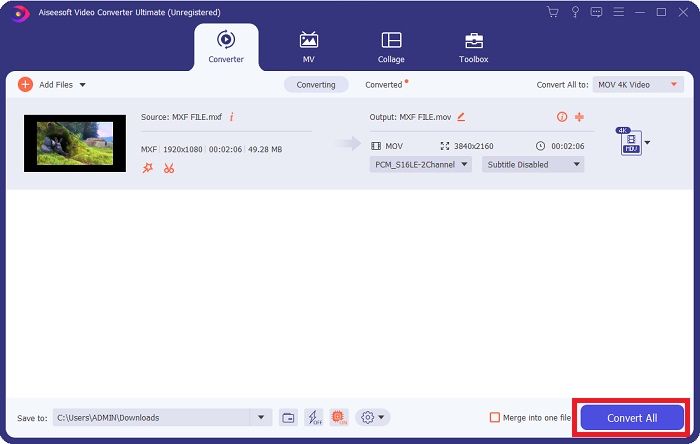
Pas 2. Inicia el programa descarregat fent clic al botó. La interfície Converter es mostrarà tan bon punt llancis el programari per primera vegada. Aquí és on començaràs el procés de transcodificació del teu vídeo.
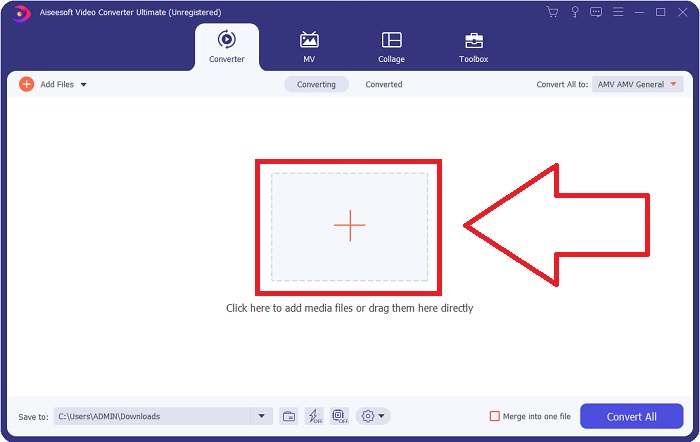
Pas 3. Inicieu el procés de conversió important els vostres fitxers al convertidor. Podeu arrossegar i deixar anar el fitxer de vídeo que voleu convertir sobre la icona +.
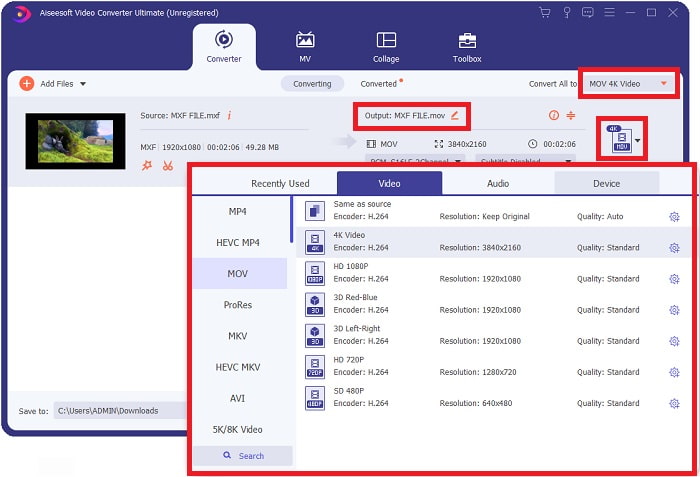
Pas 4. A continuació, selecciona el format MOV des de l’opció desplegable Convert All to. Un cop hagis triat un fitxer MOV, tindràs accés a diverses opcions de qualitat de vídeo. Però si la sortida de vídeo que vols no hi apareix, pots modificar els paràmetres de qualitat perquè s’adaptin a les teves necessitats. En seleccionar la icona d’engranatge, pots ajustar la resolució de pantalla, la velocitat de fotogrames i fins i tot la qualitat de l’àudio. Fes clic al botó Create New per desar els canvis.
Pas 5. Convertir el teu vídeo és tan senzill com fer clic a Convert All quan hagis acabat d’editar-ne la qualitat, la resolució, la velocitat de fotogrames, etc.
Part 3. Un altre consell per convertir MXF a MOV [en línia]
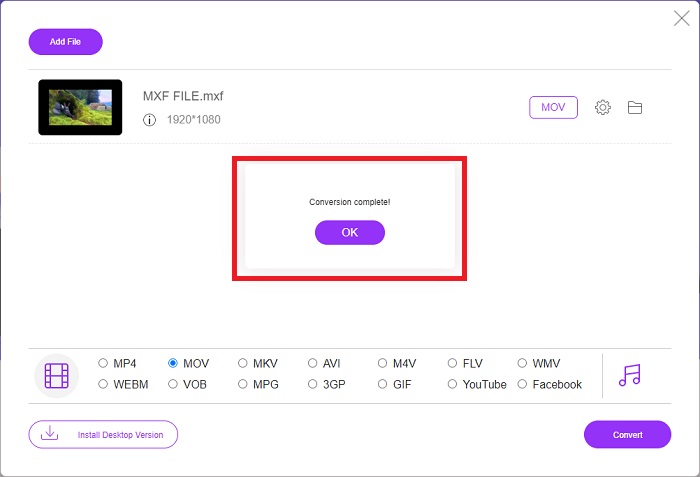
Fer servir el Free Video Converter Online és la millor manera de convertir una gran varietat de formats de vídeo en poc temps. Aquest convertidor, a diferència d’altres convertidors en línia, no té cap restricció quant als formats que pot acceptar. Per això és una bona opció per a determinats usuaris principiants. A continuació tens els passos que has de seguir per aprendre més sobre aquesta eina web en línia.
Pas 1. Entra a la pàgina inicial del convertidor FVC fent clic en aquest enllaç.
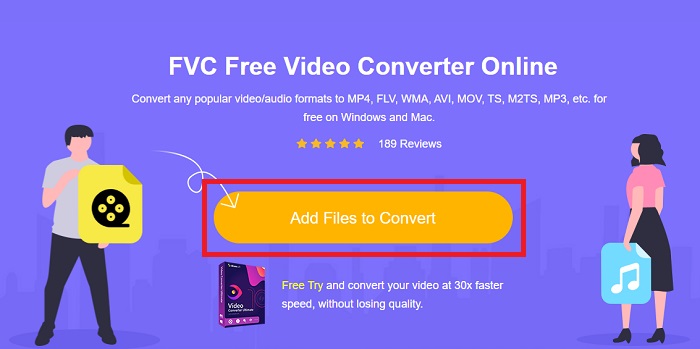
Pas 2. Per obtenir el llançador per al teu ordinador, fes clic al botó Add Files to Convert si és la primera vegada que utilitzes l’eina. Tan bon punt es torni a descarregar, s’executarà automàticament de nou. Obre el fitxer des de la carpeta de descàrregues seleccionant-lo i fent clic a Open.
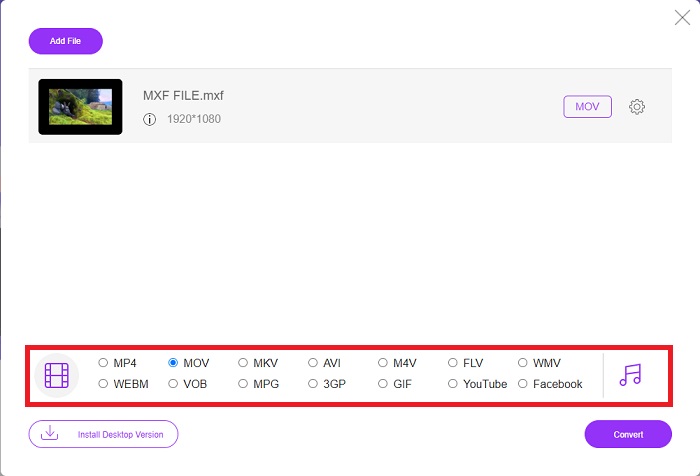
Pas 3. Un cop hagis seleccionat el format MOV que vols utilitzar, fes-hi clic per començar el procés de conversió.
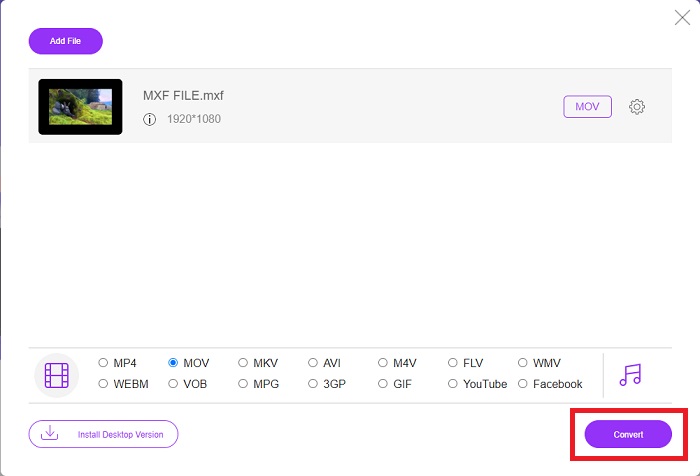
Pas 4. Pots començar el procés de conversió fent clic al botó Convert un cop hagis seleccionat el format MOV.
Pas 5. Podràs començar a veure el fitxer convertit fent-hi clic al cap d’uns minuts, quan aparegui en una carpeta a l’escriptori del teu ordinador.
Part 4. Preguntes freqüents sobre la conversió de MXF a MOV
MXF és el mateix que MOV?
També al món digital, això és un problema. El format d'intercanvi de materials i el format de vídeo QuickTime es troben sota el terme paraigua "formats de contenidor". Quan un programa de vídeo admet un format de contenidor determinat, pot utilitzar eines estàndard per manipular els contenidors, com ara obrir el fitxer, cercar un moment concret i reproduir o avançar o rebobinar ràpidament, utilitzant estàndards i biblioteques disponibles habitualment. No cal un nou format de fitxer ni biblioteques noves per manipular suports.
El MOV és cru?
Quan es treballa amb vídeo RAW, els tipus de fitxers més comuns són AVI (. avi) i MOV (. mov); com que són vídeos sense comprimir, les seves mides de fitxer poden ser extremadament grans, fins a un gigabyte o més, depenent de la durada i la qualitat del vídeo.
Què és el fitxer MXF Pro Tools?
Amb les capacitats Quicktime de Pro Tools, SoundCode Exchange MXF pot intercanviar fitxers MXF. Pro Tools pot visualitzar fitxers MXF com a pel·lícules Quicktime gràcies a un component Quicktime i una utilitat d'arrossegar i deixar anar. Es pot crear una pista de vídeo en segons mitjançant la funció Quicktime Import de Pro Tools, que pot reproduir fitxers MXF d'alta definició o definició estàndard. Amb una targeta de vídeo Blackmagic, ara podeu veure el metratge com una finestra a Pro Tools o sortir a una pantalla externa. Al mateix temps, les pistes d'àudio MXF es poden importar com a fitxers WAV per editar i barrejar a Pro Tools.
Conclusió
En conclusió, tens a la teva disposició una àmplia gamma d’opcions, tant si utilitzes un programari com un servei web per convertir el teu vídeo d’un format a un altre. Tanmateix, pel que fa a les possibilitats o les comoditats que ofereixen, es complementen entre si. Alguns simplement compleixen la funció, mentre que d’altres ofereixen una gran varietat d’opcions. Aquest article se centra en això per ajudar-te a decidir quin utilitzar segons la teva situació. Com que mai no saps quan pots necessitar algunes d’aquestes funcions addicionals, com ara reversió, millora, fusió, etc., et recomanem sobretot Video Converter Ultimate. En lloc de cercar constantment un convertidor en línia, pots tenir aquest programari sempre instal·lat al teu ordinador.
-
 4 maneres gratuïtes de convertir càmeres de vídeo MXF a MP4 per a la reproducció universal
 Aquesta publicació és la guia detallada per convertir MXF a MP4 a l'ordinador. Podeu obtenir 4 convertidors gratuïts de MXF a MP4 per transcodificar la càmera de vídeo MXF a MP4 en senzills passos.
-
 Els 4 millors convertidors MXF per convertir MXF a AVI [gratis i de pagament]
 Què és un fitxer MXF? Com convertir MXF a AVI? Aquestes són les poques preguntes que responem. Per tant, si teniu la mateixa pregunta, llegiu aquest article.
-
 Com convertir AVI a MOV amb senzills passos i eines
 Vols saber com convertir AVI en un MOV reproduïble? Heu de seguir aquest article per saber com fer-ho i consells per tenir una conversió exitosa.
