


 Video Converter Ultimate
 Gravadora de pantalla
 Reparació de vídeo
 Baixada segura
Principals 4 maneres de convertir gratuïtament MP4 a MOV
MP4 és un dels formats de vídeo més populars i és àmpliament compatible amb la majoria de reproductors, editors i dispositius. Però en alguns casos, encara necessites convertir MP4 a MOV. Saps com canviar MP4 a MOV?

Quan busques a Google com convertir MP4 a MOV a internet, veuràs que hi ha molts convertidors de vídeo que poden ajudar-te a fer la conversió, incloses algunes eines de conversió en línia gratuïtes. En aquesta publicació, t’explicarem 4 maneres gratuïtes perquè puguis convertir MP4 a MOV fàcilment.
Part 1. Com convertir gratuïtament MP4 a MOV en Mac / PC sense pèrdua de qualitat
Tot i que hi ha una gran quantitat de programes per convertir de MP4 a MOV al mercat, molts d’ells perden part de la qualitat d’imatge i so durant la conversió. Si vols convertir MP4 a MOV sense pèrdua de qualitat, hauríes de triar el Free Video Converter.
Free Video Converter està especialment dissenyat per fer front a tot tipus de conversions de vídeo i àudio. Admet gairebé tots els formats de vídeo / àudio, inclosos MP4, MOV, MKV, FLV, AVI, WMV, MP3, AAC, FLAC i molt més. Us permet convertir de manera gratuïta MP4 a MOV en ordinadors Mac o Windows mantenint la qualitat original.
Descàrrega gratuïtaPer a Windows 7 o posteriorDescàrrega segura
Descàrrega gratuïtaPer a MacOS 10.7 o posteriorDescàrrega segura
Pas 1. Fes doble clic al botó de descàrrega de dalt i després segueix les instruccions per instal·lar i executar aquest convertidor gratuït de MP4 a MOV al teu Mac/PC. Assegura’t de descarregar la versió correcta segons el teu sistema.
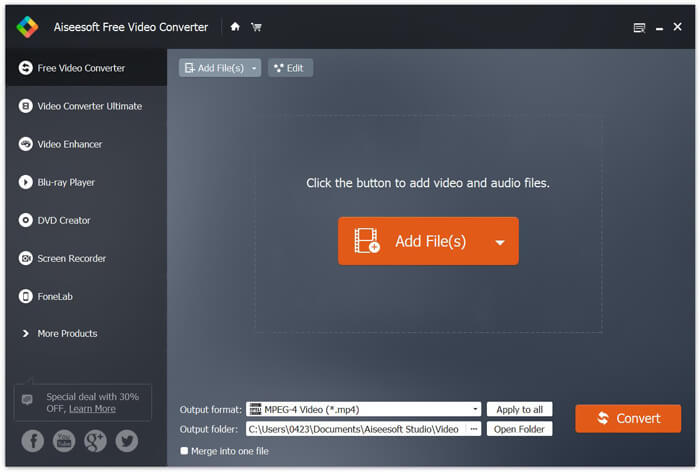
Pas 2. Quan entris a la finestra principal, pots fer clic a Add File(s) per importar el(s) fitxer(s) MP4 que vols convertir. Aquest convertidor gratuït de MP4 a MOV incorpora una funció de conversió per lots que et permet convertir un o més fitxers MP4 alhora.
Pas 3. Fes clic a Output format i tria MOV com a format de destinació a la llista desplegable. Ara només has de fer clic al botó Convert per començar la conversió de MP4 a MOV.
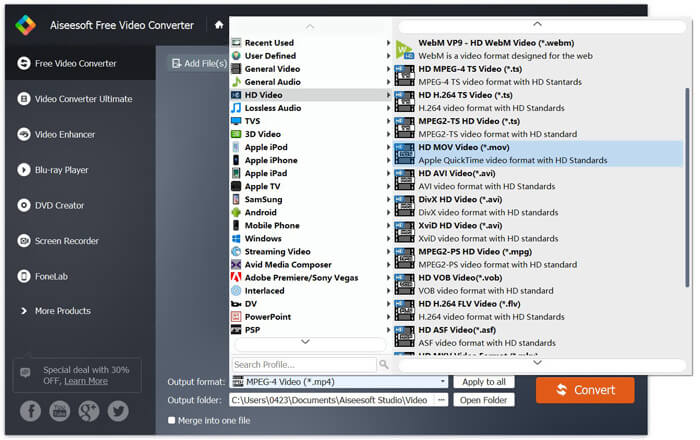
Pocs segons després, el MP4 original es convertirà a format MOV. A més de MOV, també podeu convertir MP4 a MKV, FLV, AVI, etc. amb alta qualitat. Aquest convertidor de vídeo gratuït també inclou algunes funcions bàsiques d'edició. Abans de la conversió final de MP4 a MOV, podeu utilitzar-los per editar els vostres vídeos MP4.
Part 2. Com canviar MP4 a MOV Free amb el convertidor de vídeo en línia
Com es va esmentar anteriorment, hi ha molts convertidors de vídeo en línia gratuïts que es poden oferir al mercat i que us poden ajudar a convertir MP4 a MOV. Aquí, en aquest post, introduirem 2 mètodes sobre com canviar MP4 a MOV en línia.
1. FVC Free Video Converter en línia
Si vols convertir MP4 a MOV en línia de manera gratuïta, FVC Free Online Video Converter serà la teva millor opció. Amb 3 passos senzills, pots completar la conversió i obtenir el fitxer convertit sense pèrdua de qualitat en qüestió de segons.
Pas 1. Fes clic a l’enllaç de dalt i ves a FVC Free Online Video Converter. A continuació, fes clic a Add Files to Convert al centre del bàner. Després descarrega i instal·la el FVC launcher a l’ordinador.
Baixa la versió d’escriptori per convertir fitxers per lots.

Pas 2. Després de seleccionar i pujar el vídeo que vols convertir, has de triar MOV com a format de sortida per al fitxer de vídeo convertit.
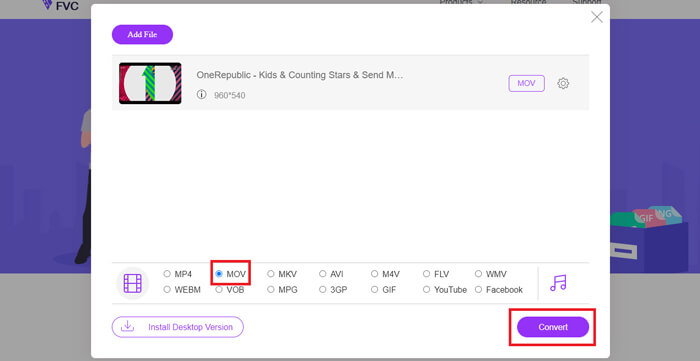
Pas 3. Fes clic a Convert. I pots triar desar el fitxer convertit a l’escriptori. Després d’això, només cal que esperis una estona per obtenir el teu vídeo MOV.
2. CloudConvert
CloudConvert és una eina de conversió de vídeo en línia molt popular i fàcil d’utilitzar. Té la capacitat de convertir més de 200 formats, inclosos formats d'àudio, vídeo, document, llibre electrònic, arxiu, imatge, full de càlcul o presentació. A més, aquest convertidor en línia de confiança protegirà les vostres dades i privadesa.
Pas 1. Obre el navegador i ves al lloc oficial de CloudConvert. Està dissenyat amb una interfície senzilla que et pot oferir una experiència de conversió còmoda.
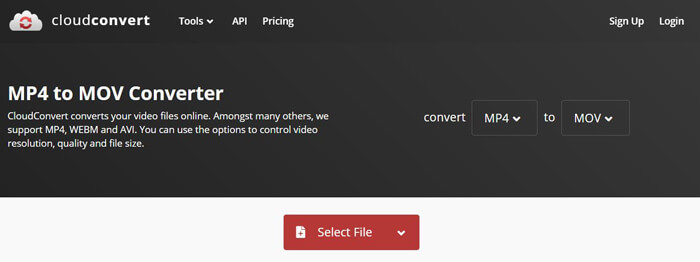
Pas 2. Fes clic al botó Select File per pujar el fitxer MP4 que vols convertir. Aquí pots afegir el fitxer des de l’ordinador, una URL, Google Drive, OneDrive o Dropbox. En aquest pas, pots afegir més fitxers per convertir.
Una cosa que us ha de preocupar és que aquest convertidor gratuït de MP4 a MOV només us permet convertir un vídeo de menys d’1 GB. Cal comprar un paquet per convertir fitxers més grans.
Pas 3. Fes clic al botó Convert per començar a pujar i convertir el teu fitxer MP4. Després pots fer clic al botó Download per desar el vídeo MOV convertit a l’ordinador.

Utilitzant CloudConvert per convertir MP4 a MOV en línia, heu de dedicar més temps al procés de càrrega, conversió i descàrrega de vídeo, especialment quan esteu convertint un fitxer gran.
Part 3. Com convertir MP4 a MOV amb VLC Media Player
VLC Media Player és un reproductor multimèdia popular i de codi obert. Més que un simple reproductor multimèdia, VLC també pot funcionar com una eina de conversió de vídeo per ajudar-te a fer diverses conversions. Si tens VLC instal·lat a l’ordinador, el pots fer servir per convertir el teu fitxer MP4 a vídeo MOV.
Pas 1. Obre VLC Media Player a l’ordinador. Si no tens VLC, pots anar al seu lloc oficial per descarregar-lo gratuïtament.
Pas 2. Fes clic al botó Media a la barra de menú i després tria l’opció Convert/Save a la llista desplegable.
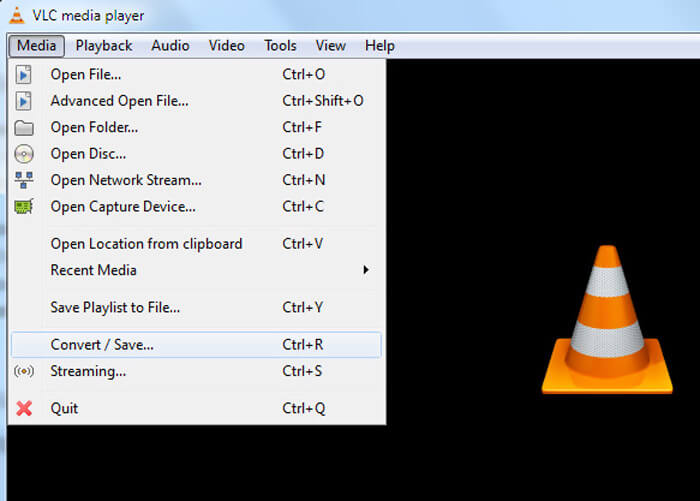
Pas 3. Apareixerà una nova finestra Open Media. Aquí pots fer clic a File > Add per importar el fitxer MP4 que vols convertir.
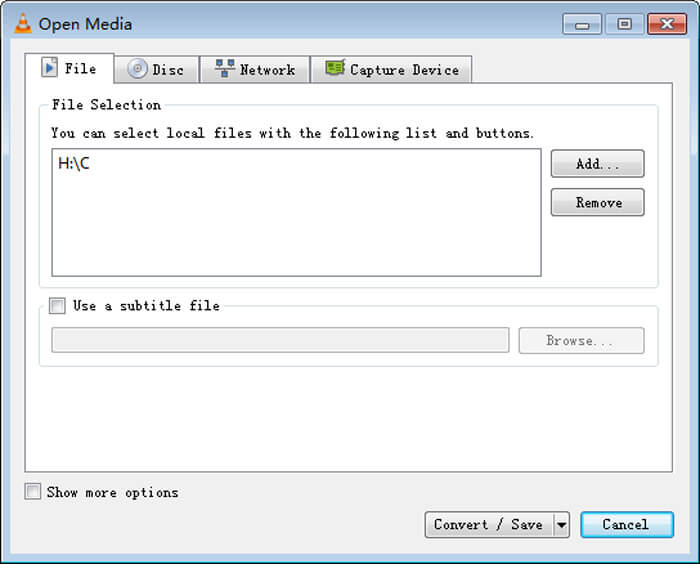
Pas 4. Fes clic al botó Convert/Save de la part inferior per confirmar l’operació. A continuació, se t’orientarà a una finestra Convert on podràs seleccionar la carpeta de destinació i el format de sortida per al vídeo convertit.
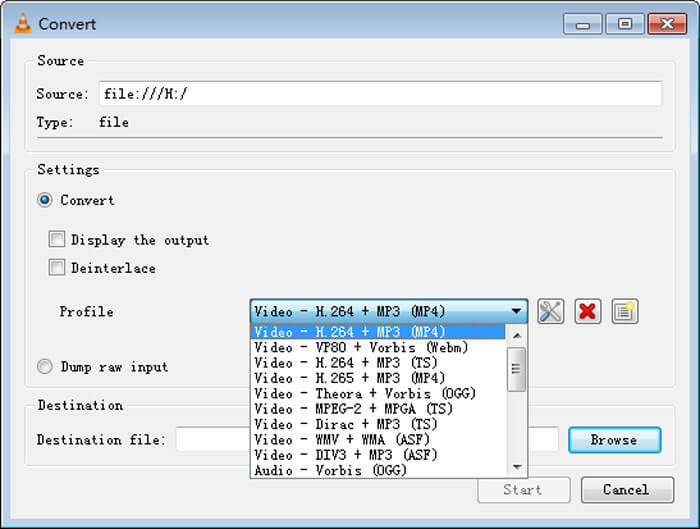
Pas 5. Tria MOV com a format de sortida a la llista desplegable Profile. Després fes clic a Start per fer la conversió de vídeo de MP4 a MOV amb VLC.
MP4 vs. MOV
Publicat pel Moving Picture Experts Group (MPEG) l'any 2001, el format MP4 us pot ajudar a desar dades de vídeo, àudio, subtítols i imatges en pistes separades. És l'abreviatura de MPEG-4 Part 14. A més, és un dels formats més populars utilitzats per transmetre i compartir vídeos.
El format MOV es pot utilitzar per emmagatzemar una pel·lícula, un programa de televisió, un videoclip curt o una pel·lícula casolana. De fet, es desa en el format de fitxer QuickTime (QTFF), que va ser introduït per Apple l'any 1991. Els fitxers MOV s'utilitzen sovint quan la gent vol desar un vídeo amb alta qualitat.
Part 4. Preguntes més freqüents sobre la conversió de MP4 a MOV
Pregunta 1. QuickTime pot convertir MP4 a MOV?
Quan tingueu la necessitat de convertir MP4 a MOV a Mac, podeu provar QuickTime. Podeu obrir vídeo MP4 amb QuickTime Player. A continuació, feu clic al botó Exporta i trieu el format MOV. Podeu canviar el nom del fitxer, seleccionar la ubicació i la resolució del vídeo. A continuació, podeu fer clic al botó Exporta per convertir gratuïtament MP4 a MOV al Mac.
Pregunta 2. Què és millor, MOV o MP4?
MP4 és un dels formats d’emmagatzematge de fitxers multimèdia més populars. És un fitxer contenidor digital, només un embolcall al voltant del vídeo, no pas el vídeo en si. De manera similar a MP4, MOV també és un fitxer contenidor digital. MOV està codificat amb el còdec MPEG-4.La diferència principal entre MOV i MP4 és que MOV s’utilitza sobretot en entorns Mac. MOV està dissenyat especialment per a QuickTime. MP4 és un estàndard internacional que és compatible amb la majoria de reproductors multimèdia i sistemes. En termes generals, el vídeo MOV sol tenir una qualitat més alta i una mida més gran. El fitxer MP4 normalment està més comprimit i té una mida més petita. Per tant, no es pot dir simplement que MOV és millor que MP4, o que MP4 és el millor.
Pregunta 3. La conversió de MOV a MP4 perd qualitat?
Quan vulgueu convertir MOV a MP4 o canviar MP4 a MOV, heu de triar algun convertidor de vídeo professional. En la majoria dels casos, no veureu cap pèrdua de qualitat després de la conversió.
Pregunta 4. Hi ha un convertidor gratuït de MP4 a MOV?
Hi ha molts convertidors de vídeo gratuïts que us poden ajudar a convertir MP4 a MOV. A més del CloudConvert recomanat, també podeu confiar en FFmpeg, HandBrake, ZAMZAR, Convert Files i molt més per fer la versió de conversió.
-
 Com convertir els vostres fitxers de vídeo MP4 a imatges GIF animades sense pèrdua de qualitat
 Esteu buscant la millor manera de convertir el vostre vídeo MP4 en GIF animats? Aquí teniu una guia detallada per fer-ho a Photoshop, Windows Movie Maker, convertidor de vídeo en línia i molt més.
-
 MOV VS MP4: quin és millor
 MOV VS MP4, quin és millor? Aquesta publicació explica la diferència entre MP4 i MOV, de manera que podeu obtenir la millor opció per fer servir els vostres fitxers de vídeo.
-
 Com convertir MOV a MP4 sense perdre qualitat
 Voleu convertir fitxers MOV (Apple QuickTime Movie) a MP4? Aquesta publicació comparteix 4 mètodes gratuïts per convertir els fitxers de vídeo MOV a format MP4 a Windows 10/8/7 / XP i Mac OS X.

