


 Video Converter Ultimate
 Gravadora de pantalla
 Reparació de vídeo
 Baixada segura
Les maneres més senzilles de solucionar les fotos HEIC utilitzant les millors eines
Les fotos HEIC són formats d’imatge que Windows no pot obrir. Tot i que són imatges àmpliament utilitzades per la seva alta resolució i la seva mida de fitxer reduïda, només les pots obrir de manera nativa en dispositius Apple. A més, si la teva imatge ha perdut dades o està danyada, necessites una eina que t’ajudi a reparar-la i a recuperar les dades perdudes. Aquest article t’ajudarà a conèixer la millor eina per obrir la teva imatge HEIC al teu PC amb Windows i t’explicarà com reparar fotos HEIC fàcilment.

Part 1. Com arreglar i veure la vostra imatge HEIC al vostre PC Windows
No podeu veure la vostra imatge HEIC al vostre PC amb Windows encara que la vostra imatge no estigui danyada. Per tant, la millor opció és utilitzar eines que puguin veure la vostra imatge HEIC o convertir-la a altres formats d'imatge compatibles amb Windows, com ara JPG i PNG. Per tant, us presentarem les millors eines per veure una imatge HEIC al vostre PC amb Windows i com convertir la vostra imatge HEIC a format d'imatge JPG.
Utilitzeu un convertidor
Aiseesoft HEIC Converter és un convertidor HEIC en línia que us permet convertir la vostra imatge HEIC a format d'imatge JPG o PNG. Aquesta eina té una interfície d'usuari senzilla que la converteix en una eina fàcil d'utilitzar. A més d'això, podeu canviar la qualitat de la vostra imatge en convertir la vostra imatge HEIC. També pot conservar les dades EXIF de la vostra imatge enmig de la conversió a altres formats d'imatge. A més, podeu utilitzar aquesta eina per convertir imatges HEIC a JGP sense pagar res.
Pas 1. Descarrega Aiseesoft HEIC Converter al teu PC. Segueix el procés d’instal·lació i obre l’aplicació.
Pas 2. Fes clic al botó Add HEIC per pujar la teva imatge HEIC a la interfície principal del programari.
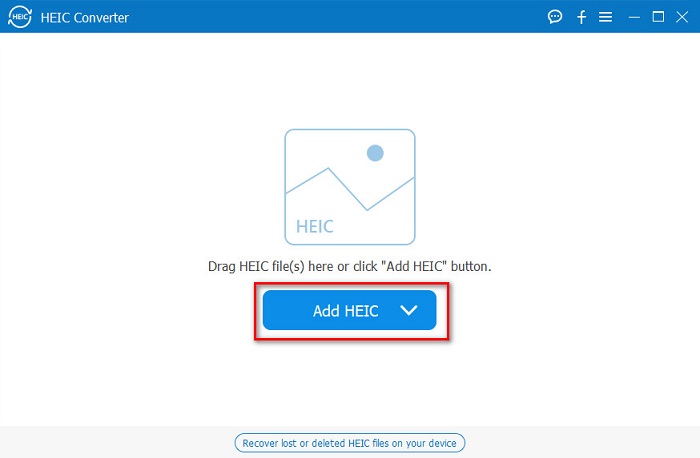
Pas 3. A continuació, selecciona el format de sortida fent clic al botó desplegable al costat de Format. Després, selecciona el format d’imatge JPG/JPEG.
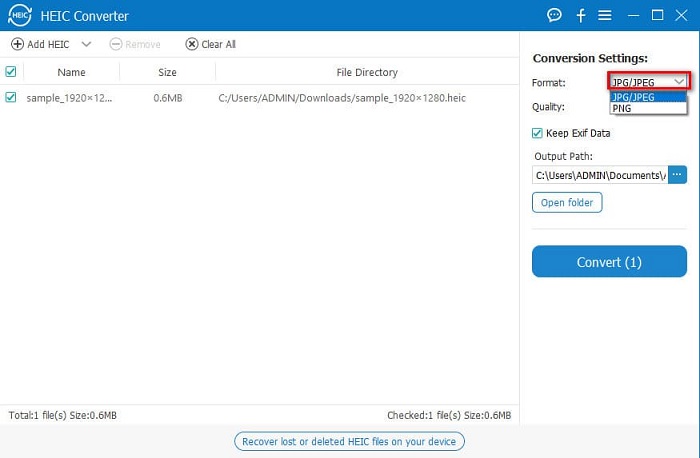
Pas 4. Finalment, fes clic al botó Convert per convertir la teva imatge HEIC al format d’imatge JPG.
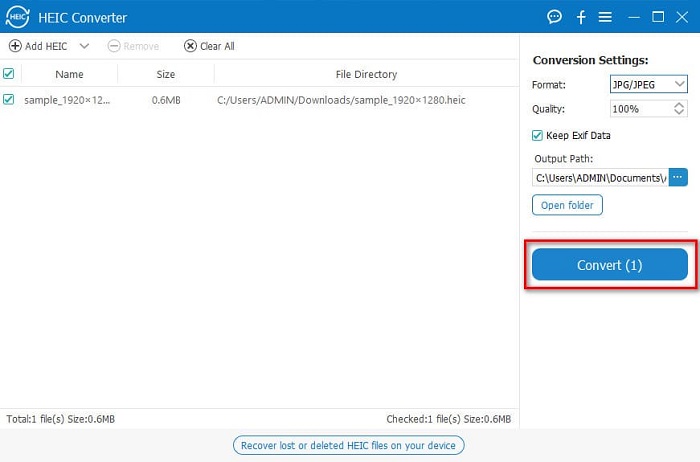
Seguint aquests senzills passos, podeu convertir la vostra imatge HEIC a format d'imatge JPG per veure-la al vostre dispositiu Windows.
També podeu provar el convertidor FVC HEIC, que té funcions tan potents com el convertidor Aiseesoft:
Descàrrega gratuïtaPer a Windows 7 o posteriorDescàrrega segura
Descàrrega gratuïtaPer a macOS 10.7 o posteriorDescàrrega segura
Relacionat:
Utilitzeu un visor
1. HEIC Image Viewer Decoder
HEIC Image Viewer Decoder és una aplicació de visualització HEIC que et permet veure la teva imatge HEIC en línia. Després de visualitzar o descodificar la teva imatge HEIC, la pots desar en format d’imatge PNG o JPG. A més, té una interfície senzilla per veure fàcilment la teva imatge HEIC.
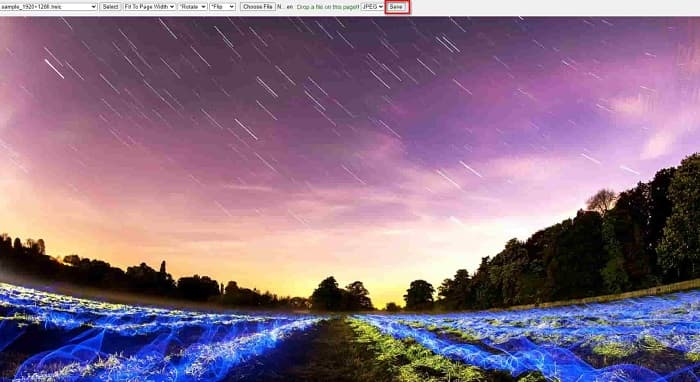
Pas 1. Al navegador que facis servir, cerca HEIC Image Viewer Decoder. A la interfície principal del programa, arrossega la teva imatge HEIC al quadre rectangular o fes clic al botó Choose Files.

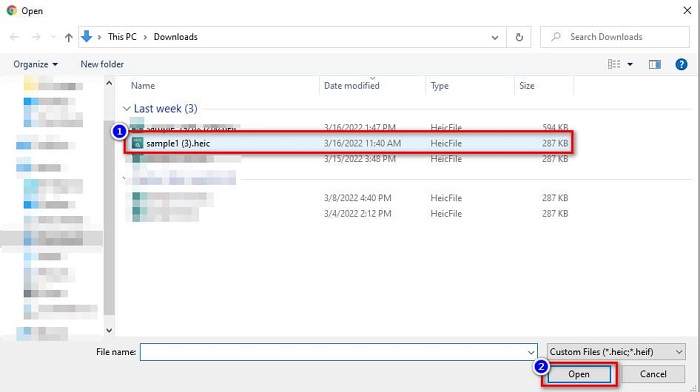
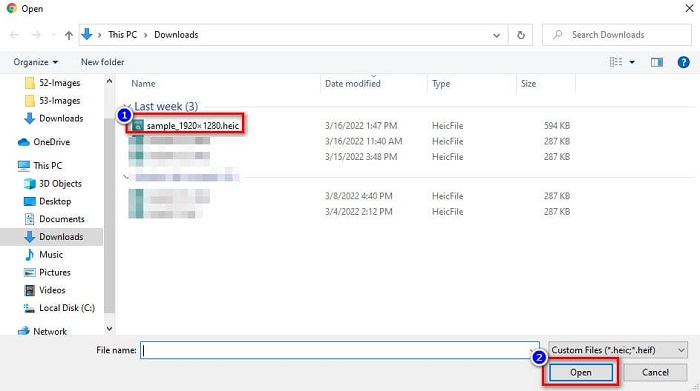
Pas 2. A continuació, apareixeran les carpetes del teu ordinador, on localitzaràs la teva imatge HEIC; després, selecciona-la i fes clic a Open.
Pas 3. Quan hagis acabat de pujar la teva imatge HEIC, ja podràs veure-la. Després, fes clic al botó Save per desar la teva imatge HEIC en format d’imatge JPG.
2. CompressJPG.net
CompressJPG.net és un visor HEIC en línia amb una interfície de programari intuïtiva. Està disponible en dispositius mòbils, Windows o tauletes. A més, no té límit de mida de fitxer per veure la teva imatge HEIC. Tanmateix, com que és una aplicació basada en web, pots experimentar un procés de càrrega lent si la teva connexió a internet és lenta. Malgrat això, moltes persones fan servir aquesta eina en línia per veure les seves imatges HEIC.
Pas 1. Cerca CompressJPG.net al teu navegador i després fes clic al lloc de l’eina que apareixerà a la pàgina de resultats de cerca. A la interfície principal del programa, fes clic al botó Choose Files.

Pas 2. Després, apareixeran els fitxers del teu ordinador; busca la teva imatge HEIC i selecciona-la. Un cop seleccionada la teva imatge HEIC, fes clic al botó Open per pujar-la.
Pas 3. Finalment, ja podràs veure la teva imatge HEIC al teu PC amb Windows.

Fàcil no? Seguint i utilitzant les eines en línia esmentades anteriorment, podeu veure fàcilment la vostra imatge HEIC al vostre PC Windows.
Part 2. Arreglar la imatge HEIC que està danyada
Si la vostra imatge HEIC no pot obrir-se al vostre dispositiu Apple, hi ha alguna cosa que no funciona. El problema més comú amb què es troben moltes persones és la pèrdua de dades. Quan això passa, vol dir que el vostre fitxer d'imatge està danyat. Així que el que heu de fer és utilitzar una eina que pugui recuperar les vostres dades perdudes. En aquesta part, aprendràs a restaurar les dades de la teva imatge HEIC.
Utilitzeu EaseUS Data Recovery Wizard
EaseUS Data Recovery Wizard és una eina de programari que et permet recuperar fins a 2 GB de dades perdudes. Aquesta eina és fàcil d’utilitzar perquè només té una interfície d’usuari senzilla. A més, pot escanejar l’emmagatzematge del teu dispositiu i buscar una llista de fitxers perduts. Tot i que la pots utilitzar gratuïtament, la versió de prova només pot localitzar els fitxers danyats però no pot recuperar-los. Per tant, igualment has de comprar la versió pro de l’aplicació. Tanmateix, és una de les eines de recuperació de dades més utilitzades que trobaràs a internet.
Pros
- Pot recuperar fins a 2 GB de les vostres dades perdudes.
- Té una interfície d'usuari intuïtiva.
- Disponible en gairebé totes les plataformes multimèdia, inclosos Windows i Mac.
Contres
- Heu de comprar la versió pro per recuperar les dades perdudes.
Utilitzeu Recuva
Una altra eina de recuperació de dades que has de fer servir és Recuva. Aquesta aplicació té una interfície de programari fàcil d’usar, cosa que la fa ideal per a principiants. El més impressionant d’aquesta eina és que pot recuperar fitxers suprimits de manera permanent, que el sistema operatiu ha marcat com a espai lliure. A més, pot recuperar dades de memòries USB, discs durs, targetes de memòria i altres. També té versions de 32 bits i 64 bits.
Pros
- Té una GUI senzilla.
- Us permet recuperar dades en unitats flash USB, discs durs, targetes de memòria i altres dispositius d'emmagatzematge.
- Pot analitzar en profunditat els fitxers que són difícils de trobar.
Contres
- Compra l'aplicació premium abans d'accedir a les seves funcions úniques.
Part 3. Preguntes freqüents sobre com arreglar les fotos HEIC
Què pot obrir la imatge HEIC sense utilitzar una eina de tercers?
Com que Apple desenvolupa imatges HEIC, podeu veure les imatges HEIC de manera nativa a qualsevol dispositiu Apple.
Puc recuperar les dades de la meva imatge HEIC al Mac?
Si, tu pots. També podeu utilitzar les eines esmentades anteriorment per recuperar les dades perdudes de la vostra imatge o si la vostra imatge HEIC està danyada.
Puc convertir altres formats d'imatge a una imatge HEIC?
Sí. Algunes eines us permeten convertir altres formats d'imatge com JGP i PNG a HEIC. Per tant, és possible convertir imatges JPG i PNG a imatges HEIC.
Conclusió
En definitiva, no és gaire complicat reparar fotos HEIC quan fas servir les eines que s’han mostrat més amunt. Amb aquestes eines, pots recuperar les dades perdudes de la teva imatge i arreglar-ne els danys. Però si la teva imatge HEIC està completament bé i només la vols veure en un dispositiu Windows, la millor opció és convertir la teva imatge HEIC a un fitxer JPG mitjançant Aiseesoft HEIC Converter.
-
 Converteix fàcilment HEIC a RAW amb els millors convertidors
 Com convertir HEIC a RAW? Aquest article us ofereix les millors maneres de convertir HEIC a RAW mitjançant els millors convertidors en línia i fora de línia.
-
 Revisió, característiques i alternatives de CopyTrans HEIC
 Si voleu saber què pot fer CopyTrans HEIC, us oferim les característiques, avantatges i alternatives de l'eina.
-
 El millor visor HEIC en línia i fora de línia [gratuït]
 Si busqueu el millor visor HEIC, tenim el que busqueu. Vegeu la vostra imatge HEIC gratuïtament amb aquestes eines.
