


 Video Converter Ultimate
 Gravadora de pantalla
 Reparació de vídeo
 Baixada segura
Com importar fitxers HEIC a Lightroom a Windows i Mac de manera efectiva
Suposem que esteu interessats a millorar la imatge HEIC o a organitzar-la. En aquest cas, podeu importar HEIC a Lightroom i fer tota la classificació i edició fàcilment. Podeu pujar-la aquí sense necessitat de descarregar cap còdec addicional per a HEIC per veure o editar amb aquest programari. Així que, si necessiteu una guia que us ensenyi com importar l’arxiu HEIC en aquest programari, podeu llegir i seguir els mètodes per a Windows i Mac que incloem en aquest article.
Sense més preàmbuls, llegim els detalls següents per saber com fer-ho i, si Lightroom no ha pogut importar l'HEIC, també hi ha una manera d'afegir-lo aquí. Però abans de res, heu de descarregar el programari al vostre Windows o Mac abans de llegir els detalls següents.

Part 1. Com importar HEIC a Lightroom al vostre Windows 10/11 o actualitzat
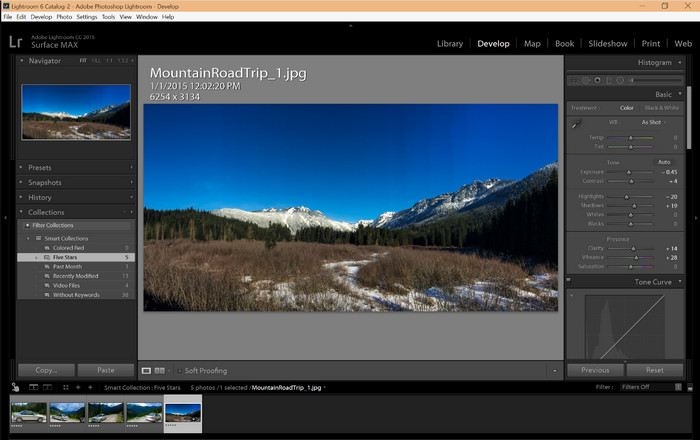
Lightroom admet una versió actualitzada de Windows; aquesta part és per a vosaltres si descarregueu el programari al vostre sistema operatiu Windows. No us haureu de preocupar perquè Lightroom pot obrir fitxers HEIC sense esforç seguint el tutorial següent.
Pas 1. Descarregueu el programari a Windows 10/11, després instal·leu-lo i obriu-lo per continuar.
Pas 2. Quan el programari ja s’estigui executant al vostre sistema, feu clic al botó +, premeu Browse i seleccioneu l’arxiu HEIC que voleu importar aquí.
Pas 3. Després de seleccionar-los, ja podeu visualitzar els arxius HEIC amb Lightroom en el vostre Windows 10/11.
Part 2. Com obrir HEIC Photo a Lightroom al vostre Mac 10.13 o posterior
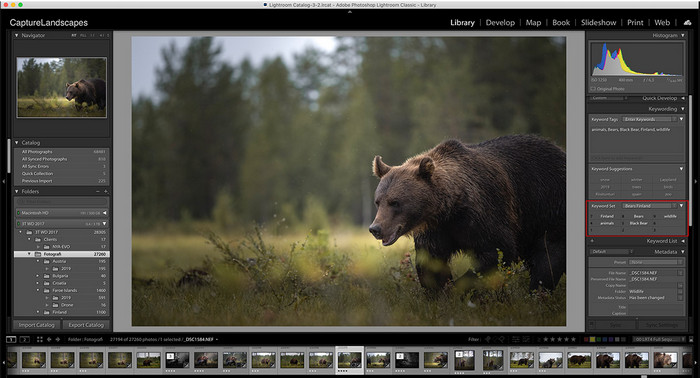
Fins i tot sense Lightroom, podeu veure sense esforç el fitxer HEIC, sobretot si la vostra versió per a Mac és High Sierra 10.13 o la més recent a Preview. Tot i que Preview admet funcions d'edició, no n'hi ha prou amb utilitzar-lo per a edició complicada, com el que Lightroom us pot oferir. A més, no us haureu de preocupar perquè Lightroom admet fitxers HEIC per editar-los o organitzar-los al vostre Mac.
Pas 1. Instal·leu el programari al vostre macOS 10.13 o superior; si la versió del vostre sistema operatiu és inferior, espereu que el programari no s’obri. Després de descarregar Lightroom a l’escriptori, ara l’heu d’obrir.
Pas 2. A la part superior, hi trobareu diferents menús i el nom Lightroom al costat superior esquerre, cosa que significa que el programari ja està obert. Premeu el menú File i aneu a Add Photos, o bé podeu utilitzar una drecera de teclat prement Command + Shift + I.
Pas 3. Apareixerà una carpeta a la pantalla; seleccioneu la imatge que voleu importar i feu clic a Review for Import.
Part 3. Lightroom no ha pogut importar el fitxer HEIC | La millor solució per resoldre problemes HEIC no compatibles
Molts usuaris van tenir problemes per carregar el fitxer HEIC a causa de la compatibilitat amb programari com Lightroom a Windows i Mac; fins i tot amb l'ajuda dels mètodes anteriors, encara és impossible. Però no cal que us sentiu trist perquè hi ha una manera d'importar el vostre fitxer HEIC a Lightroom convertint HEIC a JPG amb l'ajuda de la millor eina del web.
FVC Free HEIC to JPG Converter és la solució que heu d’utilitzar per convertir l’arxiu HEIC al vostre Windows i Mac sense descarregar cap programari. Una eina web com aquesta pot convertir el vostre format no compatible en un format estàndard com el JPEG. Podreu pujar la imatge fàcilment a Lightroom sense trobar-vos amb un format no compatible. A més de convertir HEIC a JPG, també podeu pujar múltiples imatges HEIC aquí i convertir-les totes alhora per admetre la conversió per lots. Sorprenent, oi? Voleu saber què ens sorprèn encara més? Doncs que podeu fer una conversió ràpida de manera gratuïta. Si voleu solucionar el problema de format no compatible que trobeu amb HEIC, seguiu els passos indicats a continuació per saber com convertir el format.
Passos senzills sobre com canviar el format HEIC a JPG mitjançant una eina web:
Pas 1. Obriu FVC Free HEIC to JPG Converter; fent clic en aquest enllaç podreu obrir el lloc web principal del convertidor al vostre cercador preferit. No us heu de preocupar perquè és segur d’utilitzar i no hi ha anuncis molestos a la interfície web.
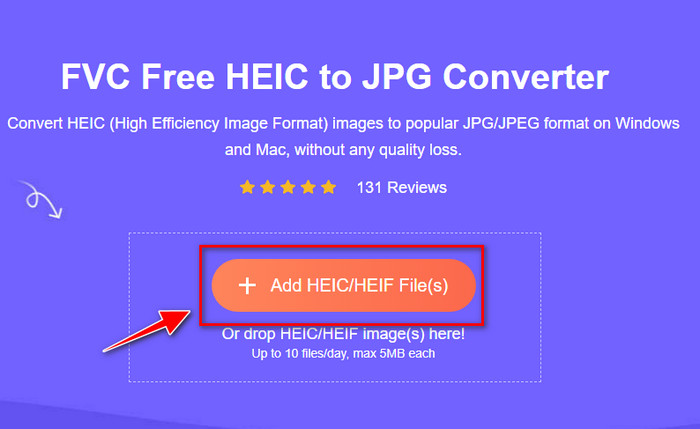
Pas 2. Feu clic a Add HEIC/HEIF Files per pujar la imatge HEIC que Lightroom no pot obrir. Alternativament, podeu arrossegar i deixar anar l’arxiu aquí en lloc de seleccionar-lo des de la carpeta.
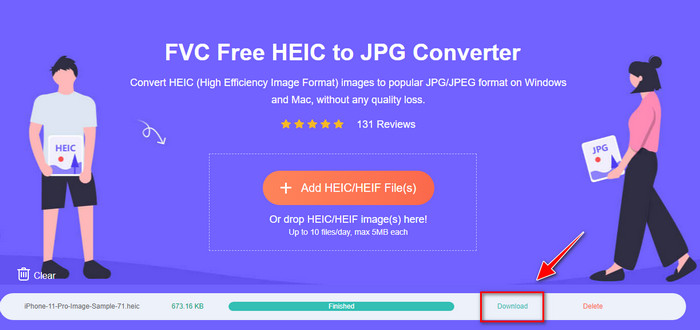
Pas 3. Apareixerà un botó Download quan la barra de progrés s’hagi completat; feu-hi clic per desar l’arxiu HEIC acabat de convertir a l’escriptori. Després d’això, ja podeu importar l’arxiu a Lightroom sense rebre un quadre de diàleg que digui que no és compatible o que està malmès.
Part 4. Preguntes freqüents sobre la importació d'HEIC a Lightroom
Hi ha alguna limitació per importar fitxers HEIC a Lightroom?
Fins a aquest punt, podeu importar fitxers HEIC a Lightroom tants com vulgueu. No té cap limitació per carregar aquest tipus de format a Lightroom.
Lightroom és gratuït a Windows i Mac?
Malauradament, Lightroom a Windows i Mac no és gratuït, però podeu descarregar-lo gratuïtament al vostre Windows i Mac. Tot i que el programari no és gratuït, podeu aprofitar l'ús de la prova gratuïta que admet durant 7 dies. Si creieu que necessitareu el programari durant molt de temps, us podeu subscriure després del període de prova.
L'exportació d'un fitxer HEIC a Lightroom deixarà una marca d'aigua?
Afortunadament, Lightroom no afegeix cap marca d’aigua a la imatge que hi heu pujat. Però en podeu afegir una si ho voleu. Així que, si teniu previst penjar la imatge a internet, us recomanem que hi afegiu una marca d’aigua perquè estigui protegida de les persones que intentin robar-la.
Què és millor per a l'edició d'imatges? Photoshop o Lightroom?
Depèn de les vostres demandes; Amb l'ajuda de l'editor Adobe Photoshop i Lightroom, podeu millorar fàcilment la vostra imatge en l'aspecte. Suposem que voleu un editor d'imatges fàcil de manejar. En aquest cas, Lightroom és una opció que heu de triar perquè és el millor editor d'imatges per millorar la imatge que teniu. Però si voleu fer una edició d'imatges més detallada, Photoshop és el vostre editor que s'adapta a les necessitats de tots els editors professionals.
Conclusió
Amb l'ajuda de Lightroom, podeu editar fàcilment la imatge que teniu o organitzar-la en conseqüència perquè semblin ordenades. Per tant, si voleu importar el fitxer HEIC a Lightroom, podeu seguir els passos que afegim tant si sou un usuari de Windows com de Mac. Però si teniu problemes per importar el fitxer HEIC, llegiu la tercera part mentre la solucionem per fer-lo compatible amb Lightroom. Ara podeu continuar amb l'edició. Esperem que aquest escrit us doni una idea de com importar el fitxer; si teniu altres suggeriments o recomanacions, podeu deixar-nos un missatge.
-
 Convertidor iMazing HEIC | Funcions, avantatges i contres i com utilitzar-lo
 Aquest article revisarà la capacitat iMazing HEIC Converter i les seves alternatives, així que si voleu saber-ne més, llegiu-ho amb precaució
-
 3 maneres més fàcils de convertir HEIC a JPG a iPhone com un expert
 No tens idea de com canviar l'HEIC a JPG a l'iPhone? Si sou un dels usuaris que té problemes amb l'HEIC, llegiu això.
-
 Per què les fotos del meu iPhone estan en format HEIC [Motius i com resoldre'ls]
 Vols saber per què les fotos del meu iPhone estan en format HEIC? Aquest article proporciona proves creïbles sobre què fa que HEIC sigui el millor.
