


 Video Converter Ultimate
 Gravadora de pantalla
 Reparació de vídeo
Esquema útil que es refereix al dilema del retard d'àudio OBS
Voleu gravar una presentació en vídeo per poder-la mostrar demà a classe o exhibir-la a les vostres reunions de feina. Per fer-ho, utilitzeu OBS Studio per fer la gravació i desar-la a l’ordinador. Però quan comenceu a editar la presentació en vídeo per afegir-hi alguns detalls sobre la presentació, noteu que l’àudio va tard i està desincronitzat. En aquest article, sabreu per què l’àudio de l’OBS està desincronitzat. I, en cas que no sapigueu com sortir d’aquesta situació, també us oferim mètodes senzills per corregir el retard de l’àudio.

Part 1. Per què l'àudio OBS està fora de sincronització?
El problema principal de la majoria de streamers és quan el seu àudio està desincronitzat; sembla correcte els primers minuts, però comença a tenir un retard d’àudio que ja no coincideix amb l’obertura dels llavis al cap d’una hora. Desesperats per arreglar la incertesa de l’stream, alguns van a les propietats d’àudio avançades per ajustar el desfasament de sincronització, que només pot afegir un retard per a la font d’àudio durant una certa quantitat de temps, cosa que no és recomanable. En realitat, el motiu pel qual l’àudio de l’OBS està desincronitzat és per una manca de coincidència en la freqüència de mostreig (sample rate).
Part 2. 7 passos senzills per arreglar el retard d'àudio OBS
El retard d'àudio es produeix en qualsevol ocasió; pot ser en plataformes de streaming, presentacions enregistrades i fins i tot emissions en directe. La majoria dels motius pels quals això passa són els problemes de connectivitat, les dificultats tècniques i les aplicacions programades defectuoses. Per exemple, utilitzeu l'estudi OBS com a plataforma per a la vostra activitat de transmissió i passa que cada sortida de vídeo que reproduïu té algun retard. El millor és que hi ha maneres perfectes d'evitar aquestes situacions utilitzant la mateixa plataforma. Aquests són els passos fàcils de seguir:
Pas 1: Cerca la configuració (Settings)
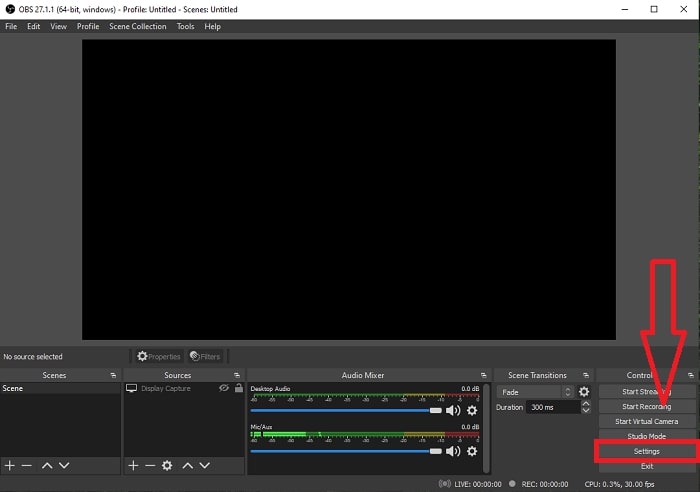
Obriu OBS Studio per continuar amb la interfície de l'aplicació i feu clic a Configuració a l'extrem inferior dret.
Pas 2: Accedeix a la configuració d’Àudio
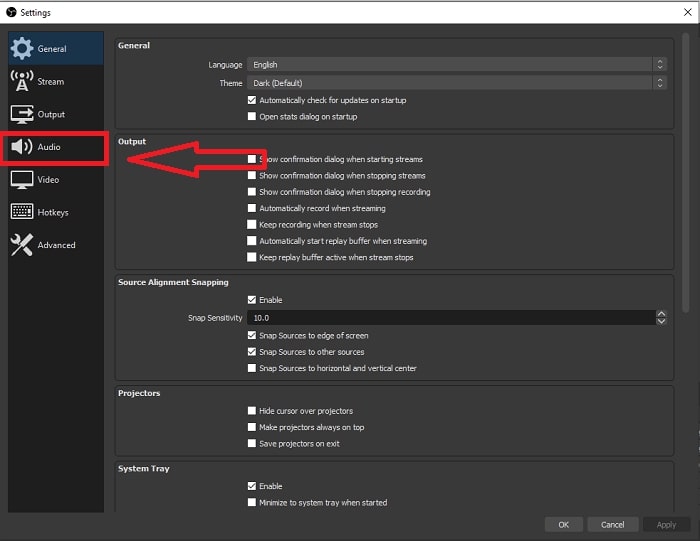
Després de fer clic a Settings, apareixerà una altra finestra a la pantalla. Aquesta finestra us oferirà una vista general de la configuració general d’OBS Studio. Però per continuar solucionant el retard de l’àudio d’OBS Studio, feu clic a Audio al marge esquerre de la interfície.
Pas 3: Tria una freqüència de mostreig adequada
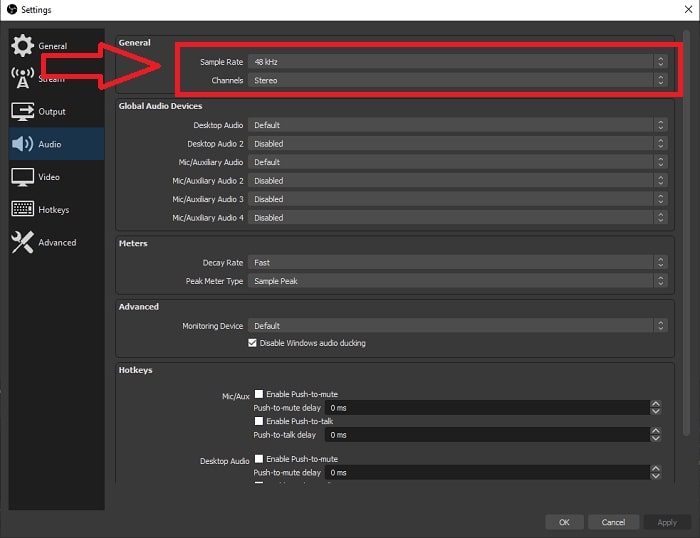
Editeu la freqüència de mostreig en funció de la freqüència de mostreig preferida del vostre escriptori i dispositius de gravació. Suposem que el vostre dispositiu de gravació és una mica antic i teniu una configuració antiga. En aquest cas, serà millor reduir la freqüència de mostreig de la freqüència de mostreig estàndard de 48 kHz i augmentar-ne l'ajust des de 48 kHz si voleu observar la freqüència de mostreig preferida del vostre dispositiu. Com que com més gran augmenta la freqüència de mostreig del vídeo, més a prop es recrearà l'àudio original. A més, només podeu canviar l'opció de canals en funció de l'eina que utilitzeu per reproduir el vídeo.
Pas 4: Obre la configuració de so (Sound Settings)
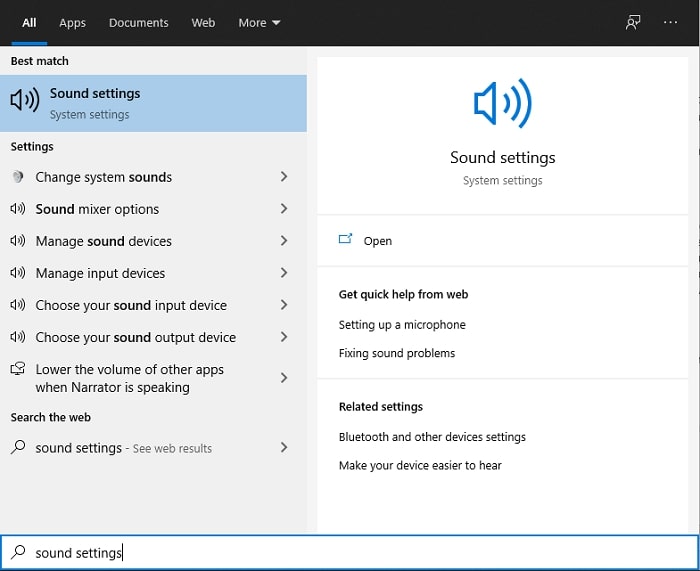
Després d’establir la freqüència de mostreig desitjada a OBS Studio, escriviu Sound Settings al quadre de cerca de la barra de tasques, localitzeu Sound Settings i feu-hi clic per continuar amb la configuració de l’escriptori.
Pas 5: Localitza el Tauler de control de so (Sound Control Panel)
Feu clic a Sound Control Panel. Un cop l’obrau, apareixerà a la pantalla una altra finestra de so: una vista general de tots els dispositius disponibles relacionats amb les sortides d’àudio.
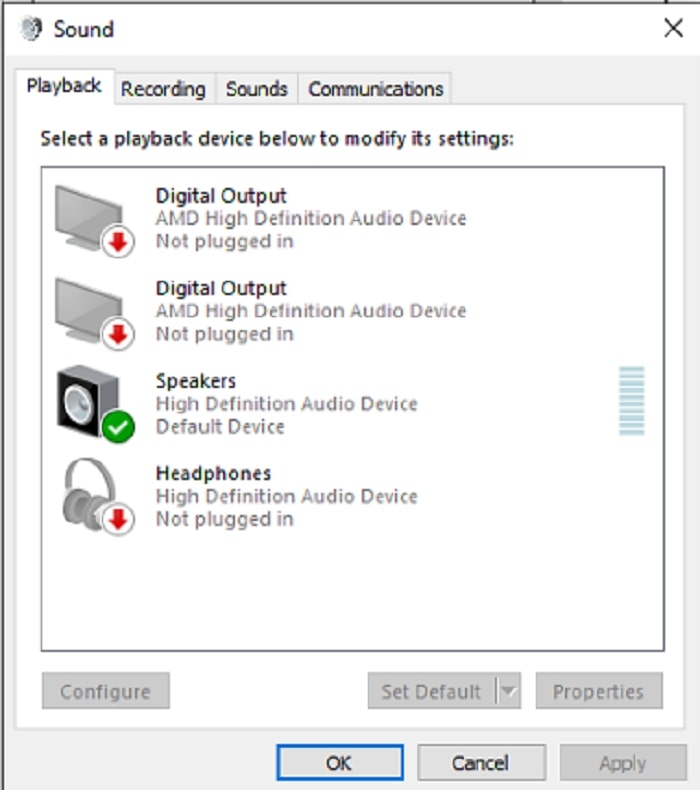
Pas 6: Selecciona el dispositiu per a les sortides d’àudio
Les opcions presents són els dispositius disponibles a la configuració de gravació, ja sigui un altaveu o auriculars. Trieu quin dispositiu fa que l'àudio no estigui sincronitzat i després feu clic a les propietats.
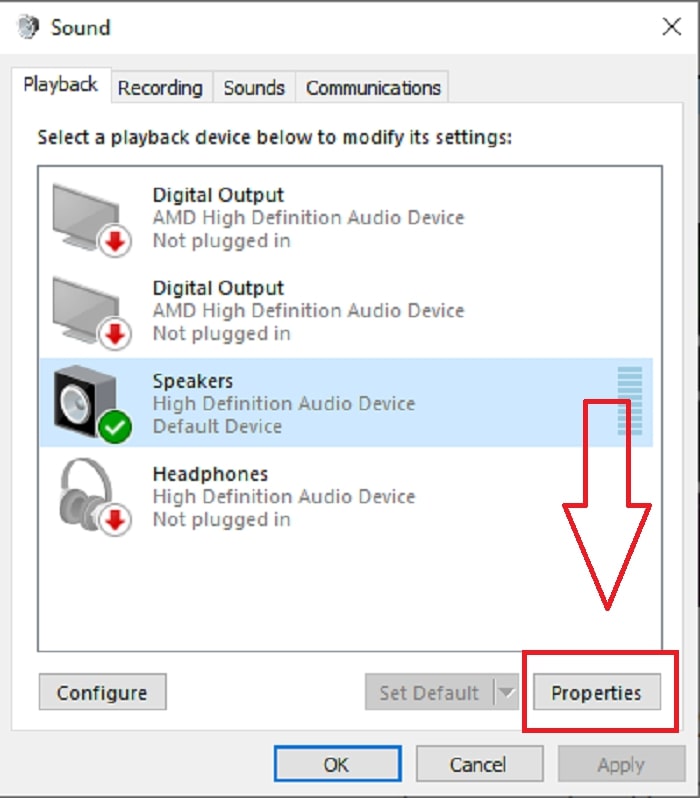
Pas 7: Continua a la configuració avançada
A continuació, després de fer clic a les propietats del dispositiu desitjat per a la sortida d’àudio, feu clic a Advance i veureu el format per defecte; proveu cada format de les opcions i trieu el format que no faci que l’àudio quedi desincronitzat.
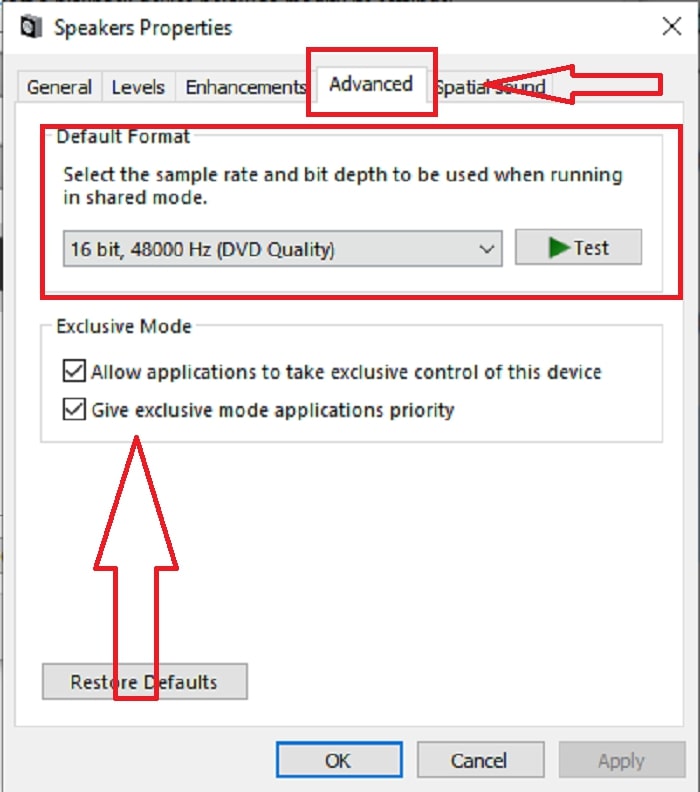
Part 3. La millor manera de solucionar el retard d'àudio OBS
La solució anterior explica com evitar el retard de l’àudio fent servir OBS Studio, però què passa si el problema és que l’àudio del vídeo ja gravat que voleu presentar o penjar està desincronitzat? Utilitzeu FVC Video Converter Ultimate, un programari amb diverses funcions per millorar un clip de vídeo. Una de les funcions que ofereix pot arreglar la sincronització de l’àudio d’un clip de vídeo ajustant-ne el retard. Seguiu els passos següents per saber com utilitzar el programari:
Pas 1: Per desar el programari al disc dur de l’ordinador, feu clic al botó Free Download. A continuació, podeu instal·lar el programari i personalitzar-ne la configuració al vostre gust.
Descàrrega gratuïtaPer a Windows 7 o posteriorDescàrrega segura
Descàrrega gratuïtaPer a macOS 10.7 o posteriorDescàrrega segura
Pas 2: Feu clic a la funció Toolbox després d’obrir el programari, i després feu clic a Audio Sync.
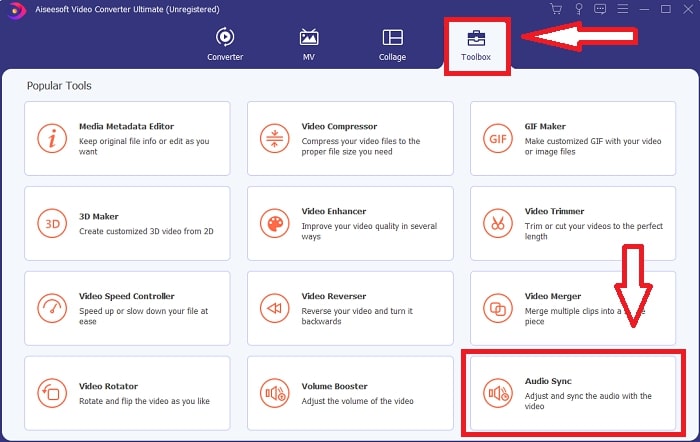
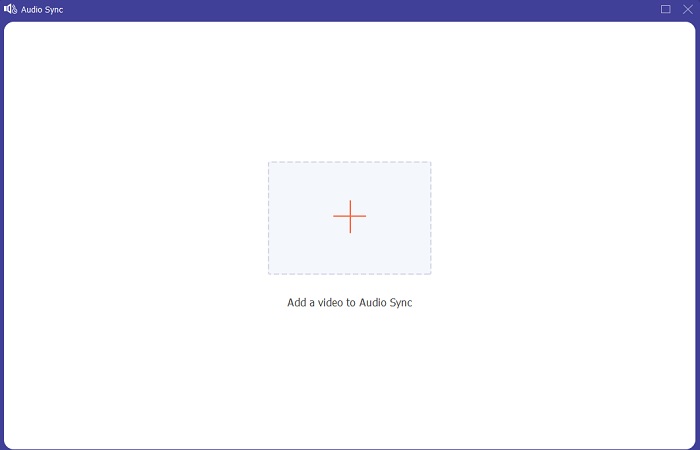
Pas 3: Feu clic al botó + després de fer clic a Audio Sync i comenceu a editar el clip de vídeo.
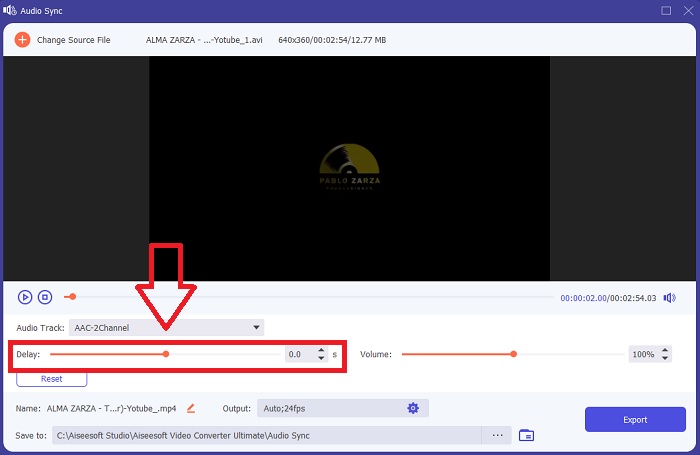
Pas 4: Ajusteu el Slider de l’àudio per sincronitzar-lo amb el clip de vídeo. Amb això, també podeu canviar el dispositiu de sortida i començar a personalitzar el volum del vostre clip de vídeo.
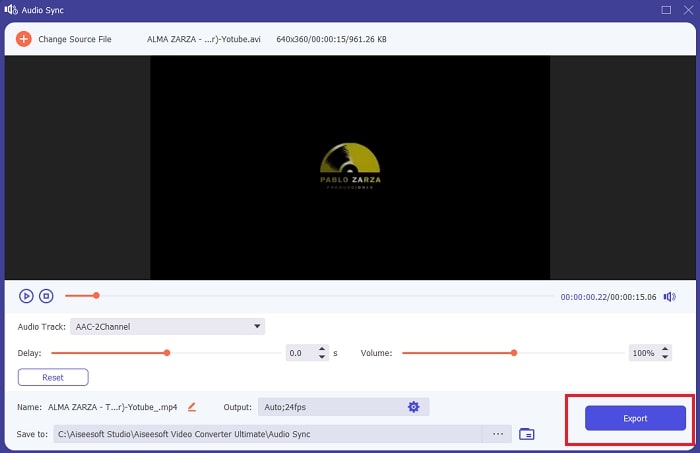
Pas 5: Feu clic a Export i trieu on desareu el fitxer després d’acabar l’edició.
Relacionat:
Part 4. Preguntes freqüents sobre el retard d'àudio OBS
Què és un desajust de freqüència de mostreig?
La freqüència de mostreig d'àudio, expressada en kilohertz, és la velocitat a la qual el sistema pren aquestes mesures. La freqüència de mostreig d'àudio determina l'interval de freqüència que podeu capturar en àudio digital: la freqüència de mostreig canvia a les vostres preferències d'àudio a la majoria de DAW. El canvi de la freqüència de mostreig afecta la qualitat del vostre àudio. Tanmateix, el desajust de la freqüència de mostreig és una freqüència de mostreig d'àudio desigual de recepció i enviament a la font. Aquest incident sempre passa si la sortida de l'altaveu i la sortida dels auriculars no tenen la mateixa freqüència de mostreig i provoca un retard d'àudio.
Perdo la qualitat de l'àudio si ajuste la freqüència de mostreig?
La freqüència de mostreig està canviant si voleu escoltar l'àudio del vostre videoclip i no canviar-lo. Quan utilitzeu FVC Video Converter Ultimate, només canviareu el retard d'àudio del videoclip per sincronitzar-ne l'àudio. Ja no ajustareu la freqüència de mostreig i tingueu por de perdre la qualitat de l'àudio.
Quina freqüència de mostreig es prefereix si faig servir una sortida d'àudio de baixa qualitat?
La qualitat de l'àudio depèn de la sortida d'àudio. Si el vostre micròfon o altaveu només admet una freqüència d'àudio de baixa freqüència, és millor reduir la freqüència de mostreig estàndard a 44,1 kHz que configurar-la a 48 Hz. La freqüència de mostreig pot afectar el retard de la sincronització d'àudio si no hi ha un flux de freqüència igual a la sortida i l'entrada.
Conclusió
En resum, el retard de l’àudio que sempre apareix a OBS Studio es pot solucionar de diferents maneres. Hem comentat la manca de coincidència en la freqüència de mostreig i hem observat diferents sortides d’àudio, però la millor manera de mostrar una solució per fer que l’àudio no quedi desincronitzat és utilitzar FVC Video Converter Ultimate. A banda de la funció per arreglar la sincronització de l’àudio, disposa de moltes més funcions que poden ajudar a millorar el vostre clip de vídeo.
-
 2 millors solucions per resoldre el reproductor de Windows Media que no reprodueix DVD
 Quan vulgueu reproduir vídeos de DVD a través del Reproductor de Windows Media però només rebeu l'error "El tipus de fitxer no és compatible", podeu aprendre tres maneres senzilles de solucionar el Reproductor de Windows Media que no reprodueix DVD.
-
 [Resolt] Com solucionar els vídeos que no es reprodueixen a l'iPhone amb passos detallats
 Els vídeos locals de la galeria no es poden reproduir al vostre iPhone mitjançant el reproductor de vídeo predeterminat? Els vídeos de YouTube en línia que no es reprodueixen a l'iPhone sempre passen? Aquí teniu 5 solucions per ajudar-vos en aquest article.
-
 Guia sobre com reparar vídeos que no es reprodueixen en telèfons Android
 Vols saber quins són els motius pels quals no es poden reproduir els vídeos del teu dispositiu Android? I si és així, hi ha alguna manera de solucionar el problema pel vostre compte? Continua llegint per saber-ne més.
