


 Video Converter Ultimate
 Gravadora de pantalla
 Reparació de vídeo
4 mètodes més fàcils Com canviar la resolució de vídeo amb passos complets
Hi ha molts motius pels quals necessites canviar la resolució del vídeo. Un dels motius pot ser estalviar espai d’emmagatzematge del vídeo. Sigui quin sigui el teu motiu, aquesta guia t’ensenyarà quatre mètodes per reduir o millorar la qualitat del vídeo. Sense més demora, coneix els convertidors de resolució de vídeo que pots utilitzar per canviar la resolució del teu vídeo.

Part 1. 1r Mètode: L'eina d'escriptori definitiva per canviar la resolució de vídeo a Windows i macOS
Video Converter Ultimate és l’eina definitiva per a aquesta tasca, ja que et permet convertir no només el format del vídeo, sinó també la qualitat del vídeo amb pocs clics. Aquesta eina admet un procés de conversió ultraràpid per convertir fàcilment la qualitat del teu vídeo a la resolució més alta o estàndard. No és fantàstic fer servir aquest programari? Vols saber-ne més? Doncs bé, aquesta eina és compatible amb totes dues plataformes d’escriptori. Encara que funciona en Windows i Mac, les funcions que veus a Windows també estan disponibles a Mac, i viceversa. Sabem que l’eina té quelcom especial, per això l’hem afegida a aquesta llista. Així que ara, si vols una guia pas a pas, pots seguir el tutorial escrit a continuació per aprendre a canviar la resolució del vídeo amb èxit.
Pas 1. Fes clic al botó adequat per descarregar el programa al teu disc. Obre el fitxer descarregat i segueix el procés d’instal·lació que es mostrarà a la pantalla. Un cop instal·lat correctament, obre el convertidor de resolució de vídeo i passa als passos següents.
Descàrrega gratuïtaPer a Windows 7 o posteriorDescàrrega segura
Descàrrega gratuïtaPer a macOS 10.7 o posteriorDescàrrega segura
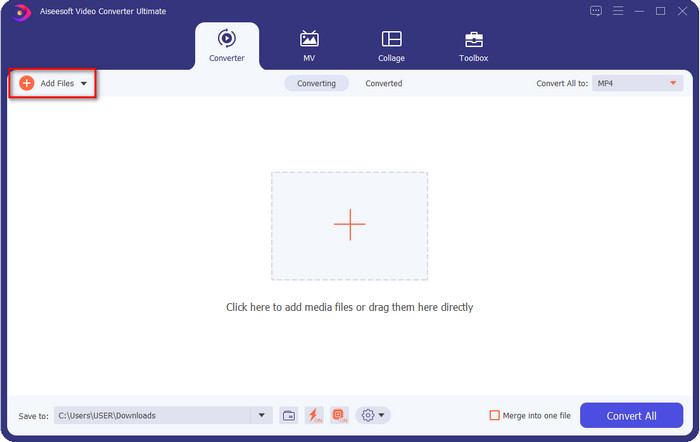
Pas 2. Per inserir el fitxer de vídeo al qual vols canviar la resolució, fes clic al botó Add File. Navega pel fitxer a la carpeta de l’ordinador que apareixerà, fes-hi clic i prem Open.
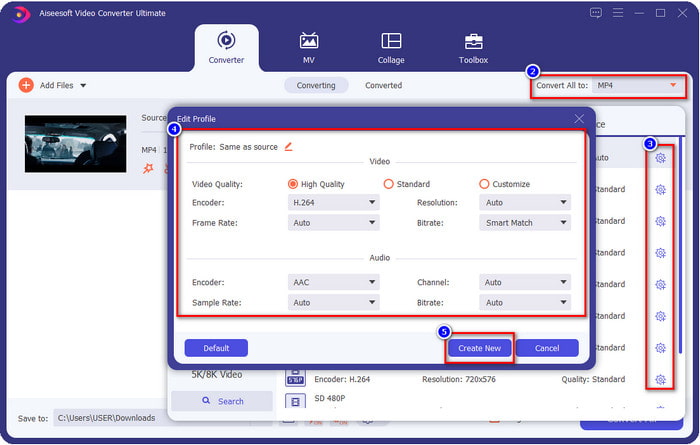
Pas 3. Mira a la part superior dreta i fes clic al botó drop-down a la interfície principal. Tria el format de vídeo que vols, aquí tens disponibles MP4, MOV, AVI, MKV, FLV i més de 200 formats. Després de triar el format, fes clic al botó widget per editar el perfil del format. Aquí pots pujar o baixar la resolució, canviar el codificador, la qualitat, la taxa de bits i més, per augmentar o no la resolució del vídeo. Per desar les modificacions, fes clic a Create New.
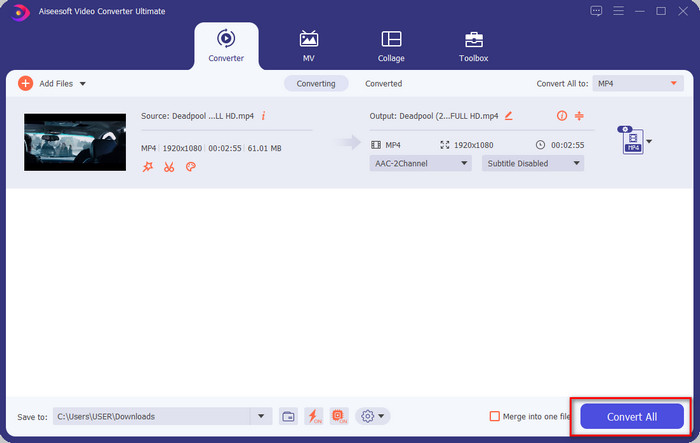
Pas 4. Finalment, en fer clic a Convert All, començarà la conversió de la resolució. Així, ja has convertit la resolució del vídeo amb l’ajuda de Video Converter Ultimate.
Part 2. 2n Mètode: El mètode senzill i gratuït per canviar la resolució de vídeo en línia
Vols canviar la resolució del vídeo en línia? En aquest cas, has d’utilitzar la versió gratuïta en línia de l’eina definitiva, el FVC Free Video Converter Online. Aquesta eina pot ajudar-te a convertir la resolució del teu vídeo de manera gratuïta. És una eina en línia, així que tingues en compte que necessita connexió a internet per funcionar. A més, aquesta eina no admet tots els formats de vídeo, de manera que hi ha una limitació a l’hora d’afegir-ne. Ara, provem d’utilitzar l’eina per canviar la resolució seguint els passos següents.
Pas 1. Per obrir el convertidor de resolució de vídeo en línia, fes clic en aquest enllaç per accedir directament a l’eina.
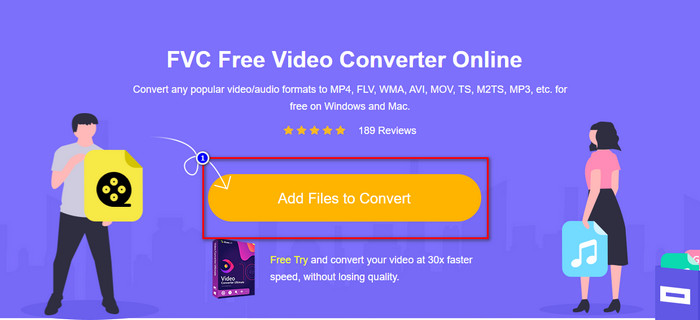
Pas 2. Prem Add Files to Convert per descarregar el llançador si és la primera vegada; torna-hi a fer clic un cop hagis descarregat l’instal·lador. Després de fer-hi clic, es mostrarà una carpeta; localitza-hi el fitxer de vídeo i fes clic a Open.
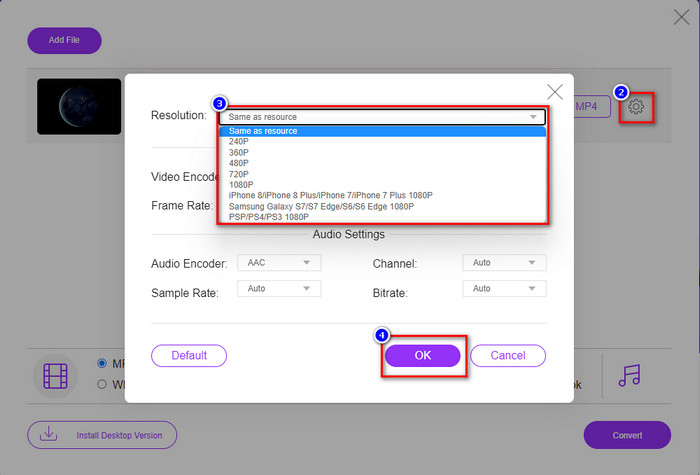
Pas 3. Fes clic al botó gear per obrir una finestra nova i canviar-hi la resolució del vídeo. A la part superior de la finestra nova, fes clic a Resolution, tria la resolució de vídeo que vulguis i fes clic a OK per desar-la.
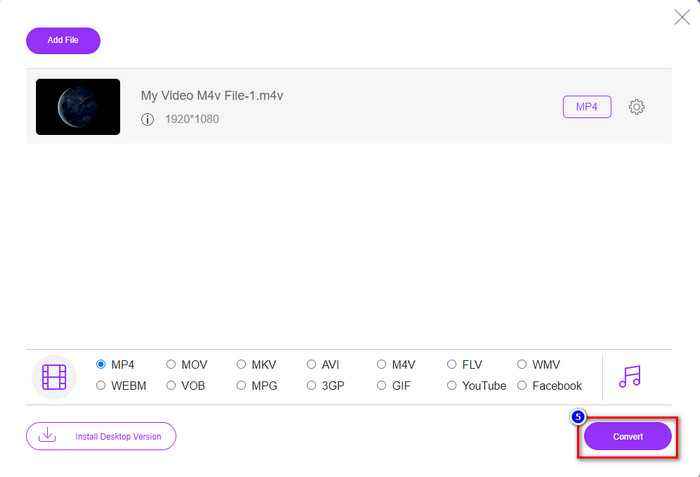
Pas 4. Tria el format a la llista establerta i fes clic a Convert per començar el procés de conversió de la resolució.
Relacionat:
Part 3. 3r Mètode: manera basada en mòbils per canviar la resolució de vídeo a iPhone i Android
Aquests mètodes no poden convertir la vostra resolució de vídeo, però podeu fer-ne un de més o menys resolució. A més, vegem com podem canviar la resolució del vídeo mentre filmem el vídeo.
1. Resolució de vídeo de l'iPhone integrada
Si sou un usuari d'iOS, podeu canviar la resolució de vídeo que feu si voleu. Tanmateix, no el podeu trobar a la càmera, de manera que si no el trobeu, podeu seguir els passos següents per saber com canviar la resolució del vídeo a l'iPhone abans de filmar un vídeo.
Aquests passos es prenen del model d'iPhone X, de manera que els passos poden ser lleugerament diferents de les altres versions de noms o funcions semblants a l'iPhone.
Pas 1. Obre els Settings del teu iPhone.
Pas 2. A dins, busca Camera i fes-hi clic.
Pas 3. Fes clic a Record Video i tria quina resolució vols tenir quan gravis el vídeo. Torna a la pantalla d’inici, obre la Càmera i grava el vídeo amb la resolució que has configurat als ajustos.
2. Resolució de vídeo d'Android integrada
Per als usuaris d'Android, podeu accedir directament a la resolució de vídeo a la vostra càmera. Els passos que oferim no són tan complicats com per a l'iPhone perquè no haureu de configurar la configuració. Ara, per canviar la resolució de vídeo a Android, seguiu les instruccions següents.
Aquests passos es fan des del Redmi 10, de manera que els passos poden ser una mica diferents amb altres dispositius Android, com ara el nom o la funcionalitat.
Pas 1. Al telèfon, prem l’app Camera per obrir-la.
Pas 2. Un cop oberta, ves a Video, fes clic a la icona de tres línies paral·leles i tria la resolució de vídeo que vulguis.
Pas 3. Prem el botó red per gravar el vídeo amb la resolució de vídeo establerta.
Part 4. Preguntes freqüents sobre el canvi de resolució de vídeo
Quina és la resolució del vídeo?
El nombre de píxels continguts per fotograma és el que anomenem resolució de vídeo. També controla els detalls que podeu veure en un únic vídeo, com ara la claredat que pot ser la imatge. A més, hi ha diferents varietats de resolució de vídeo; anomenem resolució més alta a partir d'HD i superior que utilitza més fotogrames de qualitat per segon. Tot i que la resolució més baixa comença des de SD i més baixa, aquesta resolució de vídeo té menys amplada de banda que la resolució més alta, però té un fotograma de qualitat més petita per segon.
És 1080 la millor resolució de vídeo?
Produeix un dels usuaris de resolució de vídeo més escollits més habitualment seleccionats a Youtube i altres aplicacions de transmissió de vídeo. Però no sempre és la millor opció per veure un vídeo d'alta qualitat perquè podria trigar més temps a guardar el vídeo que el 720. Per tant, la propera vegada que mireu un vídeo en línia, preferim utilitzar el 720 que el 1080 per carregar el vídeo. vídeo molt més ràpid i no hi ha cap canvi significatiu en ambdues qualitats si el canvieu.
La reducció de la resolució afecta la qualitat?
Sí, hi haurà un canvi un cop hagis baixat la qualitat del vídeo. Per exemple, si el vostre vídeo és en HD, el canvieu a SD, la qualitat canviarà dràsticament. Per tant, si canvieu la resolució del vídeo, veureu un canvi sobtat, però encara es pot veure fins i tot després d'això.
Conclusió
Per fi, ara podem canviar la resolució del vídeo segons els nostres desitjos. Tot i que podeu utilitzar moltes eines diferents per canviar la qualitat del vídeo, us presentem les més segures i millors eines en línia, fora de línia i integrades. Esperem que aquest article us ajudi a canviar la resolució; si teniu més preguntes, podeu deixar un comentari a continuació i, de fet, respondrem als vostres comentaris.
-
 Revisió dels 10 millors programes de convertidor de vídeo HD (gratuït i comercial)
 Llegiu i compareu per obtenir el millor programari de conversió de vídeo HD a partir de 10 recomanacions. Aquí teniu les ressenyes detallades de cada convertidor de vídeo HD per a multiplataforma.
-
 Directrius sobre com convertir M4A a WAV [PC i Mac]
 Obteniu més informació sobre com convertir M4A a WAV amb passos detallats i diferents eines que podeu triar.
-
 Excel·lent opció per convertir MKV a un format AVI
 Domineu com convertir vídeos MKV amb passos senzills que us proporcionen exclusivament. Vols saber com? A continuació, feu clic a aquest enllaç per obtenir més informació.
