


 Video Converter Ultimate
 Gravadora de pantalla
 Reparació de vídeo
Com canviar les metadades dels fitxers MOV a Mac amb passos sense esforç
We all know that MOV is one of the top-notch formats you can ideally use on video playback on your Apple devices and for editing. But what makes MOV unique? It supports a video compression that is preferably used by pro. Although it can store multiple elements on a single file, it is still possible that the MOV can have mixed-up tags that could lead to a problem. It would help to edit them accordingly to have proper metadata to fix it immediately. With the helpful tool, this task is a piece of cake. So today, we will present the best ways to edit MOV file metadata instantly.

Part 1. Com editar les metadades MOV amb l'Editor d'etiquetes definitiu al Mac
FVC Video Converter Ultimate is your one-stop solution regarding this metadata problem that supports more than 1000+ formats on Mac and Windows. With this tool, you can instantly remove, edit or add the metadata on your MOV file. What's more? You can do multiple edits on your MOV, such as cutting, trimming, merging, cropping, and a thousand more, even if you are not a pro on editing. Indeed, it is impressive to have this tool by your side, and there are many more things you can do with this tool within a few clicks away. But today, we present to you the detailed instruction we've added that you can follow to edit your MOV files metadata successfully.
Step 1. You can attain the ultimate converter on your Mac or Windows by tapping the download button below. Proceed to the installation process by clicking the file you've downloaded, and click Start Now to launch the tool immediately.
Descàrrega gratuïtaPer a Windows 7 o posteriorDescàrrega segura
Descàrrega gratuïtaPer a macOS 10.7 o posteriorDescàrrega segura
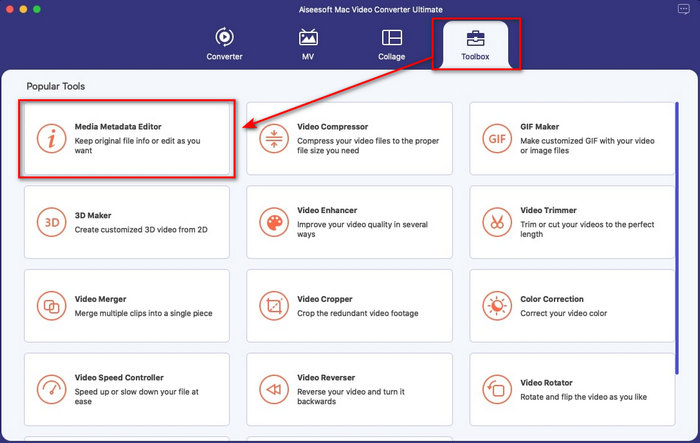
Step 2. The tool's interface will show on your display; go to the Toolbox part and open the Media Metadata Editor.
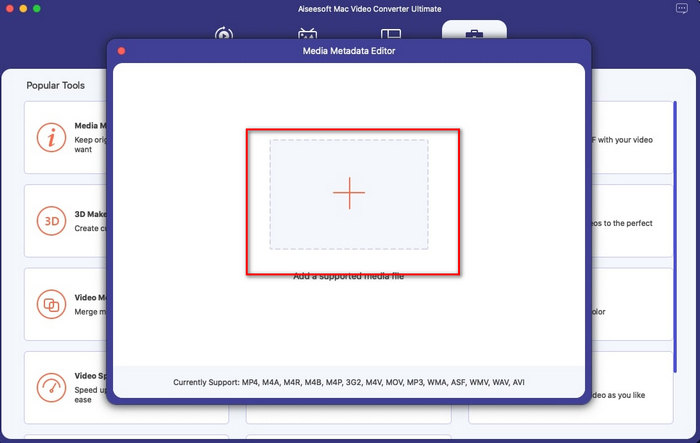
Step 3. Once you've already opened the editor, a mini window will show; tap the + button to open a folder on where you can locate the file, and to insert it click Open.
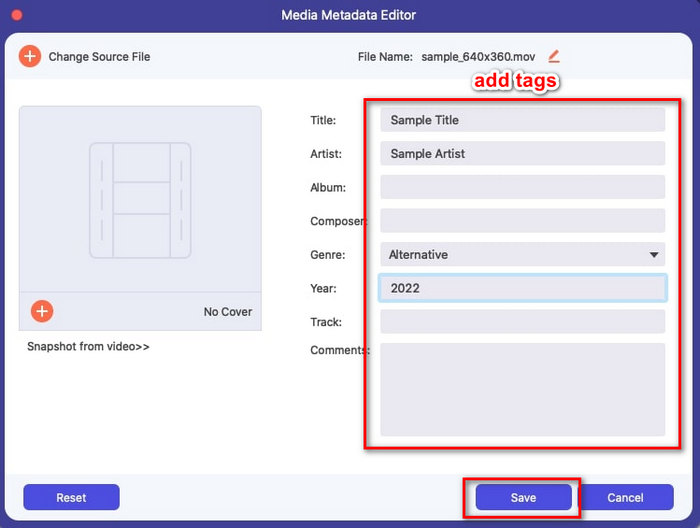
Step 4. This time you can now add, edit or remove the tags on your MOV file here in the text box. If you've finished it all, click the Save button. You have now edited the metadata on your MOV files as quickly as that.
Relacionat:
Part 2. 3 dels millors editors d'etiquetes MOV per canviar les metadades de MOV
Reproductor multimèdia VLC
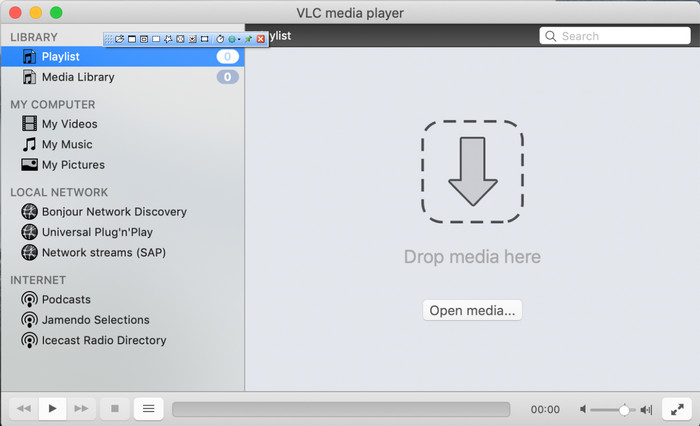
VLC Media Player is a famous media player available on Mac and Windows. Although it can play different video formats, it can change the metadata of your media file, like on MOV. Moreover, if you want to view your file's metadata, you can easily use this to view it. However, it is not as effective as the other dedicated metadata editor you can use on Mac or Windows. Yet, it is still doable with the media player to edit the MOV file metadata.
Step 1. Download the media player on the official website of the VLC, then open it.
Step 2. Press Command + I on your keyboard, and the media information will show where you can add or delete the metadata of your MOV file.
Step 3. Click Save Metadata if you've done applying the tags on your MOV.
iTunes
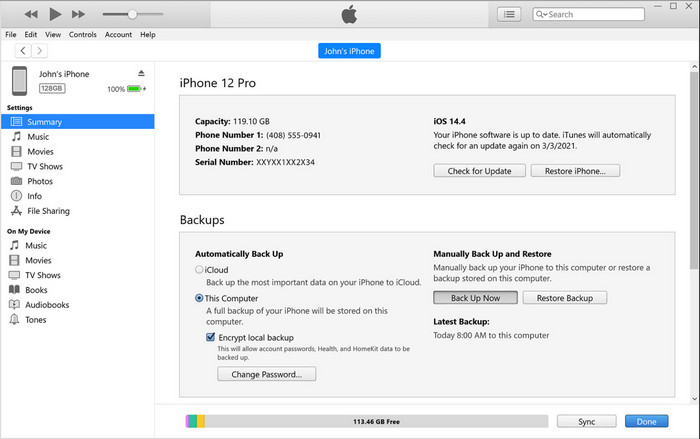
iTunes is the best built-in streaming app you can access on any Apple device. This tool is jam-packed with different features such as the music player and store for music, movies, podcast, and many more protected with DRM to avoid copy-right issues. Despite being a great built-in app, the competition for metadata editors is too stiff for iTunes to join. But we still reconsider this app because it can change the MOV metadata on Mac.
Step 1. Open then import the MOV file on iTunes library.
Step 2. Then right-click the .mov file you've added and select Get Info. After you've clicked it, there are different options you have to change the metadata, such as details, artwork, lyrics, options, sorting, and file, adjust them according to your needs.
Step 3. Press OK to save the changes.
MetaZ
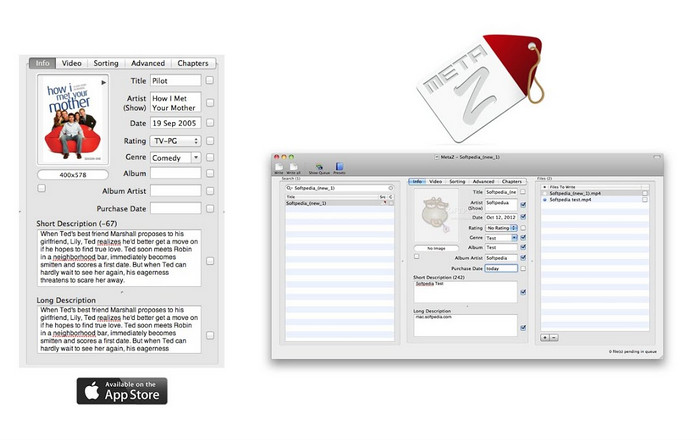
Per a macOS X, podeu baixar gratuïtament Metaz per canviar fàcilment les metadades dels vostres fitxers. Aquest editor de metadades us pot ajudar a canviar les etiquetes de vídeo en la majoria de formats, com ara el MOV. Amb aquesta aplicació, podeu fer el truc fàcilment i organitzar el MOV a la vostra biblioteca. Tanmateix, darrerament s'han produït molts informes amb l'aplicació; els usuaris es troben amb molts problemes molestos mentre utilitzen l'aplicació. Tot i que es poden produir problemes, segueix sent un dels editors de metadades MOV més escollits que podeu descarregar al vostre Mac.
Step 1. Download the app on your Mac, launch it, then three sections of the tools' interface will show on your display, where you can add the file, edit the tags, and search the tags.
Step 2. Drag and drop the MOV file to the left side; on the left side of it, you will see that it will automatically go to search tags for your MOV file based on its title, but you can modify them in the middle section if you want to.
Step 3. Press Write, and the tags will add to the MOV file.
Part 3. Preguntes freqüents sobre l'editor de metadades MOV
Puc utilitzar l'editor de metadades QuickTime per canviar les etiquetes?
Malauradament, no podeu perquè aquesta eina només pot reproduir formats multimèdia, editar els vídeos i gravar. Però podeu veure lliurement les metadades del vostre fitxer a Quicktime seguint aquests senzills passos. Primer, obriu el fitxer MOV al Quicktime i reproduïu-lo. Veureu diferents opcions a la part superior; Feu clic a Finestra i, sota d'ella, premeu Visualitza l'inspector, a continuació, es mostrarà una finestra nova a la vostra pantalla per veure la petita informació sobre el vostre fitxer MOV.
Canviar les etiquetes MOV afecta la qualitat?
Afortunadament, no serà perquè heu ajustat les etiquetes, no la resolució o la qualitat del fitxer MOV. Per tant, si us preocupa que la resolució del vídeo es redueixi després de canviar les etiquetes, ho repetirem; no ho farà.
Afegir metadades al MOV augmentarà la mida del fitxer?
En qualsevol fitxer, un cop hàgiu afegit metadades en aquest fitxer, veureu la diferència entre el fitxer que no té etiqueta i el que en té. Tanmateix, aquestes etiquetes no són tan grans com el contingut del fitxer. Per tant, si afegiu metadades al vostre MOV, espereu que augmentarà una mica de mida perquè heu afegit informació sobre el fitxer de vídeo.
Conclusió
Now that we've finished teaching you how to change MOV file metadata, this is now the time for you to choose which tutorial you'll go to follow. If you want to download a free tool on your Mac, you can download the VLC and Metaz to fix or edit the metadata of your MOV. But if you don't want to, you can use iTunes to edit the metadata easily. Although these tools are great to use, there is still no tool with powerful editing features on metadata that you can download on Mac, like what the FVC Video Converter Ultimate can bring to you. So, if you are still wondering what to use, we would highly recommend that you use the ultimate tool regarding this task because it is easy to use but has the ultimate package you will need on any given day.
-
 Què són les metadades: aprèn la informació bàsica sobre les metadades
 Què són les metadades? Això és important? Quines són les parts de les metadades? Tens la mateixa pregunta? En aquest article, aprendràs la informació bàsica sobre les metadades.
-
 4 dels millors visualitzadors de metadades en línia i fora de línia [Actualitzat el 2022]
 Puc comprovar les metadades del meu fitxer? Sí, pots, amb l'ajuda d'aquesta publicació et presentarem els diferents visualitzadors de metadades que pots utilitzar.
-
 Els 4 editors d'etiquetes WMV més escollits a l'escriptori [Actualització 2022]
 Necessites un editor d'etiquetes WMV fiable per editar les etiquetes WMV? Bé, aquest article proporciona prou coneixement sobre l'eina que admet WMV.
