


 Video Converter Ultimate
 Gravadora de pantalla
 Reparació de vídeo
Maneres senzilles d'afegir imatges al vídeo a iMovie ràpidament
Afegir imatges a un vídeo s’ha convertit en una de les millors maneres de transmetre el missatge al públic encara millor. La majoria d’editors de vídeo poden ajudar-te a superposar ràpidament una imatge sobre un vídeo, i si ets usuari d’Apple, potser ja t’has trobat amb iMovie. És conegut com un dels millors editors que pots utilitzar al teu dispositiu Apple. Tanmateix, molts usuaris habituals d’Apple troben difícil utilitzar iMovie perquè no han tingut experiència prèvia amb aquesta eina. Per tant, si ets un usuari d’Apple que també té problemes per fer-la servir i vols afegir una imatge a un vídeo, pots llegir aquest article: aprendre com afegir imatges al vídeo a iMovie és senzill si llegeixes els detalls que tens a continuació.

Part 1. Com superposar una imatge en un vídeo a iMovie [Mac]
Si teniu un iMovie al Mac, podeu utilitzar-lo i afegir la imatge al vídeo. Així que ara, si voleu aprendre a posar una foto al vídeo iMovie, els passos següents us ajudaran.
Pas 1. Cerca iMovie al Finder i fes-hi clic per obrir-lo.
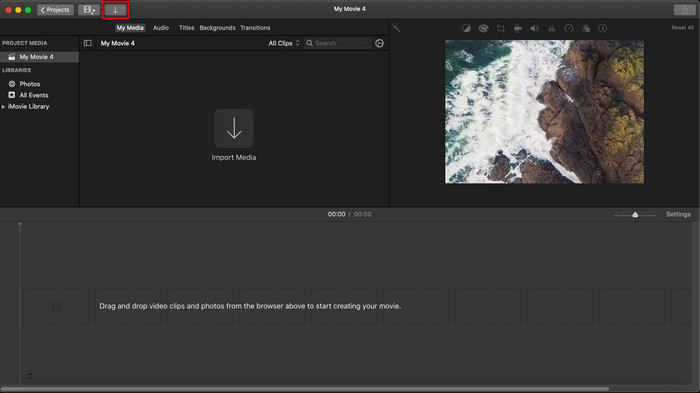
Pas 2. A la part superior esquerra d’iMovie, fes clic al botó Importa per importar fàcilment el vídeo i la imatge. Arrossega i col·loca el fitxer multimèdia que has inserit a la Línia de temps.
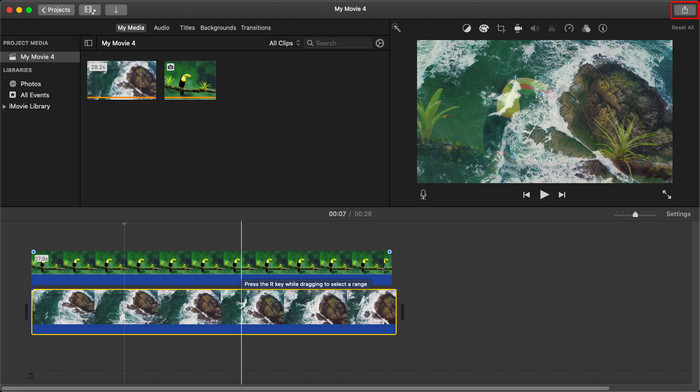
Pas 3. Ajusta la imatge que has importat i la seva durada. Després, fes clic a Exporta per descarregar el fitxer a l’ordinador.
Els passos que vam presentar aquí provenen de l'experiència pràctica d'utilitzar l'iMovie. Els passos poden variar si hi ha una actualització de l'eina o si es produeixen alguns canvis en breu.
Part 2. Com inserir fotos al vídeo amb iMovie [iOS]
Què passa si utilitzeu un dispositiu iOS i voleu utilitzar iMovie com a editor per afegir una imatge a un vídeo? És possible? Bé, sí, ho és. Podem ensenyar-vos a posar una imatge en un vídeo iMovie a l'iPhone llegint els detalls a continuació amb els passos que hem proporcionat.
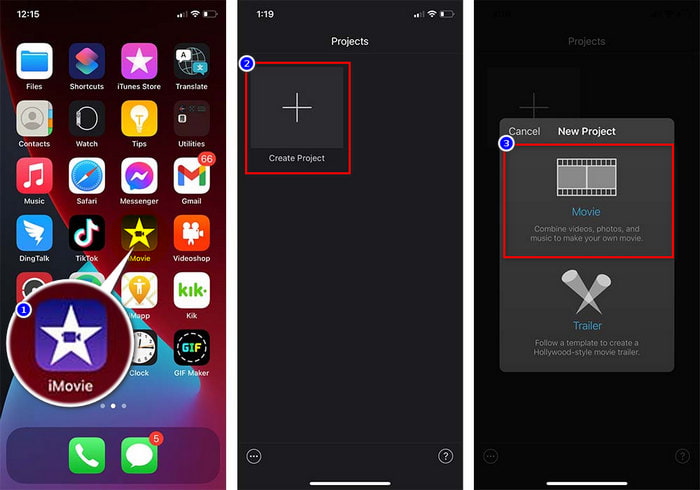
Pas 1. Obre l’app iMovie al teu dispositiu iOS, fes clic a Crea un projecte i després a Pel·lícula. Afegeix el vídeo que tens a la teva biblioteca.
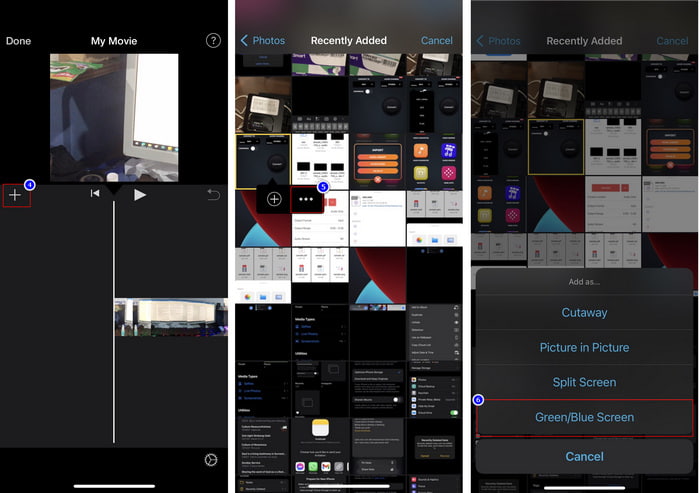
Pas 2. Fes clic al botó + per afegir la marca d’aigua d’imatge al vídeo. Cerca-la a la biblioteca, fes-hi clic, prem la línia de tres punts i prem Pantalla verda/blava. Toca la imatge per eliminar-ne automàticament el fons.
Pas 3. Prem Fet, fes clic a Exporta i després a Desa el vídeo.
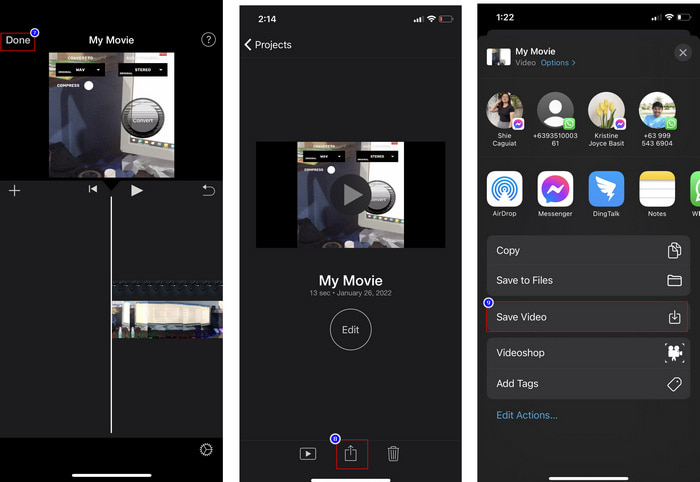
Tots els passos que vam presentar aquí provenen de l'experiència pràctica d'utilitzar l'iMovie a iOS. Però alguns dels passos poden canviar si es produeix una actualització a l'aplicació editor aviat.
Part 3. La solució més fàcil per inserir una foto al vídeo amb el millor programari de filigrana de vídeo a Mac
Tens les mateixes dificultats per afegir fotos sobre un vídeo a iMovie? Prova d’utilitzar Video Converter Ultimate, perquè aquesta eina és la millor alternativa a iMovie. El seu rendiment global ja ha estat elogiat per milions d’usuaris que ja l’han provada. Encara que tinguin problemes diferents amb els seus vídeos, continuen escollint aquesta eina definitiva per resoldre’ls. A més, amb aquesta eina, pots fer gairebé tot el que té a veure amb el vídeo, com retallar, afegir imatges, unir, escalar, etc. Sigui quin sigui el problema, és una solució integral. Vols resoldre el problema? Doncs segueix els passos que detallem a continuació perquè els puguis seguir fàcilment.
Funcions:
◆ L'eina definitiva admet diversos formats, de manera que carregar el vostre format no serà difícil.
◆ Admet una interfície fàcil d'entendre per afegir ràpidament imatges a qualsevol vídeo en pocs segons.
◆ Admet diferents plataformes com Mac i Windows per permetre que els usuaris gaudeixin en totes les plataformes.
Pas 1. Pots descarregar l’eina fent clic al botó de descàrrega següent, instal·lar-la tot seguit i obrir-la després de la instal·lació.
Descàrrega gratuïtaPer a Windows 7 o posteriorDescàrrega segura
Descàrrega gratuïtaPer a macOS 10.7 o posteriorDescàrrega segura
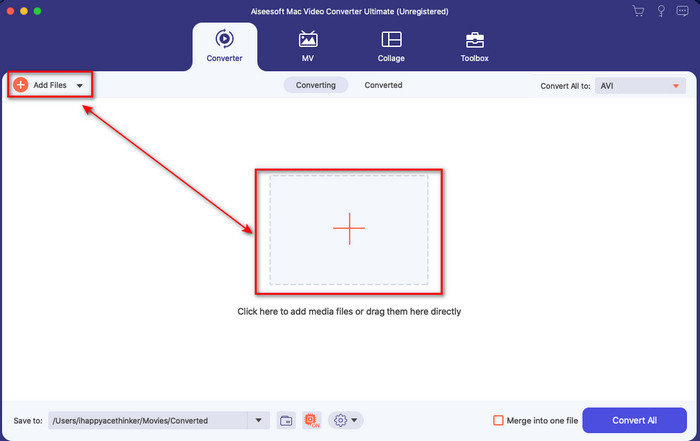
Pas 2. Després d’obrir-la, prem el botó + que es mostra per importar el fitxer de vídeo. A continuació, s’obrirà una carpeta per localitzar el fitxer de vídeo i fes clic a Obre.
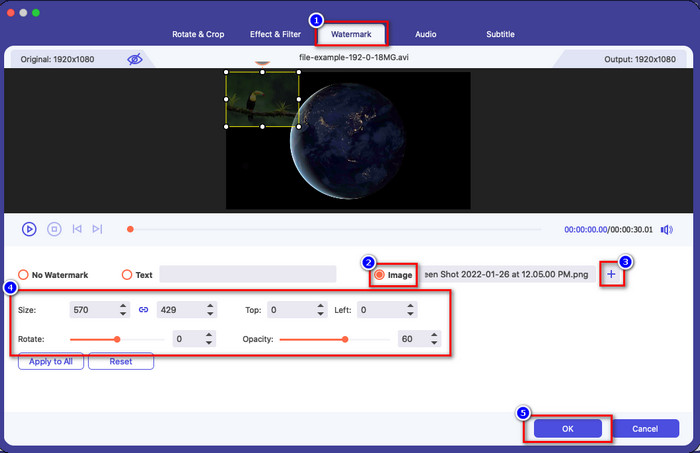
Pas 3. Prem el botó amb la vareta per obrir la finestra d’edició del convertidor. Ves a Marca d’aigua, fes clic a la imatge i després prem Afegeix per pujar-la. També pots editar la opacitat de la imatge o girar-la segons les teves necessitats, i per aplicar els canvis, fes clic a D’acord.
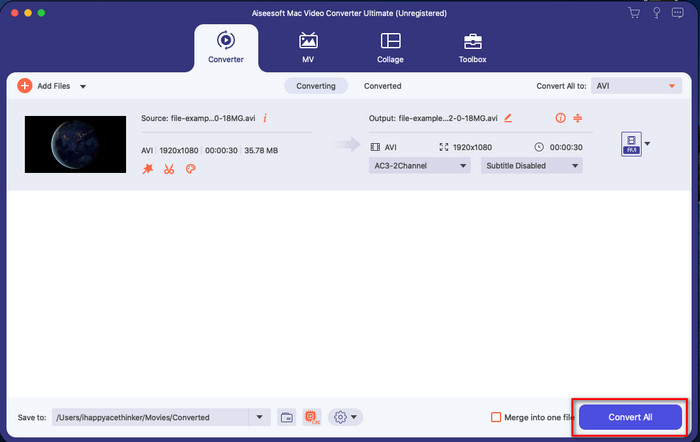
Pas 4. Fes clic al botó Converteix-ho tot per exportar el fitxer de vídeo. Es desarà a una carpeta del teu ordinador després del procés d’exportació, i així de fàcil tindràs una imatge de marca d’aigua al teu vídeo. I bé, creus ara en la capacitat de Video Converter Ultimate? Ja has afegit la imatge de marca d’aigua al vídeo amb aquesta rapidesa.
Relacionat:
Com afegir subtítols a un vídeo
Part 4. Preguntes freqüents sobre com afegir fotos al vídeo a iMovie
Hi ha limitacions en el nombre d'imatges afegides als vídeos d'iMovie?
Fins ara, no hem experimentat cap inconvenient per afegir diverses imatges al vídeo mentre usàvem l'iMovie. Tanmateix, el procés d'exportació requereix temps si afegiu massa imatges al vídeo, però no es bloquejarà, segons l'experiència.
Quins són els formats d'imatge que puc utilitzar a iMovie?
Hi ha nombrosos formats d'imatge fixa que admet iMovie, com ara BMP, PNG, JPG o JPEG, HEIF, PSD, RAW TIFF i TGA, però si voleu una imatge animada, podeu utilitzar GIF. Tot i que aquests formats són molts, encara no admet tots els formats d'imatge com EXIF, WebP i similars.
Per què hauria d'utilitzar iMovie?
Per als usuaris d'Apple, iMovie és una de les millors opcions per crear un curtmetratge, publicitat, vlogs i molt més; tots aquests són gratuïts. L'editor proporciona una interfície semi-avançada per ajudar els usuaris a tenir una experiència pràctica de com es veu una interfície o eina avançada. A més, el programari és menys tècnic, però està especialitzat. No és habitual veure un editor que ofereix una manera d'utilitzar menys tècnica, però us pot ajudar a ser un professional i afegir algunes eines avançades de tècniques especialitzades.
Conclusió
Finalment, podem dir que ja tenim prou coneixements per afegir fàcilment fotos sobre un vídeo a iMovie. Amb la millor eina d’Apple, pots fer aquí gairebé les edicions més complicades. Tot i això, no totes les funcions que necessites són a iMovie, però pots utilitzar Video Converter Ultimate per tenir un editor fàcil d’utilitzar a totes les plataformes. Potser et preguntes per què hauries d’utilitzar aquesta eina definitiva. No cal gaire explicació quan parlem d’aquesta eina, ja que n’hem presentat les proves més amunt. I llavors, què has de fer? Pots fer clic al botó de descàrrega per tenir una experiència directa amb aquesta eina definitiva i resoldre aquest problema.
-
 Les 5 aplicacions de gravació d'àudio més escollides a Android i iOS [Actualitzat el 2022]
 No saps quina aplicació de gravació d'àudio hauries d'utilitzar? Si és així, aquest article us ajudarà a triar quina aplicació us ajudarà amb la vostra tasca d'enregistrament d'àudio.
-
 Memo de veu a iOS: avantatges, contres, característiques i 4 millors reemplaçaments
 Què és la nota de veu? És la millor gravadora d'àudio a iOS? Busques una resposta a aquesta pregunta? Per tant, llegiu l'abast complet d'aquest article per saber-ne més.
-
 7 últims convertidors MOD gratuïts per canviar el fitxer MOD a un nou format
 Quins són els convertidors MOD que podeu utilitzar? Penses la mateixa pregunta? Així que aquí estem, proporcionant les set eines que podeu utilitzar per convertir els vostres fitxers MOD.
