


 Video Converter Ultimate
 Gravadora de pantalla
 Reparació de vídeo
Domineu com accelerar els vídeos al reproductor de Windows Media de la millor manera possible [basat en l'evidència]
Totes les escenes de vídeo difereixen en la seva velocitat de reproducció, però també difereixen en la funció que tenen quan canvien de velocitat. Quan augmentes la velocitat del teu vídeo, simbolitza esdeveniments irrellevants i poc interessants de la pel·lícula o del vídeo. En canvi, quan alentis el vídeo, s’emfatitzen moments o escenes que són molt importants de mostrar. Aquestes modificacions de la velocitat de reproducció són molt crucials a l’hora d’editar o crear pel·lícules de vídeo. Llegeix aquest article per ensenyar als usuaris com accelerar vídeos, especialment en alguns reproductors multimèdia habituals a l’escriptori, com ara el Windows Media Player.

Part 1. Windows Media Player: Com accelerar els vídeos
Windows Media Player és un reproductor multimèdia gratuït de Microsoft que inclou totes les còpies de Windows. També és conegut com a reproductor WMP o WM per Microsoft. A més de deixar-los veure fotos i escoltar música, també els permet veure vídeos. Amb Windows Media Player (WMP), es poden extraure CD d'àudio i organitzar la vostra biblioteca de música. També té una pestanya d'edició que ajuda a ajustar vídeos, imatges i música. Si voleu accelerar un vídeo amb Windows Media Player, aquí teniu els passos a seguir:
Pas 1: Obre el Windows Media Player; a la cantonada esquerra, tria la pestanya Vídeo.
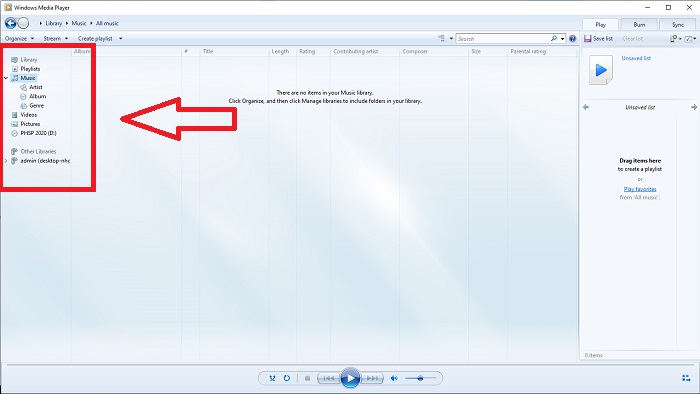
Pas 2: Reprodueix el vídeo fent doble clic amb el botó esquerre o clic dret, o bé pots prémer el botó Reprodueix a la cantonada inferior central de la interfície.
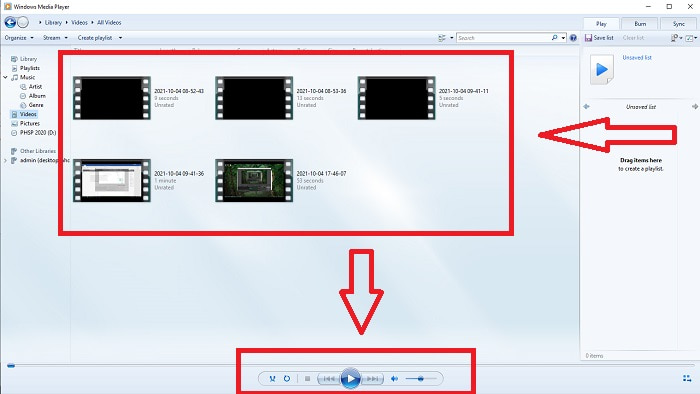
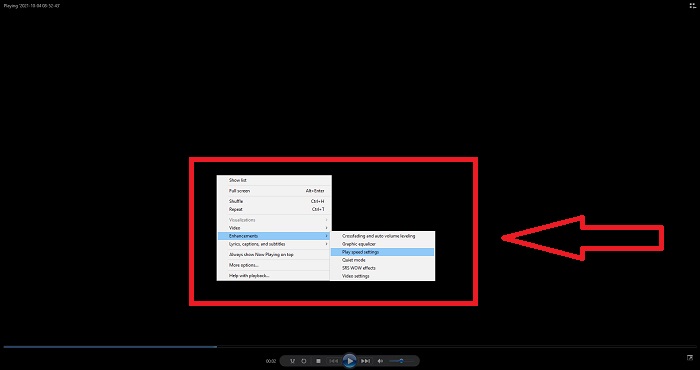
Pas 3: Després, fes clic dret a la pantalla per accedir a la pestanya d’edició. Continua fent clic a Millores i Opcions de velocitat de reproducció. Després d’això, ja pots ajustar la velocitat de reproducció del teu clip de vídeo arrossegant el control lliscant.
Part 2. Què passa si la velocitat de reproducció del reproductor de Windows Media no funciona?
Quan reproduïu fitxers de vídeo AVI, WAV o MOV, és possible que us trobeu amb el reproductor multimèdia de Windows i us trobeu amb un problema mentre reproduïu l'error del fitxer. Sovint es veu vídeos de qualitat mediocre en format AVI. Altres reproductors multimèdia no tenen problemes per reproduir l'AVI. WMP, d'altra banda, pot tenir una fallada quan es reprodueix un fitxer AVI. Windows Media Player no admet fitxers AVI perquè estan codificats amb còdecs. És possible que hàgiu rebut la notificació següent: Windows Media Player no pot reproduir el fitxer. És possible que el reproductor no admeti el tipus de fitxer o que no admeti el còdec que s'ha utilitzat per comprimir el fitxer. Hi ha dues possibles explicacions per a aquest fenomen.
1. Com que no coincideix amb el fitxer requerit, el reproductor multimèdia de Windows (WMP) no admet el còdec per al fitxer.
2. El reproductor multimèdia de Windows no admet els còdecs de compressió.
Pas 1: Obre el Tauler de control a l’ordinador i localitza Veure per, després fes clic a Icones grans per accedir a totes les funcions completes del Tauler de control.
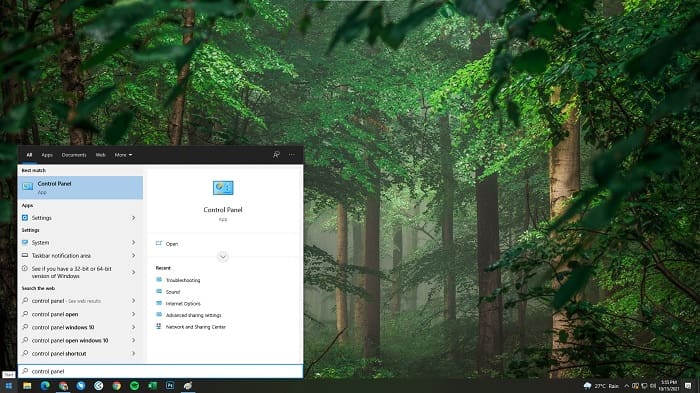
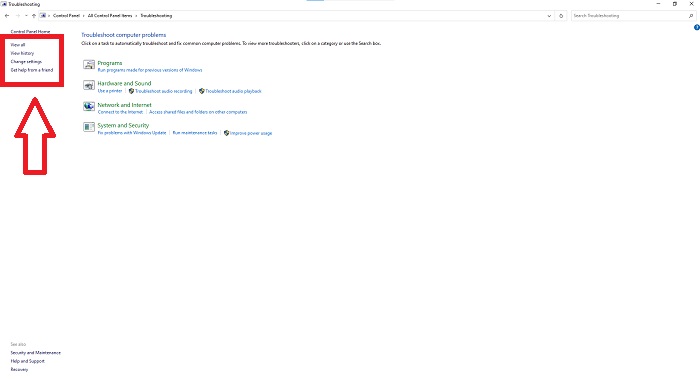
Pas 2: Continua fent clic a Resolució de problemes. A la cantonada esquerra, fes clic a Veure-ho tot i localitza Biblioteca del Windows Media Player.
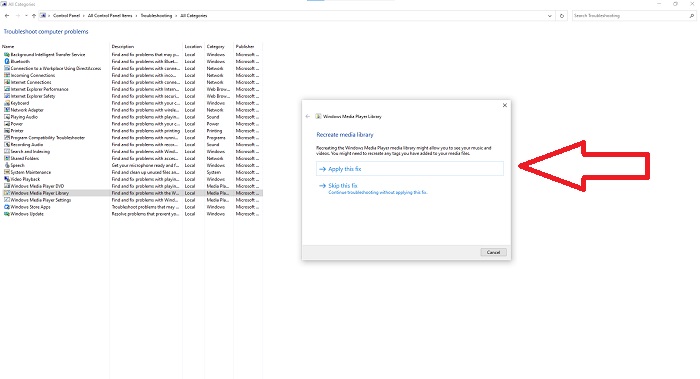
Pas 3: Finalment, resol els problemes del teu Windows Media Player fent clic a Següent després que aparegui una pestanya. Després continua seleccionant Aplica aquesta correcció. Quan s’hagi acabat la resolució de problemes, tria si vols tancar-la o bé deixar-hi els teus comentaris.
Part 3. Una altra manera factible d'accelerar els vídeos
Suposem que tens problemes per arreglar la velocitat de reproducció dels teus vídeos a causa dels passos complicats. A més, si la resolució de problemes no funciona i encara no podeu reproduir el vídeo. Hi ha eines web disponibles a Internet, i algunes d'elles s'han de comprar abans de tenir accés a l'eina completa. Video Converter Ultimate és la millor alternativa per accelerar els vídeos i és d'ús gratuït. Aquest programari pot editar el vostre vídeo al següent nivell, i aquí teniu els passos que es proporcionen:
Pas 1: Selecciona Baixada gratuïta per descarregar el programari directament a l’ordinador. Després, personalitza i instal·la el programa.
Descàrrega gratuïtaPer a Windows 7 o posteriorDescàrrega segura
Descàrrega gratuïtaPer a macOS 10.7 o posteriorDescàrrega segura
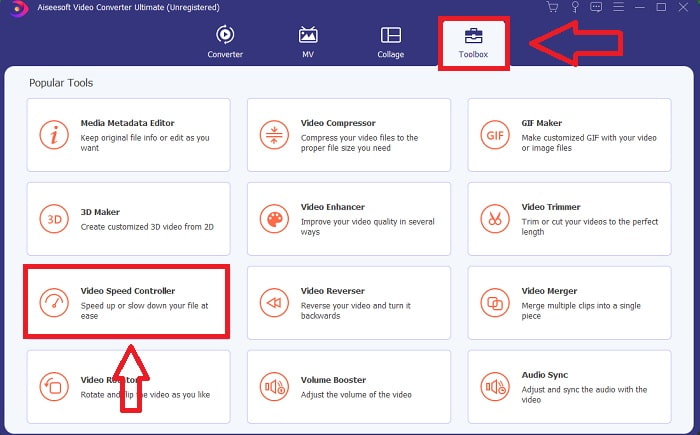
Pas 2: Un cop el programari estigui instal·lat, executa’l seleccionant l’opció Eines de la barra de menús i, a continuació, seleccionant Controlador de velocitat de vídeo de la llista que apareix.
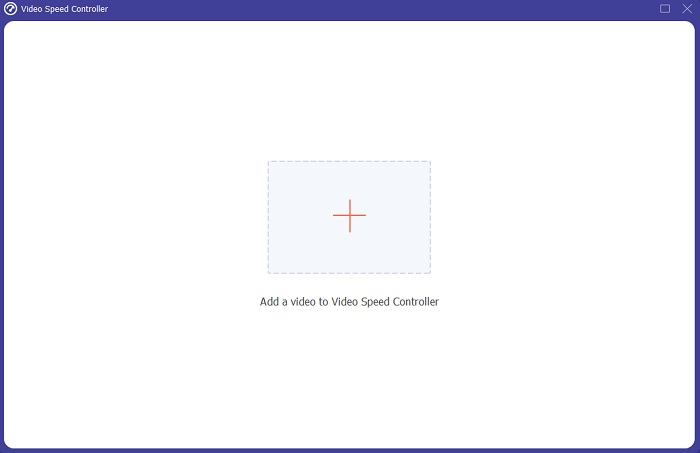
Pas 3: Fes clic al botó + segons la teva preferència per afegir-hi un fitxer i continua editant el vídeo.
Pas 4: Selecciona quantes vegades augmentarà o disminuirà la taxa de fotogrames del vídeo per modificar la velocitat de reproducció.
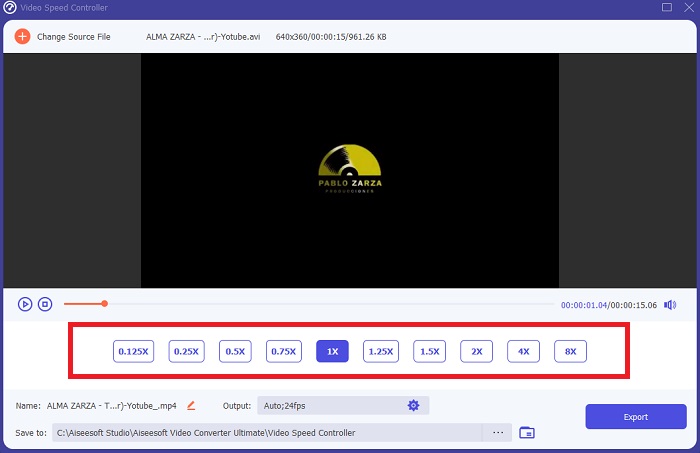
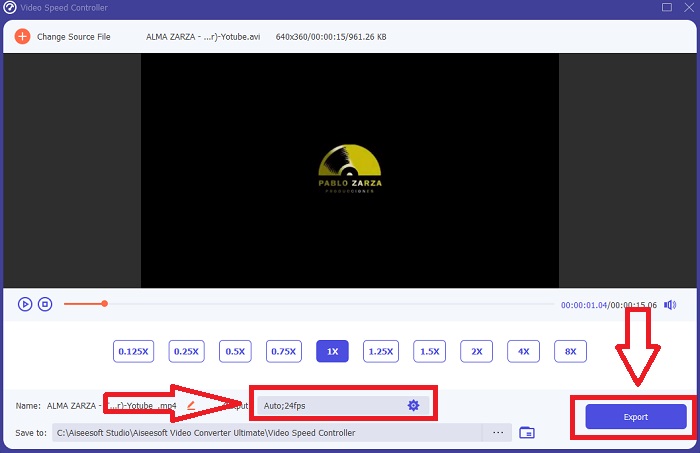
Pas 5: Canviar el format, la resolució, la qualitat, etc., et permetrà triar el resultat que desitgis un cop hagis acabat d’ajustar la velocitat de reproducció del teu vídeo. Fes clic a Exporta i després selecciona una ubicació per desar la teva feina quan acabis.
Part 4. Preguntes freqüents sobre com accelerar els vídeos al Windows Media Player
Com arreglar els vídeos MP4 que no es poden reproduir al Windows Media Player?
Tal com s’ha dit abans a l’article, el Windows Media Player no admet una àmplia gamma de formats de vídeo. Com que només és compatible amb la majoria de formats adequats per a Windows, és difícil solucionar errors utilitzant aquest reproductor multimèdia. Per això has d’aprendre a convertir o saber com reproduir formats de vídeo MP4. L’enllaç aquí és un article útil perquè puguis resoldre aquest problema.
Com reproduir DVD a Windows Media Player?
Algunes pel·lícules són en DVD, i per reproduir-les cal trobar el reproductor multimèdia adequat per a DVD. El Windows Media Player és un dels reproductors multimèdia habituals que poden reproduir DVD. A més, aquest reproductor també incorpora alguns ajustos que ajuden a editar mentre es reprodueix un DVD. Aquí tens més detalls sobre com reproduir DVD al Windows Media Player.
La mida del fitxer del vídeo es fa més petita si augmenteu la velocitat de reproducció?
Només es dividirà el fotograma cada vegada que augmenteu o reduïu la velocitat de reproducció del vostre vídeo. Si l'augmenteu 0,5 vegades més ràpid, el fotograma serà de 60 fotogrames per 1/120 de segon. En resum, no pot afectar el vídeo tret que el vídeo ja tingui una velocitat de fotogrames baixa.
Conclusió
En conclusió, el Windows Media Player pot ser un programari amb mancances que només admet uns quants formats. Tot i així, hi ha algunes funcions que aquest programari pot oferir per solucionar problemes relacionats amb formats de vídeo. Tanmateix, si vols augmentar la velocitat de reproducció del teu clip de vídeo, descarrega Video Converter Ultimate, no només per accelerar el teu vídeo. Aquest programari pot portar el teu vídeo a un altre nivell. Amb totes les funcions disponibles, serà el millor i més accessible programari que et recomanem utilitzar.
-
 WebM a GIF: 3 convertidors gratuïts de WebM a GIF per crear els vostres propis GIF
 WebM és un GIF? Com convertir un vídeo en un GIF? Hi ha un convertidor gratuït de WebM a GIF? Aquesta publicació comparteix 3 maneres gratuïtes d'ajudar-vos a convertir WebM a GIF.
-
 Com convertir vídeos MKV a GIF animats sense Photoshop / FFmpeg
 Després de descarregar i veure pel·lícules MKV a l'ordinador, és possible que vulgueu compartir moments meravellosos amb amics o a Internet com a GIF. En aquest article, podeu obtenir informació sobre les dues maneres més fàcils de convertir MKV a GIF.
-
 Creeu el vostre millor GIF animat mitjançant el creador de GIF en línia [2021]
 Una revisió informativa sobre com fer un GIF amb aquests senzills fabricants de GIF en línia que ja trobeu o no al web.
