


 Video Converter Ultimate
 Screen Recorder
 Oprava videa
 Bezpečné stažení
Jak hrát MP4 v programu Windows Media Player v počítači se systémem Windows 10
Soubor MP4 se někdy nehraje v programu Windows Media Player, ale lze jej přehrát na jiných přehrávačích, jako je VLC Media Player nebo KM Player. Protože MP4 je nejoblíbenější video formát, který je kompatibilní se všemi přehrávači médií a multimediálními zařízeními. Možná máte mnoho video souborů uložených ve formátu MP4. Je docela nepříjemné, pokud se soubor MP4 nepodařilo přehrát v programu Windows Media Player. Jak tedy přehrávat soubory MP4 v systému Windows 10? Není třeba se obávat. Zde jsou všechna řešení, jak opravit Windows Media Player, který nehraje soubory MP4.

Část 1. Proč Windows Media Player nehraje MP4
According to Microsoft, not all versions of Windows Media Player support MP4 file format. Windows Media Player 7, Windows Media Player for Windows XP, Windows Media Player 9 Series, Windows Media Player 10/11 don't support MP4 file format.
Pokud aplikace Windows Media Player nedokáže přehrát videoklip MP4, je pravděpodobně video MP4 poškozené nebo poškozené. V takovém případě můžete zkusit přehrát soubor MP4, který nelze přehrát, v jiném přehrávači médií.
Dalším důvodem, proč Windows Media Player nehraje MP4, je to, že soubor MP4 pro něj nemá správnou sadu kodeků.
Část 2. Hrajte MP4 s nejlepší alternativou k Windows Media Player
If MP4 videos still not playing, you can switch to a media player like FVC Free Video Player. It is a free online video player that plays all popular multimedia files like MP4, MKV, FLV, MOV, AVI, 3GP, MP3, FLAC, AAC, etc. on Windows and Mac. Based on HTML 5 technology, you can play any video files, whether it is from local computer or downloaded.
Step 1. Visit the official website of FVC Free Video Player (https://www.free-videoconverter.net/free-video-player/). Click Play Now button to download and install launcher.

Step 2. Click Open File button to load the MP4 file you want to play. You can also click File menu and select Open File to add the MP4 file.

Once the MP4 video is uploaded, it will be playing on your Windows computer automatically.If you want to edit video effects, you can click Tools and select Effects option and you can adjust hue, brightness, contrast, saturation and gamma to enhance your video.

Část 3. Převod MP4 pro přehrávání v programu Windows Media Player
If Windows Media Player cannot play the MP4 file, one simple way is to convert the MP4 file to other format supported by Windows Media Player. You can use a video converter tool like FVC Video Converter Ultimate to convert the MP4 to the default file format for Windows Media Player like WMV, ASF or WMA.
Zdarma ke staženíPro Windows 7 nebo novějšíBezpečné stažení
Zdarma ke staženíPro MacOS 10.7 nebo novějšíBezpečné stažení
Step 1. Free download, install and launch Video Converter Ultimate on your Windows computer. Click Add Files button to add the MP4 file you want to play.

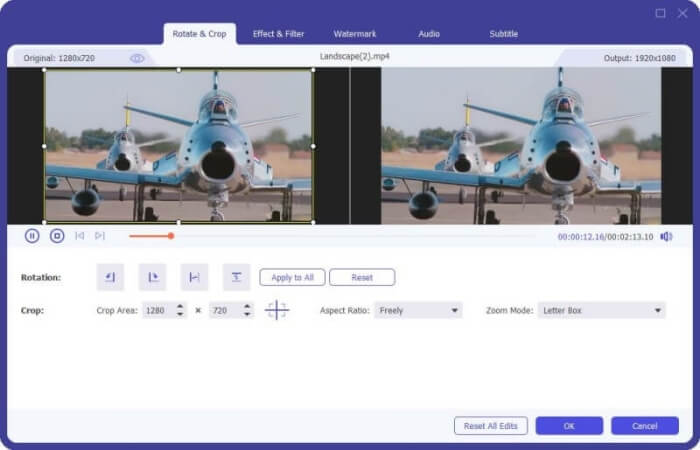
Step 2. If you want to add some effects to your MP4 file, you can click the Edit icon to enter the editing interface. Here you can add effects, apply a filter, rotate or crop the MP4 file, add watermark, adjust audio track and subtitles.
Step 3. Then click the drop-down arrow next to Convert All to, locate in Video tab and select ASF or WMV as the output format.
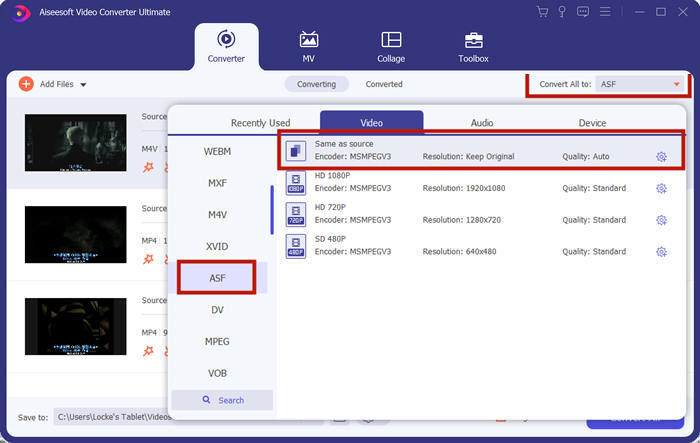
Step 4. Finally, set the output folder where the converted MP4 file will be saved. Click the Convert All button to convert the MP4 file. After conversion, you can play the converted MP4 file in Windows Media Player.

Část 4. Společné tipy pro přehrávání MP4 v programu Windows Media Player
To play MP4 on Windows 10, you can locate in the folder where MP4 files are stored. Right-click on the MP4 file you want to play, select Open with and choose Windows Media Player. As simple as it is, sometimes you may get failed to open MP4 file in Windows Media Player. To fix the issue, you can try the following tips.
1. Hrajte MP4 s jinými přehrávači médií
If your MP4 file doesn't play in Windows Media Player, you can try other media players to open the MP4 file. There are so many media players like FVC Free Video Player, VLC Media Player, KM Player, Real Player, GOM Player, BS Player, DivX Player and more.
2. Nainstalujte správný kodek pro Windows Media Player
Pokud přehrávač Windows Media Player nepřehrává soubor MP4, chybí kodeky. Chcete-li problém vyřešit, musíte nainstalovat správný kodek pro Windows Media Player.
Step 1. Open Windows Media Player. Click Organize menu and select Options.
Step 2. Move to the Privacy tab and check Download usage rights automatically when I play or sync a file option.
Step 3. To play the MP4 file, you can click the OK button to save the changes.
3. Spusťte Poradce při potížích ve Windows
Pokud se MP4 nepodařilo přehrát v programu Windows Media Player, můžete problém vyřešit pomocí nástroje Poradce při potížích v systému Windows 10. Při řešení problému postupujte podle pokynů.
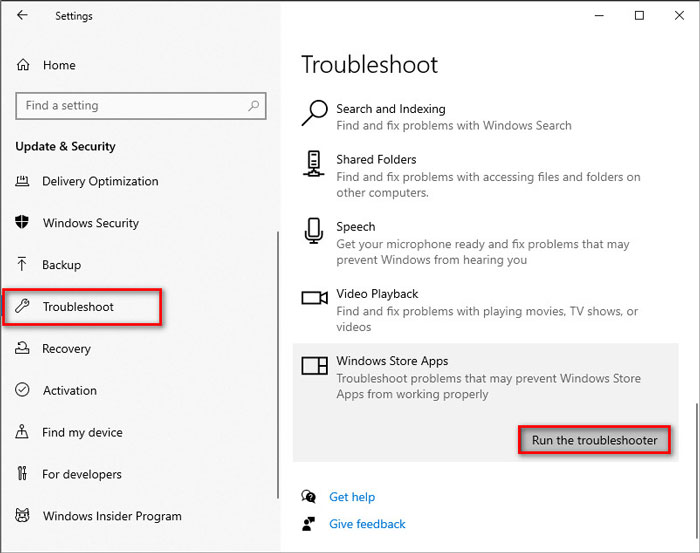
Step 1. On your Windows 10 computer, open Settings and select Update & Security.
Step 2. Go to Troubleshoot area, and click Windows Store Apps.
Step 3. Click Run the troubleshooter button to troubleshoot the Windows Media Player playback issue.
Část 5. Časté dotazy k přehrávání MP4 v programu Windows Media Player
Jaký je výchozí formát videa v programu Windows Media Player?
Výchozí formát souboru Windows Media Player je WMV (Windows Media Video) a WMA (Windows Media Audio). Podporuje také ASF (Advanced Systems Format) a vlastní formát seznamu skladeb založený na XML, Windows Playlist.
Jaký je nejlepší MP4 přehrávač?
There are many popular MP4 players on the market, including FVC Free Video Player, VLC Media Player, KM Player, QuickTime Player, RealPlayer, Media Player Classic, GOM Player, PotPlayer and more.
Mohu hrát MKV v programu Windows Media Player?
Vestavěný Windows Media Player 12 v systému Windows 10 nepodporuje přehrávání MKV. Musíte si nainstalovat správný kodek pro přehrávání.
Závěr
MP4 je nejpopulárnější digitální multimediální formát, který se běžně používá k ukládání videa a zvuku. Je frustrující, pokud se soubor MP4 nepodařilo přehrát v programu Windows Media Player. Doufám, že budete moci své soubory MP4 přehrávat plynule ve Windows 10 se všemi našimi tipy a řešeními. K přehrávání souborů MP4 můžete zkusit jiný videopřehrávač, jako je FVC Free Video Player.
-
 Jak přehrávat soubory MP4 na Disku Google
 MP4 se nehraje na mém Disku Google? Jak přehrávat soubory MP4 na Disku Google? Tento příspěvek popisuje 3 způsoby, jak přehrávat videa MP4 na Disku Google.
-
 Přehrávejte soubory MP4 na Chromebooku 2021
 Můžete na Chromebooku přehrávat videa? Jak přehrávat soubory MP4 z USB na Chromebooku? Tento příspěvek sdílí 3 způsoby přehrávání MP4 v Chromebooku.
-
 Jak hrát DVD na Windows Media Player v roce 2021
 Proč se moje DVD nepřehrává v programu Windows Media Player? Jak přehrávat DVD v přehrávači médií Windows 7? Tento příspěvek sdílí 3 způsoby přehrávání DVD s WMP nebo bez WMP.
