


 Video Converter Ultimate
 Screen Recorder
 Oprava videa
Top 9: Nejlepší software pro úpravu animovaných GIF pro začátečníky [online a offline]
Nejlepší způsob, jak lépe vyjádřit své pocity, je vložit do zprávy GIF. Hlavním účelem je ukládání a podpora animovaných a statických obrázků. Je známo, že GIFy se mohou načítat lépe než ostatní dostupné formáty na webu a jsou mnohem menší. Je více vzrušující vidět GIF než jen obrázek. Ale ne všechny GIFy, které hledáte na internetu, vám mohou poskytnout emoce, které chcete doručit.
Takže místo toho, aby na internetu hledali GIFy, používají software pro úpravu GIFů, aby si vytvořili vlastní. Možná si ale říkáte, jaký nástroj byste měli použít, abyste vytvořili majestátní GIF, který na příjemce zapůsobí. Zde jsou některé z nejlepších nástrojů pro tvorbu GIFů. Všechny níže uvedené nástroje lze použít ke konvertování, úpravě, tvorbě a dalším operacím s GIFy. Pokud tedy hledáte ten správný nástroj na správnou práci, pokračujte ve čtení níže, abyste se o nástrojích dozvěděli víc.

Část 1. Nejlepší offline editor GIF, který funguje efektivně pro PC a Mac
1. FVC Free Video to GIF Maker
Převeďte své oblíbené video do formátu GIF, abyste je mohli snadno posílat přátelům, rodině i komukoli dalšímu. Tento FVC Free Video to GIF Maker vám dává možnost vytvářet vlastní GIFy. Jeho hlavním úkolem je převádět jakýkoli video soubor, ať už jde o MP4, MOV, AVI a mnoho dalších, do formátu GIF. Nabízí také funkce pro úpravy a ořezávání. Tento editor GIFů je dostupný ve všech systémech. Abyste věděli, jak nástroj používat, níže jsou uvedeny podrobné kroky, které je třeba následovat.
Krok 1. Stáhněte nástroj na disk, nainstalujte ho a proveďte základní nastavení.
Zdarma ke staženíPro Windows 7 nebo novějšíBezpečné stažení
Zdarma ke staženíPro MacOS 10.7 nebo novějšíBezpečné stažení
Krok 2. Na obrazovce se zobrazí takovéto rozhraní. Klikněte na Add File nebo soubor do převodníku přetáhněte metodou drag-and-drop.
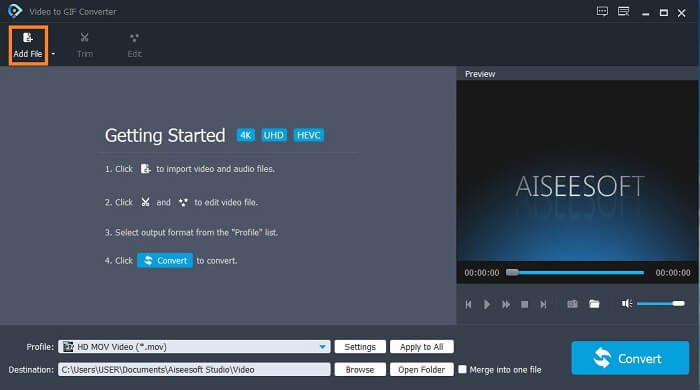
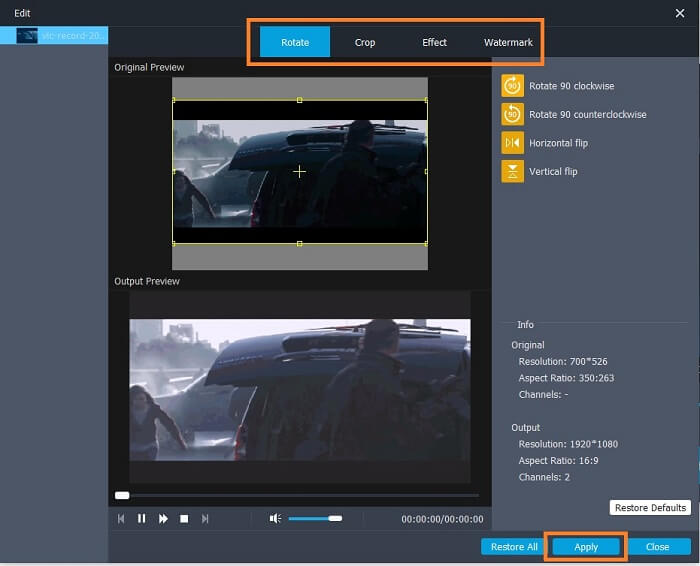
Krok 3. Pokud jste již GIF přidali, můžete ho také oříznout (Trim), aby byl kratší, a kliknutím na OK uložit změny. V části Edit můžete také otáčet, ořezávat, přidávat efekty a vodoznak a změny uložit kliknutím na Apply.
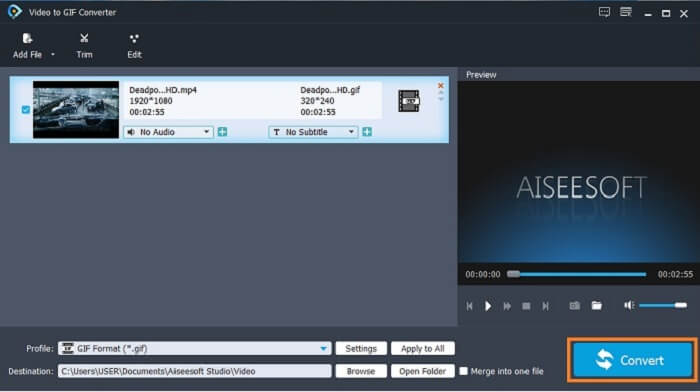
Krok 4. Zvolte destination, tedy místo, kam se má uložit finální výstup. Pro spuštění převodu klikněte na Convert.
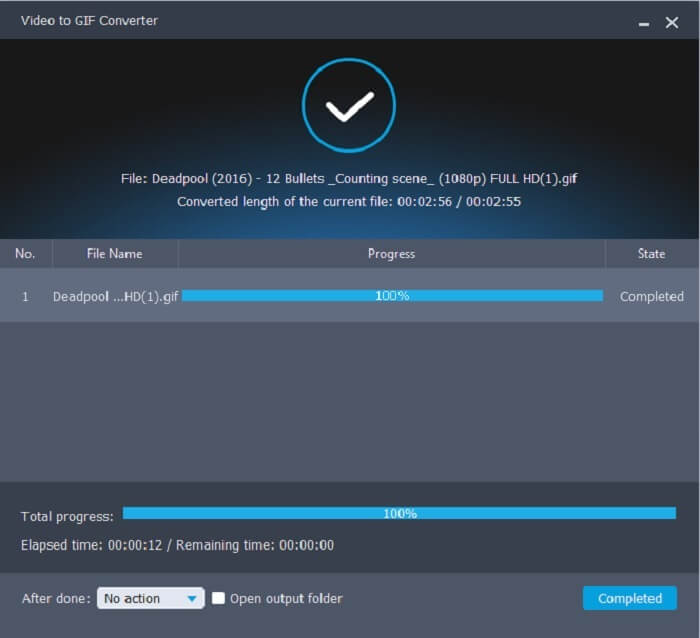
Krok 5. Jakmile je vše hotovo, na obrazovce se zobrazí toto; znamená to, že převod byl dokončen.
Klady
- Nejlepší bezplatný nástroj pro převod formátu videa na GIF.
- Je k dispozici na všech různých známých platformách a vždy produkuje neuvěřitelný výkon.
- Funguje, i když není k dispozici internet.
Nevýhody
- Zde nejsou uvedeny všechny konečné funkce.
- Je to nástroj ke stažení, stejně jako prémiová verze.
2. Video Converter Ultimate
Je známo, že výše uvedený editor GIFů vám poskytne prvotřídní kvalitu při tvorbě GIFů. Věděli jste ale, že existuje nástroj, který je ještě lepší než ten výše i níže? Video Converter Ultimate plně dostojí svému názvu jako ultimátní tvůrce GIFů dostupný na všech platformách. Není jen špičkou v tvorbě GIFů, ale funguje také jako převodník a mnoho dalšího. Přidejte do svého GIFu efekty, aby mezi ostatními vynikl. Pokud tedy soutěžíte s přáteli o nejlepší GIF a chcete vyhrát, máte jedinečnou příležitost je ohromit. Abyste se také dozvěděli, jak nástroj používat, musíte správně následovat tyto kroky, abyste vytvořili úspěšný GIF.
Krok 1. Klikněte na tlačítko pro stažení a nainstalujte program na disk svého počítače. Změňte předvolby a kliknutím na Finish uložte a spusťte nástroj.
Zdarma ke staženíPro Windows 7 nebo novějšíBezpečné stažení
Zdarma ke staženíPro MacOS 10.7 nebo novějšíBezpečné stažení
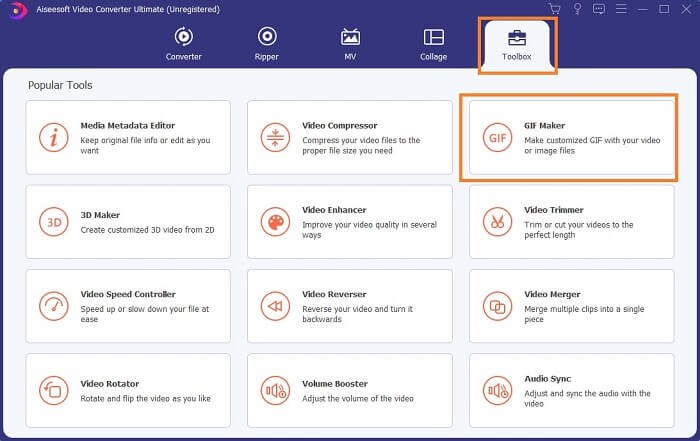
Krok 2. Pokud již nástroj běží ve vašem systému, na obrazovce se objeví takovéto rozhraní. Přejděte do Toolbox a zvolte GIF Maker, abyste mohli začít vytvářet GIFy.
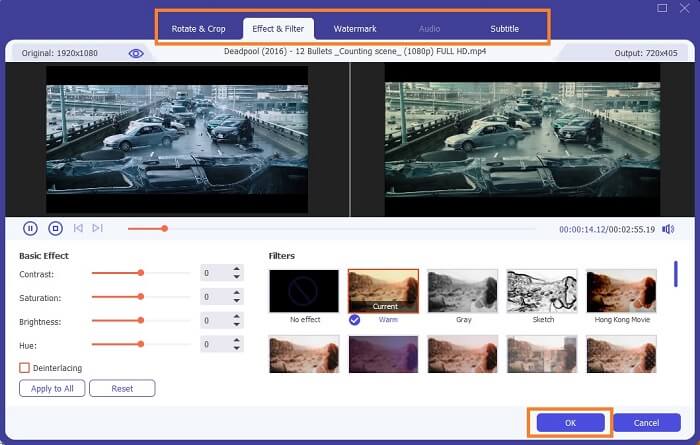
Krok 3. Poté klikněte na Video to GIF a vyberte video, které chcete převést. Po výběru video souboru jej můžete také upravit, například otáčet a ořezávat, použít efektové filtry, přidat vodoznak a také titulky. Kliknutím na OK uložíte úpravy.
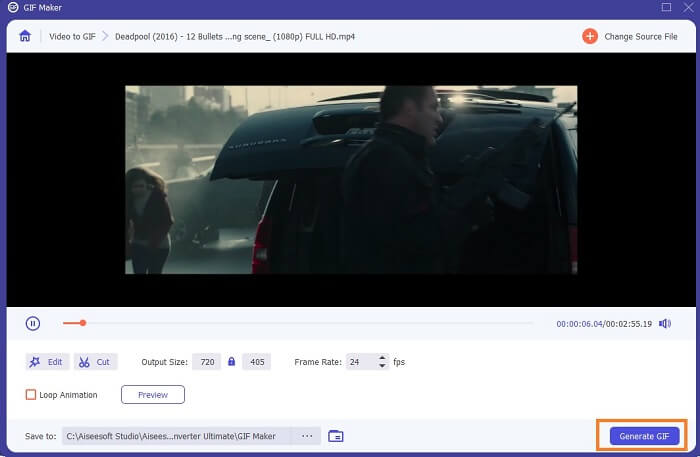
Krok 4. Kliknutím na Preview si přehrajete prvních 10 sekund vytvořeného videa. Stiskněte Generate GIF pro zahájení převodu.
Krok 5. Až bude vše hotovo, vyhledejte soubor v průzkumníku souborů, podívejte se na finální výstup nebo jej odešlete dál.
Klady
- Nejlepší převaděč videa pro GIF s dokonalým nástrojem pro vylepšení GIF.
- Podporuje všechny známé i neznámé video-audio formáty na webu.
- Víceúčelový nástroj s vynikajícím konečným výstupem.
Nevýhody
- Je to nástroj s platbou za použití, ale je levnější.
- Než jej budete moci použít, musíte si jej stáhnout do svého úložiště.
Část 2. 3 nejlepších online editorů GIF
1. Ezgif
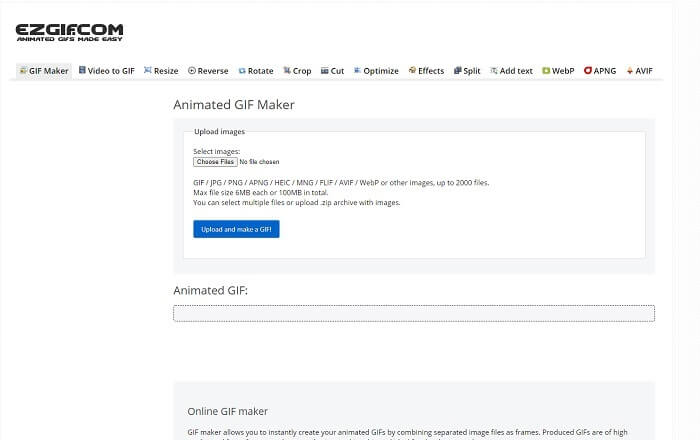
Jeden z online editorů GIFů, na který jste na internetu možná už narazili. Ezgif je známý jako jeden z nejlepších tvůrců GIFů. Ačkoli vám tento nástroj nabízí řadu funkcí, jako je otáčení videa, ořezávání, převracení a další, všechny jsou oddělené, takže místo soustředění se na samotnou tvorbu a úpravu GIFu musíte soubor neustále přesouvat mezi jednotlivými editačními moduly, což je nepohodlné. Rozhraní má navíc bílé pozadí, které je sice jednoduché, ale nudné na pohled. Zdá se, že tento online nástroj dlouho neprošel žádnou aktualizací vzhledu.
Klady
- Bodový nástroj s různými možnostmi.
- Nástroj webové stránky je jednoduchý.
- Efektivní při vytváření GIFů.
Nevýhody
- Je omezen na 6 MB každý a 100 MB celkem.
- Není to uživatelsky přívětivé, protože všechny funkce nástroje jsou na celém webu. A je to trochu nudné dívat se kvůli jeho čistému bílému pozadí.
2. VEED.IO
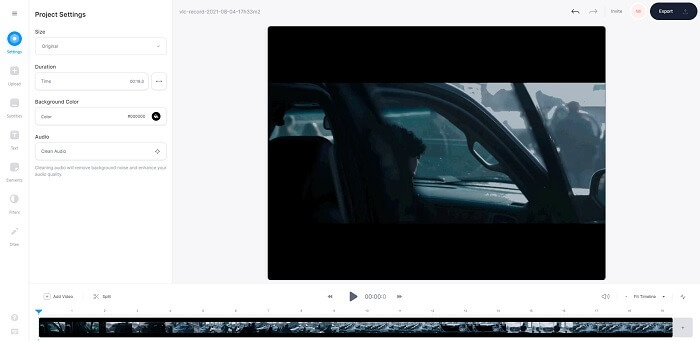
Další online editor GIFů pro tvorbu GIFů je VEED.IO. S tímto nástrojem můžete vytvářet, upravovat a převádět vlastní videa do formátu GIF. Hlavní web nástroje vypadá na rozdíl od Ezgifu poměrně dobře. Jakmile však začnete GIFy online vytvářet, stránka nástroje začne reagovat pomalu a navíc není úplně bezpečná. Také raději nezadávejte svá hesla ani údaje o platebních kartách, protože existuje riziko, že je může útočník odcizit.
Klady
- Lepší zákaznická podpora.
- Poskytuje profesionální verzi nástroje.
- Snadný přístup přes internet.
Nevýhody
- Webový nástroj je nechráněný. Navštěvujte tedy na vlastní nebezpečí.
- Žádné funkce 3D úprav.
3. Giphy
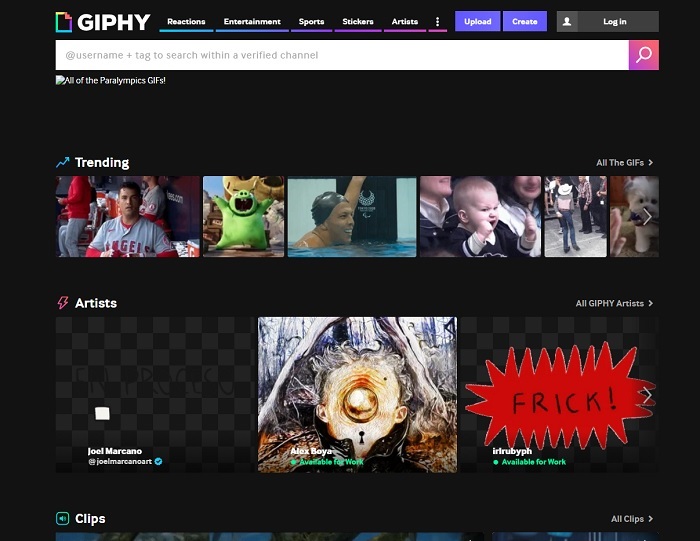
Giphy je online editor animovaných GIFů. Tento nástroj nabízí ukázkové GIFy, například reakce, zábavu, sport a samolepky. Přestože patří mezi nejlepší tvůrce GIFů, pro jeho používání potřebujete účet. V podstatě tím umožníte webu přístup k vašemu účtu. Mějte tedy na paměti, že aktualizace, nové funkce nebo nové GIFy z tohoto nástroje vám budou neustále chodit do e‑mailu.
Klady
- Nahrávejte a vytvářejte GIFy online.
- Největší knihovna pro bezplatné GIFy, klipy a samolepky na webu.
- Rozhraní je aktuální a vypadá úžasně.
Nevýhody
- Před použitím nástroje se budete muset zaregistrovat. Pokud se tedy nepřihlásíte nebo nepřihlásíte, bude nástroj nepřístupný.
- Maximální délka pro GIF je pouze 30 sekund.
Část 3. Aplikace editoru GIF pro Android a iOS
1. GIPHY: GIF & Sticker Keyboard & Maker
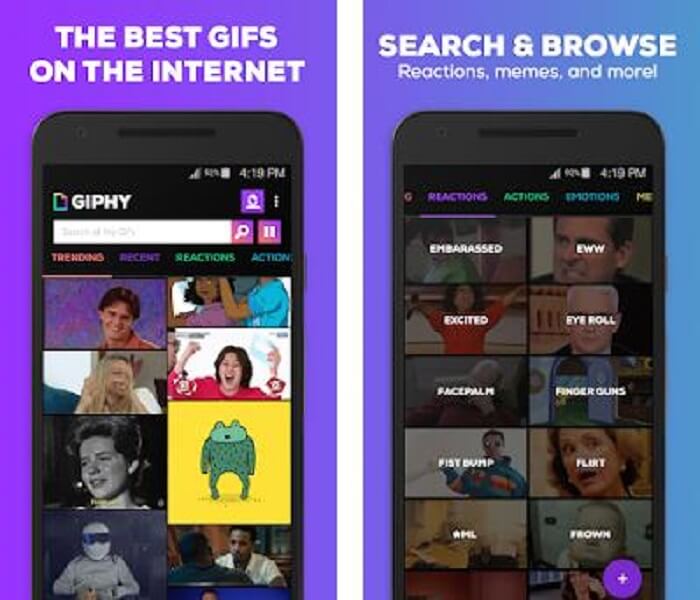
Další aplikací pro úpravu GIFů dostupnou pro Android a iOS je GIPHY: GIF & Sticker Keyboard & Maker. Je známá jako jedno z největších úložišť GIFů v celém Play Storu a App Storu. Nejenže nabízí hotové GIFy, ale umožňuje vám také vytvářet vlastní. Své GIFy můžete v aplikaci i sdílet. V některých případech však při nahrávání GIFů, které při tvorbě nebo ve vašem telefonu fungují bezchybně, aplikace způsobí, že jsou trochu zasekané a některé části GIFu běží rychleji a jiné pomaleji.
Klady
- Úžasné GIFy, samolepky a videoklipy.
- Malé nebo žádné reklamy v aplikaci.
- Upravte své GIFy a přidejte do nich více estetických animací.
Nevýhody
- Při některých příležitostech, když si stáhnete GIFy z této aplikace, získáte statické obrázky. Místo stahování do formátu .gif se z něj stal .jpeg.
- Přihlášení do aplikace je trochu otravné, protože v některých případech se nemůžete přihlásit správně a musíte to udělat více.
2. ImgPlay – GIF Maker
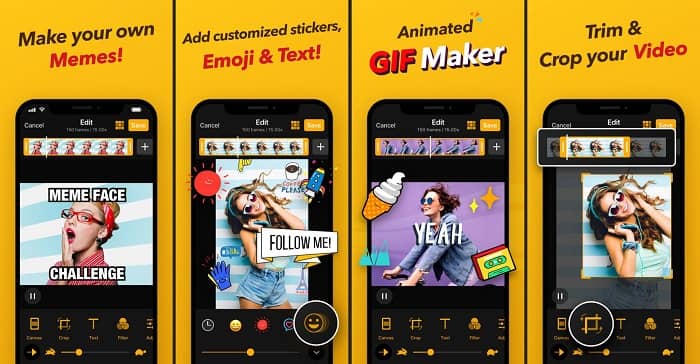
Nejlepší a nejjednodušší způsob, jak vytvořit GIF z videa nebo obrázků. Imgplay dokáže z vašich obrázků nebo videí vytvořit plně funkční GIF. Tato aplikace vám poskytuje špičkové funkce, díky nimž může váš GIF co nejvíce vyniknout. Pokud si finální GIF uložíte, objeví se v pravém dolním rohu vodoznak. Pro jeho odstranění musíte zaplatit za prémiovou verzi nástroje.
Klady
- Podporuje zařízení Android a iOS.
- Pokud si koupíte prémiovou verzi nástroje, použijte na svůj GIF více než 30 filtrů, aby byl lepší.
- Vytvářejte snadno GIFy ze svých videí a obrázků.
Nevýhody
- Funguje to lépe na iOS než na Androidu. V zásadě nemůžete nastavit jas, kontrast, sytost a obnovovací kmitočet také pomocí dalších hlavních funkcí systému Android.
- Očekávejte také reklamy na tyto aplikace. Chcete -li je odstranit, musíte si zakoupit prémiovou verzi. Jeho fps je také velmi nízký.
3. DÁREK
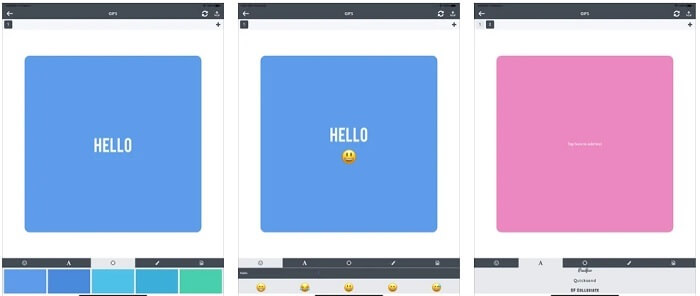
Tento editor GIFů je dostupný pouze pro iOS. GIFX zvládne vytvořit ten nejlepší GIF, jaký chcete mít. Podporuje převod obrázků i videí do formátu GIF. Svůj výsledek můžete také sdílet přes MMS a e‑maily. Navíc umožňuje přidávat do GIFu emoji a text, takže můžete lépe vyjádřit své emoce.
Klady
- Vytvořte si vlastní animovaný GIF s touto aplikací pro iOS.
- Podporuje různé produkty Apple, jako jsou iPad, iPhone, iPod touch a Mac.
- Pomocí tohoto nástroje upravte rychlost svého GIF.
Nevýhody
- Tento nástroj říká, že podporuje videa, ale neumožňuje vám přidávat videa do GIF.
- Hodnocení aplikace je pouze 1 hvězdička a obdrží pouze 2 recenze, což je na aplikaci velmi nízké.
4. GIF Studio
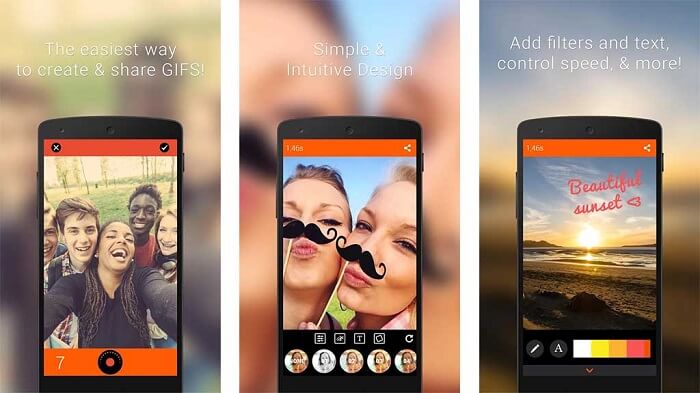
Pokud hledáte nejlepší aplikaci – editor GIFů, pak by to mohl být GIF Studio. Dává vám možnost naplno využít svou představivost při tvorbě GIFů. S touto aplikací můžete animované GIFy vytvářet, upravovat a přehrávat. Pokud patříte mezi uživatele, pro které je tvorba GIFů složitá, tento nástroj vám ji výrazně usnadní. Nabízí vám také další funkce, díky nimž budou vaše GIFy ještě působivější.
Klady
- Sloučit více GIF do jednoho.
- Přidejte do svých GIF text a vytvořte si přání.
- Sdílejte své GIFy a snadno je uložte.
Nevýhody
- Protože to vývojáři dělají jednoduše. Uživatelské rozhraní je děsivé. Naučit se používat tuto aplikaci bude trochu náročné.
- Nepodporuje GIF, které byly vytvořeny od jiného výrobce GIF.
Část 4. Časté dotazy k editoru GIF
Existují jiné formáty, které mohou ukládat pohyblivé obrázky, jako může poskytovat GIF?
Po 30 letech, kdy byl jedním ze slavných formátů obrazu a videa. Už se stalo konkurentem: APNG, AVIF, MNG, WebP a FLIF.
Jaká komprese dat je GIF?
Jde o bezztrátovou kompresi, takže při komprimaci dat nedochází ke ztrátě kvality a formát se snadno přenáší po internetu. Pokud je váš GIF velký, můžete se podívat na Jak zkomprimovat animovaný GIF na malou velikost souboru
Jaký GIF rekordér mohu použít k záznamu formátu GIF?
Můžete použít FVC Screen Recorder, GIF rekordér ke stažení dostupný na všech různých platformách, poskytující formát GIF a další. Se super vysokou kvalitou a mnoha dalšími možnostmi. Stáhnout FVC Free Screen Recorder pro Windows Stáhněte si FVC Free Screen Recorder pro Mac
Závěr
A teď, když je zcela jasné, že nejlepší způsob, jak předat skvělou zprávu, je použít GIF. Přestože je použití nezpracované zprávy dobré, přidání GIF je mnohem lepší. Výběr nejlepšího editoru GIF je tedy nutností k dodání správného tónu zprávy, kterou chcete sdílet, a jasného prohlášení nebo přidání veselého tónu. Vyberte si dokonalý nástroj k vytvoření dokonalého GIF, abyste udělali nejlepší dojem, který chcete sdílet.
-
 Jak převést AVI videa na animované soubory GIF ve Windows / Mac
 Chcete vybrat zajímavé segmenty AVI a vytvořit memy GIF? Tento článek vám řekne 2 nejlepší metody ořezávání videí AVI a převádění AVI na animované soubory GIF zdarma.
-
 [Vyřešeno] Jak převést videa FLV na animované soubory GIF zdarma
 Pokud chcete vytvořit GIF ze segmentů videa FLV pro lepší odesílání, můžete se z tohoto článku dozvědět více o tom, jak snadno převést videa FLV do souborů GIF.
-
 [2 řešení] Jak snadno a zdarma převést soubory SWF na soubory GIF
 Pokud se vám nepodaří exportovat formát GIF pomocí softwaru Flash, můžete zkusit nejprve uložit soubory ve formátu SWF. Pak se z tohoto článku můžete naučit 2 snadné způsoby převodu souborů SWF na GIF.
