


 Video Converter Ultimate
 Screen Recorder
 Oprava videa
Jak oříznout GIF pomocí nejlepších řezaček GIF
Výběr správných GIFů k dané zprávě je nutností, aby byl doručen správný tón toho, co chcete sdělit. Některé GIFy je ale třeba oříznout, aby se ukázal jejich skutečný záměr. Pokud se někdy pokusíte GIF oříznout, neměla by být ovlivněna jeho kvalita a měl by si zachovat stejné fps. V určité chvíli může být výběr správného nástroje pro ořez GIFu trochu obtížný, protože ne všechny nástroje ořez vůbec umožňují. A některé nástroje, které ořez podporují, zase ztrácejí kvalitu a fps GIFů. V tomto článku si můžete vybrat svůj nejlepší ořezávač GIFů, všechny zde uvedené nástroje jsme již otestovali, abychom vám poskytli ověřené informace. Zároveň vám představíme nejlepší ořezávač GIFů dostupný na všech platformách a ukážeme, jak jej používat. Pokračujte ve čtení tohoto textu, abyste se o tom dozvěděli víc.

Část 1. Nejlepší GIF Cropper, který podporuje operační systémy Windows a Mac
1. FVC Free Video to GIF Maker
Tento nástroj je dostupný na všech platformách, jako jsou Windows a Mac. Jde o nejlepší ořezávač animovaných GIFů, který vyvinula společnost FVC – jedná se o FVC Free Video to GIF Maker. Tento software umožňuje uživatelům prozkoumat a vylepšit již vytvořené GIFy nebo také vytvářet nové. Pokud tedy chcete svůj GIF oříznout, tento nástroj vám s tím pomůže, a to i bez připojení k internetu. Ořízněte svůj GIF tak, aby byl výraznější, snadno a efektivně. Abyste zjistili, jak GIF oříznout, postupujte podle níže uvedených kroků.
Krok 1. Nainstalujte nástroj na disk a upravte předvolby podle svých požadavků.
Zdarma ke staženíPro Windows 7 nebo novějšíBezpečné stažení
Zdarma ke staženíPro MacOS 10.7 nebo novějšíBezpečné stažení
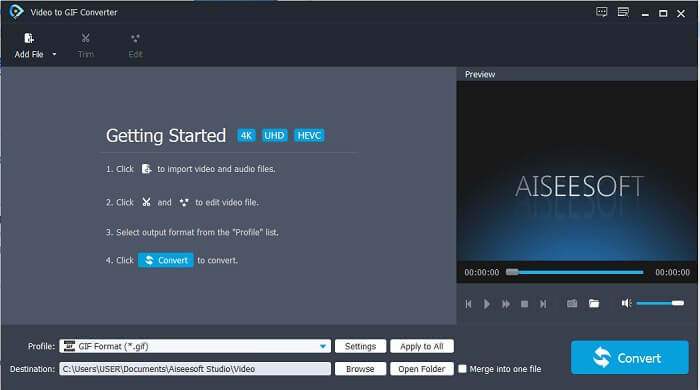
Krok 2. Po spuštění nástroje se na obrazovce zobrazí takovéto malé rozhraní.
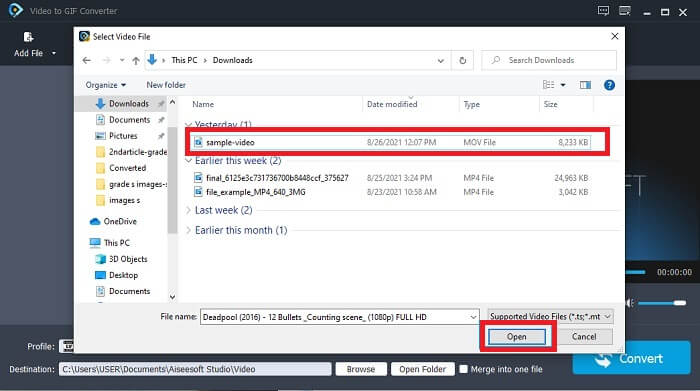
Krok 3. Klikněte na Add File nebo také můžete video jednoduše přetáhnout a upustit do rozhraní nástroje.
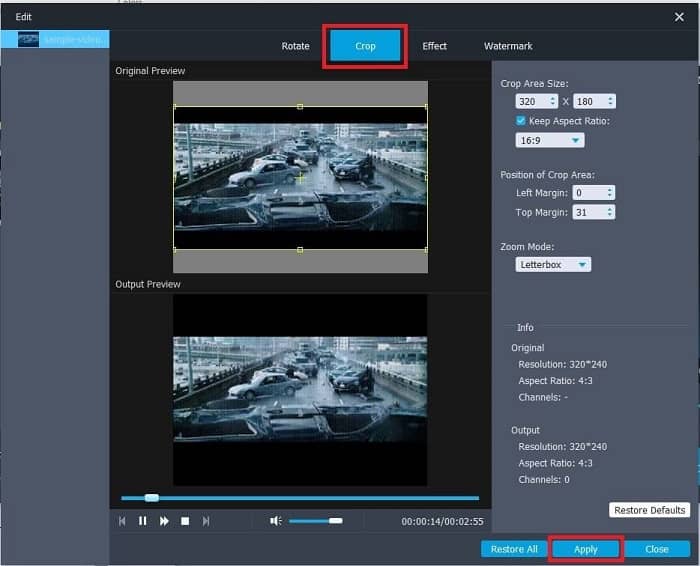
Krok 4. Klikněte na Edit, abyste GIF vylepšili. Přejděte na Crop a upravte velikost GIFu. Můžete také změnit Aspect Ratio a Zoom Mode. Klikněte na Apply, aby se uložily provedené úpravy.
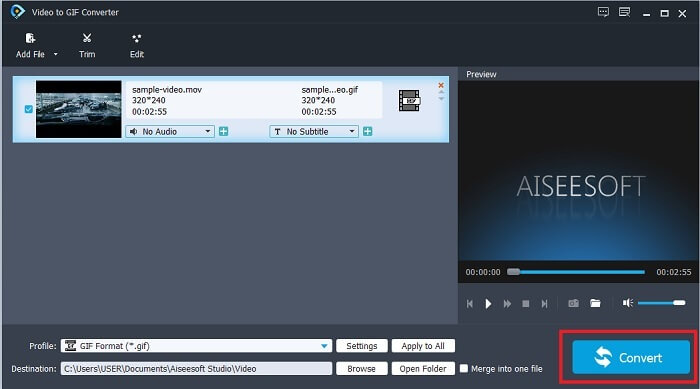
Krok 5. Klikněte na Convert, abyste spustili převod videa na GIF. Po dokončení převodu můžete finální výstup najít v Průzkumníku souborů zadáním názvu videa.
Klady
- Všechny drobné funkce jsou k dispozici zde.
- Je to mnohem lepší než online nástroj a také některé nástroje ke stažení.
- S tímto nástrojem snadno vytvoříte svůj GIF.
Nevýhody
- Nelze používat hlavní funkce, které verze Ultimate poskytuje.
- Podporuje méně formátované video než prémiovou verzi.
2. Video Converter Ultimate
Bezplatná verze tohoto nástroje zvládne jednoduchou práci, ale její prémiová verze je nejlepší ořezávač GIF. Video Converter Ultimate není jen název, ale také to, že tento nástroj je dokonalým nástrojem pro převod jakéhokoli videa do souboru GIF. Na rozdíl od své bezplatné verze a níže uvedeného nástroje může tento nástroj učinit váš jednoduchý GIF nádhernějším. Proměňte svůj GIF na vynikající přidáním efektů, které tento nástroj může poskytnout pouze. Poskytuje také konverzi videa do formátu GIF, jako je MP4 do GIF, sloučení videí do jednoho, 3D tvůrce a mnoho dalších. Použijte tento nástroj jako svůj osobní ořezávač a nikdy vás nezklame. Kromě toho pokračujte ve čtení níže uvedených kroků, abyste věděli, jak oříznout svůj GIF a doručit příjemci konkrétnější zprávu.
Krok 1. Než tento nástroj použijete, musíte si jej stáhnout. Nainstalujte jej na disk, změňte předvolby podle svých požadavků a klikněte na finish, aby se nástroj spustil na obrazovce.
Zdarma ke staženíPro Windows 7 nebo novějšíBezpečné stažení
Zdarma ke staženíPro MacOS 10.7 nebo novějšíBezpečné stažení
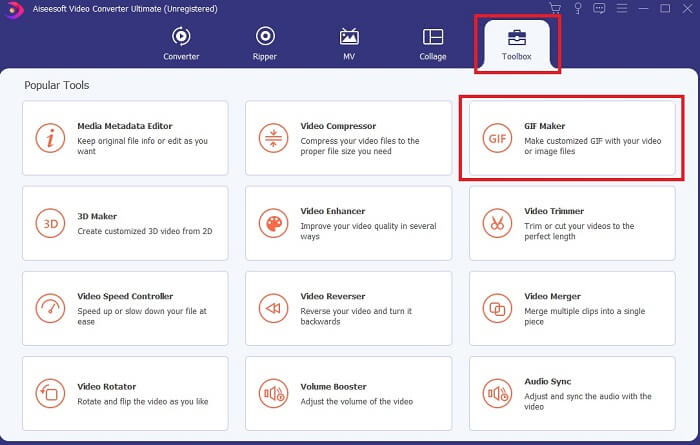
Krok 2. Jakmile je nástroj plně stažen do vašeho disku, na obrazovce se zobrazí takovéto přehledné rozhraní. Klikněte na Toolbar a v toolbaru zvolte GIF Maker.
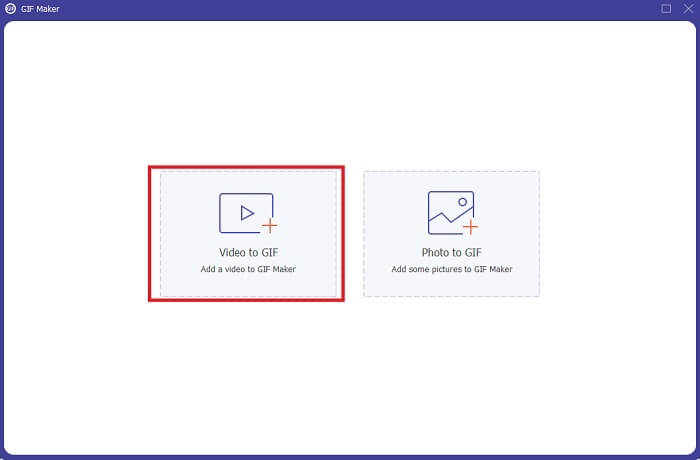
Krok 3. Pro přidání videa klikněte na Video to GIF a vyhledejte GIF, který chcete oříznout nebo dále upravit. Po výběru videa klikněte na Open, abyste spustili GIF Maker.
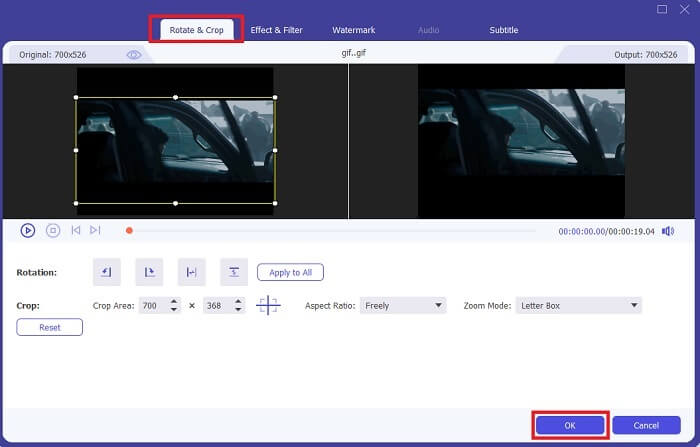
Krok 4. Klikněte na tlačítko s obrázkem hvězdy, abyste začali s úpravami. Klikněte na Rotate & Crop, abyste zahájili ořez GIFu. Můžete také přidat efekty a filtry, vodoznak a titulky. Jakmile úpravy dokončíte, klikněte na OK, aby se změny uložily.
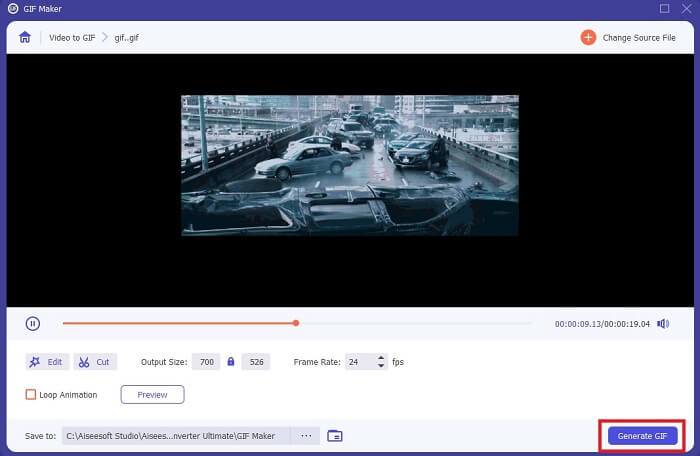
Krok 5. Změňte umístění, kam se má uložit finální výstup, aby se vám snadněji hledal. Klikněte na Generate GIF, abyste spustili převod. Když je převod 100% hotový, najděte finální výstup v umístění, které jste zvolili, případně ve správci souborů.
Klady
- Pokud chcete svůj GIF vylepšit na mnohem interaktivnější, váš nástroj, který chcete použít. Použijte svou představivost, abyste okořenili věci do svých GIFů.
- Díky vašim hlavním funkcím, které poskytuje jiná prémiová verze, může váš GIF vytvořit působivý výstup.
- Více než milion uživatelů si vybralo tento nástroj jako nástroj prémiové verze první volby.
Nevýhody
- Chcete -li nástroj používat, musíte nejprve poskytnout platbu, ale není to tak drahé. Pokud jste si tedy koupili tento nástroj, nesmíte očekávat nic menšího.
- Stáhněte si nástroj před spuštěním. I když nemáte internet, můžete tento nástroj stále používat, protože není závislý na internetu.
Část 2. Top 5 nejlepších GIF ořezávačů, ke kterým máte přístup přes internet
1. iLoveIMG
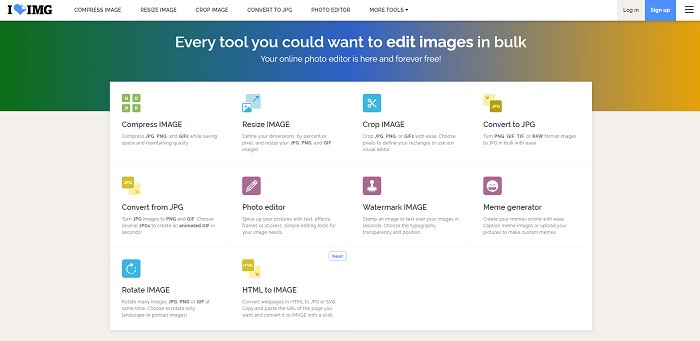
Ořízněte svůj GIF pomocí tohoto online ořezávače GIFů. iLoveIMG je známý jako jeden z nejlepších online nástrojů pro ořez GIF, JPG a PNG. Tento nástroj sice neumí převádět videa do formátu GIF, protože se zaměřuje pouze na vylepšování GIF, JPG a PNG, ale rozhraní webu je nad očekávání – není jen jednoduché, ale i velmi interaktivní. Při používání stránky se tedy rozhodně nebudete nudit. Na stupnici hodnocení bychom mu dali 7 z 10, což je na webovou aplikaci velmi dobré.
Klady
- Nejlepší je vylepšit GIF, JPG a PNG.
- Rozhraní webu je úžasně krásné.
- Není třeba stahovat.
Nevýhody
- Pokud bylo připojení přerušeno, může dojít ke ztrátě dat.
- Formát videa nelze převést do formátu GIF.
2. RedKetchup
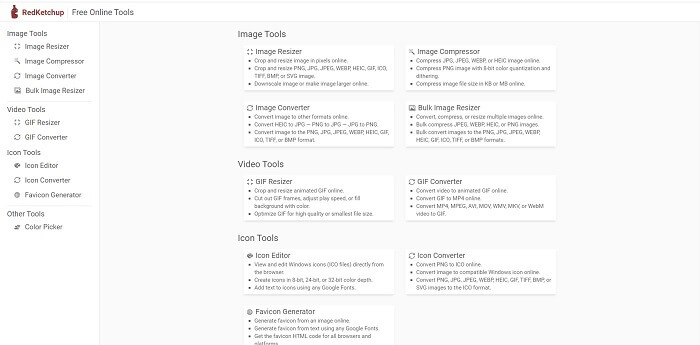
Pokud pro vás iLoveIMG není to pravé, měli byste vyzkoušet tento online ořezávač GIFů. RedKetchup je velmi informativní díky popisům, které poskytuje u každého nabízeného editačního nástroje. Díky tomu snadněji pochopíte, jak jednotlivé funkce fungují, i když o nich nemáte žádnou představu. Můžete také převádět své obrázky do formátů GIF, PNG, JPG, WEBP a dalších. Podporuje více formátů než iLoveIMG, ale nevýhodou tohoto nástroje je, že rozhraní webové stránky je poměrně nudné. Celé pozadí webu je bílé a jediná věc, která má barvu, je název a ikona RedKetchup.
Klady
- Podporuje více formátů obrázků než iLoveIMG.
- Každá funkce nástroje má stručný popis, aby uživatel porozuměl jeho funkcím.
- Jedná se o bezplatný online nástroj.
Nevýhody
- Webová stránka tohoto nástroje je tak nudná, protože je monotónní.
- Pokud je váš internet nestabilní, existuje šance, že soubor nebude uložen správně.
3. Kapwing
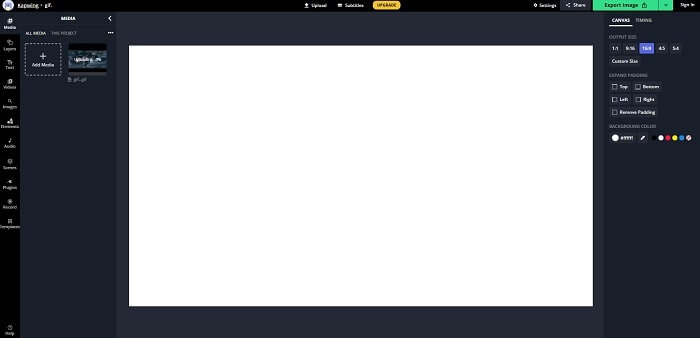
Tento nástroj má téměř stejné funkce jako Photoshop, ale je online. Jde o nejlepší online ořezávač snímků GIF. Kapwing je známý tím, že umožňuje vytvářet skvělé GIFy, které chcete sdílet se svými přáteli. Na rozdíl od prvních dvou nástrojů výše tento podporuje některé video formáty, které lze převést do formátu GIF. Naučit se tento nástroj používat vám sice zabere nějaký čas, ale vyplatí se to. Pokud však chcete vytvořit jen jednoduchý GIF, je na to tento nástroj ideální. Tento nástroj má téměř stejné funkce jako Photoshop, ale je online. Je to nejlepší online ořezávač snímků GIF. Kapwing je známý tím, že umožňuje vytvářet skvělé GIFy, které chcete sdílet se svými přáteli. Na rozdíl od prvních dvou nástrojů výše tento podporuje některé video formáty, které lze převést do formátu GIF. Naučit se tento nástroj používat vám sice zabere nějaký čas, ale vyplatí se to. Pokud však chcete vytvořit jen jednoduchý GIF, je na to tento nástroj ideální.
Klady
- Rozhraní webové stránky nástroje vám s Photoshopem poskytne téměř stejnou atmosféru.
- Převeďte své video do formátu GIF.
- K dispozici jsou základní funkce úprav.
Nevýhody
- Zpracování konečného výstupu videa bude vždy záviset na tom, jak rychlý je váš internet. K vytvoření konečného výstupu je tedy zapotřebí hodně trpělivosti.
- K odstranění vodoznaku z výstupu se budete muset zaregistrovat. Očekávejte tedy e -mail o každé aktualizaci, kterou říká, a nějaká otravná oznámení. Protože jste jim umožnili přístup k vašemu účtu.
4. DÁRKY
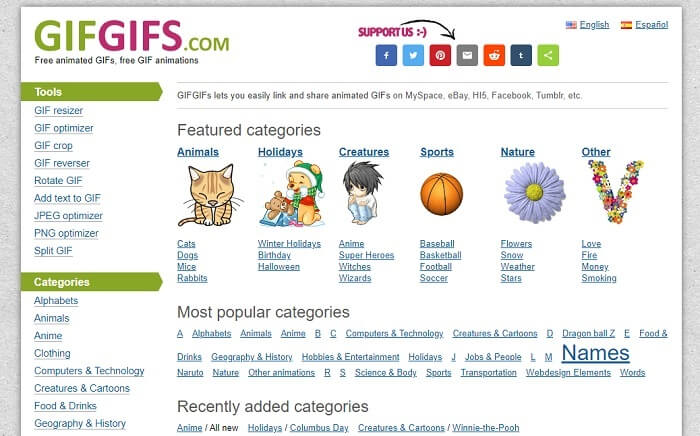
Své GIFy můžete oříznout pomocí tohoto ořezávače GIFů bez ztráty kvality. GIFGIFs vám poskytuje ty nejlepší hotové GIFy online. Můžete si vybrat z kategorií, které nabízí, jako abeceda, sport, anime, oblečení atd. Tento nástroj navíc nenabízí jen funkce pro vylepšování GIFů, ale umožňuje také optimalizaci JPG a PNG.
Klady
- Je to dobrá volba, jak vylepšit svůj GIF na lepší.
- Podporuje optimalizaci JPEG, PNG a GIF.
- Vyberte si již hotové GIFy v sekci kategorie.
Nevýhody
- Neposkytuje vyhledávací lištu, takže je těžké najít perfektní GIF, který chcete použít.
- Rozhraní je v pořádku. Není to nic zvláštního, nebo bychom měli říci, že to není dobré, ale ani špatné.
5. VEED.IO
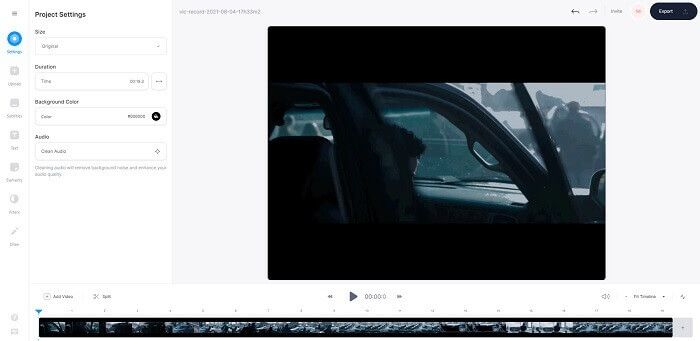
Vyberte si to jako svůj první výběr bezplatného ořezávače GIF online, ale pokud chcete, lze jej také upgradovat na prémiovou verzi. VEED.IO je jedním z nejlepších online nástrojů pro vylepšení vašich GIFů na lepší. Bezplatná verze nástroje však podporuje pouze 50 MB velikosti souboru GIF a pro přidání větší velikosti souboru si musíte zakoupit prémiovou verzi nástroje.
Klady
- Poskytuje skvělou funkci úprav, aby byl váš GIF lepší.
- Jednoduché uživatelské rozhraní.
- Pokud chcete, můžete také přidat titulky.
Nevýhody
- Neposkytuje 3D maker pro vylepšení vašich 2D obrázků.
- Při některých příležitostech dojde k chybě softwaru při pokusu o přiblížení časové osy.
Část 3. Časté dotazy o GIF Cropper
Existuje nějaký lepší formát než formát GIF?
Ačkoli je velmi dobře známo, že GIF je nejlepší formát pohyblivého obrazu na webu. Věděli jste ale, že existuje lepší formát než GIF? Toto je APNG. Tento formát poskytuje více barevných palet než GIF a je také lepší v kompresi. Můžete ale také použít WEBP, MNG, FLIF a AVIF.
Jaký je důvod, proč se vytvářejí GIFy?
Koncem roku 1987 se jistý Steve Wilhite sám sebe zeptal, zda je možné vytvořit malý souborový formát pro zobrazení obrázků v počítači – a tehdy se zrodil GIF. Chcete-li se o GIFech dozvědět víc, můžete kliknout sem.
Který je lepší? JPG nebo GIF?
Formát JPG vám poskytne podrobnější obraz, protože podporuje širokou škálu barev, takže je nejlepší při fotografování. GIF poskytuje malé množství palety barev, ale je dobrý při vytváření statického obrázku.
Závěr
Na závěr je třeba říct, že si musíte zvolit takový ořezávač GIFů, který vám poskytne přesně takový ořez, jaký potřebujete, aniž by ovlivnil kvalitu samotného GIFu, i když jej výrazně oříznete. Je však zřejmé, že byste si měli vybrat ultimátní nástroj vyvinutý společností FVC. Nabízí vám totiž ty nejlepší funkce pro práci s GIFy, které chcete do svého GIFu přidat, aby vypadal výrazněji než ostatní. Ořezávání GIFů je tak díky použití Video Converter Ultimate jednodušší než kdy dřív.
-
 Výukový program pro kompresi GIF a zmenšení jeho velikosti souboru s vysokou kvalitou
 Tady jsou 2 snadné způsoby, jak komprimovat GIF na počítači nebo mobilním telefonu. Můžete použít FVC Free Online Video Compressor a Photoshop ke zmenšení velikosti souboru GIF v různých aspektech.
-
 GIF Player - 5 nejlepších hráčů GIF pro Windows PC, Mac, Android a iPhone
 Jaký program otevírá soubory GIF? Jak zobrazím soubory GIF v systému Android? Má iPhone přehrávač GIF pro otevírání souborů GIF? Tento příspěvek za vás sdílí 5 nejlepších hráčů GIF.
-
 Jak převést AVI videa na animované soubory GIF ve Windows / Mac
 Chcete vybrat zajímavé segmenty AVI a vytvořit memy GIF? Tento článek vám řekne 2 nejlepší metody ořezávání videí AVI a převádění AVI na animované soubory GIF zdarma.
