


 Video Converter Ultimate
 Screen Recorder
 Oprava videa
Jak odstranit vodoznak z GIFu online [Krok za krokem]
Přidání vodoznaku do GIFu se stalo jedním ze způsobů, jak GIF zabezpečit, ale co když potřebujete vodoznak, který jste do svého GIFu přidali, zase odstranit? Co byste měli udělat? Má váš GIF Maker tuto funkci? Nemá odstraňovač vodoznaku? Víme, že je nepříjemné mít takový problém, že? Ale není třeba se bát, protože na všechny tyto otázky najdete odpověď níže – našli jsme čtyři nástroje na odstranění vodoznaků, které můžete používat offline i online. Tyto nástroje jsou pečlivě vybrané z trhu, aby vám poskytly to nejlepší pro odstranění vodoznaku z GIFu.

Přehled těchto aplikací
| Video Converter Ultimate | Online nástroje GIF | WatermarkRemover.io | Pixlr | PhotoShop | |
| Řešení | 8 tis | 1080P | 5 tisíc | 8 tis | 300 tisíc |
| Rychlost procesu | Rychle | Střední | Střední | Rychle | Záleží na vašem hardwaru |
| Hardwarové požadavky | Nízký | N/A | Střední | Vysoký | Velmi vysoká |
Část 1. Nejjednodušší způsob, jak rychle odstranit vodoznak z GIF na Windows a Mac
Video Converter Ultimate vám může úspěšně pomoci odstranit vodoznak z GIFu, pokud to potřebujete. Tento nástroj vám umožní vodoznak přidat i odstranit; v podstatě jde o univerzální nástroj, který budete potřebovat ve Windows nebo na Macu. Nejen to – s tímto nástrojem můžete vytvářet vlastní GIFy a přidat do nich libovolný vodoznak, abyste je ochránili. Abyste si to vyzkoušeli, můžete postupovat podle jednoduchých kroků, které uvádíme, a to je vše. Díky tomu budete mít během méně než minuty k dispozici GIF bez vodoznaku.
Výhody Video Converter Ultimate:
◆ Nejlepší volbou je odstranit a přidat vodoznak na GIF.
◆ Uživatelsky přívětivé GUI vám může rychle pomoci pochopit, co se děje s rozhraním nástroje.
◆ Vestavěný ultrarychlý proces konverze a hardwarová akcelerace vám mohou pomoci s bleskovou rychlostí importu a exportu.
◆ K dispozici ke stažení na všech platformách, jako jsou Windows a Mac.
◆ Má nejlepší pokročilé funkce pro tvorbu GIFů, které můžete použít na ploše k vytvoření přizpůsobeného GIFu.
Kroky, jak odstranit vodoznak z GIFu pomocí Ultimate Watermark Remover
Krok 1. Stáhněte software na disk svého počítače kliknutím na tlačítko níže. Poté jej spusťte a nahrajte GIF nebo video.
Zdarma ke staženíPro Windows 7 nebo novějšíBezpečné stažení
Zdarma ke staženíPro MacOS 10.7 nebo novějšíBezpečné stažení
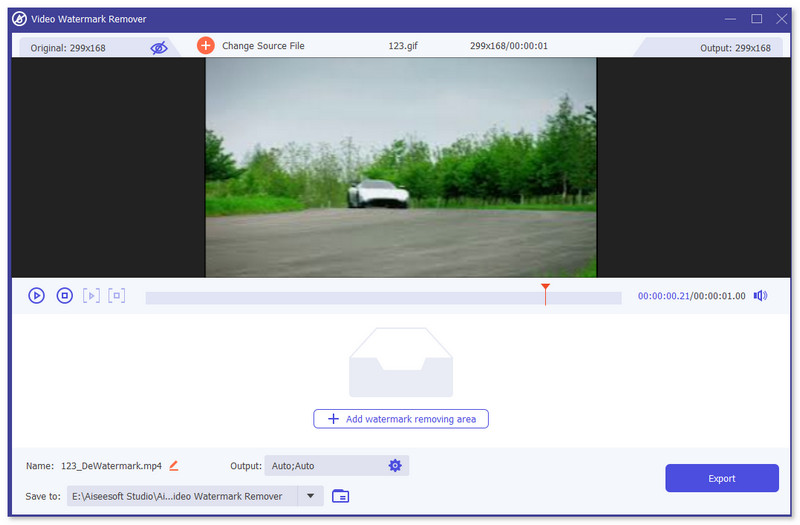
Krok 2. Otevřete odstraňovač vodoznaku, přejděte do nabídky Toolbox a vyhledejte Video Watermark Remover.

Krok 3. Nahrajte GIF nebo video a klikněte na Export.
Související:
Odstranění vodoznaku z GIFu pomocí Adobe Photoshopu
Pokud máte v počítači nainstalovaný Adobe PhotoShop, můžete se na něj spolehnout i při odstraňování vodoznaků nebo stínů z obrázku. PhotoShop lze považovat za jeden z nejoblíbenějších a nejvýkonnějších nástrojů pro úpravu fotografií, který umožňuje přidávat efekty, filtrovat, mazat objekty atd. Přestože se nejedná o bezplatný editor fotografií, nabízí vám 30denní bezplatnou zkušební verzi. Nyní můžete podle níže uvedeného návodu odstranit nežádoucí objekty z fotografie.
Krok 1. Spusťte PhotoShop na svém počítači. Na oficiálních stránkách Adobe si můžete PhotoShop zdarma stáhnout a vyzkoušet v rámci zkušební verze.
Krok 2. Obrázek soubor, který chcete upravit, můžete přímo přetáhnout a pustit. Také můžete kliknout na Soubor v nabídce nahoře a poté na Otevřít a vybrat místní fotografii ve svém počítači.
Krok 3. Pomocí nástroje Select and Mask můžete vybrat nežádoucí objekty. V tomto kroku si můžete volně zvolit vhodný nástroj pro výběr oblasti, kterou chcete odstranit.
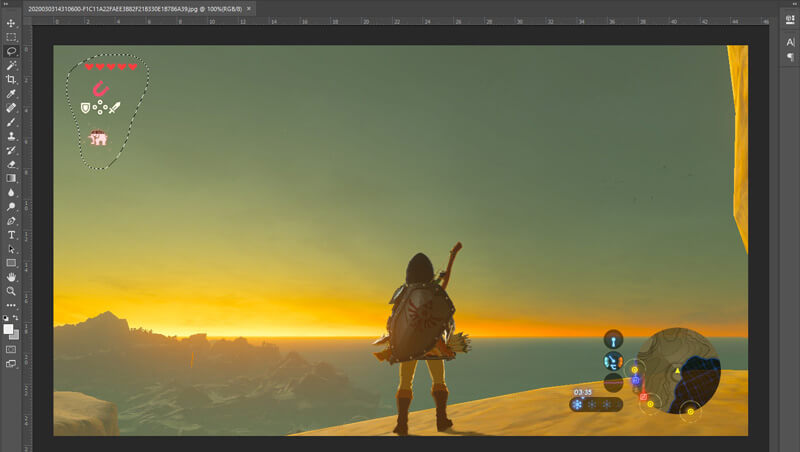
Krok 4. Nyní se můžete spolehnout na nástroj Photoshopu Content-Aware Fill, který odstraní objekt z fotografie a nahradí tuto část vhodným obsahem. Relativně vzato, pokud nechcete jen jednoduše vymazat některé objekty na fotce, funkce Content-Aware Fill vám může poskytnout lepší výsledný efekt.
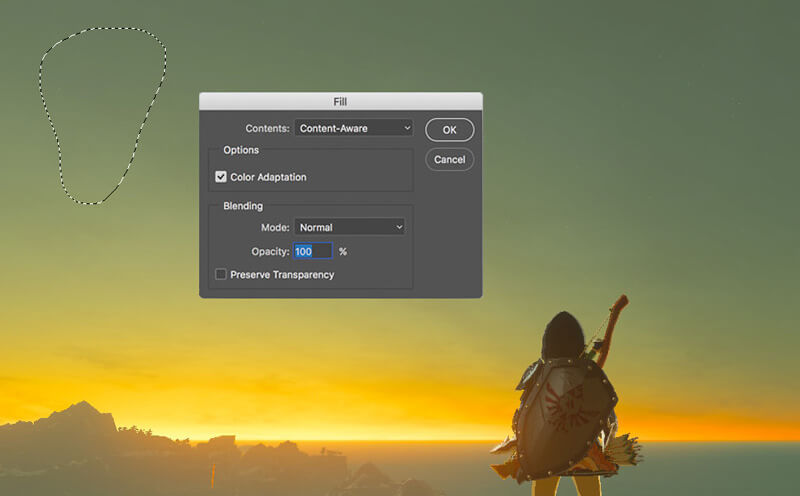
Krok 5. Poté, co PhotoShop objekt odstraní, můžete kliknout na Soubor a poté na Uložit a uložit tak upravený obrázek do svého počítače. Jako výstupní formát si můžete vybrat jakýkoli populární obrazový formát jako JPG, PNG, GIF a další. Můžete také stisknout Ctrl + S pro uložení a export obrazového souboru z PhotoShopu.
Část 2. Jak odstranit vodoznak z GIF online
Pomocí těchto bezplatných online nástrojů můžete odstranit vodoznaky z obrázků GIF. Musíte si však pamatovat, že tyto nástroje nebudou fungovat, pokud nemáte připojení k internetu, protože všechny nástroje jsou závislé na síti. Jejich použití může také chvíli trvat, protože se při používání těchto webových nástrojů ukládá do vyrovnávací paměti. Pokud tedy chcete znát bezplatný odstraňovač GIF online, přečtěte si podrobnosti níže.
Odstranění vodoznaku z GIFu pomocí online nástrojů pro GIF
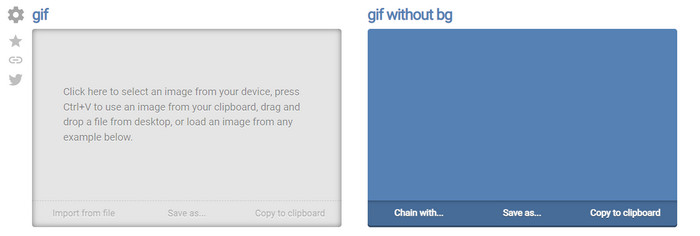
Online GIF Tools je bezplatný nástroj, který můžete použít k odstranění vodoznaků z GIFů. Tento nástroj uživatelům poskytuje pokročilé funkce odstranění, jako je odstranění vodoznaku na pozadí GIFu. Ačkoli je tento nástroj působivý, odstranění vodoznaku může být složité, protože odstraňuje jednotlivé barevné pixely v každém snímku.
Krok 1. Otevřete Online GIF Tools ve svém webovém prohlížeči.
Krok 2. Kliknutím na Import File nahrajte GIF. V části barva pozadí klikněte na options color coder, abyste určili barvu vodoznaku.
Krok 3. Klikněte na Save As a poté na Download, abyste GIF uložili na disk.
Odstraňte vodoznak z GIFu pomocí nástroje Watermark Remover Online
S WatermarkRemover.io bude váš vodoznak z GIFu automaticky odstraněn. Tento nástroj je skvělý pro bezplatné odstranění vodoznaků. Uživatelům umožňuje zbavit se potíží s ručním odstraňováním vodoznaku, protože vše provede sám nástroj. Některé oblasti však nejsou tímto nástrojem dostupné, takže si v podstatě nemůžete stáhnout GIF s odstraněným vodoznakem.
Krok 1. Spusťte WatermarkRemover.io a přidejte soubor GIF kliknutím na spodní část loga.
Krok 2. Po přidání souboru se proces automaticky spustí, vyčkejte na jeho dokončení.
Krok 3. Kliknutím na tlačítko pro stažení jej uložte do počítače.
Odstranění vodoznaku z GIFu pomocí Pixlr

Pokud chcete nejlepší webový nástroj pro odstranění vodoznaku z vašeho GIFu, použijte Pixlr. Na rozdíl od dvou výše uvedených webových nástrojů je tento značně odlišný, protože obsahuje mnoho funkcí, které můžete použít k odstranění vodoznaku. Ačkoli je tento nástroj podobný Photoshopu, některé části zde nejsou tak účinné jako v Photoshopu, zejména při odstraňování vodoznaku z GIFu, a navíc přidává vlastní vodoznak na konci exportu.
Krok 1. Vyhledejte Pixlr a otevřete jej.
Krok 2. Klikněte na Advance Editor, přidejte GIF a klikněte na Open Image. Po přidání GIFu klikněte na ikonu droplet pro rozmazání vodoznaku, opakovaně klikejte na oblast vodoznaku a ujistěte se, že je odstraněn.
Krok 3. Klikněte na Soubor a poté Uložit.
Část 3. Časté dotazy o odstranění vodoznaku z GIF
Zmenší se odstraněním vodoznaku velikost souboru?
Velikost souboru se změní, ale nebude to mít významný dopad, protože z videa jen odstraníte kousek vodoznaku. Pokud tedy původní velikost souboru a extrahovaný vodoznak nejsou téměř stejné, problém je v tom, co jste použili.
Proč je moje video po odstranění vodoznaku rozmazané?
Po odstranění vodoznaku je video rozmazané, protože toto je způsob, jak tento nástroj vodoznak odstranit. Je to jedna z metod, kterou nástroje poskytují k odstranění vodoznaku z jakéhokoli videa nebo obrázku jeho rozmazáním.
Změní se kvalita GIF po odstranění vodoznaku?
Po odstranění vodoznaku z vašeho GIF si nevšimnete změny kvality. Některé nástroje však snižují kvalitu vašeho GIF, protože nepodporovaly vysoce kvalitní GIFy. Nezapomeňte tedy vybrat správný nástroj, který podporuje export vysoce kvalitního výstupu, i když jste z něj odstranili vodoznak.
Závěr
Tento článek nám nakonec dává možnost efektivně odstranit vodoznak z GIFu nebo videa, které používáme. Nástroje, které představujeme, jsou tedy účinné a vhodné k odstranění vodoznaku z našeho GIFu. Přesto má Video Converter Ultimate stále silné stránky při odstraňování i přidávání vodoznaku do vašeho GIFu. Pokud tedy sdílíme stejný názor na tento nástroj, měli byste jej používat, a pokud ne, měli byste si jej alespoň vyzkoušet stáhnout a odstranit vodoznak ze svého GIFu. Poté vám nástroj pomůže vše rychle provést a váš názor na jeho schopnosti se změní.
-
 Nejlepší způsob, jak přidat vodoznak do videa ve Photoshopu na Windows a Mac
 Chcete vědět, jak přidat vodoznak do videa ve Photoshopu? V takovém případě vám tento článek poskytne jednu nebo dvě věci, které potřebujete vědět.
-
 3 nejlepší řešení, jak snadno odstranit vodoznak z videí
 Chcete odstranit otravný vodoznak z videa? Na tomto blogu se můžete naučit různé nápady na odstranění vodoznaku z videa.
-
 5 nejlepších způsobů, jak změnit obrázek na animovaný GIF [Aktualizováno 2022]
 Potřebujete konvertor obrázku na GIF? Tento článek poskytne pět nejlepších převodníků, které na trhu najdeme. Pojďme tedy zjistit tyto nástroje přečtením tohoto článku.
