


 Video Converter Ultimate
 Screen Recorder
 Oprava videa
 Bezpečné stažení
Nejlepší způsoby, jak zvětšit obrázek pro tisk
Zvětšení obrázku lze provést dvěma způsoby. Fotografii můžete zvětšit buď jejím přeškálováním (upscalingem), tedy zvýšením počtu pixelů v obrázku. Dalším způsobem zvětšení obrázku je změna skutečné velikosti neboli rozměrů fotografie. V tomto návodu vám ukážeme tyto dva způsoby, jak fotografii zvětšit. Podle svých potřeb pak jistě najdete odpovědi na své otázky. Přečtěte si tento návod a zjistěte, jak zvětšit obrázek pro tisk, online i offline použití.

Část 1. Zvětšení obrázku bez ztráty kvality online pro tisk
Zní to složitě, když poprvé uslyšíte o zvětšení kvality obrazu. Ale po přečtení tohoto příspěvku to pro vás bude jistě snadné. Existuje spousta aplikací, které vám pomohou zvětšit obrázek. Problém je ale v tom, že je jich tolik, že je těžké vybrat jednu. Naštěstí jsme našli aplikaci, která vám pomůže obrázek snadno a zdarma zvětšit.
FVC Free Image Upscaler je úžasná online aplikace na zvětšování fotografií. Výhodou online nástrojů je, že je nemusíte stahovat, takže šetříte místo v úložišti. S tímto online nástrojem můžete zvětšit svůj obrázek 2x, 4x, 6x nebo 8x. Navíc využívá proces zvětšování pomocí technologie AI, která automaticky rozpozná méně kvalitní části obrázku a poté je vylepší.
Také začátečníci mohou tuto aplikaci snadno používat, protože má intuitivní uživatelské rozhraní. Navíc má efekt náhledu, který vám umožňuje zkontrolovat výsledky vašeho výstupu před jeho uložením. FVC Free Image Upscaler je zdarma k použití ve všech webových prohlížečích, jako je Google, Firefox a Safari.
Jak zvětšit obrázek pro tisk pomocí FVC Free Image Upscaler
Krok 1. Otevřete webový prohlížeč a do vyhledávacího pole zadejte FVC Free Image Upscaler. Můžete také kliknout na tento odkaz a přejít přímo na hlavní stránku.
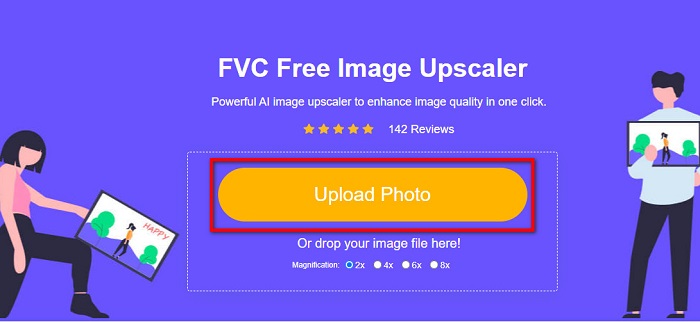
Krok 2. Na hlavním rozhraní klikněte na tlačítko Upload Photo a přidejte obrázek, který chcete zvětšit. Můžete také použít metodu táhni‑a‑pusť (drag & drop) pro nahrání obrázku.
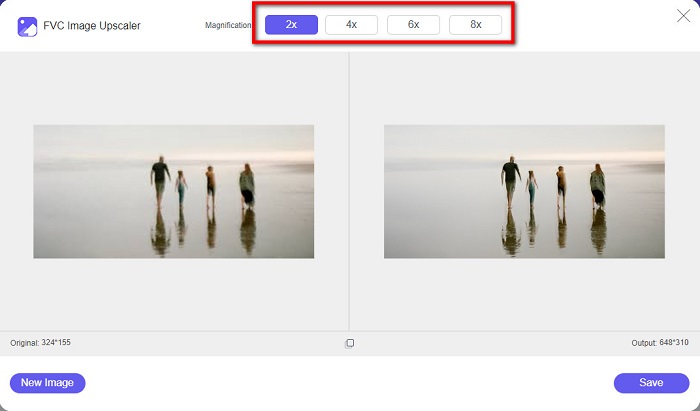
Krok 3. Jakmile je soubor nahraný, budete přesměrováni na další rozhraní. Zvolte míru zvětšení, kterou pro svůj obrázek preferujete. Můžete si vybrat mezi 2x, 4x, 6x a 8x. Čím nižší je kvalita vašeho obrázku, tím vyšší míru zvětšení byste měli zvolit.
Krok 4. Umístěte kurzor myši na levý náhledový obrázek a podívejte se na výsledek zvětšení. Vidíte změny? Klikněte na tlačítko Save v pravém dolním rohu rozhraní a uložte výstup do svého zařízení.
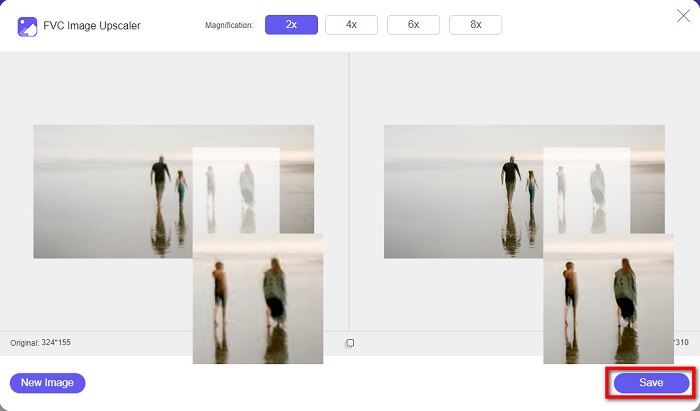
A to jsou jednoduché kroky, jak zvětšit obrázek pro tisk online pomocí FVC Free Image Upscaler. Snadné jako facka, že? Pokud ale chcete zvětšit fotografii změnou rozměrů svého obrázku, přečtěte si další část.
Část 2. Jak zvětšit obrázek ve Photoshopu bez ztráty kvality
Pravděpodobně jste na tuto aplikaci narazili při hledání toho, jak zvětšit fotografii. A Adobe Photoshop je nejvýznamnější aplikace pro úpravu fotografií na internetu. Adobe Photoshop používají především profesionálové, kteří často upravují obrázky pro publikování na různých platformách. S nástroji a funkcemi této aplikace můžete jistě vytvářet úžasné výstupy. Věděli jste ale, že obrázek můžete také zvětšit pomocí Adobe Photoshopu? Ano, čtete správně. Je to také vhodný nástroj pro rozšíření obrázků bez ztráty kvality. V aplikaci Adobe Photoshop můžete obrázek zvětšit změnou rozlišení nebo ručním zadáním šířky a výšky obrázku. Přestože je Adobe Photoshop profesionální aplikace, její zvětšovací funkce se snadno používá. Bez dalšího zdržování, toto jsou kroky k bezztrátovému zvětšení obrázku pomocí Photoshopu.
Krok 1. Nejprve si do počítače stáhněte Adobe Photoshop. Je dostupný téměř pro všechny operační systémy, jako jsou Windows a macOS. Jakmile aplikaci nainstalujete, importujte do ní obrázek, který chcete zvětšit.
Krok 2. Dále povolte funkci Preserve Details 2.0. Pokud používáte počítač s Windows, přejděte na panel Edit v Menu Baru. Pokud používáte Mac, otevřete nabídku Photoshop CC, zvolte Preferences a klikněte na tlačítko Technology Previews. Tím se v dialogovém okně Předvoleb otevře část Technology Previews. Zaškrtněte políčko vedle Enable Preserve Details 2.0 Upscale. Poté klikněte na OK, abyste dialogové okno v části Technology Previews zavřeli.
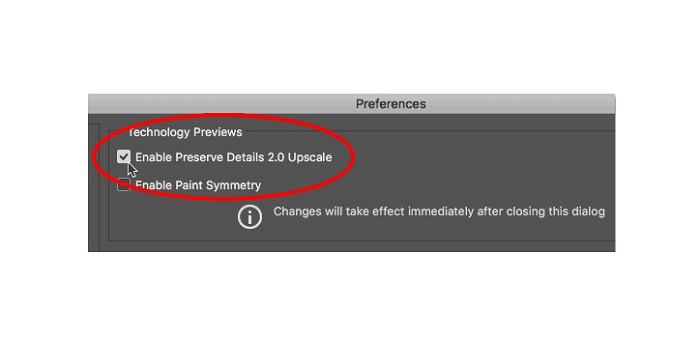
Krok 3. Následně otevřete dialogové okno Image Size (Velikost obrázku) tak, že přejdete do nabídky Image a vyberete možnost Image Size.
Krok 4. Při zvětšování nebo upscalingu obrázku ve Photoshopu chceme upravit jeho fyzické rozměry, jinými slovy chceme přidat nebo odebrat pixely. Proto se ujistěte, že je zaškrtnutá možnost Resample (Převzorkovat).
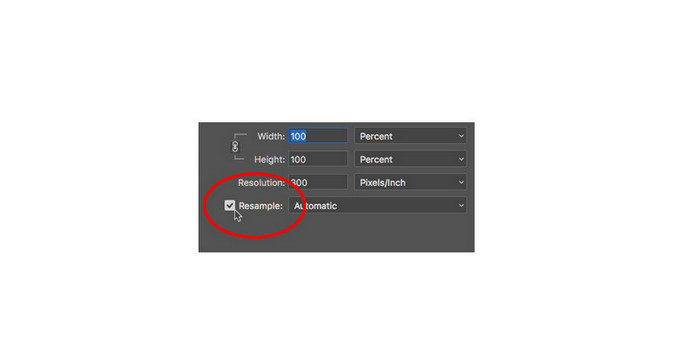
Krok 5. Poté změňte height (výšku) a width (šířku) fotografie zadáním požadovaných rozměrů. Ve výchozím nastavení jsou šířka a výška propojené, takže když změníte šířku obrázku, výška se automaticky přizpůsobí.
Krok 6. Nakonec změňte Resample Method (Metodu převzorkování) na Preserve Details 2.0. Výchozí metoda převzorkování je nastavena na Automatic. Photoshop však tuto možnost nevybere, pokud je Resample ponecháno na Automatic. Proto změňte Resample tak, že kliknete na Automatic a vyberete Preserve Details 2.0.
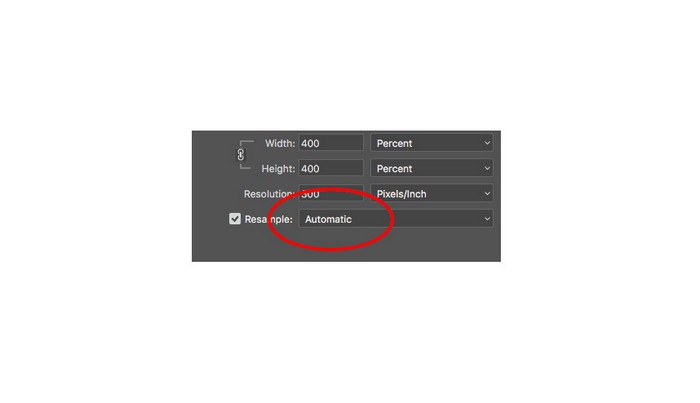
Krok 7. Nyní je čas zkontrolovat výsledek. Po výběru Preserve Details 2.0 se náhled vlevo aktualizuje a zobrazí, jak bude váš zvětšený obrázek vypadat. Přetahujte obrázek myší v okně náhledu, abyste viděli různé části snímku.
Podle těchto kroků se jistě naučíte, jak zvětšit obrázek pro tisk bez ztráty kvality.
Související s:
7 nejlepších online a offline nástrojů pro zvětšování fotografií
4 nejlepší online i offline nástroje pro zvětšení GIFů, které byste neměli minout
Část 3. Často kladené otázky o tom, jak zvětšit obrázek bez ztráty kvality
Mohu zvětšit velikost souboru JPG online?
Velikost souboru JPG obrázku můžete změnit pomocí nástroje FVC Free Image Upscaler. Jednoduše zvyšte zvětšení na 6x nebo 8x, čímž se velikost JPG obrázku zvětší.
Podporuje Adobe Photoshop soubory PNG?
Ano. Soubory PNG jsou podporovány mnoha platformami, včetně Adobe Photoshop. Pomocí aplikace Adobe Photoshop můžete importovat téměř všechny formáty obrazových souborů, jako jsou PNG, JPG, JPEG, BMP a WebP.
Má zvětšení mého obrázku vliv na velikost jeho souboru?
Ano. Velikost souboru obrázku se zvětší, protože upravujete celkový počet pixelů obrázku nebo počet pixelů na každý palec. Ale velikost souboru bude také menší, když snížíte šířku a výšku obrázku.
Závěr
A to jsou metody, jak zvětšit obrázek bez ztráty kvality. Pomocí obou způsobů, online i offline, můžete zvětšit svůj obrázek, aniž byste ohrozili jeho kvalitu. Pokud však chcete jednodušší způsob zvětšení fotografie, doporučujeme použít FVC Free Image Upscaler, uživatelsky přívětivou aplikaci.
-
 Jak změnit velikost obrázku v Illustratoru 2 různými způsoby
 Naučte se nejlepší způsoby, jak změnit velikost obrázku v Illustratoru. Chcete-li začít, stáhněte si a otevřete aplikaci Adobe Illustrator v počítači a postupujte podle těchto jednoduchých kroků.
-
 6 způsobů, jak změnit velikost obrázku na webu a offline [100% Working]
 S výukovým programem, který sem přidáváme, můžete nyní snadno změnit velikost obrázku na základě vaší preferované velikosti. Zde se dozvíte, jak na to!
-
 Nejlepší způsoby, jak změnit velikost fotografie na vašem iPhone zdarma a bez instalace
 Změnit velikost fotografie na vašem iPhone může být obtížné se naučit. Naštěstí tento článek poskytuje návod, jak snadno změnit rozměr obrázků.
