


 Video Converter Ultimate
 Screen Recorder
 Oprava videa
 Bezpečné stažení
Naučte se, jak udělat obrázek jasnějším pomocí těchto jednoduchých metod
When you capture an image that turns out to be blurry, it is considered a defect. And it is very dissatisfying when you have a blurry image. But luckily, there are tons of applications nowadays that can help you sharpen and unblur your image. Adobe Photoshop is among the famous photo editing applications. However, it is not a beginner-friendly tool. Therefore, we will present the more straightforward methods you can use to make your blurry picture have excellent quality. Read this passage below to learn how to make a picture clearer with easy steps.

Část 1. Jak udělat obrázek jasnějším online
S využitím technologie AI nyní existuje mnoho online nástrojů pro vylepšení obrazu, které dokážou automaticky zaostřit váš obraz. Používání online aplikací k jasnějšímu obrazu je pohodlné, protože do zařízení nemusíte nic stahovat. Ušetří také úložný prostor ve vašem zařízení, protože k němu máte přístup z prohlížeče.
FVC Free Image Upscaler is the most renowned online application if you want to sharpen or make your image clearer. This tool is easy to use because it has a straightforward user interface. In addition, you can enhance the quality of your image by 2x, 4x, 6x, and 8x magnification. Also, FVC Free Image Upscaler uses an AI (Artificial Intelligence) technology that automatically detects the blurry parts of your image, then enhances it. It enables you to precisely fix the lost pixels, color textures, and more details.
Kromě toho podporuje více formátů obrázků, jako jsou PNG, JPG, JPEG a WebP. A co je na tomto online nástroji ještě skvělé, je to, že pro přístup k němu nepotřebujete žádné účty. Je také zdarma a bezpečný. A přesto, že se jedná o online aplikaci, neobsahuje žádné otravné reklamy, které by vás mohly rozptylovat, a její použití je rychlé a efektivní. Pokud tedy hledáte pohodlný nástroj, FVC Free Image Upscaler je tím nejlepším nástrojem.
Jak udělat obrázek jasnějším online pomocí FVC Free Image Upscaler:
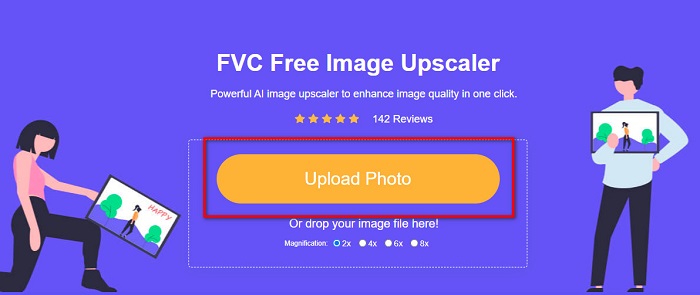
Step 1. On your computer, open your browser and search FVC Free Image Upscaler on the search box. Or, you can click the provided link to go directly to the app’s main page. Click the Upload Photo button to launch the app.
Step 2.0 After launching the app, click the Upload Photo again to add the image you want to upscale/sharpen. Your computer files will prompt where you will locate your image and open it.
Step 3. And then, select the magnification preset that you prefer. The higher the magnification, the higher the sharpness of your image will become. But note that the file size will also increase as the quality increases. You can choose magnification between 2x, 4x, 6x, and 8x.
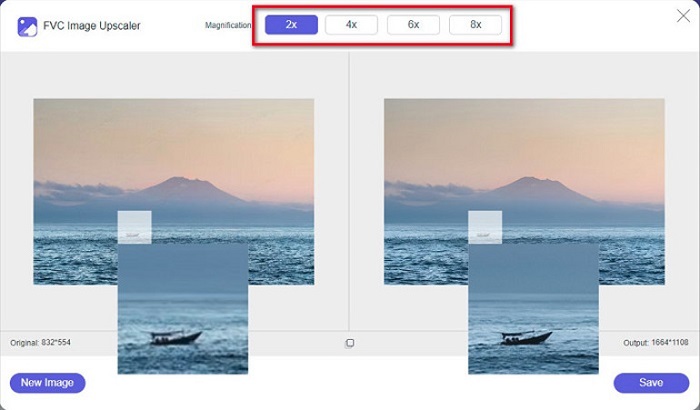
Step 4. You will see the results on the right side of the interface. And if you are content with your output, click the Save button to save your image output on your device.
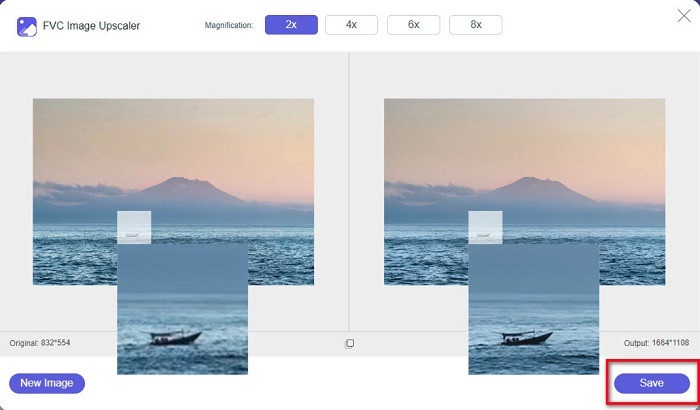
Počkejte, až se váš obrázek uloží, a voila! Nyní můžete svou úžasnou fotografii sdílet s přáteli nebo na jiných platformách sociálních médií.
Část 2. Jak učinit obrázek jasnějším offline
Offline aplikaci je také dobré využít, když chcete obrázek doostřit nebo upravit. Mnoho aplikací pro úpravu fotografií je offline; před použitím je musíte zakoupit. Ale nedělej si starosti; v této části poskytneme bezplatný offline nástroj, který můžete použít na svém počítači.
Paint.net is among the most used photo editing applications that is free and safe to use. This offline tool has an easier user interface than Adobe Photoshop, which many professionals use. Although it has a simple user interface, it can still produce exceptional outputs and enables you to sharpen your blurry image. Additionally, it has other editing features that can help you improve your image. With Paint.net, you can sharpen, color correct, and add background to your picture.
Navíc posunutím posuvníku můžete zvolit ostrost obrázku a odstranit jeho rozmazané části. Je však k dispozici pouze na zařízeních se systémem Windows. Přesto, pokud chcete zvětšit obrázek při jeho doostřování, můžete použít Paint.net.
Jak udělat obrázek větší a jasnější pomocí Paint.net:
Step 1. First, download and install Paint.net on your desktop, and open it once it is done installing. Then, upload your image by clicking File > Open.
Step 2. And then, go to Effects > Photo > Sharpen. Another tab will appear where you will adjust the sharpness of your image to deblur it.
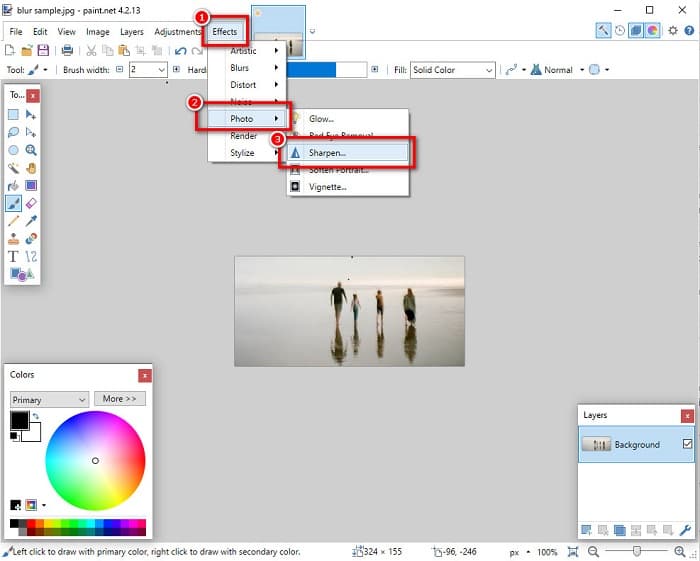
Step 3. On the Sharpen tab, move the slider head to select the preferred sharpness of your image. You can also tick the up/down arrow to choose the sharpness amount of your image numerically.
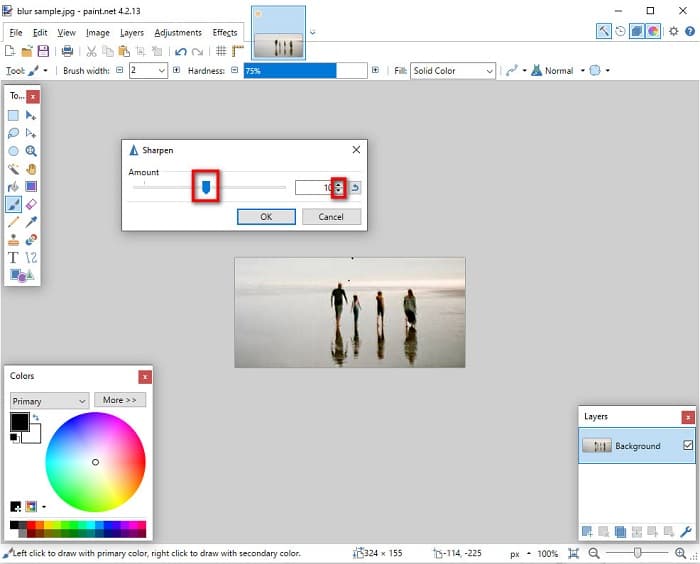
Step 4. Finally, click the OK button and go to File > Save to save your output on your desktop.
Část 3. Jak udělat obrázek jasnějším na vašem iPhone
A pokud máte rozmazaný snímek zachycený pomocí vašeho iPhone, můžete také použít aplikaci pro odstranění rozmazání pro vaše zařízení iPhone. Četné aplikace pro úpravu obrázků, které si můžete stáhnout z AppStore, vám mohou pomoci rozmazat váš obrázek. Nicméně, ne všechny aplikace jsou zdarma k použití; před použitím je musíte zakoupit. Naštěstí jsme našli aplikaci pro odstranění rozmazání obrázků, kterou lze zdarma používat z AppStore. Přečtěte si celou tuto část, abyste se dozvěděli, jak udělat obrázek jasnějším na vašem zařízení iPhone.
If you are wondering what the free photo editing app that can help you deblur an image is, VSCO is the app you are looking for. VSCO is a known photo editing application available to download from AppStore. In addition, when you are unblurring an image using VSCO, there are some settings that you need to focus on. To unblur your photo using VSCO, you need to adjust your image’s clarity, sharpness, clarity, and exposure. VSCO also has other editing tools that you can use to edit your images. Furthermore, it supports iPhone's most common image formats, like HEIC and HEIF. A little setback of this app is that it only supports a few image formats, and you need to purchase it to use its other editing features.
Jak udělat obrázek jasnějším na iPhone pomocí VSCO:
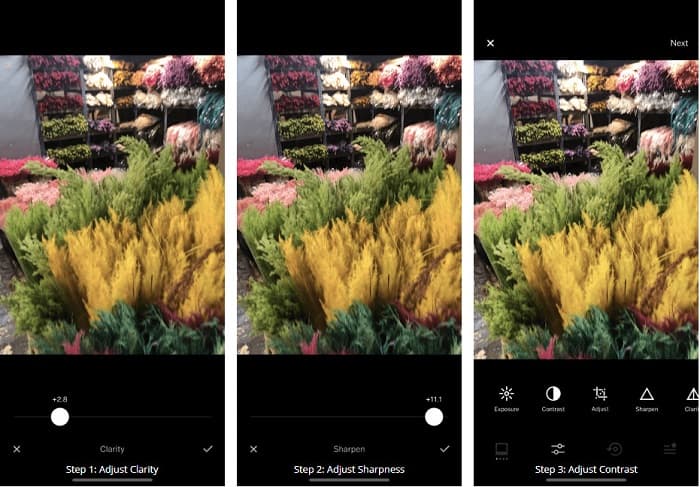
Step 1. Install VSCO from the AppStore, then open the app on your iPhone.
Step 2. Open your image, then go to Clarity. The Clarity option will help you remove the large-scale noise on your image. Just move the Clarity slider a little below the interface.
Step 3. Next, we will adjust the sharpness of your image. The Sharpen function will help you get the crispiness that you want on your image. And then, by moving the slider, you can select the sharpness you want for your image.
Step 4. Once you are done editing the clarity and sharpness of your image, let us know to adjust the Contrast. Move the Contrast option and the Contrast slider to select the brightness and darkness you want for your image.
Step 5. Lastly, we will now adjust your photo's Exposure to brighten it a little. Increasing the Exposure of your image will help you balance the darkness with the Contrast. And that’s it! By adjusting these features, you can unblur your blurry image. Click here to learn how to resize an image on an iPhone.
Část 4. Jak udělat obrázek jasnějším na vašem Androidu
Na Androidu jsou také aplikace, které můžete použít ke zpřehlednění obrazu. Pokud tedy chcete, aby byl do galerie uložen rozmazaný obrázek, tato aplikace vám může pomoci vylepšit váš obrázek. Přečtěte si tuto část a zjistěte, jak odstranit rozmazání obrázku na vašem zařízení Android.
Remini app (for Android) is probably one of the best photo editing apps you can use on your Android device. This app allows you to edit and even unblur your blurry image. Moreover, it is easy to use, and it is free. By using the Enhance option, you can make your picture clearer. However, you need to create an account first before you can use this app. And on its Pro version, you can access this app's advanced unblurring features.
Jak zrušit rozmazání obrázku pomocí Remini pro Android:
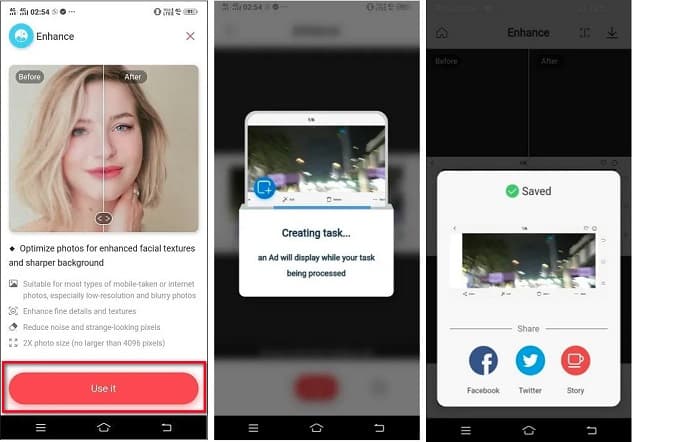
Step 1. Install Remini on your Android device. After installing the app, open it immediately. On the app’s main user interface, tap the Use it button to proceed to unblurring your image.
Step 2. And then, select the image and click the red button at the bottom of the interface. It will create a task and will display an ad while processing.
Step 3. After that, the final output will appear, where you can compare the before and after of your image. And if you are already satisfied with your output, save your image.
Část 5. Často kladené otázky o tom, jak udělat obrázek jasnějším
Mohu použít GIMP k rozmazání obrázku?
Ano. GIMP je úžasný software pro úpravu fotografií, který můžete použít k rozmazání obrázku. Tuto aplikaci si také můžete stáhnout do svého zařízení se systémem Windows.
Zvětší odstranění rozmazání obrázku velikost souboru?
Ano. Odstranění rozmazání obrázku znamená zvýšení kvality a rozlišení obrázku. Když se rozlišení zvýší, zvětší se také velikost souboru vašeho obrázku.
Jakou aplikaci mohu použít k rozmazání obrazu?
YouCam Perfect je aplikace, která vám může pomoci s rozmazáním obrazu. Díky technologii AI můžete okamžitě rozmazat svůj obraz.
Závěr
This post has written what you need to learn about how to make a picture clearer. So, if you are searching for applications that enable you to unblur an image, the methods above will help you with your goal. But if you prefer using an online tool with an easy-to-use interface, use FVC Free Image Upscaler.
-
 Faktická recenze PicResize, kterou musíte vědět 2022
 Chcete vědět, zda je PicResize nejlepší volbou pro úpravu obrázku? Přečtěte si tento článek, když kontrolujeme celkový nástroj.
-
 Vše, co potřebujete vědět o Waifu2x a Alternativě
 Potřebujete vědět více o Waifu2x? Tento článek poskytuje informace, které je třeba v této aplikaci a její alternativě zdůraznit.
-
 Jak optimalizovat obrázek pro web pomocí nejlepších řešení [rychle]
 Jak optimalizovat obrázek pro web? Budete potřebovat spolehlivý software a výukový program; všechny informace jsou zde.
