


 Video Converter Ultimate
 Screen Recorder
 Oprava videa
 Bezpečné stažení
Jak převést MP4 na WMV pro Mac / Windows
Než představím doporučený seznam převodníků MP4 na WMV, položím vám pár otázek o video formátech.
Abychom mohli ukládat digitální video data v počítačovém systému, potřebujeme souborový formát navržený pro video. Jaké video formáty tedy znáte? MP4? WMV? FLV? AVI? Ano, to jsou skutečně běžně používané formáty při ukládání digitálního videa. Ale přemýšleli jste někdy, proč existuje tolik video formátů? Jaký je rozdíl mezi MP4 a WMV?
MP4 je obecně kompatibilní s téměř všemi typy zařízení na trhu, což znamená, že můžete hrát MP4 všude, dokonce i ve výchozím videopřehrávači počítače nebo telefonu. Pokud však používáte zařízení Windows, věřím, že WMV vám může sloužit lépe. Nejen proto, že je vyvinut společností Microsoft, ale také proto, že dokáže uložit HQ video na malém prostoru na disku.
Dnes se tedy naučíte, jak změnit soubor MP4 na WMV pomocí nejlepších video převodníků, které doporučujeme.

Část 1. Jak převést MP4 na WMV online zdarma
Kromě instalace klasického softwaru pro stolní počítače je v dnešní době také možné použít webové převaděče. Ačkoli je to jednoduché, mnoho online převaděčů je během převodu mírně pomalých. Některé dokonce omezují velikost a počet nahraných souborů a nemohou zaručit kvalitu výstupních videí.
Proto vám zde představujeme FVC Free Online Video Converter, bezplatný, rychlý a efektivní video převodník, který vám může pomoci bezztrátově převádět velké množství videí či audia.
Jako multifunkční bezplatný online převodník MP4 na WMV podporuje FVC Video Converter téměř všechny typy video formátů. Můžete převádět velké soubory MP4 do/z MKV, MOV, WMV, AVI, TS atd. Video si také můžete upravit podle svých potřeb. V FVC je hračka nastavit datový tok videa, vzorkovací frekvenci, snímkovou frekvenci, rozlišení a hlasitost. A po převodu se na videu neobjeví žádný vodoznak.
Nyní se můžete obávat, že se všemi těmito funkcemi může být těžké pochopit, jak tento převaděč ovládat. Pravda je ve skutečnosti zcela opačná. Zvládnutí tohoto převaděče MP4 na WMV vám zabere jen pár kroků.
Krok 1. Klikněte sem a přejděte na FVC Free Online Video Converter. Poté klikněte na Add Files to Convert, abyste si nejprve stáhli FVC Launcher.
Stáhněte si desktopovou verzi a převádějte soubory hromadně.
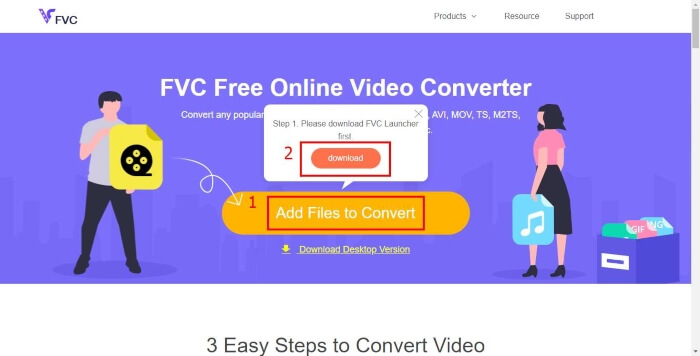
Krok 2. Po instalaci spouštěče se zobrazí okno Open File. Stačí najít soubor MP4, který chcete převést.
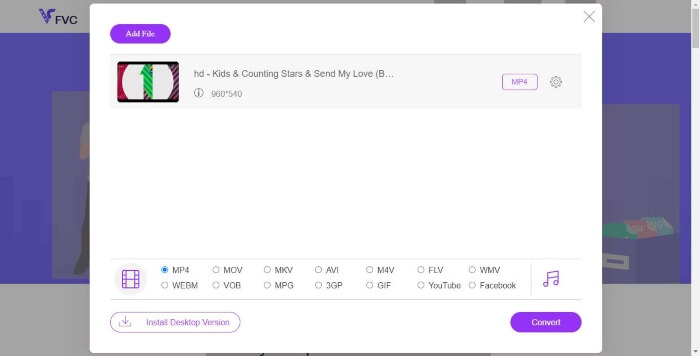
Krok 3. Na stránce převodu pak zvolte výstupní formát WMV. Pokud chcete změnit parametry videa, otevřete okno Nastavení kliknutím na ikonu Setting. Klikněte na tlačítko Convert a vyberte cílovou složku pro uložení převedeného videa.
Část 2. Převod MP4 na WMV pomocí stolního softwaru
1. RealPlayer
RealPlayer je jedním z nejoblíbenějších multimediálních přehrávačů už od roku 1995. Nejenže vám pomůže snadno spravovat videa, hudbu a obrázky, ale také umí převádět videa do více formátů a přenášet je do jiných mobilních zařízení.
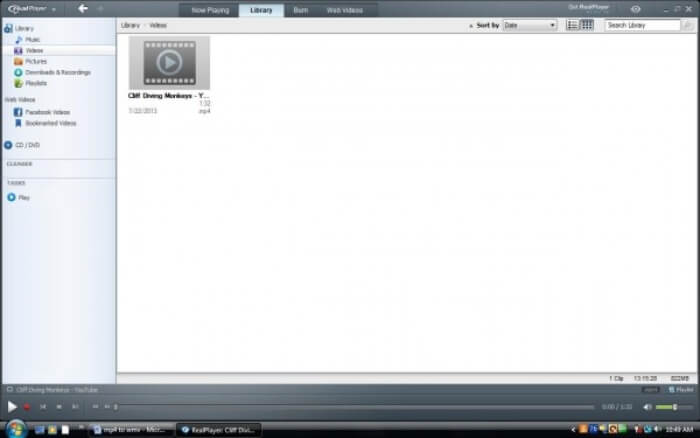
Krok 1. Pokud máte RealPlayer nainstalovaný v počítači, uložte soubor MP4 do knihovny RealPlayeru. Po spuštění RealPlayeru zvolte Library. Svůj soubor najděte v seznamu Video.
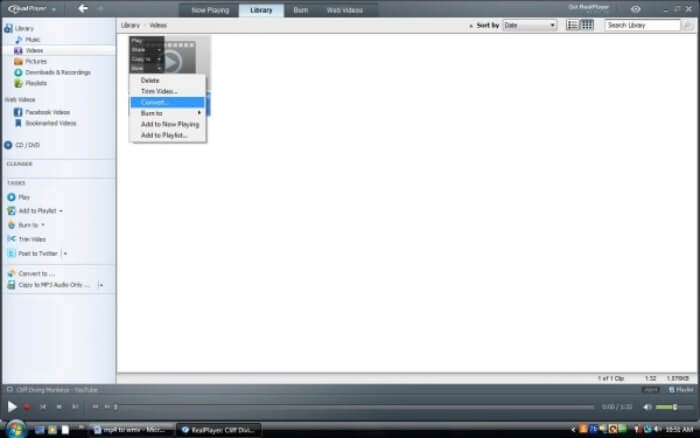
Krok 2. Klikněte na soubor a v místní nabídce zvolte možnost More. Poté vyberte možnost Convert.
Krok 3. Z nabídky Select a Device vyberte WMV a klikněte na OK. Nyní klikněte na tlačítko Start. Během několika vteřin se vaše video objeví v knihovně RealPlayeru.
2. Přehrávač médií VLC
VLC je open source multiplatformní přehrávač, který dokáže přehrát videa v různých formátech. Podporuje také převod souborů do mnoha populárních formátů. Postupujte podle níže uvedených kroků a exportujte soubor WMV z MP4.
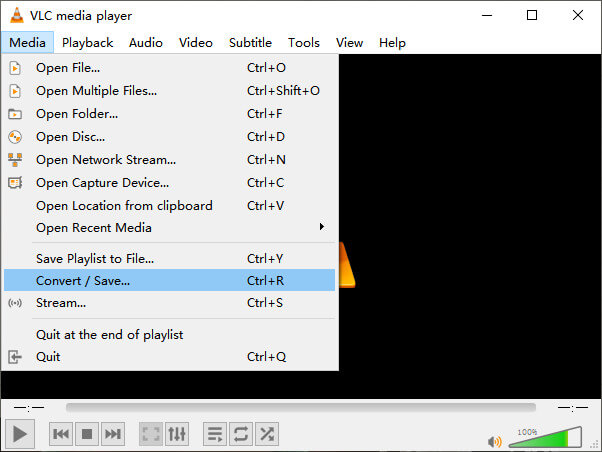
Krok 1. Otevřete VLC Media Player a v nabídce Media klikněte na Convert / Save.
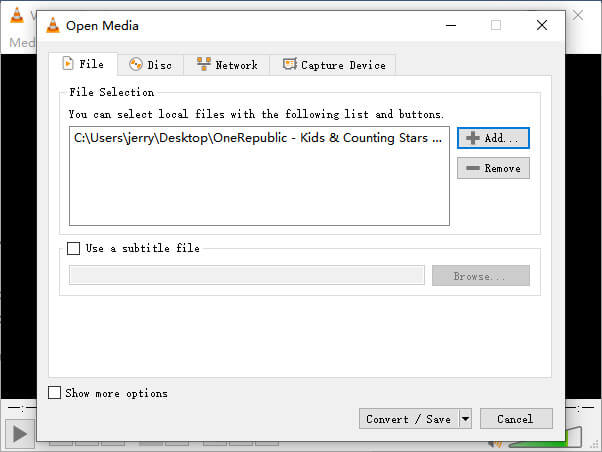
Krok 2. Přidejte soubor do VLC. Poté klikněte na tlačítko Convert / Save.
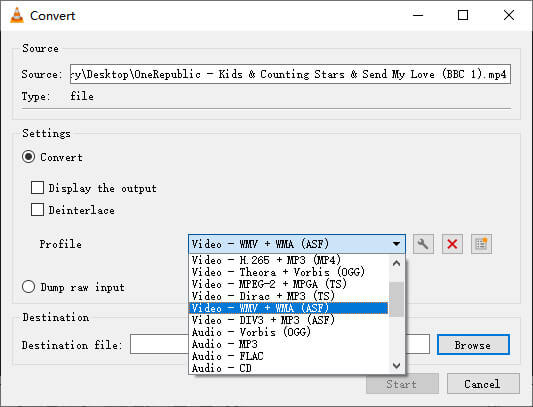
Krok 3. V části Profile najděte WMV a zvolte složku jako cílové umístění výstupního souboru. Poté klikněte na Start.
MP4 vs. WMV
Formát MP4, vydaný skupinou Moving Picture Experts Group (MPEG) v roce 2001, vám může pomoci uložit data videa, zvuku, titulků a obrázků do samostatných stop. Je to zkratka pro MPEG-4 Part 14. Navíc je to jeden z nejpopulárnějších formátů používaných pro streamování a sdílení videí.
WMV, produkovaný společností Microsoft, byl jedním z nejběžnějších video formátů v roce 2000. Lze jej vidět na webu a přehrávat v různých přehrávačích médií ve Windows. A je to také výchozí formát souboru videa programu Windows Media Player. V poslední době ji ale přebírají jiné formáty.
Část 3. Nejčastější dotazy týkající se převodu MP4 na WMV
1. Může ruční brzda převést MP4 na WMV?
Po provedení průzkumu bohužel vychází najevo, že nejnovější Handbrake neumí převádět MP4 na WMV. Je pravda, že Handbrake podporuje většinu běžných multimediálních souborů. To se však týká pouze vstupních zdrojů. Možnosti výstupních formátů jsou MP4(.M4V) a MKV.
2. Mohu převést soubor MP4, který je větší než 100 MB, na WMV online zdarma?
Záleží na tom. Různé bezplatné online video převodníky mají různá omezení. Některé převodníky, jako FVC Free Online Video Converter, vám umožní převádět soubory větší než 100 MB. Jiné převodníky za to však mohou účtovat poplatky.
3. Může Windows Media Player převést MP4 na WMV?
Soubory MP4 na WMV nemůžete převádět pomocí Windows Media Playeru. Je to proto, že jde pouze o přehrávač, nikoli o převodník. Pokud chcete převést MP4 na WMV, měli byste použít efektivní video převodník.
4. Mohu přehrát soubor WMV na počítači Mac?
Vestavěné video nástroje v systému Mac neumějí přehrávat soubory WMV. Existují ale jiné způsoby, jak na macOS přehrávat videa WMV. Můžete převést WMV do jiného formátu, který Mac podporuje. Nebo si nainstalujte Windows Media Player for Mac a přehrávejte soubory WMV.
Závěr
Ačkoli mají MP4 a WMV mnoho společného, mají také své vlastní charakteristiky. Proto byste se měli rozhodovat podle konkrétní situace. Doufáme, že po přečtení tohoto článku pro vás problém převodu MP4 na WMV přestane být překážkou. Až příště budete potřebovat soubor WMV, jednoduše postupujte podle výše uvedeného návodu a soubor bez potíží převeďte.
-
 Jak převést své video soubory MP4 na animované obrázky GIF bez ztráty kvality
 Hledáte nejlepší způsob, jak převést video MP4 na animované soubory GIF? Zde je podrobný průvodce, jak to provést ve Photoshopu, Windows Movie Maker, online video převaděči a dalších.
-
 Jak převést své video soubory FLV na MP4 bez placení penny
 Tato příručka sdílí čtyři bezplatné metody pro převod vašich video souborů FLV do formátu MP4 v systémech Windows 10/8/7 / XP a Mac OS X, takže si videa můžete vychutnat na jakýchkoli zařízeních.
-
 Jak převést MOV na MP4 bez ztráty kvality
 Chcete převést soubory MOV (Apple QuickTime Movie) do MP4? Tento příspěvek sdílí 4 bezplatné způsoby převodu vašich video souborů MOV do formátu MP4 ve Windows 10/8/7/XP a Mac OS X.

