


 Video Converter Ultimate
 Screen Recorder
 Oprava videa
 Bezpečné stažení
Jak převést záznam se zoomem na MP4 na počítačích Windows a Mac
Zoom je platforma, která umožňuje videohovory, jako jsou schůzky a online výuka. Obvykle ukládá záznamy ve formátu, který lze přehrát na většině zařízení, například MP4. Pokud ale omylem zastavíte nahrávání příliš brzy, může soubor uvíznout v původním formátu platformy, tedy .zoom, který nelze hned otevřít. K tomu dochází proto, že Zoom neměl možnost soubor automaticky převést na MP4. Pokud se vám to stane, budete muset Zoom převést na MP4 přímo v platformě nebo mimo ni. Naštěstí existuje několik způsobů, jak Zoom donutit převod dokončit. Ukážeme vám, jak to udělat přímo v programu Zoom a pomocí speciálního nástroje, který je jeho součástí. Pokud ani to nebude fungovat, uvedli jsme i další nástroj, který můžete použít. Pojďme se tedy rovnou pustit do obsahu!

Část 1. Jsou nahrávky se zoomem v MP4
Zoom v první řadě vytváří nahrávky MP4, což je jeho výchozí nastavení. To se však nestane během okamžiku. Máme na mysli, že během nahrávání vaše nezpracované záběry ještě nejsou ve formátu MP4, který si myslíte, že je. Ve skutečnosti, jak již bylo zmíněno výše, záznam procesu je stále ve formátu .zoom, což je proprietární formát platformy, a bude převeden na MP4 až po dokončení záznamu a dokončení převodu. To platí zejména tehdy, když náhodně zastavíte nahrávání.
Část 2. 3 způsoby, jak převést záznam se zoomem na MP4 pomocí zoomu
Pojďme nyní k účinným nástrojům, které vám pomohou převést nahrávky Zoom na MP4, pokud na platformě žádný nemáte.
1. Klient Zoom (Desktop)
Věděli jste, že Zoom sleduje všechny vaše nahrávky v klientské aplikaci pro stolní počítače? Nejen, že máte snadný přístup k nahrávkám, ale Zoom také poskytuje vestavěný převodník. To zajistí kompatibilitu přehrávání na většině zařízení. Pokud si tedy nejste jisti, jak jej používat, zde je podrobný rozpis toho, jak najít a převést vaše nahrávky Zoom do formátu MP4.
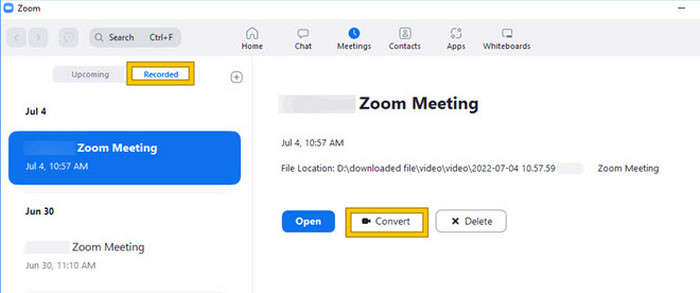
Krok 1. Spusťte Zoom na svém počítači a okamžitě přejděte do sekce Meetings (Schůzky), kde otevřete historii schůzek.
Krok 2. Po otevření uvidíte seznam svých nahraných schůzek. Najděte záznam, který chcete převést, a kliknutím jej vyberte.
Krok 3. Po výběru se na pravé straně obrazovky zobrazí nabídka. Klikněte na tlačítko Convert (Převést) a vyčkejte na výsledný převedený soubor MP4.
2. Překódování (macOS)
Pokud jste uživatelem Mac a automatická konverze záznamu Zoomu do MP4 selže, pak je zde užitečný nástroj s názvem Transcode, který vám pomůže. Tento nástroj vám umožňuje ručně převést tento .zoom na soubory MP4, které se nemusí správně přehrávat kvůli neúspěšné automatické konverzi. Transcode v podstatě poskytuje uživatelům Maců manuální řešení, které zajistí, že jejich nahrávky Zoom budou dostupné a použitelné, když automatický proces nefunguje podle očekávání.
Krok 1. Najděte svůj soubor .zoom, dvakrát na něj klikněte a v zobrazeném okně vyberte možnost Choose Application (Vybrat aplikaci). Poté soubor otevřete v aplikaci Transcode, kterou si můžete nastavit i jako výchozí pro tyto soubory.
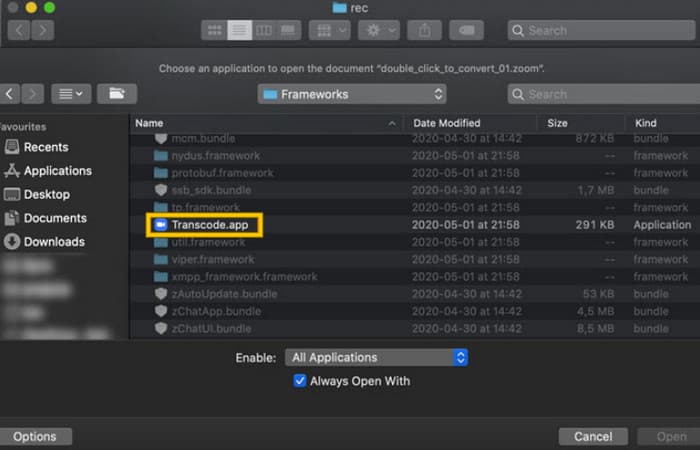
Krok 2. Ihned po zvolení aplikace se automaticky spustí proces převodu.
Krok 3. Po dokončení převodu zvolte složku, do které chcete výstupní soubor uložit.
3. zTscoder (počítač)
Pokud chcete pro svůj desktop nástroj podobný tomu předchozímu, pak doporučujeme zTscoder. zTscoder je verze Transcode pro Windows, což je program, na který uživatelé počítačů Mac spoléhají v podobných situacích. Oba nástroje umožňují ručně převést soubory Zoom do standardního formátu MP4, který se nemusí správně přehrávat. Pokud tedy nyní stojíte čelem k ploše, postupujte podle níže uvedených kroků.
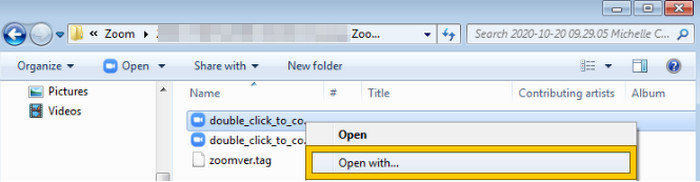
Krok 1. Najděte složku, do které se ukládají vaše záznamy Zoom, a vyberte ten, který potřebujete převést. Klikněte na soubor pravým tlačítkem a otevřete jej pomocí zTscoder.
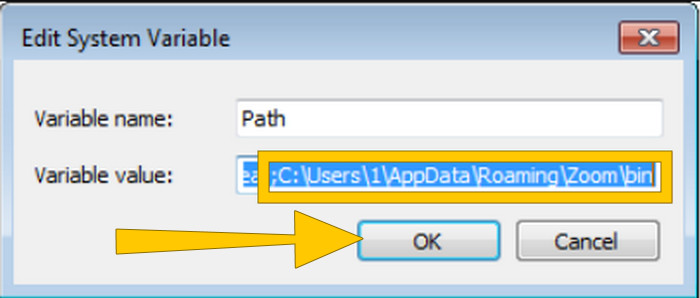
Krok 2. Pokud nástroj nereaguje, můžete přejít do Ovládacích panelů, přejít na Systém a zabezpečení > Systém a poté otevřít Upřesněná nastavení systému. Odtud do hodnoty proměnné přidejte C:\Users\*your username*\AppData\Roaming\Zoom\bin a klikněte na OK.
Krok 3. Jakmile je soubor nastaven tak, aby se otevíral tímto nástrojem, proces převodu se automaticky spustí.
Část 3. Nahrávejte schůzky se zoomem ve formátu MP4 s kvalitou až 4K
Chcete spolehlivé řešení, jak mít schůzky ze Zoomu rovnou v MP4? Nahrajte je pomocí nástroje FVC Screen Recorder! Tento rekordér nabízí univerzální řešení, které nejde jen o schůzky v Zoomu. Umožní vám nahrávat online výuku, konference, návody nebo cokoli, co se zobrazuje ve vašem okně Zoom. Navíc máte flexibilitu nahrávat celou obrazovku nebo jen konkrétní okno, protože k tomu nabízí příslušné nastavení. Dokáže také zaznamenat zvuk z mikrofonu, systémový zvuk a dokonce i obraz z webkamery, pokud si to předem nastavíte. Software je kompatibilní jak s počítači Mac, tak s Windows a umožňuje ukládat záznamy ve vysoce kvalitních formátech, včetně rozlišení až 4K. Dalším výrazným důvodem, proč si FVC oblíbíte, je to, že jde ještě dál a nabízí poznámkové (anotační) nástroje, díky nimž můžete během nahrávání zvýrazňovat klíčové body. Zde je postup, jak převést záznamy Zoom do MP4.
Krok 1. Nainstalujte rekordér do svého počítače. Můžete použít tlačítko Stáhnout níže. Během instalace otevřete schůzku v Zoomu, kterou chcete nahrát do MP4.
Zdarma ke staženíPro Windows 7 nebo novějšíBezpečné stažení
Zdarma ke staženíPro macOS 10.7 nebo novějšíBezpečné stažení
Krok 2. Spusťte převodník a klikněte na nástroj Video Recorder. Poté nastavte zobrazení obrazovky tak, aby pokrývalo celé rozhraní schůzky v Zoomu. V případě potřeby můžete také nastavit zvuk System a Microphone (Systém a Mikrofon).
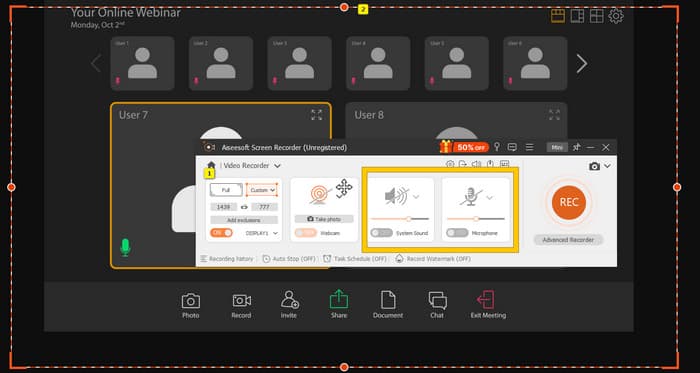
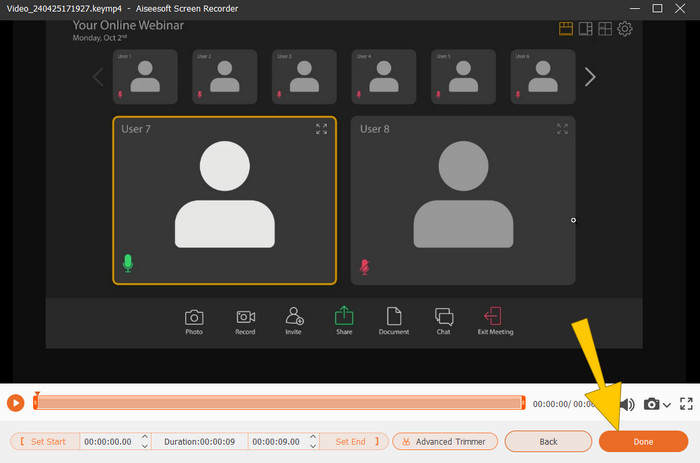
Krok 3. Poté klikněte na tlačítko REC a spusťte nahrávání. Jakmile schůzka skončí, klikněte na tlačítko Stop na plovoucím panelu. Poté můžete v novém okně provést drobné úpravy. Případně klikněte na tlačítko DONE a pokračujte k uložení záznamu.
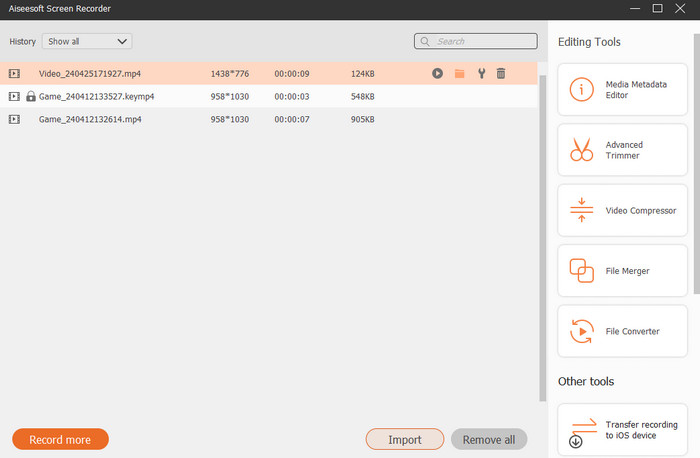
Krok 4. Pro další možnosti úprav vás nástroj přenese do své knihovny, kde uvidíte seznam svých záznamů. Zde jsou také k dispozici editační nástroje, které můžete volně používat.
Rozšířené čtení:
6 úžasných nástrojů pro nahrávání do MP4 v roce 2024 [zdarma i placené]
Top 5 rekordérů pro nahrávání schůzek v Zoomu [2024]
Část 4. Časté dotazy o převodu záznamu se zoomem
Jsou nahrávky se zoomem MP4?
Ano. Nahrávky však nemusí být ve formátu MP4, pokud byly náhodně zastaveny.
Existuje nějaké omezení délky nahrávek, které mohu převést do MP4?
Záleží. Bezplatné účty mohou mít omezení úložného prostoru a možností převodu, zatímco placené plány obvykle nabízejí větší flexibilitu a vyšší limity.
Jak mohu převést záznam se zoomem na MP4?
Nahrávku Zoom můžete převést na MP4 pomocí klienta Zoom, protože má vestavěnou funkci převodu. Po otevření záznamu stačí kliknout na tlačítko Převést.
Závěr
Standardně se schůzky v Zoomu ukládají ve formátu MP4, ale pokud se záznamy správně neuloží, budete ještě muset záznamy Zoom převést na MP4. Naštěstí jsou v tomto článku uvedeny účinné způsoby, jak převod provést. Doufáme, že pro vás byl užitečný.
-
 7 z velkolepého hlasového záznamníku dostupného na všech platformách
 Chcete se naučit nahrávat zvuk? Pak přejděte na tento článek, kde mluvíme o nejlepším audio rekordéru, který vyhovuje vašim potřebám.
-
 Recenze CamStudio 2025: Výhody a nevýhody používání CamStudio
 CamStudio je fantastický bezplatný a otevřený program pro snímání obrazovky pro nahrávání obrazovky. Je záznamník obrazovky CamStudio bezpečný? Tato recenze vám pomůže objevit všechny funkce CamStudio.
-
 Možné způsoby, jak můžete nahrávat zvuk pomocí VLC Player
 Přečtěte si článek a naučte se nejlepší způsoby záznamu zvuku pomocí přehrávače VLC a dalších praktických nástrojů.
