


 Video Converter Ultimate
 Screen Recorder
 Oprava videa
 Bezpečné stažení
Jak nahrávat MP4 na iPhone: Nastavení a nejlepší řešení k objevování
Ukládá iPhone video jako MP4? iPhony obvykle nahrávají videa ve formátu MOV, který většinou funguje bez problémů. Pokud ale chcete tato videa z iPhonu sdílet se zařízeními, která MOV nepodporují, narazíte na potíže. Ať už tedy na iPhonu video sledujete, natáčíte nebo upravujete, je důležité rozumět jeho video formátům. Toto porozumění vám pomůže vyhnout se problémům s přehráváním díky použití správného typu souboru a kodeků. V tomto článku vám proto ukážu tři jednoduché způsoby, jak na iPhonu nahrávat videa v MP4. Tím budou videa lépe kompatibilní pro přehrávání i úpravy.

Část 1. Nahrává iPhone videa ve formátu MP4
Mnoho lidí, zejména ne-iPhone uživatelé, si kladou otázku, zda iPhone nahrává ve formátu MP4. Abych rychle odpověděl, iPhony umí nahrávat videa ve dvou formátech. Ale to stále záleží na nastavení. Výchozí možností je MOV, což je široce používaný formát pro zařízení Apple, který se na některých zařízeních dobře přehrává. iPhone však nabízí také možnost úspory místa zvanou vysoká účinnost nebo HEVC. Toto používá jiný formát, ale stále můžete tyto nahrávky prohlížet přímo na vašem iPhone.
Nyní, pokud jde o nahrávání obrazovky, vestavěný rekordér obrazovky iPhone ukládá pouze nahrávky ve formátu MOV. Pokud tedy potřebujete nahrávky ve formátu MP4 a chcete-li tato videa ve formátu MP4 upravovat přímo na svém iPhonu, budete se muset kvůli omezením v App Store uchýlit k profesionálnímu rekordéru obrazovky nebo softwaru pro úpravu na vašem počítači.
Část 2. Jak nahrávat MP4 na iPhone bez konverze
V souvislosti s nahráváním videa v MP4 na iPhonu je zde profesionální software s názvem FVC Screen Recorder, který vám pomůže zaznamenat veškeré dění na vašem iPhonu, včetně videí, a vytvořit z nich výstup v MP4. FVC Screen Recorder obsahuje různé nahrávací moduly, včetně toho pro iPhone. Funguje tak, že zrcadlí obrazovku telefonu a poté zaznamená vše, co se na ní děje, včetně systémového zvuku. Výjimečným ho dělá to, že nabízí anotovací nástroje, s jejichž pomocí si můžete své záznamy přizpůsobit. S tímto FVC Screen Recorderem tedy vůbec nebudete muset iPhonová videa převádět jen proto, abyste získali kvalitní video v MP4. Stačí postupovat podle níže uvedeného návodu, jak nahrávat MP4 na iPhonu, a máte hotovo.
Krok 1. Nejprve je potřeba pořídit si rekordér do počítače. Můžete si ho stáhnout na stolní PC nebo Mac kliknutím na tlačítka Stáhnout níže. Tip: iPhone si už můžete připravit a připojit ho ke stejné bezdrátové síti WLAN, ke které je připojen váš počítač.
Zdarma ke staženíPro Windows 7 a novějšíBezpečné stažení
Zdarma ke staženíPro MacOS 10.7 a novějšíBezpečné stažení
Krok 2. Spusťte rekordér obrazovky a klikněte na nástroj pro nahrávání Phone. Poté zvolte možnost iOS. V telefonu přejděte do Ovládacího centra, klepněte na funkci Zrcadlení obrazovky (Screen Mirroring) a vyberte tam možnost Screen Recorder. Tím propojíte obě zařízení a můžete začít nahrávat.
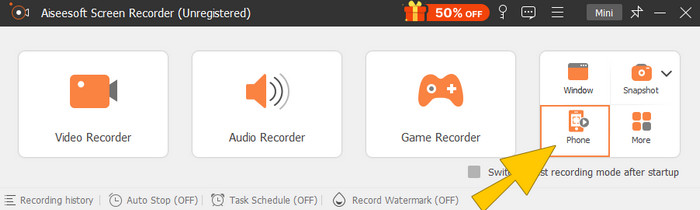
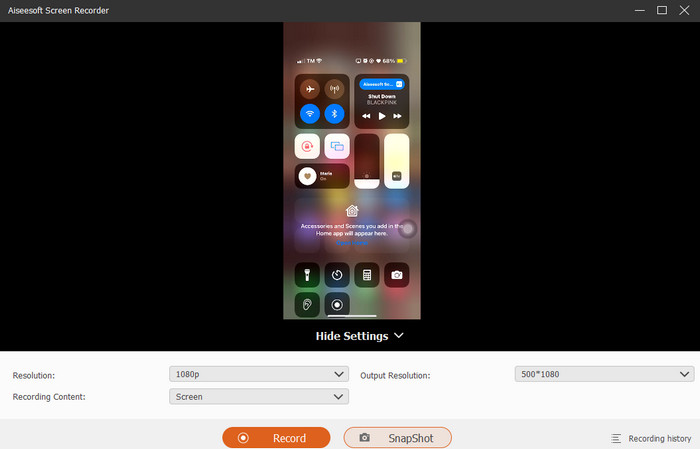
Krok 3. Po připojení nyní můžete kliknout na tlačítko Record. Po dokončení nahrávání klikněte na tlačítko Stop.
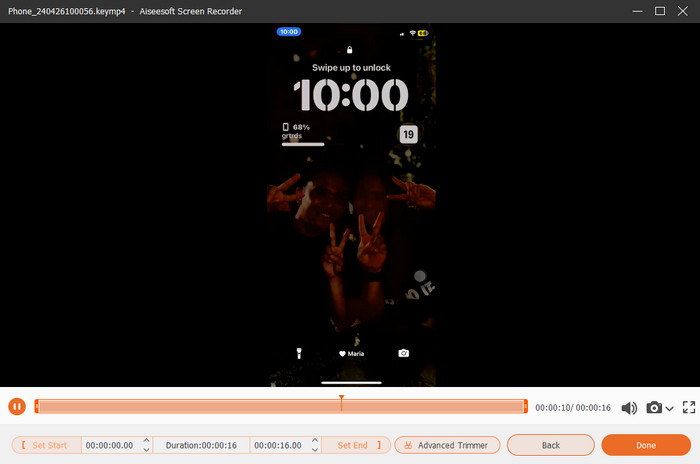
Krok 4. Po dokončení nahrávání vás nástroj přenese do sekce ukládání, kde můžete hrubý záznam upravit. Úpravy zahrnují hlasitost zvuku, ořezání (trimování) a snímání obrazovky. Případně klikněte na tlačítko Done a uložte nahrané MP4.
Část 3. Jak nahrávat MP4 přes Nastavení iPhone
Videa, která natočíte pomocí iPhonu, se obvykle neukládají jako soubory MP4. Pokud je však chcete ve formátu MP4, musíte upravit nastavení, což je pravděpodobně nejjednodušší způsob, jak toho dosáhnout. Ale počkejte, je důležité si uvědomit, že přechod na MP4 může zabrat spoustu úložiště v telefonu. Než tedy vyladíte nastavení, zvažte, zda to stojí za to vyzkoušet. V opačném případě se podívejte na kroky uvedené níže.
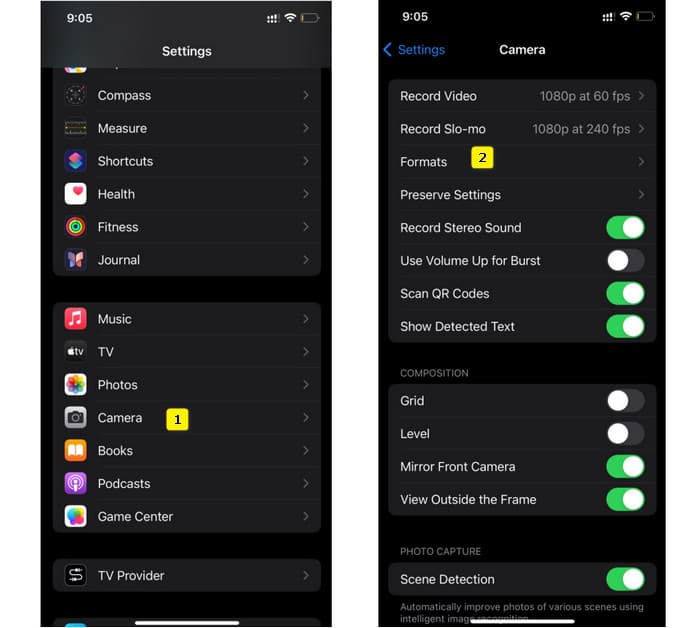
Krok 1. Otevřete na telefonu aplikaci Nastavení, vyhledejte aplikaci Fotoaparát a klepnutím ji otevřete.
Krok 2. Nyní přejděte do části Formát a klepněte na ni. Poté nastavte možnost Nejkompatibilnější (Most Compatibility), aby se jako výchozí používalo MP4.
Krok 3. Poté můžete začít nahrávat obrazovku iPhonu pomocí jeho vestavěného rekordéru obrazovky.
Část 4. Převod nahrávek z iPhone na MP4 online zdarma
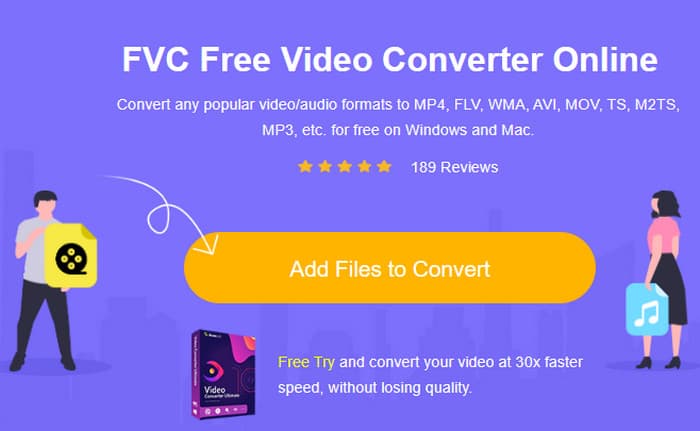
Přiznejme si to, když pro vás přímé nahrávání do MP4 nepřipadá v úvahu, poslední možností je převod. V takovém případě můžete použít bezplatný online konvertor, který vám pro video zajistí snazší a rychlejší řešení. Seznamte se s FVC Free Video Converter Online, bezplatným programem, který vám umožní převádět videa a hudbu do různých formátů. Pracuje s populárními video- a audio soubory a umí je převést do formátů jako MP4, FLV, AVI, WMV, MOV, MKV a mnoha dalších. I videa ve vysokém rozlišení lze převádět rychle a bez ztráty kvality! Můžete také převádět více videí najednou, což vám ušetří spoustu času. Ještě pohodlnější je, že po převodu nebudete muset soubory stahovat zvlášť – stačí si zvolit cílovou složku, do které se výstupy uloží přímo! Vyzkoušejme tedy tento skvělý nástroj a rychle převeďme videa z iPhonu.
Krok 1. V prohlížeči na počítači navštivte oficiální web nástroje. Poté klikněte na tlačítko Add Files to Convert, abyste si stáhli spouštěč. Jakmile je stažen, klikněte na tlačítko znovu a nahrajte videa z iPhonu.
Krok 2. Po přechodu do hlavního rozhraní a v případě, že chcete přidat další videa z iPhonu k převodu, stačí kliknout na tlačítko Add File. Poté nastavte soubory na MP4 tak, že na ně kliknete a dole zvolíte příslušný formát.
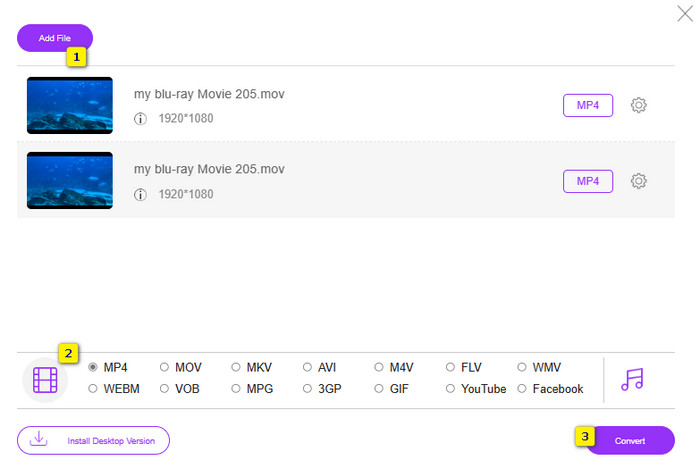
Krok 3. Po dokončení nastavení klikněte na tlačítko Convert a vyberte cílovou složku. Jakmile ji zvolíte, převod se hned spustí.
S pomocí výše uvedených kroků můžete snadno převést iPhonová videa MOV na MP4 zdarma.
Část 5. Často kladené otázky o iPhone MP4 Video Recordings
Mohu upravovat MP4 videa nahraná na mém iPhone?
Ano, můžete upravovat MP4 videa na vašem iPhone. Chcete-li to provést, použijte různé aplikace pro úpravu videa dostupné ve vašem App Store. Jinak můžete videa přenést do počítače a upravit je pomocí profesionálního softwaru pro úpravu videa.
Jak mohu přenést MP4 videa z mého iPhone do PC?
K přenosu videí z iPhone do PC můžete použít několik metod. Můžete použít kabel USB, nahrát videa do cloudového úložiště nebo použít software, který vám je pomůže přenést.
Jakou kvalitu videa a rozlišení nahrává iPhone v MP4?
To závisí na modelu vašeho iPhone. iPhony většinou nahrávají video ve formátu MP4 s různými rozlišeními a možnostmi kvality. Možnosti sahají od standardního rozlišení po vysoké rozlišení a dokonce i 4K u novějších modelů.
Závěr
To jsou metody, které vám poskytnou návod, jak snadno nahrávat MP4 na váš iPhone. Vyberte si, co vám bude nejvíce vyhovovat, a sdílejte to také se svými přáteli!
-
 Jak převést MP4 na MOV na Mac / PC / Online
 Jak převést MP4 na MOV na Mac? Existuje nějaký bezplatný způsob, jak převést MP4 na MOV bez ztráty kvality? Tento příspěvek sdílí 4 jednoduché způsoby, které vám pomohou provést převod videa z MP4 na MOV na počítačích Mac, Windows PC a online.
-
 Výukový program - 4 bezplatné způsoby, jak sloučit videa z iPhone do nového
 Chcete na svém iPhonu spojit videa do jednoho? Přečtěte si a získejte 4 snadné způsoby se všemi podporovanými modely iPhone a verzemi iOS.
-
 [Vyřešeno] Jak opravit videa, která se na iPhone nepřehrávají, pomocí podrobných kroků
 Místní videa v galerii nelze ve výchozím přehrávači videa přehrávat na vašem iPhone? Online videa z YouTube, která se na iPhonu nepřehrávají, se vždy stanou? Zde je 5 řešení, která vám v tomto článku pomohou.
