


 Video Converter Ultimate
 Screen Recorder
 Oprava videa
 Bezpečné stažení
Jak tisknout fotografie HEIC s vysoce kvalitním obrazovým výstupem za minutu
Přestože má Apple menší podporu pro jiná zařízení, stále deklaruje, že bude používat formát HEIC k pořízení rychlé fotky a uložení snímku jako hyperspektrálního obrázku, který vás nebude nic stát, ale ušetří vám místo. Pokud však chcete daný snímek vytisknout, zobrazit nebo přenést na jiné zařízení, které není od Apple, zobrazí se vám pouze upozornění, že formát není podporován. Jestliže ale používáte Mac, můžete se rychle naučit, jak tisknout fotografie HEIC se stejnou kvalitou, jakou máte u původního souboru. Chcete‑li znát jednotlivé kroky, jak je vytisknout, pokračujte ve čtení následujících informací.

Část 1. 2 efektivní způsoby, jak tisknout fotografie HEIC na Mac
Když zkoumáme a zkoušíme, jak tisknout fotografie HEIC na Macu, všimli jsme si, že existují dva způsoby, jak vytvořit tištěnou kopii souboru HEIC bez převodu formátu. Pokud tedy chcete vědět, jak vytvořit tištěnou kopii obrazu HEIC, který máte, musíte pokračovat ve čtení dvou níže uvedených metod.
Než přistoupíte ke krokům, zkontrolujte, zda je tiskárna správně nainstalována v počítači Mac, a vyřešte problém. POKUD je vše připraveno a připraveno, musíte nyní pokračovat.
1. metoda: Použití klávesové zkratky
Pokud chcete méně klikání, musíte k tisku obrázku na Macu použít klávesovou zkratku. Postupujte podle kroků a kláves, na které klikneme b, abyste bez námahy vytiskli soubor HEIC na svém počítači Mac.
Krok 1. Klikněte na soubor HEIC uložený ve vašem Macu a otevřete jej.
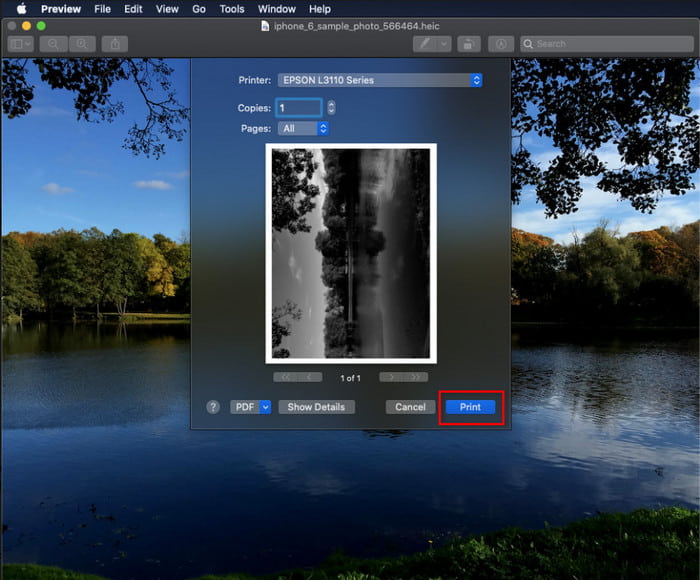
Krok 2. Po otevření souboru stiskněte na klávesnici klávesy Command + P.
Krok 3. V dialogovém okně tisku uvidíte náhled obrázku a můžete upravit nastavení tisku; kliknutím na Tisk vytvoříte papírovou kopii obrázku HEIC ve vysoké kvalitě.
2. metoda: Pomocí nabídky Soubor
Pokud si myslíte, že klávesová zkratka vám nemůže pomoci vytisknout dokument, musíte zkusit použít nabídku Soubor. Pomocí této nabídky můžete snadno kliknout na tlačítko tisku a provést nějaké změny, než budete mít tištěnou kopii obrázku HEIC. Začněme tisknout HEIC, který máte na svém macOS, bez použití klávesových zkratek bez dalších okolků.
Krok 1. Než začnete cokoli dělat, otevřete soubor HEIC na svém Macu.
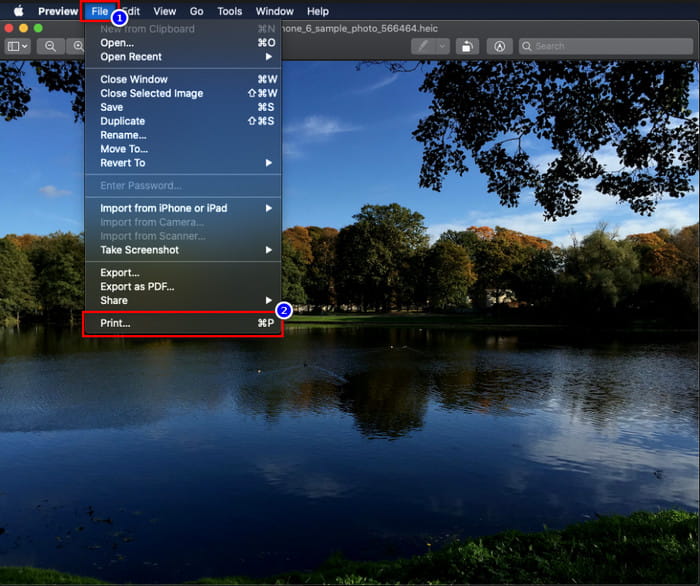
Krok 2. V horní části okna klikněte na nabídku Soubor a na obrazovce se zobrazí seznam možností. Nyní zvolte poslední možnost, a tou je Tisk.
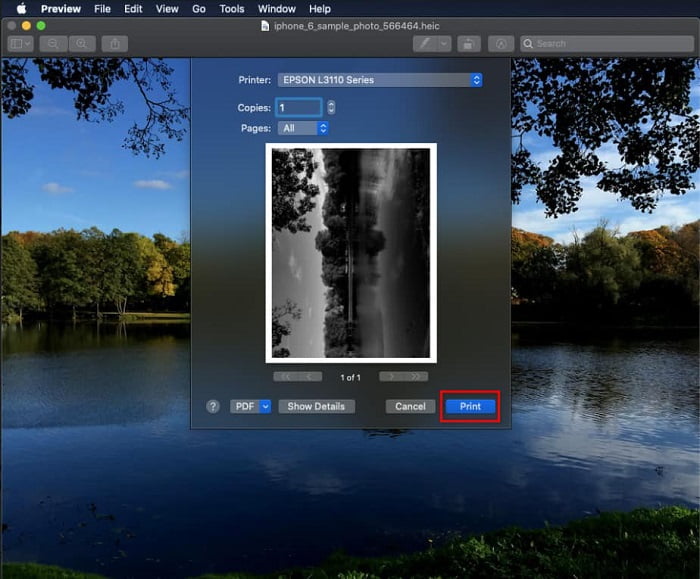
Krok 3. Na obrazovce se nyní otevře tiskový dialog. V jeho střední části uvidíte ukázku vašeho souboru HEIC tak, jak bude vypadat jako papírová kopie, a na druhé straně můžete provést drobné úpravy před samotným tiskem. Jakmile máte vše nastaveno, klikněte na Tisk a spusťte tisk dokumentu.
Část 2. Proč nemohu nahrát své fotografie HEIC k tisku?
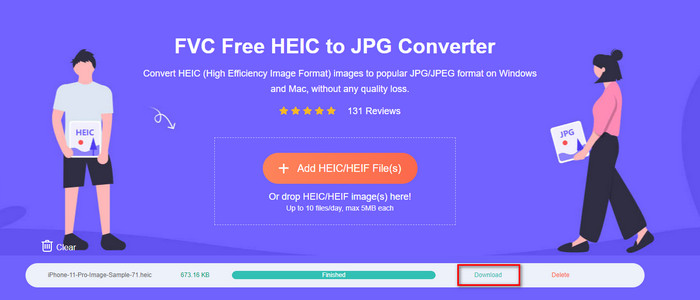
Patříte mezi uživatele, kteří mají potíže s prací se souborem HEIC, protože si z něj nemohou udělat papírovou kopii? V takovém případě vám představíme konkrétní webový nástroj, který vám může pomoci problém vyřešit: FVC Free HEIC to JPG Converter. Tento webový nástroj dokáže snadno převést váš HEIC na JPG. Po změně formátu na JPEG můžete soubor bez obtíží nahrát k tisku, protože tento formát je mnohem rozšířenější než HEIC. Přestože jste omezeni na deset konverzí denně o velikosti do 5 MB, i s těmito omezeními jde o spolehlivý online převodník. Neztrácejme tedy čas a podívejme se na kroky, jak používat nejlepší open‑source webový převodník, který máte na dosah.
Krok 1. Kliknutím na tento odkaz otevřete webový převodník a automaticky se vám otevře nová karta.
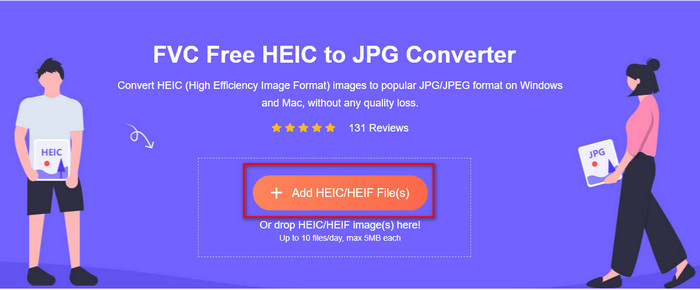
Krok 2. Vložte soubor HEIC kliknutím na toto tlačítko, v počítači vyhledejte požadovaný soubor HEIC a kliknutím na Otevřít jej kompletně nahrajte.
Krok 3. Proces převodu se brzy spustí a po jeho dokončení klikněte na Stáhnout, abyste soubor uložili do počítače. Nyní je připraven k tisku a můžete si stejně snadno vytvářet papírové kopie obrázků HEIC na tiskárně ve stejné kvalitě jako u původního souboru, jen v jiném formátu.
Část 3. Nejčastější dotazy o tisku fotografií HEIC
Mohu tisknout fotografie HEIC v systému Windows?
Windows bohužel nepodporuje HEIC, takže to znamená, že nemůže vytvořit tištěnou kopii vysoce kvalitního HEIC. Ale neztrácejte naději, protože ve druhé části zahrnujeme způsob, jak převést HEIC do rozpoznatelného formátu JPEG. Můžete si jej volně přečíst, abyste věděli, jak to udělat, a poté vytisknout soubor HEIC, který máte v systému Windows, ale přípona souboru je jiná.
Proč tiskárna nerozpozná HEIC?
Kvůli kompresi a struktuře tohoto formátu sice dokáže uchovat vysoce kvalitní snímky v menších souborech, menších než JPEG, ale stále je obtížně rozpoznatelný, protože je na trhu poměrně nový. Pořád jej však můžete převést na nejkompatibilnější obrazový formát, který bez problémů rozpozná každá tiskárna, totiž na JPEG – dosud nejpoužívanější formát pro fotografie ve vysokém rozlišení. Pokud potřebujete převodník, jeden jsme uvedli výše, ale můžete kliknout na tento odkaz a podívat se na další nástroje, které můžete použít k převodu HEIC na JPEG; všechny jsme pro vás zrecenzovali.
Co je soubor HEIC?
Formát HEIC vyvinula skupina Moving Picture Expert Group jako možný nástupnický standardní obrazový formát namísto JPEG či JPG. Přestože vyvinuli oba formáty, stále se od sebe liší. Pokud se chcete dozvědět více o tom, co je HEIC, klikněte na tento odkaz a přečtěte si podrobnosti, které jsme pro vás zjistili.
Závěr
Takže teď, když máme nápad, jak vytisknout fotografie HEIC pomocí výše uvedených kroků, je možné, aby si každý uživatel Macu vytvořil jejich tištěnou kopii. Pokud však používáte systém Windows, nemůžete na své tiskárně vytisknout jeden obrázek HEIC, protože tento formát není ve Windows podporován. To však neznamená, že ztratíte naději na vytištění obrázku HEIC. I když vám nemůžeme pomoci vytisknout původní soubor HEIC, je stále možné, pokud formát nejprve převedete na JPEG/JPG, než jej publikujete.
Ve druhé části uvádíme nejlepší online převodník HEIC na JPG, ke kterému máte přístup na webu, a navíc neobsahuje virus. Stále si nejste jisti, zda dokáže správně převést? Tak proč to nezkusit kliknutím na tento odkaz? Určitě budete ohromeni, protože tento nástroj dokáže bez námahy převést soubory HEIC, které máte.
-
 Převeďte HEIC do PDF pomocí 4 nejlepších vylepšených způsobů v roce 2022
 Chcete-li se dozvědět více informací o nejlepším převodníku HEIC na PDF, můžete si stáhnout tento 2022. Tento článek si můžete přečíst, protože jsme na ně poskytli recenzi.
-
 5 nejlepších převaděčů HEIC do JPG tohoto roku 2022
 S převodníkem HEIC na JPC můžete snadno změnit formát obrázku na přenosný JPG. Chcete vědět, co je těchto 5 nástrojů? Přečtěte si tento článek.
-
 Nejlepší bezplatný a placený převodník HEIC, který musíte znát [aktualizováno 2022]
 Chcete vědět, co je převodník HEIC? Pokud ano, uvádíme 5 nejlepších bezplatných a placených převodníků HEIC, které můžete použít ke změně formátu HEIC.
