


 Video Converter Ultimate
 Screen Recorder
 Oprava videa
Jednoduché způsoby, jak rychle přidat obrázek do videa v iMovie
Přidávání obrázků do videa se stalo jedním z nejlepších způsobů, jak předat sdělení publiku ještě lépe. Většina video editorů vám umožní rychle překrýt obrázek přes video a pokud jste uživatel Apple, možná jste se už setkali s iMovie. Je známý jako jeden z nejlepších editorů, které můžete na svém zařízení Apple používat. Mnoha běžným uživatelům Apple ale přijde práce v iMovie náročná, protože s ním ještě nemají zkušenosti. Pokud jste tedy stejný uživatel Apple, který má s používáním iMovie potíže a chce do videa přidat obrázek, přečtěte si tento článek – naučit se jak přidat obrázky do videa v iMovie je jednoduché, když si přečtete podrobnosti níže.

Část 1. Jak překrýt obrázek na videu v iMovie [Mac]
Pokud máte iMovie na Macu, můžete jej použít a přidat obrázek do videa. Pokud se tedy nyní chcete naučit, jak vložit fotografii na video iMovie, níže uvedené kroky vám pomohou.
Krok 1. Vyhledejte iMovie ve Finderu a kliknutím jej otevřete.
Krok 2. V levém horním rohu iMovie klikněte na tlačítko Import a snadno naimportujte video a obrázek. Přetáhněte a umístěte vložený mediální soubor na časovou osu (Timeline).
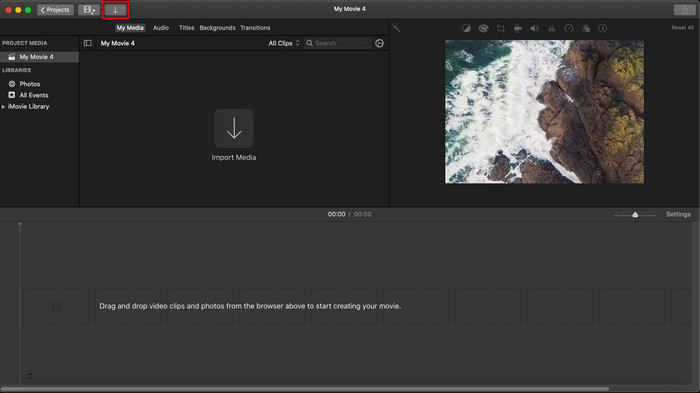
Krok 3. Upravte vložený obrázek a jeho délku zobrazení. Poté klikněte na Export, abyste soubor stáhli do počítače.
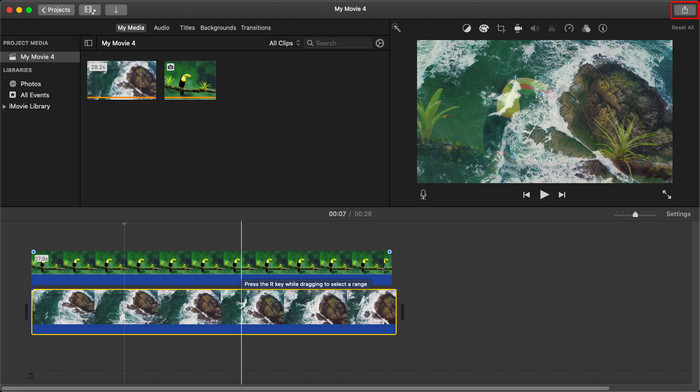
Kroky, které jsme zde představili, vycházejí z praktických zkušeností s používáním iMovie. Kroky se mohou lišit, pokud je k dispozici aktualizace nástroje nebo v krátké době dojde k nějakým změnám.
Část 2. Jak vkládat fotografie do videa pomocí iMovie [iOS]
Co když používáte zařízení iOS a chcete použít iMovie jako editor pro přidání obrázku do videa? Je to možné? No, ano, je. Můžeme vás naučit, jak vložit obrázek do videa iMovie na iPhone, když si přečtete podrobnosti níže s kroky, které jsme vám poskytli.
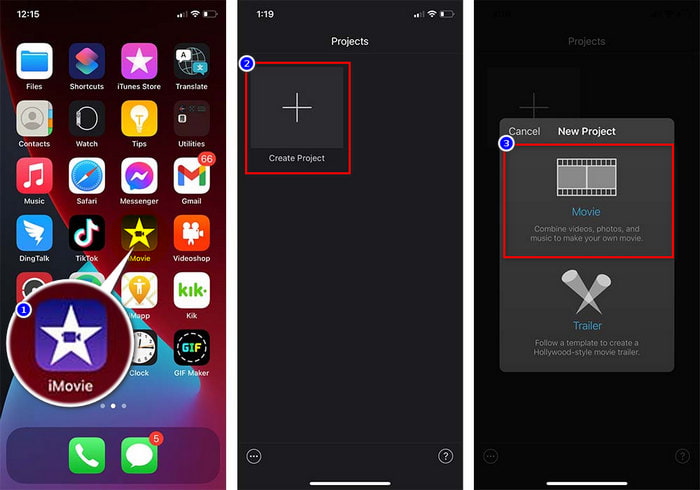
Krok 1. Spusťte aplikaci iMovie na svém zařízení iOS, klikněte na Create Project a potom na Movie. Přidejte video, které máte v knihovně.
Krok 2. Klikněte na tlačítko + pro přidání obrázkového vodoznaku do videa. Vyhledejte jej v knihovně, klikněte na něj, stiskněte tři tečky a poté zvolte Green/Blue Screen. Klepněte na obrázek a pozadí se automaticky odstraní.
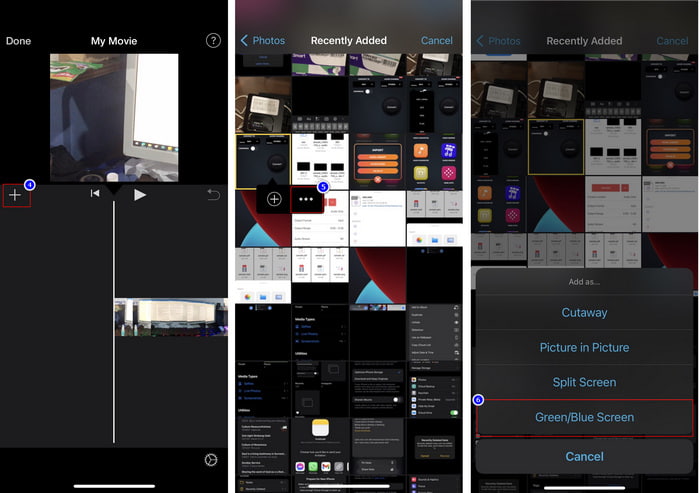
Krok 3. Stiskněte Done, klikněte na Export a pak na Save Videos.
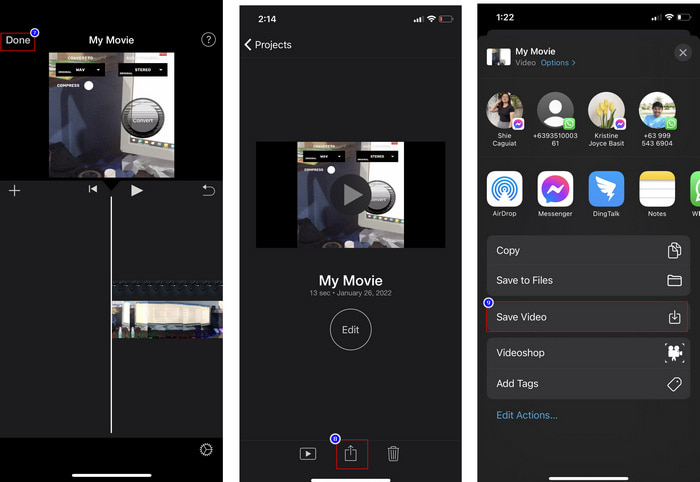
Všechny kroky, které jsme zde představili, vycházejí z praktických zkušeností s používáním iMovie na iOS. Některé kroky se však mohou změnit, pokud brzy dojde k aktualizaci aplikace editoru.
Část 3. Nejjednodušší řešení pro vložení fotografie do videa s nejlepším softwarem pro vodoznak pro video na Macu
Máte stejné potíže s přidáváním fotografií do videa v iMovie? Zkuste použít Video Converter Ultimate, protože tento nástroj je nejlepší alternativou k iMovie. Jeho celkový výkon si pochvalují miliony uživatelů, kteří jej už vyzkoušeli. I když mají ve videu různé problémy, stále volí tento ultimátní nástroj k jejich vyřešení. S tímto nástrojem navíc můžete dělat téměř vše, co souvisí s videem, jako je stříhání, přidávání obrázků, slučování, ořezávání atd. Ať už je problém jakýkoli, tady najdete komplexní řešení. Chcete problém vyřešit? Postupujte podle kroků, které níže uvádíme, aby se vám vše snadno sledovalo.
Funkce:
◆ Dokonalý nástroj podporuje více formátů, takže nahrání formátu nebude obtížné.
◆ Podporuje snadno srozumitelné rozhraní pro rychlé přidání obrázků do libovolného videa během několika sekund.
◆ Podporuje různé platformy jako Mac a Windows, aby si uživatelé mohli užívat na všech platformách.
Krok 1. Nástroj si můžete stáhnout kliknutím na tlačítko pro stažení níže, poté jej rychle nainstalujte a po instalaci otevřete.
Zdarma ke staženíPro Windows 7 nebo novějšíBezpečné stažení
Zdarma ke staženíPro MacOS 10.7 nebo novějšíBezpečné stažení
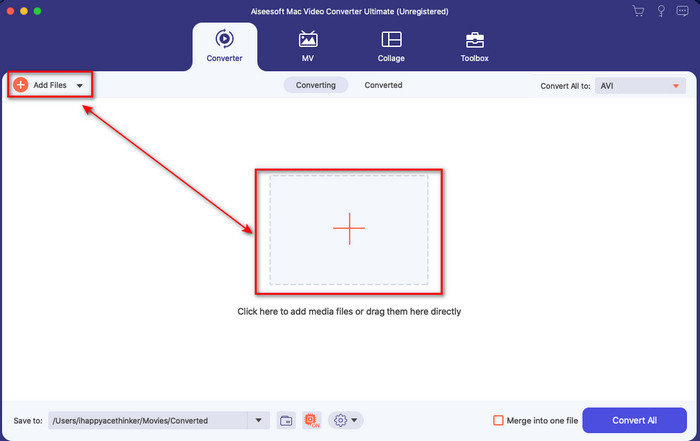
Krok 2. Po otevření klikněte na zobrazené tlačítko + pro import video souboru. Následně se otevře složka, ve které vyberte video soubor a klikněte na Open.
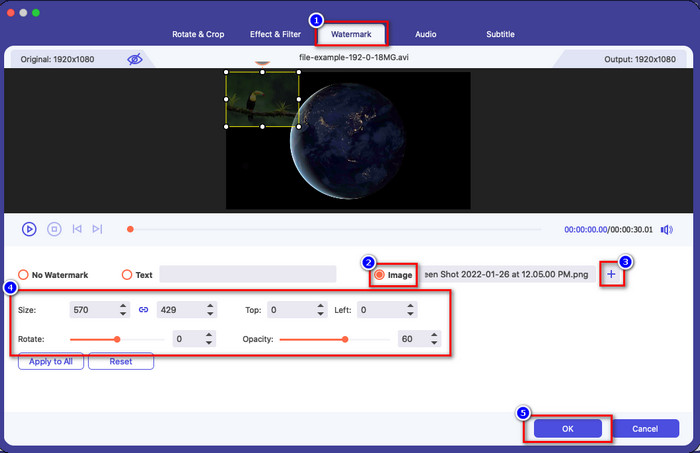
Krok 3. Stiskněte tlačítko s hůlkou pro otevření okna úprav převodníku. Přejděte na Watermark, klikněte na obrázek a poté stiskněte add pro nahrání obrázku. Také můžete upravit průhlednost (opacity) obrázku nebo jej otočit (rotate) podle svých potřeb a pro použití změn klikněte na OK.
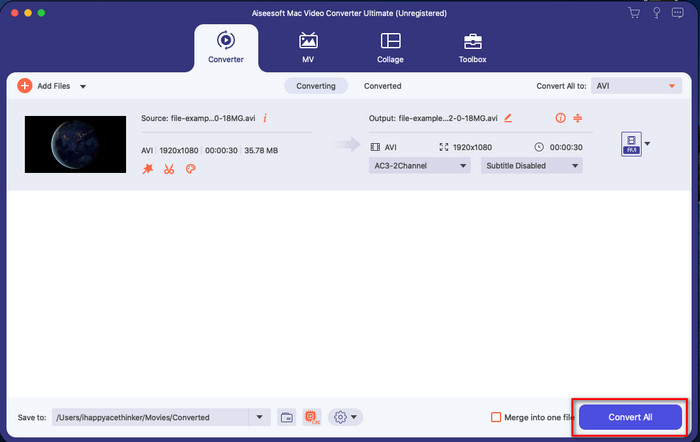
Krok 4. Klikněte na tlačítko Convert All pro export video souboru. Po dokončení exportu se uloží do složky v počítači a stejně snadno tak budete mít na svém videu obrázkový vodoznak. Věříte teď schopnostem Video Converter Ultimate? Přidali jste obrázkový vodoznak do videa tak rychle, jak je to jen možné.
Související:
Část 4. Časté dotazy o přidávání fotografií do videa v iMovie
Existují nějaká omezení počtu obrázků přidaných do videí iMovie?
Doposud jsme nezaznamenali žádné nepříjemnosti při přidávání více obrázků do videa při používání iMovie. Pokud však do videa přidáte příliš mnoho obrázků, proces exportu nějakou dobu trvá, ale podle zkušeností se nezhroutí.
Jaké formáty obrázků mohu použít v iMovie?
IMovie podporuje mnoho formátů statických obrázků, jako jsou BMP, PNG, JPG nebo JPEG, HEIF, PSD, RAW TIFF a TGA, ale pokud chcete animovaný obrázek, můžete použít GIF. Přestože je těchto formátů mnoho, stále nepodporuje všechny formáty obrázků jako EXIF, WebP a podobně.
Proč bych měl používat iMovie?
Pro uživatele Apple je iMovie jednou z nejlepších možností, jak vytvořit krátký film, reklamu, vlogy a další; všechny tyto jsou zdarma. Editor poskytuje částečně pokročilé rozhraní, které uživatelům pomáhá mít praktickou zkušenost s tím, jak pokročilé rozhraní nebo nástroj vypadá. Také software je méně technický, ale je specializovaný. Není obvyklé vidět editor, který poskytuje méně technický způsob použití, ale může vám pomoci být profesionálem a přidat některé pokročilé nástroje se specializovanými technikami.
Závěr
Nakonec můžeme říci, že už máme dostatek znalostí k tomu, abychom snadno přidali fotografie do videa v iMovie. S nejlepším nástrojem na Apple zařízeních zde zvládnete i složitější úpravy. Ne všechny funkce, které potřebujete, však v iMovie najdete, ale můžete použít Video Converter Ultimate jako snadno použitelný editor na všech platformách. Možná si říkáte, proč byste měli používat právě tento ultimátní nástroj? Při diskusi o tomto nástroji není třeba mnoho vysvětlování, protože jsme výše předložili dostatek důkazů. Co byste tedy měli udělat? Klikněte na tlačítko pro stažení, vyzkoušejte si nástroj na vlastní kůži a tento problém vyřešte.
-
 5 nejvybranějších aplikací pro záznam zvuku v systémech Android a iOS [2022 aktualizováno]
 Nevíte, jakou aplikaci pro záznam zvuku byste měli použít? Pokud ano, tento článek vám pomůže vybrat, která aplikace vám pomůže s úkolem nahrávání zvuku.
-
 Hlasová poznámka na iOS – klady, zápory, funkce a 4 nejlepší náhrady
 Co je Voice Memo? Je to nejlepší audio rekordér na iOS? Hledáte odpověď na tuto otázku? Chcete-li se dozvědět více, přečtěte si celý rozsah tohoto článku.
-
 7 nejnovějších bezplatných převodníků MOD pro změnu souboru MOD na nový formát
 Jaké jsou MOD převodníky, které můžete použít? Myslíš na stejnou otázku? Takže tady jsme, poskytujeme sedm nástrojů, které můžete použít k převodu souborů MOD.
